
Introduction
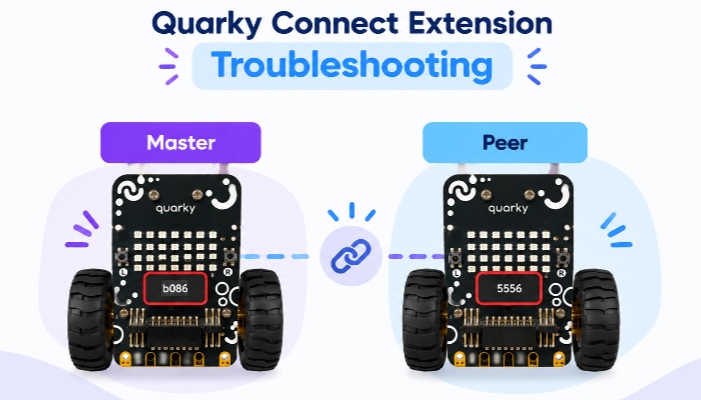
The Quarky Connect extension allows multiple Quarky devices to communicate wirelessly using ESP-NOW. It does not require a Wi-Fi router or an internet connection.
A typical setup has two roles:
- Master Quarky: Sends commands to one or more Peer Quarkys.
- Peer Quarky: Receives commands from the Master Quarky and performs the programmed actions.
The Master can operate in Stage Mode or Upload Mode, while the Peer receiver program works in Upload Mode.
Most Quarky Connect issues are related to this sequence:
Firmware → Quarky Name/ID → Peer Program → Connection → Command
Before You Start Troubleshooting
Before troubleshooting an individual problem, complete these basic checks.
1. Check PictoBlox Version
- Make sure you are using PictoBlox 9.1.0 or later.

2. Check Quarky Firmware
Quarky must have the latest supported firmware (6.0 or later). Older firmware does not support Quarky Connect.
- To check the version, see “How to Check the Firmware Version on Quarky?” in the Quarky Firmware Troubleshooting guide.
- To update it, see “How to Update the Firmware on Quarky?” in the same guide, or “Updating Quarky Firmware” in the Quarky Firmware Troubleshooting guide.
3. Check Power
- Every Quarky is switched ON and sufficiently charged.
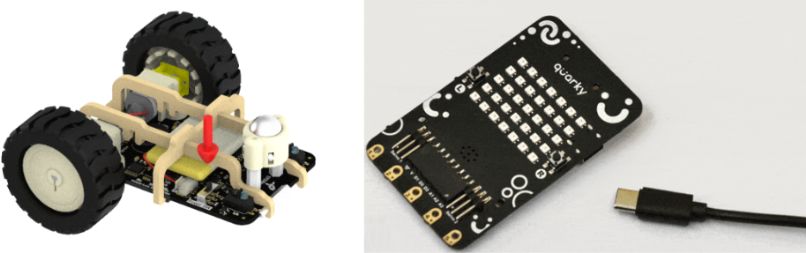
4. Check the Quarky Board Connection
- Make sure the correct Quarky board is selected and connected correctly in PictoBlox.
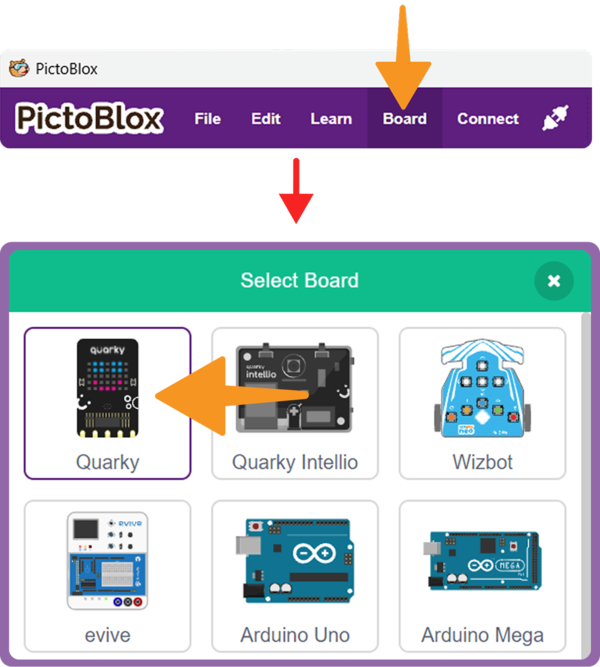
- For connection steps, refer to the “Connecting Quarky to PictoBlox” section in the Quarky Firmware Troubleshooting guide.
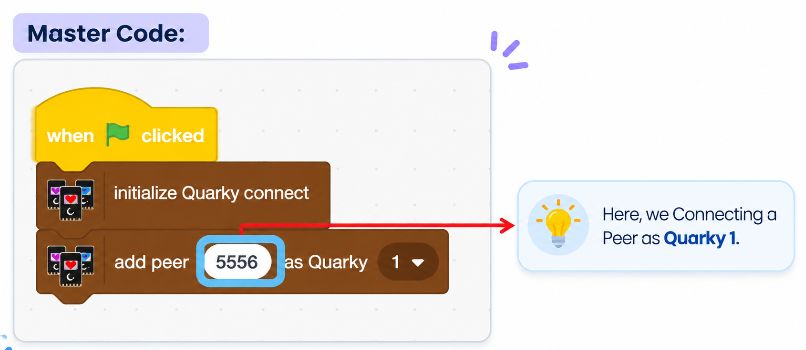
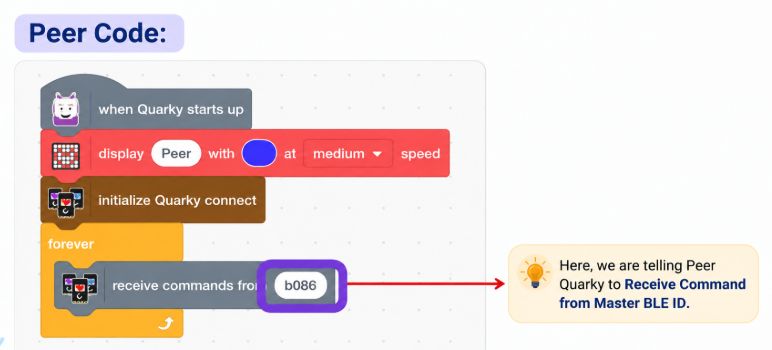
5. Understand the Master–Peer Setup
The Master and Peer must reference the correct Quarky names/IDs:
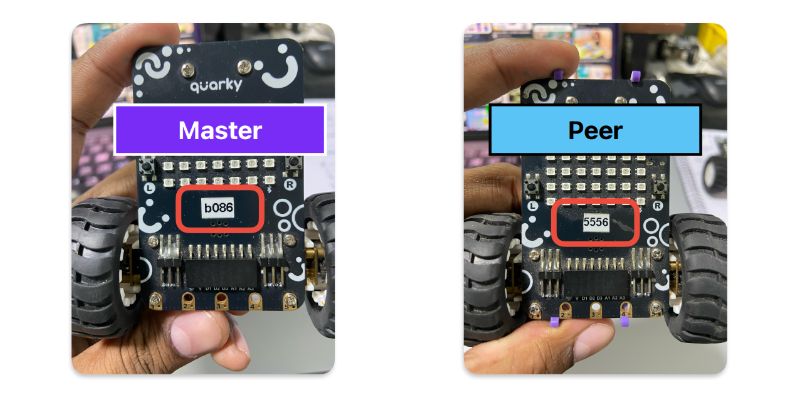
- The Master program contains the name/ID of the Peer it controls.
- The Peer program contains the name/ID of the Master it listens to.
6. For Master–Peer Connection Setup
For the complete Master and Peer setup, follow the video tutorial How to Connect Multiple Quarky Robots using PictoBlox | Quarky Connect Tutorial:
You can also follow “Peer Receiver Quarky Setup” and “Master Controller Quarky Setup” in the Quarky Joystick Controller using the Quarky Connect example.
Quarky Connect Is Not Initialising
Problem: “I used the Initialise Quarky Connect block, but Quarky Connect is not starting.”
Why Does This Happen?
Quarky Connect must initialise ESP-NOW communication before the Master and Peer can communicate.
How to Fix It
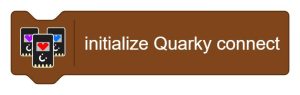
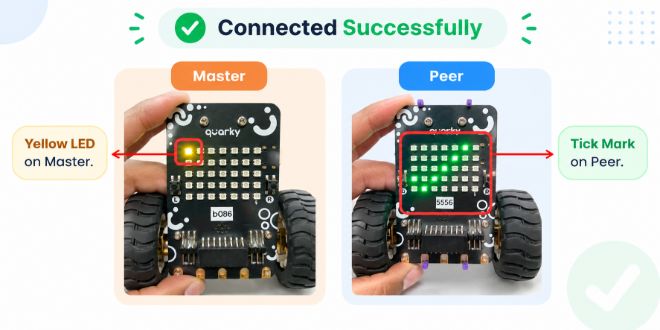
After running the Initialise Quarky Connect block, Quarky should show a yellow flash.
This indicates that Quarky Connect communication has started.
If the yellow flash does not appear:
- Please refer to the Before You Start Troubleshooting section and ensure that all the checks in this section are completed.
- Run the Initialise Quarky Connect block again.
- Look for a yellow flash on Quarky. It means Quarky Connect has started successfully.
Master and Peer Quarky Are Not Connecting
Problem: “My Master Quarky cannot connect to my Peer Quarky.”
Why Does This Happen?
The Master and Peer may not be configured with the correct Quarky names/IDs.
How to Fix It
Please refer to the Before You Start Troubleshooting section and ensure that all the checks in this section are completed.
Then verify:
- The Peer name/ID entered in the Master program is correct.
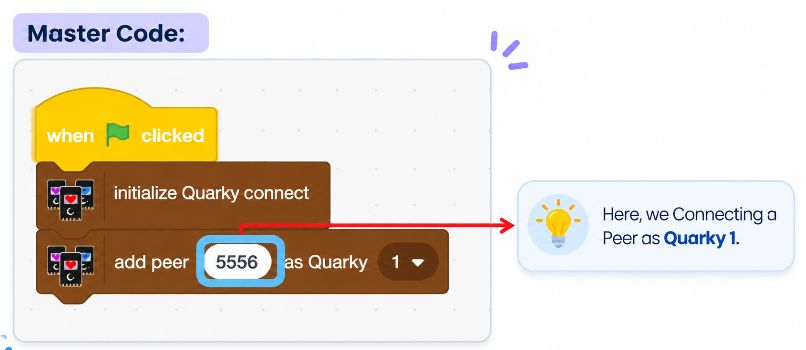
- The Master name/ID entered in the Peer program is correct.
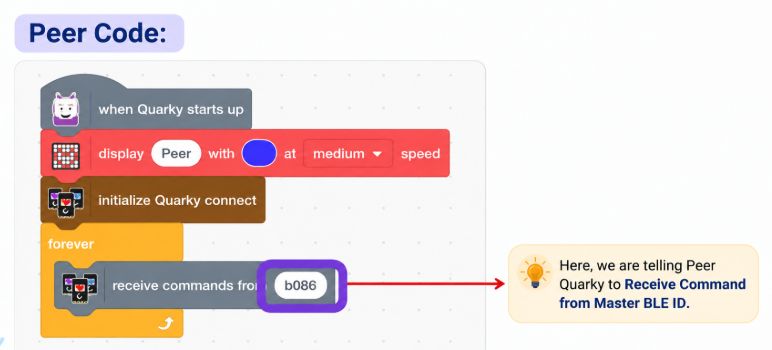
- The Peer program has been uploaded correctly.
Refer to the Quarky Connect video for the complete Connection and code upload of Master Quarky and Peer Quarky.
Red Cross Appears While Adding a Peer
Problem: “A red cross appears when I try to add a Peer Quarky.”
What Does It Mean?
The Master cannot communicate with the selected Peer.
Common Causes
- Peer Quarky is switched OFF.
- Incorrect Peer name/ID is entered.
- Peer program has not been uploaded.
- Peer is not running in Upload Mode.
- Quarky Connect has not been initialised.
How to Fix It
Please refer to the Before You Start Troubleshooting section and ensure that all the checks in this section are completed.
- Check the Peer Quarky’s name/ID.
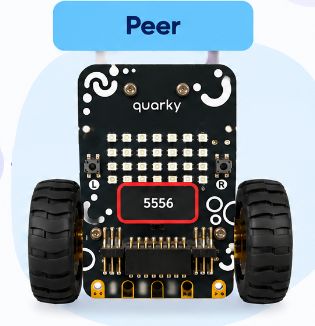
- Verify the Peer program.
- Upload the Peer program in Upload Mode.
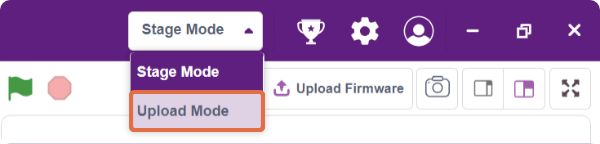
- Restart both Quarkys, initialise Quarky Connect again, and re-add the Peer.
How Do I Know If the Master and Peer Are Connected?
Problem: “How can I confirm that my Master and Peer Quarkys are connected?”
The connection indicators show the current connection status.
| Indicator | Meaning | What to Do |
| Yellow LED | Peer is successfully connected | Quarky is ready to receive commands |
| Red LED | Peer is disconnected, or connection is lost | Check the connection and reconnect |
| No indication | Quarky Connect is not initialised | Check initialisation |
If the connection indicator does not appear, first complete the checks under Before You Start Troubleshooting.
If the indicators do not appear or the LED is red:
- Please refer to the Before You Start Troubleshooting section and ensure that all the checks in this section are completed.
- Verify the Master and Peer names in code and ensure that the Peer programs were uploaded correctly. Please refer to the section Master and Peer Quarky Are Not Connecting.
- Restart both Quarkys and connect again.
Red Cross Appears When Sending a Command
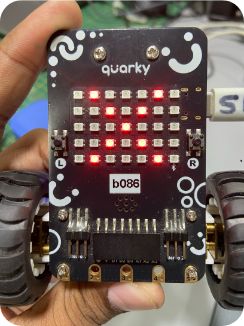
Problem: “The Peer was connected, but a red cross appears when I send a command.”
Why Does This Happen?
The Master may be sending the command to:
- A Peer that is no longer connected, or
- The wrong Quarky number.
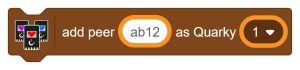
For example, if a Peer was registered as Quarky 1, commands to that Peer must use Quarky 1.
How to Fix It
- Please refer to the Before You Start Troubleshooting section and ensure that all the checks in this section are completed.
- Use the same Quarky number in the command block.
- If required, reinitialise Quarky Connect and add the Peer again.
Peer Quarky Is Connected but Does Not Respond
Problem: “The Peer Quarky shows as connected, but it does not perform the command.”
Cause 1: The Peer Is Not Continuously Listening
The Peer must continuously listen for commands from the Master.
How to Fix It
Make sure:
- Please refer to the Before You Start Troubleshooting section and ensure that all the checks in this section are completed.
- The Receive Commands block is inside a forever loop.
- The Peer must have the Master’s name in its Receive Commands block (refer to the Master and Peer Quarky Are Not Connecting section).
- The command must go to the number assigned to that Peer (refer to the Red Cross Appears When Sending a Command section).
Cause 2: Incorrect Master Name/ID
Check that the Peer is listening for the correct Master.
Cause 3: Incorrect Quarky Number
If the Peer was registered as Quarky 1, the Master must send commands to Quarky 1.
Peer Quarky Stops Working After Disconnecting the Computer
Problem: “My Peer Quarky works while connected to PictoBlox but stops after I disconnect the computer.”
Why Does This Happen?
The Peer receiver program needs to run in Upload Mode, so it continues running directly on Quarky.
The Master can operate in Stage Mode or Upload Mode, but the Peer receiver program is designed for Upload Mode.
How to Fix It
-
Please refer to the Before You Start Troubleshooting section and ensure you complete all checks in this section.
-
Open the Peer program and upload it using USB. Please refer to the Before You Start Troubleshooting section.
- Restart the Peer and run the Master program.
The Wrong Peer Quarky Responds to My Command
Problem
“I send a command to one Peer Quarky, but another Peer responds.”
Why Does This Happen?
Each Peer is assigned a Quarky number when it is added to the Master.
For example:
| Quarky Name/ID | Assigned Number |
| dc92 | Quarky 1 |
| a134 | Quarky 2 |
| 78bf | Quarky 3 |
If the mapping is incorrect, the command may be sent to the wrong Quarky.
How to Fix It
- Please refer to the Before You Start Troubleshooting section and ensure you complete all checks in this section.
- Note the name/ID of every Peer and assign each Peer a unique Quarky number.
- Keep the same mapping throughout the Master program.
Quarky Connect Connection Drops During Use
Problem: The Master and Peer connect at first, but the connection drops after some time.
Possible causes
- Low battery, which can cause unexpected restarts, connection loss, irregular movement, or unstable operation. Charge both the Master and the Peer.
- Incorrect device pair. If Quarkys were swapped, reprogrammed, or relabelled, check their names and numbers again. Please refer to the The Wrong Peer Quarky Responds to My Command section.
How to fix it
For fixed Master–Peer systems such as the Quarky Console and Robo Soccer Robot, use this startup sequence:
- Please refer to the Before You Start Troubleshooting section and ensure you complete all checks in this section.
- Wait until the connection indicators appear (refer to Problem 4).
- Please refer to the How Do I Know If the Master and Peer Are Connected section.
Robot Moves Jerkingly When Using an Expansion Board or Add-on
Problem: “My robot moves with jerky or shaky movements when using motors, servos, an Expansion Board, or an add-on.”
Why Does This Happen?
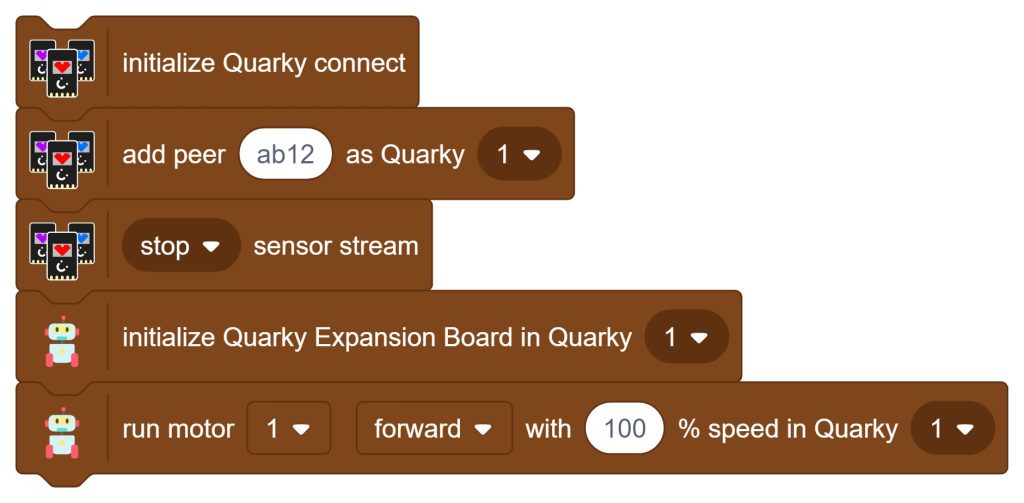
When Sensor Stream is enabled, Quarky continuously sends sensor data between the Master and Peer. When motors, servos, or Expansion Board actions are also being controlled, this communication can affect movement smoothness.
How to Fix It
- Please refer to the Before You Start Troubleshooting section and ensure you complete all checks in this section.
- Locate the Sensor Stream block and Set Sensor Stream to Stop.
- Place it before the Expansion Board or add-on commands.
- Run the program again.
Recommended sequence:
 Key Notes
- Quarky Connect uses ESP-NOW and needs no Wi-Fi router or internet.
- The Master works in Stage Mode or Upload Mode. The Peer works only in Upload Mode.
- The Master program holds the Peer’s Quarky name. The Peer program holds the Master’s name.
- Keep the Receive Commands block inside a forever loop in the Peer.
- Map Quarky names to Quarky numbers carefully when using multiple Peers.
- Test one Peer successfully before adding more robots.
- If the wireless command works but the physical action is wrong, troubleshoot the hardware separately.
STEMpedia Contact Us
For additional support, visit the STEMpedia Contact Us page.