

Quarky Intellio I2C Communication

INT I2C Communication Extension
Extension Description
Learn how to use Intellio as an I2C Master or Slave in PictoBlox. Send and receive data between Quarky, Intellio, sensors, expansion boards, and other I2C devices.

Introduction

The Quarky Intellio I2C Communication Extension allows Intellio to exchange data with other boards and I2C-compatible devices through the SDA and SCL lines.

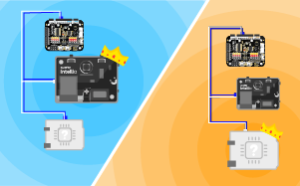
Unlike Quarky, which supports only Master operation in this extension, Intellio can work as either a Master or a Slave.

This makes configurations such as the following possible:

  • Intellio Master → Intellio Slave
  • Quarky Master → Intellio Slave
  • Intellio Master → multiple sensors
  • Intellio Master → expansion boards
  • Multiple I2C devices sharing one bus

What Is I2C Communication?

I2C is a short-distance digital communication method that connects devices using:

  • SDA: Serial Data
  • SCL: Serial Clock

A single bus can support one Master and multiple Slaves, provided each Slave uses a unique address.

Master Mode

When Intellio works as the Master, it:

  • Starts communication
  • Generates the clock
  • Selects the Slave address
  • Sends data
  • Requests data from Slaves

Slave Mode

When Intellio works as a Slave, it:

  • Waits for the Master
  • Listens for its assigned address
  • Receives data
  • Returns data when requested

I2C Addresses

Every Intellio configured as a Slave must have a unique address.

For example:

0x08

If several Slaves share the same SDA and SCL lines, each must use a different address to avoid communication conflicts.

Accessing the I2C Extension in PictoBlox

Step 1: Open PictoBlox and select the Block Coding environment.
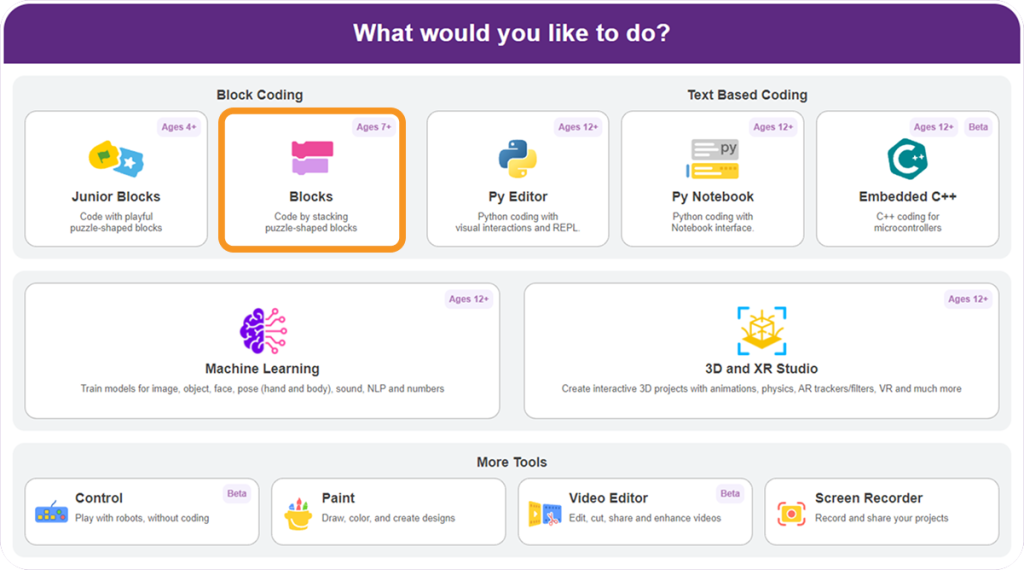
Select Block Coding in Pictoblox

Step 2: Select Quarky Intellio as the board.
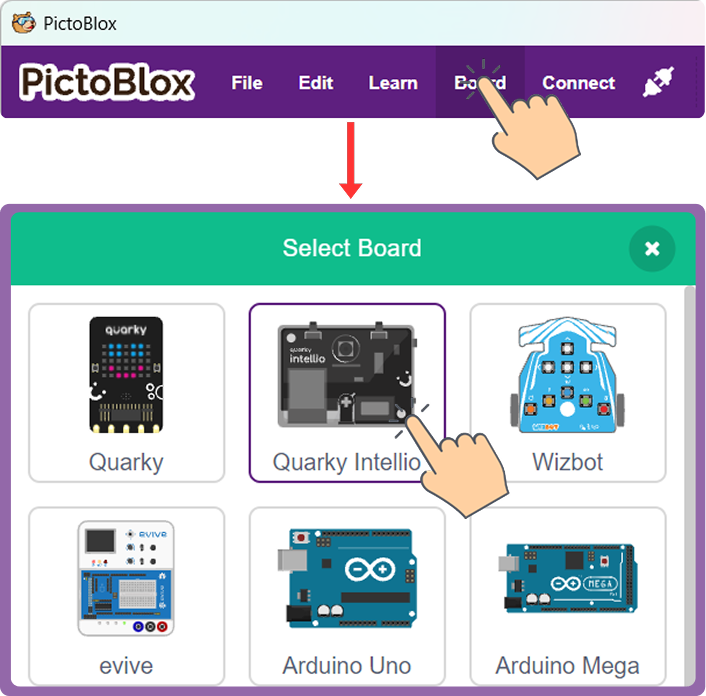
Go to the Board and select Quarky Intellio

Step 3: Click on the Add Extension button from the bottom left corner of the Blocks Palette.

Step 4:  Search for and select the Intellio I2C Communication.
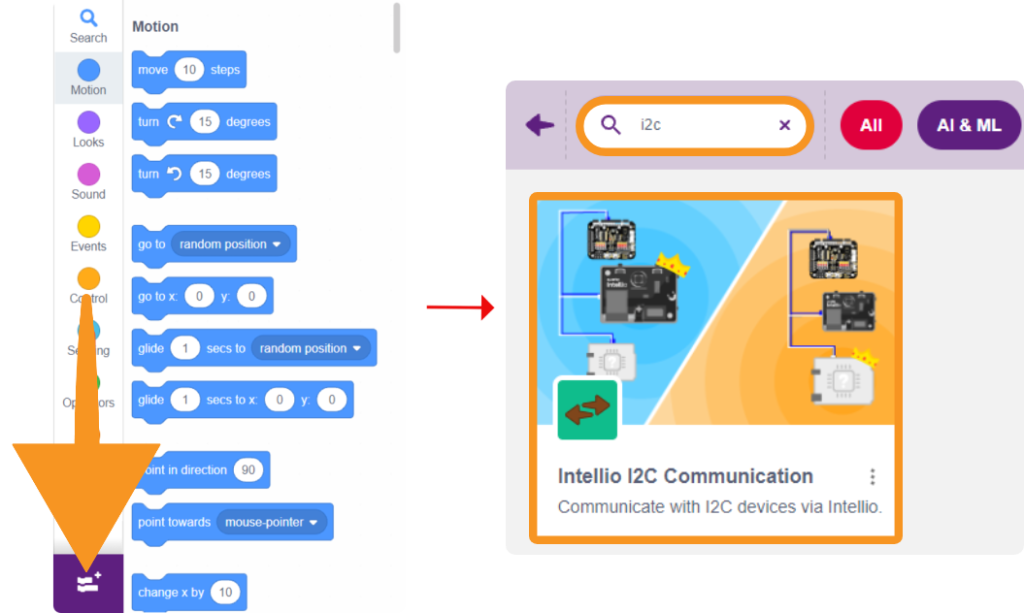
Quarky intellio i2c connection

For Intellio, the extension provides both Master and Slave blocks.
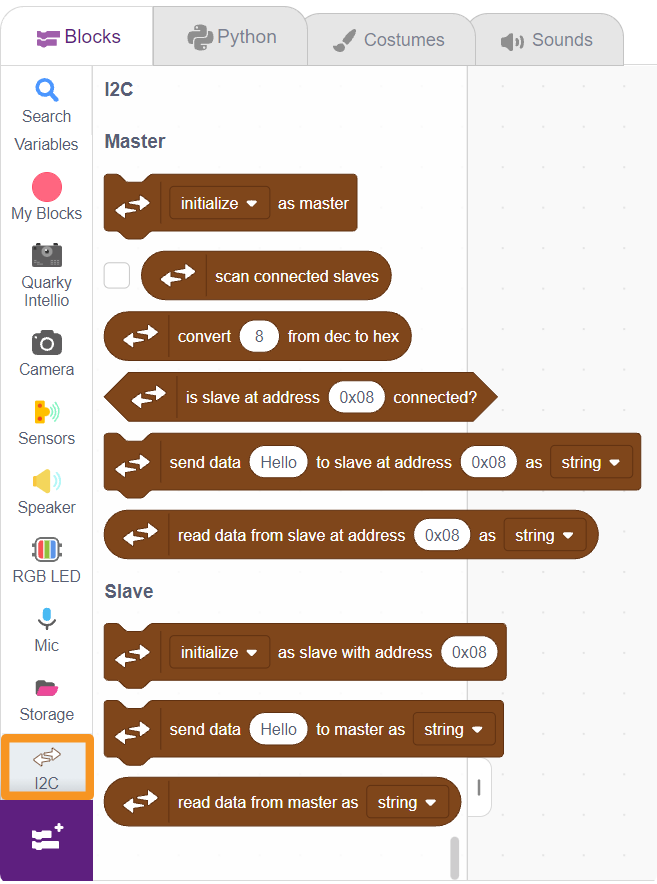
Quarky intellio i2c blocks

Intellio I2C Pin Mapping

Intellio Pin I2C Function
A1 SDA
A2 SCL

Connecting Intellio Master to Intellio Slave

Connect:

  • Master A1 → Slave A1 for SDA
  • Master A2 → Slave A2 for SCL
  • Master GND → Slave GND
  • Connect VCC only when voltage and supply requirements are compatible.

Then configure one Intellio as the Master and the other as a Slave with a unique address.
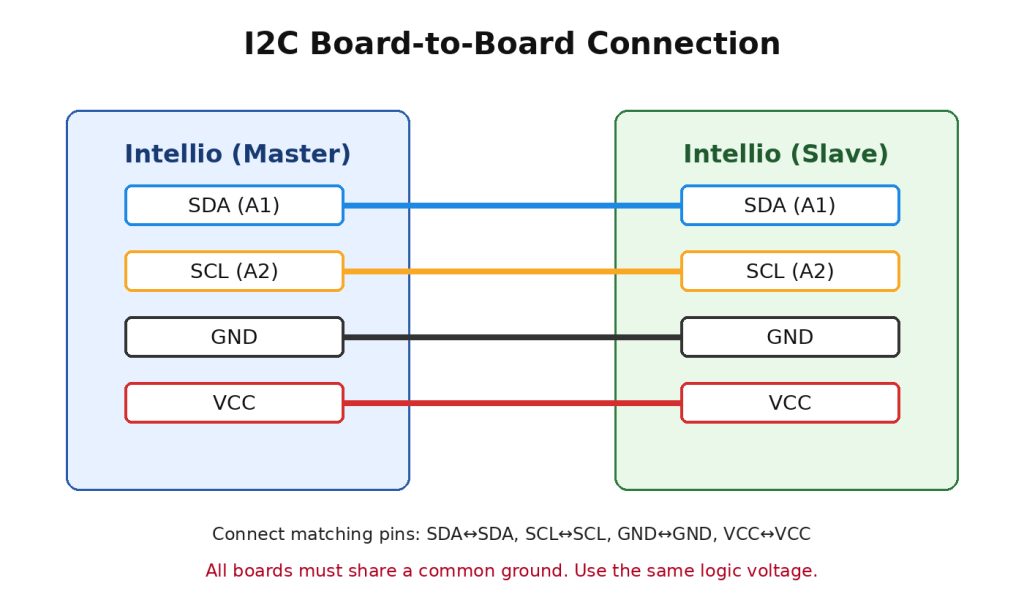
Connecting Intellio Master to Intellio Slave

Connecting Quarky Master to Intellio Slave

Connect:

  • Quarky D1 → Intellio A1
  • Quarky D2 → Intellio A2
  • GND → GND
  • Connect a compatible VCC supply if required.

Then initialise Quarky as Master and Intellio as Slave.

Separately Powered Boards

The boards can be powered separately.

In this case:

  • VCC does not necessarily need to be connected.
  • GND must still be common.
  • SDA and SCL must use pull-ups to a voltage safe for every connected device.

Do not connect two different power outputs unless the hardware documentation explicitly allows it.


Read More

PictoBlox Blocks

Initialize as Master: Configures Intellio as the I2C Master. Deinitialize as Master: Stops Master operation and releases the I2C bus.
This block scans the I2C bus and detects connected Slave devices. Use it to check wiring and identify available devices.
This block converts a decimal value into hexadecimal format, which is useful when working with device addresses and registers.
This block checks whether a Slave is responding at the specified I2C address.
This block sends a string or numeric value from Intellio Master to the selected Slave address.
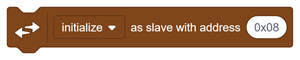
Initialize as Slave: This block configures Intellio to operate as an I2C Slave with the specified address. The address allows the Master to identify and communicate with that Intellio. Deinitialize as Slave: This block stops Intellio from operating as an I2C Slave and releases the assigned address.
This block sends a string or numeric value from the Intellio Slave to the connected Master. It can be used to send: Sensor values Device status Responses Other information
This block reads a string or number received from the I2C Master.
All articles loaded
No more articles to load
Table of Contents