


The AprilTags Extension (Intellio Vision) enables Quarky Intellio to detect and track AprilTags using its onboard camera.
Image capture, processing, and AprilTag detection are performed directly on Intellio after the programme is uploaded. This allows projects to run independently without continuously processing the camera feed through PictoBlox.
The extension provides access to:
It also supports live camera display and rotated bounding boxes on a connected TFT screen for visualisation and debugging.
Important: This extension is specifically designed for Quarky Intellio in Upload Mode. The separate universal AprilTag extension should be used for Stage Mode projects.
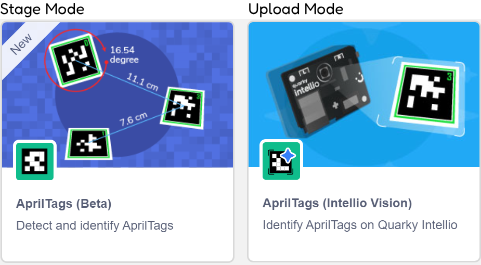
An AprilTag is a machine-readable visual marker made from a black square border and a unique internal pattern.
It is similar to a QR code, but instead of storing information such as a website address, an AprilTag acts as a visual landmark for cameras and robots.
When Intellio detects an AprilTag, it can determine:
This makes AprilTags useful for:
1. Download or update PictoBlox
Install the latest available version of PictoBlox before using the extension. 
Note: Please wait for the new version of PictoBlox to work with this extension.
2. Update Quarky Intellio Firmware
The AprilTag detection model is included in the newer Intellio firmware. Please upload the latest firmware before running an AprilTag programme.
Older firmware may not support the required AprilTag functionality. Click here to learn How to update the firmware on Quarky Intellio?
3. Prepare the AprilTags
Use printed tags from one of the supported families:
The selected family in the programme must match the family of the printed tag. A tag from one family will not be detected when another family is selected during initialisation.
4. Prepare the Environment
For reliable detection:
AprilTags may be rotated at different angles and can still be detected. However, mirrored or flipped tag images should not be used.
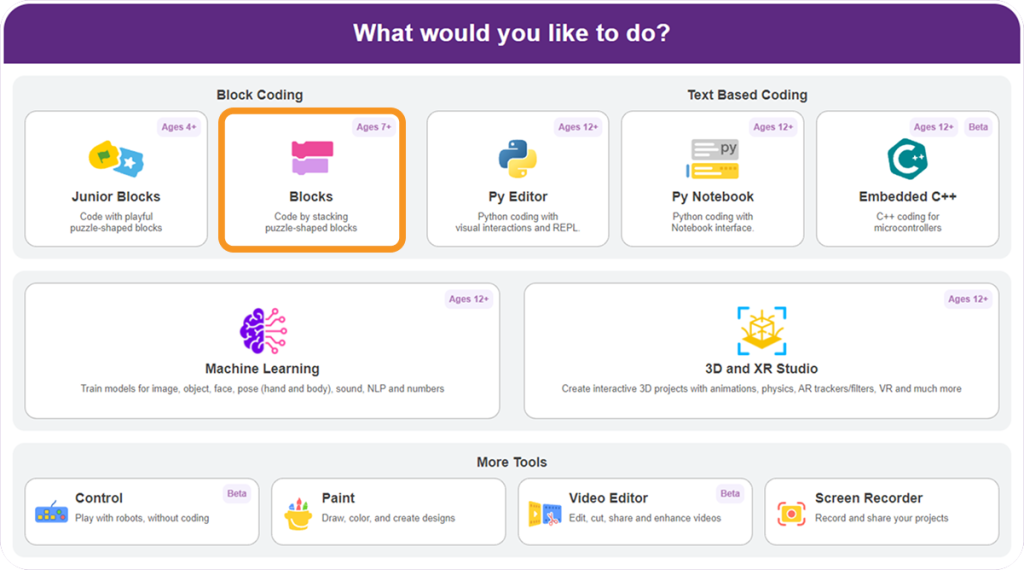
Step 1: Open PictoBlox and Select Block Coding.
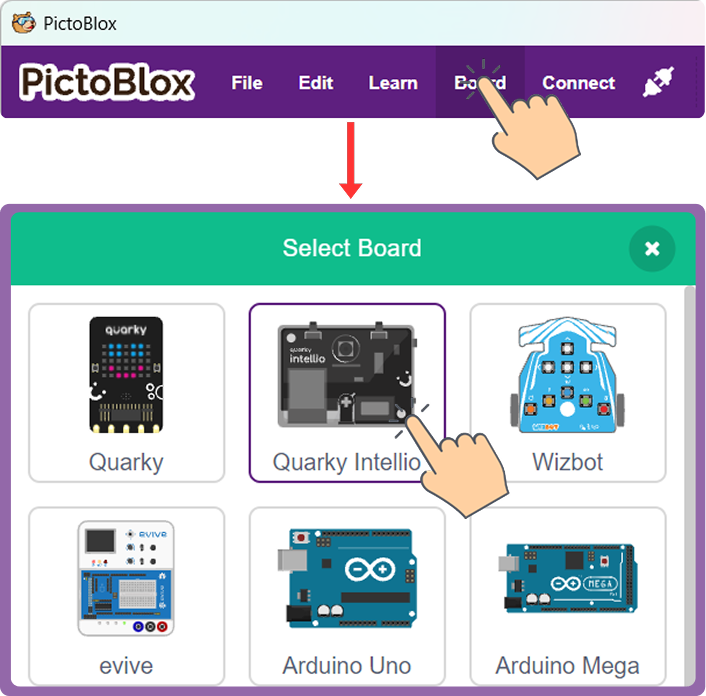
Step 2: Click Board and select Quarky Intellio.
Step 3: Switch the project from Stage Mode to Upload Mode.
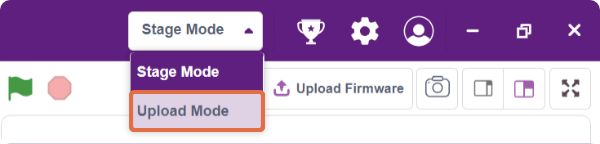
The Intellio Vision AprilTag blocks remain unavailable or greyed out in Stage Mode because this extension operates only in Upload Mode.
Step 4: Add the Extension
Click Add Extension from the Blocks Palette.
Search for and select: AprilTags Extension (Intellio Vision)
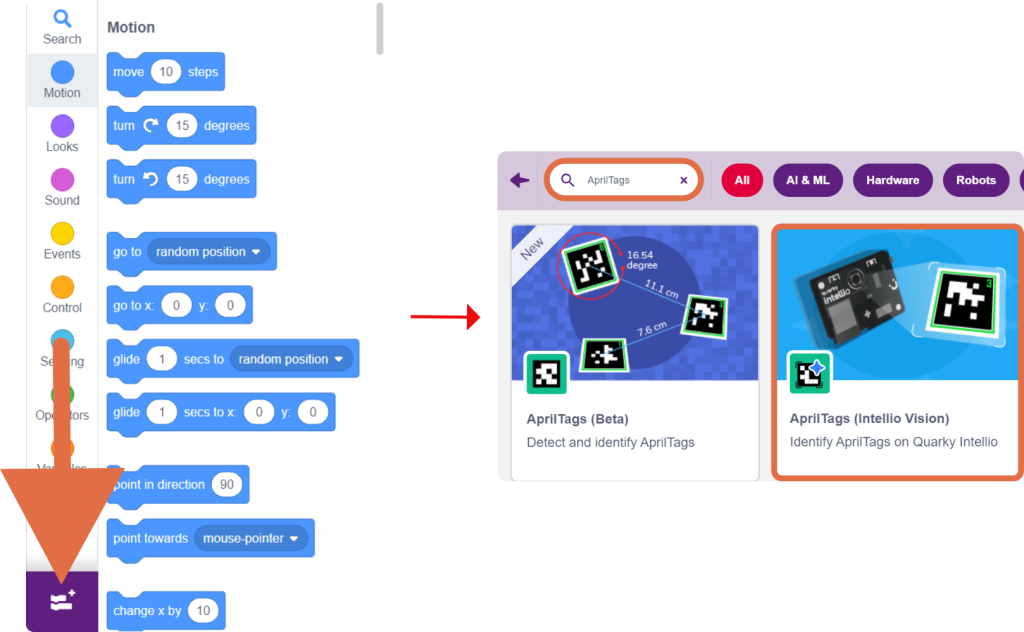
The extension can be identified by the Intellio-specific name and icon.
Step 5: Open the AprilTags Blocks
The blocks will now appear under the AprilTags category in the Blocks Palette.
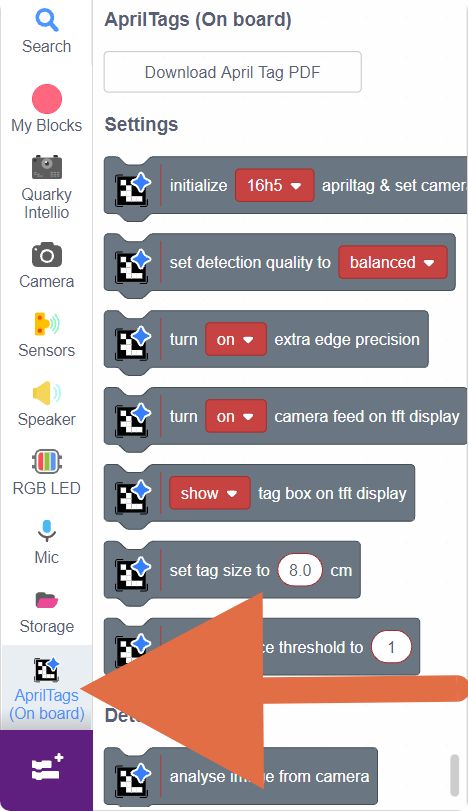
The extension includes an option to download printable AprilTag markers.
The provided PDF contains sample tags from the supported families, including tag IDs that can be used in the examples.
When printing: