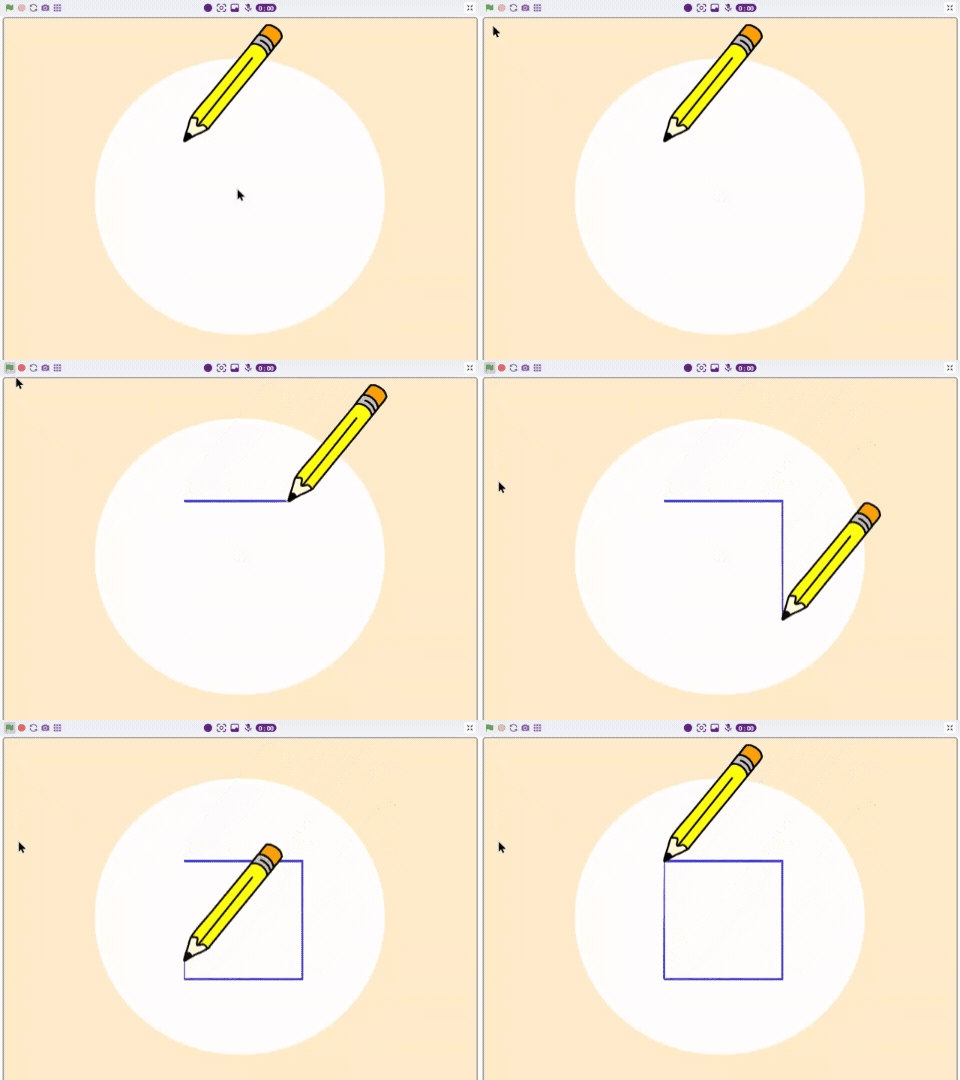




This clears all the input from stage such as pen and stamp.
Introduction
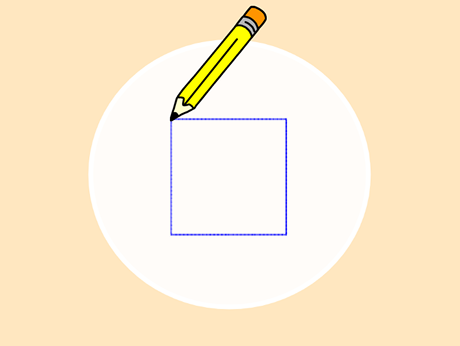
Have you ever wanted to draw just by moving your body? This project introduces you to the world of computer vision. We will be using “Junior Blocks” to create a script where a Pencil sprite reacts to the camera.
While the image suggests controlling a bird with your nose, we are going to take those same AI concepts—tracking a specific point on your face or hand—to command our Pencil sprite to move in a precise square pattern. It’s a perfect blend of geometry and artificial intelligence!
Prerequisites
To make the project all you need is
- A laptop or a computer with a camera,
- The latest version of PictoBlox downloaded
- Good Internet connection.
Setting Up the Stage
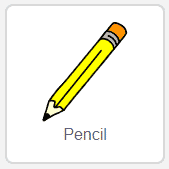
Now, let’s add a new Pencil sprite to draw.
- Click on the ‘choose a sprite’ button and select a pencil sprite from the library.
- Right-click on Tobi and choose delete from the dropdown to delete Tobi’s sprite.
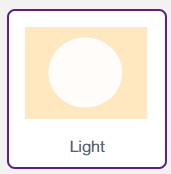
- Add a backdrop using Choose a backdrop > Search & Select Light backdrop.
Making the Pencil follow the Finger
Let’s begin to write the script.
- Select the Pencil sprite.
- Go to the Events palette and drag the Green Flag block drop into your coding area.
- Add the Pen Clear block from the Pen extension.
- Now set the pen colour; for that, drag and drop the pen colour block into the scripting area.
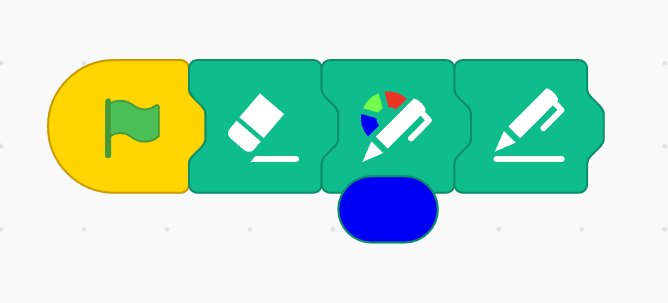
- Drag and drop the Pen down block from the pen extension.
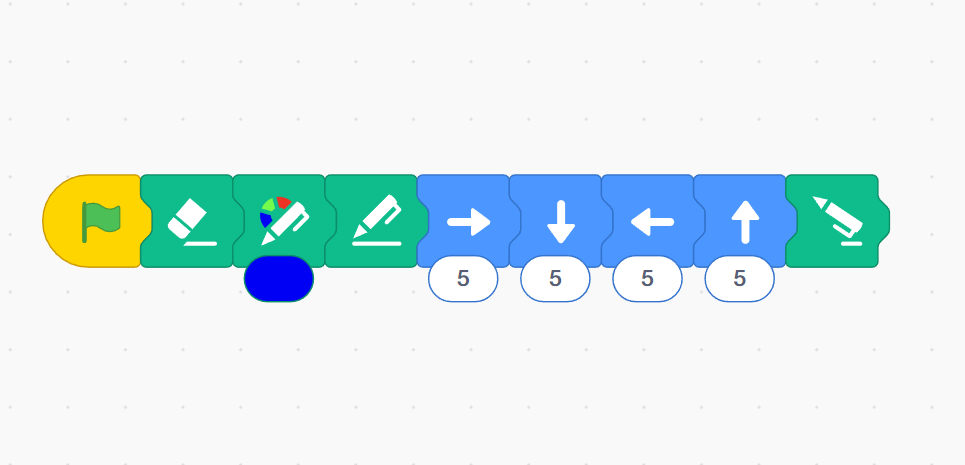
- Add the Forward Block from Motion Palette and change the count to 5.
- Add the Down Block from Motion Palette and change the count to 5.
- Add the Backward Block from Motion Palette and change the count to 5.
- Add the Up Block from Motion Palette and change the count to 5.
- Finally drag and drop the Pen Up block from the pen extension.
Output