



Image Processing

Image processing
Extension Description
Learn how to use the Image Processing Extension in PictoBlox. Discover how to enhance raw images, apply blurring and thresholding, and detect contours, circles, and polygons in Stage Mode.

Introduction

The Image Processing Extension, categorized under AI & ML, is available in Block Coding and supports Stage Mode, enabling users to process and enhance raw images using various sophisticated techniques without requiring a Wi-Fi connection for core tasks.

Its capabilities span basic settings (camera-feed control), image operations (grayscale conversion, color channel separation, ROI selection), and advanced functions like smoothing and blurring (Averaging, Gaussian, Median, Bilateral). The extension also features detection tools for thresholding, edge detection, morphological operations (Erosion/Dilation), and dedicated blocks for analyzing shapes and objects, including contours, circles, and polygons.

Before You Begin

Step 1: Download or update PictoBlox

Install the latest available version of PictoBlox before using the extension.Download PictoBlox

Accessing the Image Processing Extension in PictoBlox

Step 1: Open PictoBlox and select the Block Coding environment.

Select Block Coding in Pictoblox

Step 3: Click on the Add Extension button from the bottom left corner of the Blocks Palette.

Step 4: Search for and select the Image Processing extension.
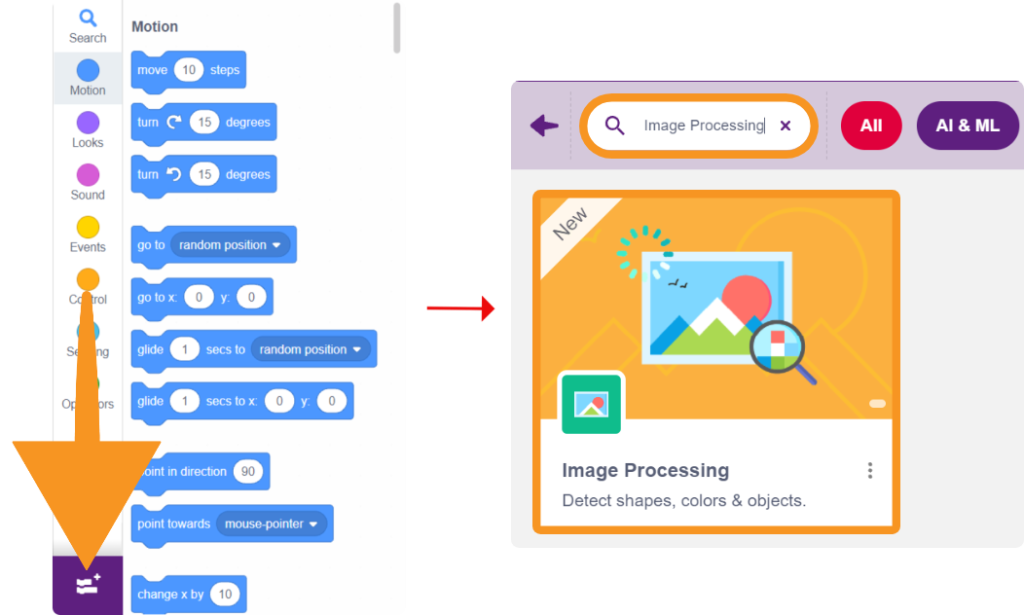
Step 5: The image processing models will be downloaded, which may take a few seconds to load.

Step 6: Once downloaded, you will get a message saying “Model loaded successfully”. The image processing blocks will now be available in the Blocks Palette.
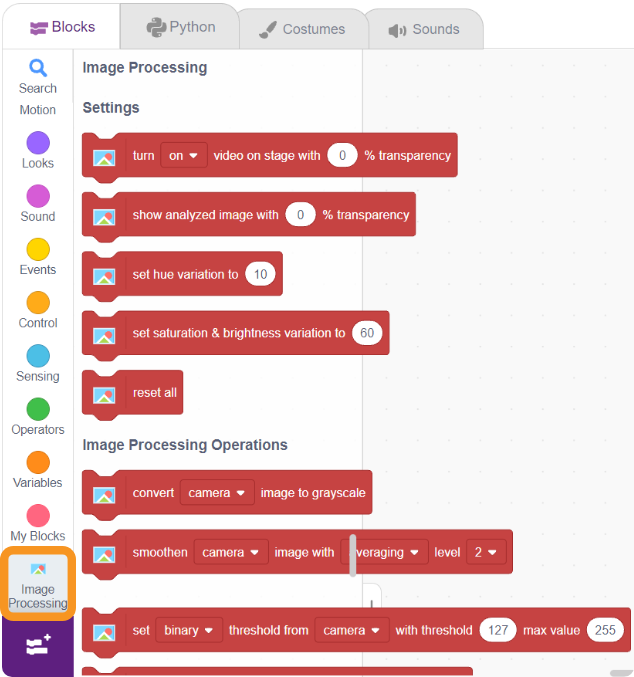

Image processing blocks

Read More

PictoBlox Blocks

Detects all circles in the image that match a specific, selected color.
Returns specific properties of a selected polygon, including: X position, Y position, radius, height, and width.
Returns the total number of polygons detected in the analyzed image.
Allows the user to specify the required area threshold for polygon detection.
Allows user-defined input to adjust the color variation tolerance for polygon detection.
Detects all polygons that match both a selected shape and a selected color.
Returns specific properties of a selected object, including: X position, Y position, radius, height, and width.
Returns the total number of objects detected from the analyzed image.
Sets the intensity range for the background to easily separate it from the foreground object.
Detect Objects by Background
Returns specific properties of a selected circle, including: X position, Y position, radius, area, red value, green value, and blue value.
Sets the minimum distance required between any two detected circles. This helps avoid false detections or overlapping circles.
This block controls the camera-feed on the stage, allowing you to turn it on or off with a specified transparency percentage.
Detects all circular shapes in the analyzed image.
Sets a specific Region of Interest in the image using X and Y coordinates, along with specified width and height.
Detects a selected color from the image and either shows it in black and white or hides it entirely.
Converts the image into a specific color channel. The output is a grayscale image representing only the color intensities of the selected channel.
Detects contours (curves or outlines representing object boundaries) from an image that have an area greater than a specified value.
Erosion: Removes small objects and noise, shrinking edges and boundaries to separate overlapping objects (useful for image segmentation). Dilation: Fills holes and gaps by joining broken parts, which expands the edges and boundaries of objects in the image.
Detects all the edges of the image lying within two specified threshold values (T1 and T2). Lower thresholds result in more edges detected; higher thresholds result in fewer edges.
Converts the image into a binary format by separating pixels into two classes based on intensity. Options include:
Allows you to smoothen the input image using 4 different operations
Resets all the detections and changes made to the input image, returning it to its original state.
Displays the resulting processed image using a customized level of transparency.
All articles loaded
No more articles to load
Table of Contents