


Introduction
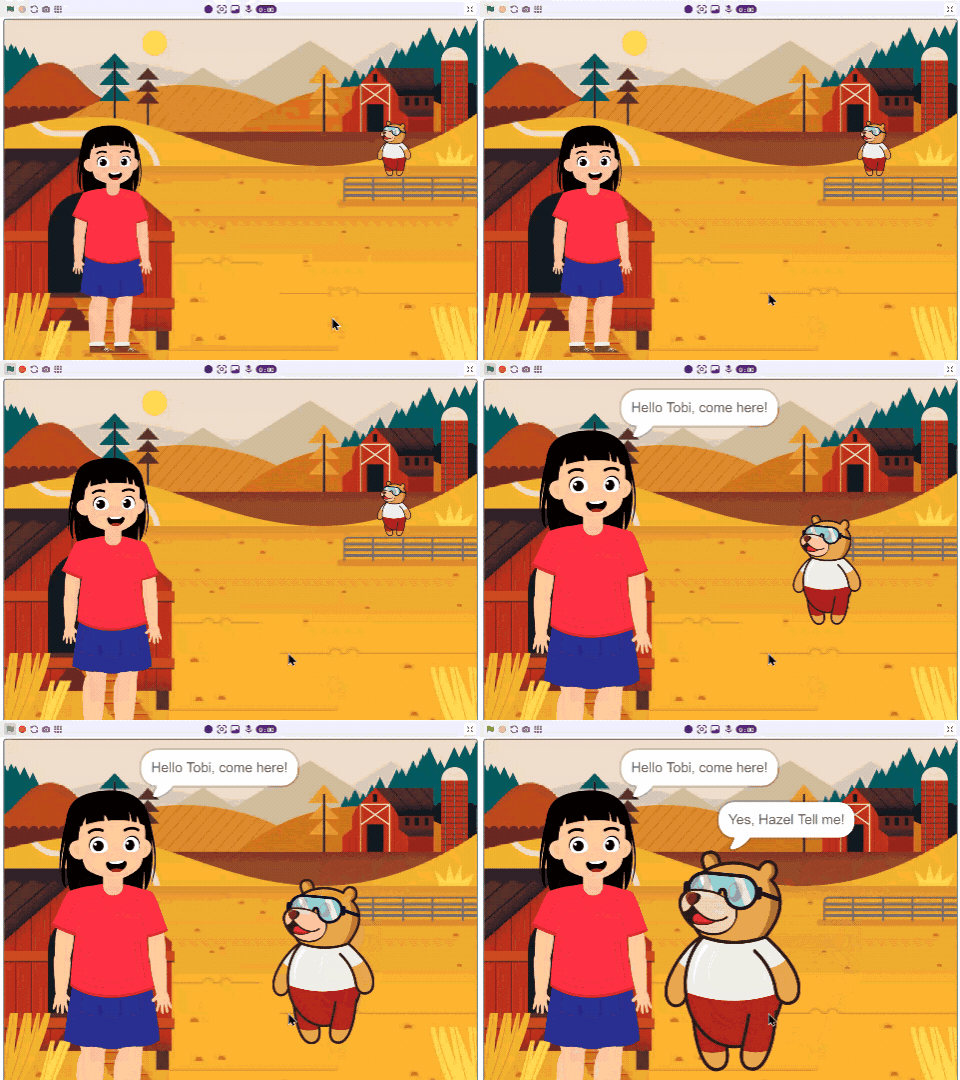
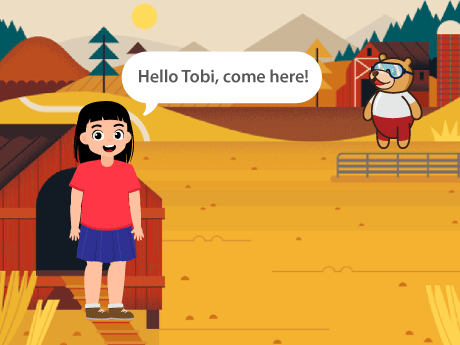
In this project, we are going to create a ‘Create a Story’ in PictoBlox Junior Blocks’! The aim of the project is to Hazel speak to Tobi. We are going to use Motion blocks to move one place to another, looks palette to speak. Let’s begin!
Prerequisities
- Open Junior Blocks
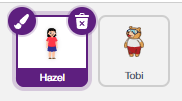
- Add Hazel Sprite along with Tobi.
Setting Up Your PictoBlox
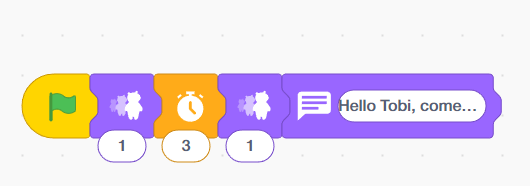
- In the Hazel sprite, add the ‘when the flag clicked’ block and then add the ‘shrink’ block from the looks palette.
- Add the ‘Wait [3]’ block from the Control palette.
- Add the ‘shrink’ and ‘say‘ blocks from the Looks palette.
- Type the text ‘Hello Tobi, come here!’
- In the Tobi sprite, add the ‘when the flag clicked’ block and then add the ‘set defalt size’ and ‘shrink’ blocks from the looks palette.
- Place the ‘Move to Position’ block from the Looks palette.
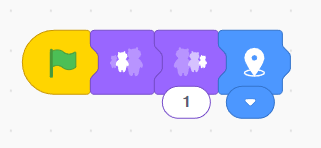
- Add another ‘when the flag clicked’ block and then add the ‘Wait [1]’ block from the Control palette.
- Add the Backward block from the Motion palette, then the ‘Wait [1]’ block.
- Place ‘Grow’ block from Looks palette and add the move ‘down’ block from the Motion palette.
- Add the ‘Wait [1]’ block from the Control palette and add the move ‘down’ block from the Motion palette.
- Add the ‘Wait [1]’ block from the Control palette and add the move ‘Backward’ block from the Motion palette.
- Add the ‘shrink’ block from the looks palette.
- Add the ‘Wait [1]’ block from the Control palette and add the move ‘Backward’ block from the Motion palette.
- Add the ‘shrink’ and ‘say‘ blocks from the Looks palette.
- Type the text ‘Yes, Hazel, tell me!’

Output