



Introduction
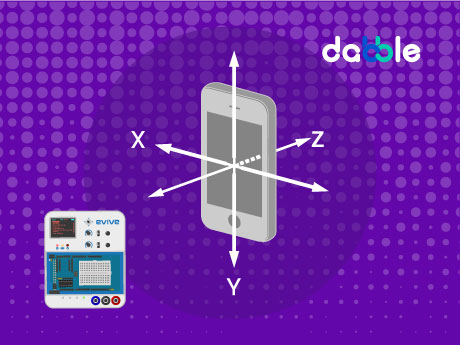
Modern smartphones contain built-in sensors such as accelerometers, gyroscopes, GPS, and magnetometers. Using the Dabble application, these sensor readings can be transmitted to the evive board over Bluetooth.
In this project, the Accelerometer X-axis value from the smartphone is continuously read and displayed on the evive TFT display. As the phone is tilted, the displayed value changes in real time.
This project helps students understand:
- Smartphone Sensor Integration
- Accelerometer Basics
- Bluetooth Communication
- TFT Screen Display
- Real-Time Data Monitoring
Setting Up the Stage / Sprite
Before creating the program, we need to configure PictoBlox and connect the hardware.
Adding the Extensions
- Open PictoBlox.
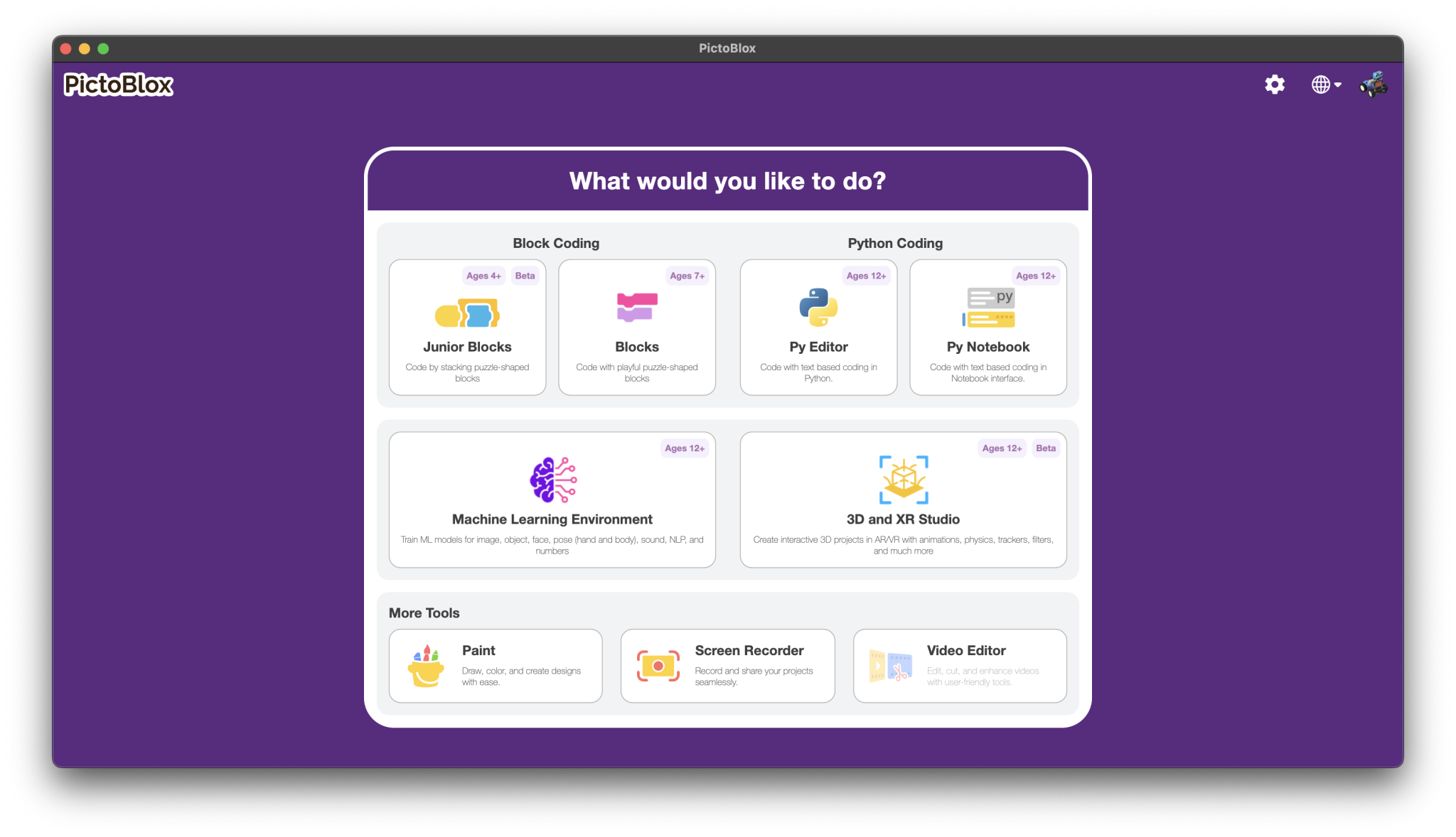
- Click Add Extension.
- Select the evive board.
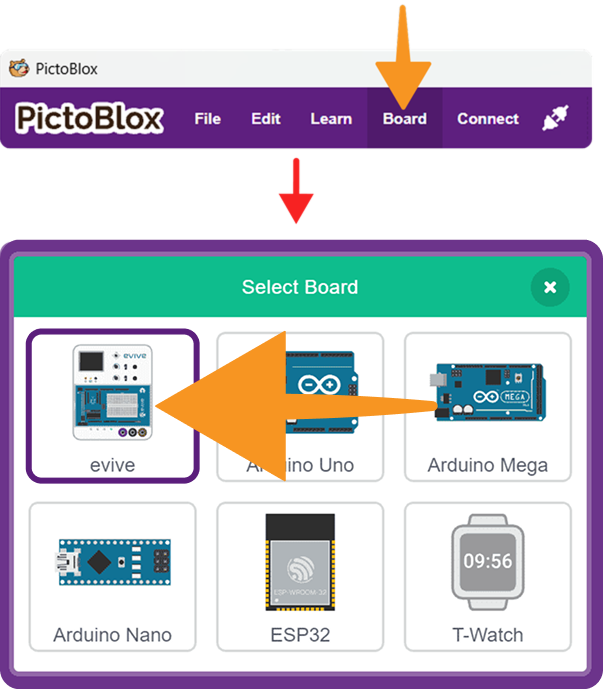
- Add the Dabble extension.
- Connect the evive board using a USB cable.
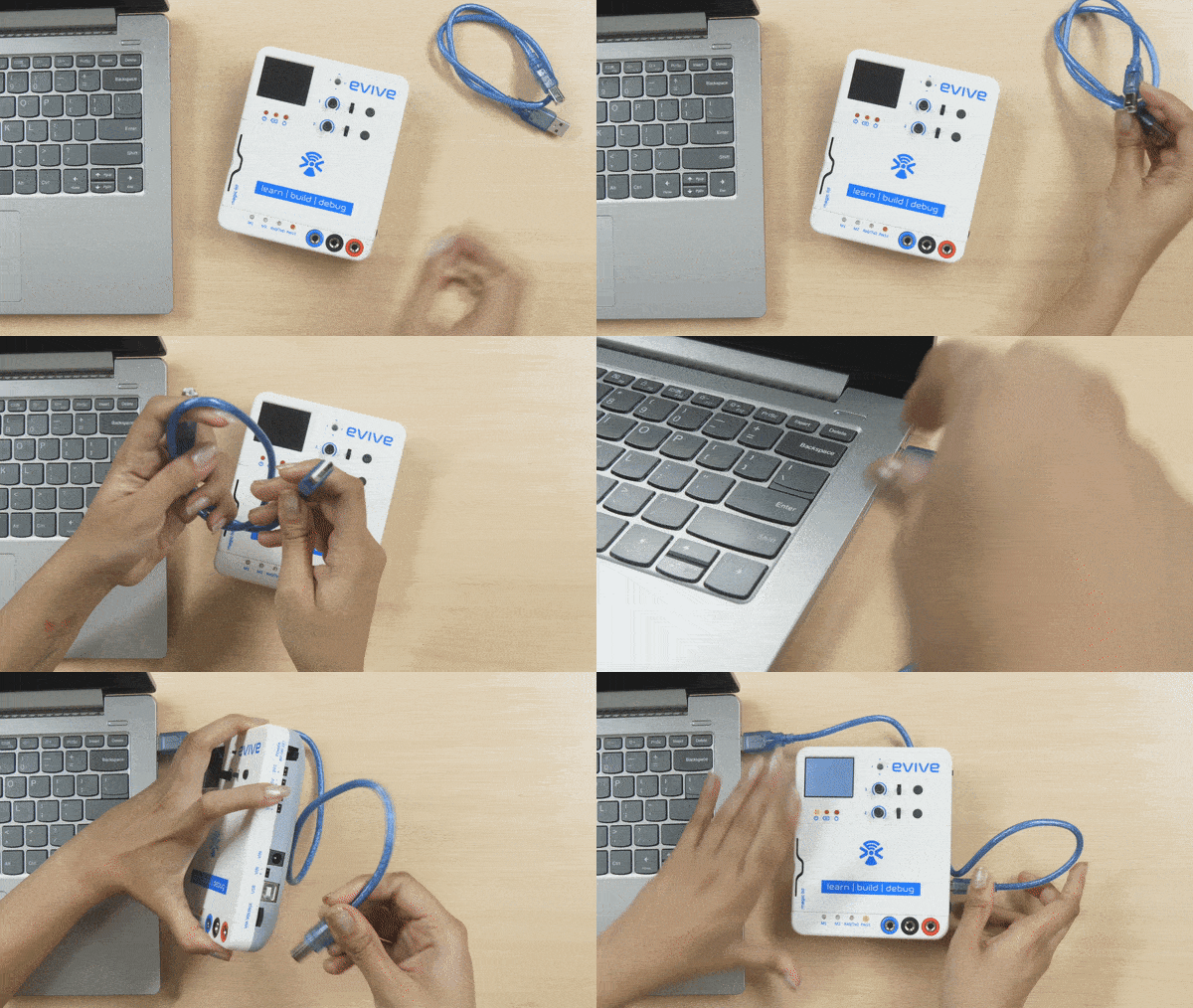
- Pair the smartphone with the Bluetooth module connected to evive.
- Open the Dabble app on the smartphone.
- Connect to the Bluetooth device.
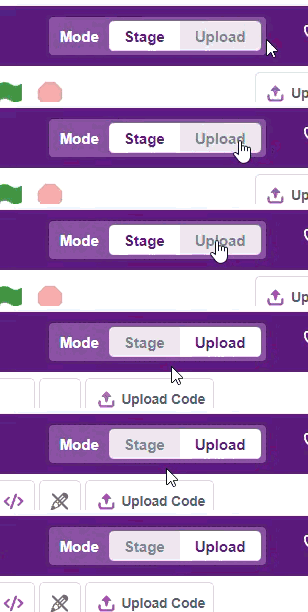
- Switch PictoBlox to Upload Mode.
Circuit Connections
Components Required
- evive
- Smartphone
- HC-05/HM-10 Bluetooth Module (or compatible Bluetooth module)
- USB Cable
- Jumper Wires
Bluetooth Connections
- Bluetooth Module VCC → evive 5V
- Bluetooth Module GND → evive GND
- Bluetooth Module TX → evive RX
- Bluetooth Module RX → evive TX
Step-by-Step Block Coding
Step 1: Start the Program
Go to the evive extension.
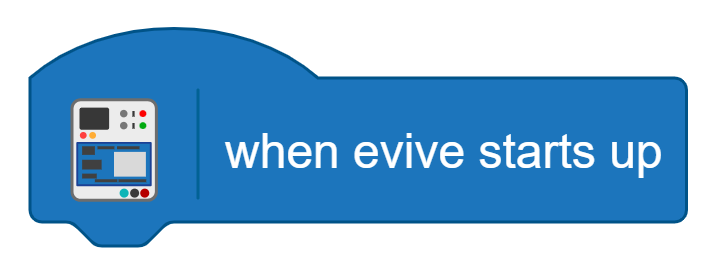
Drag the when evive starts up block into the scripting area.
This block starts the program automatically when evive is powered on.
Blocks Used
Step 2: Clear the Display
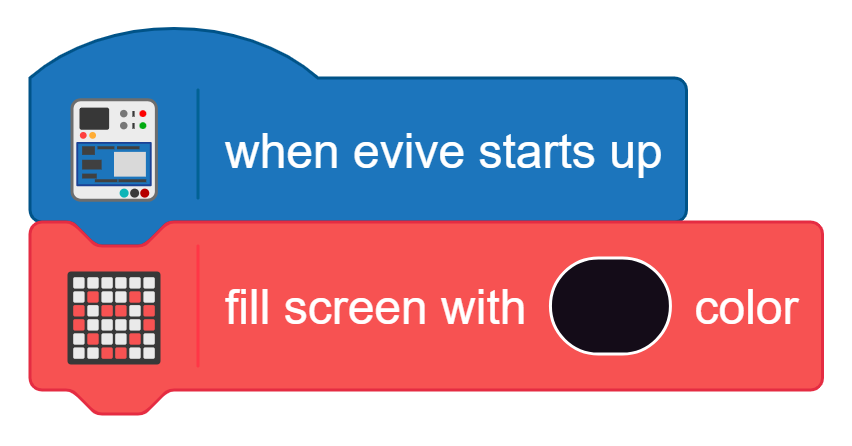
From the Display Modules palette, drag the fill screen with color block.
Select Black as the screen color.
This clears the display and prepares it for showing new sensor values.
Blocks Used
Step 3: Add a Forever Loop
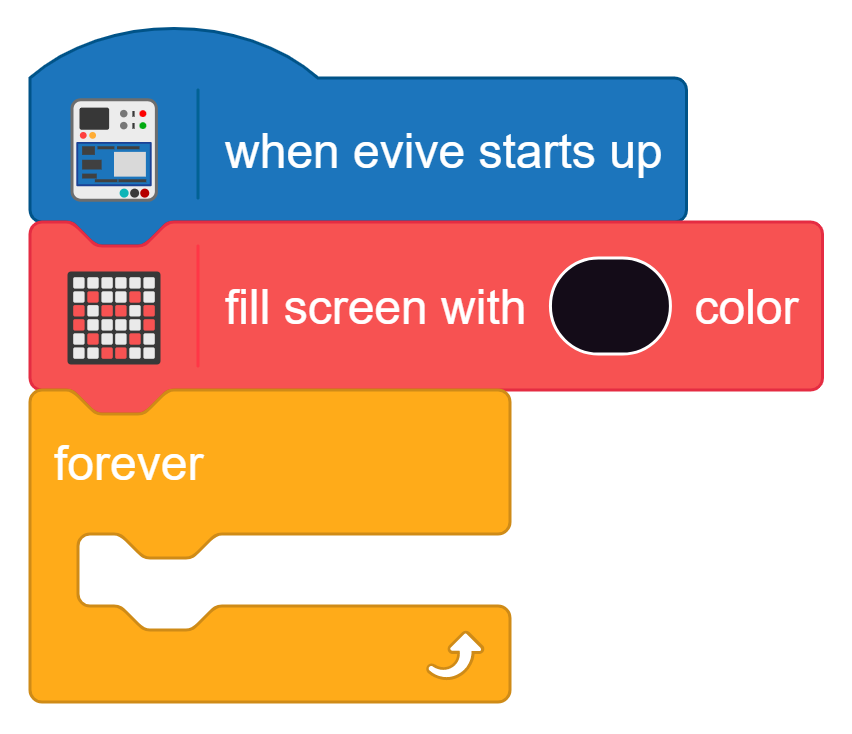
From the Control palette, drag a forever block.
All display updates will be placed inside this loop.
Blocks Used
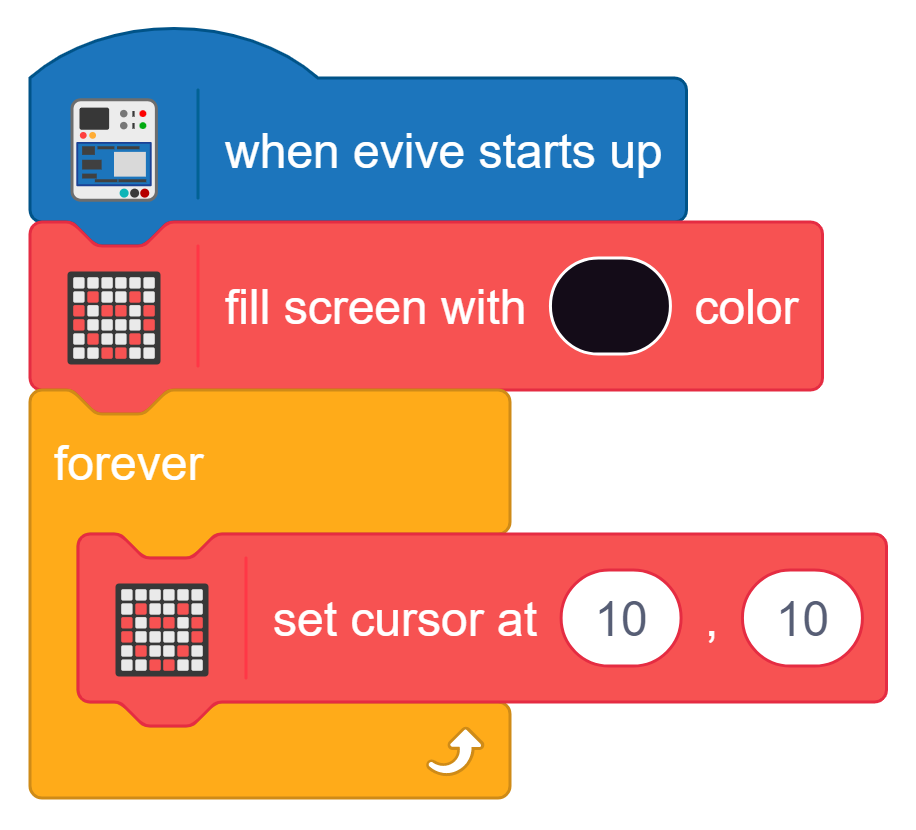
Step 4: Position the Cursor
Inside the Forever block, add the set cursor at block.
Set:
- X Position = 10
- Y Position = 10
This specifies where the sensor value will be displayed on the screen.
Blocks Used
Step 5: Display the Accelerometer Reading
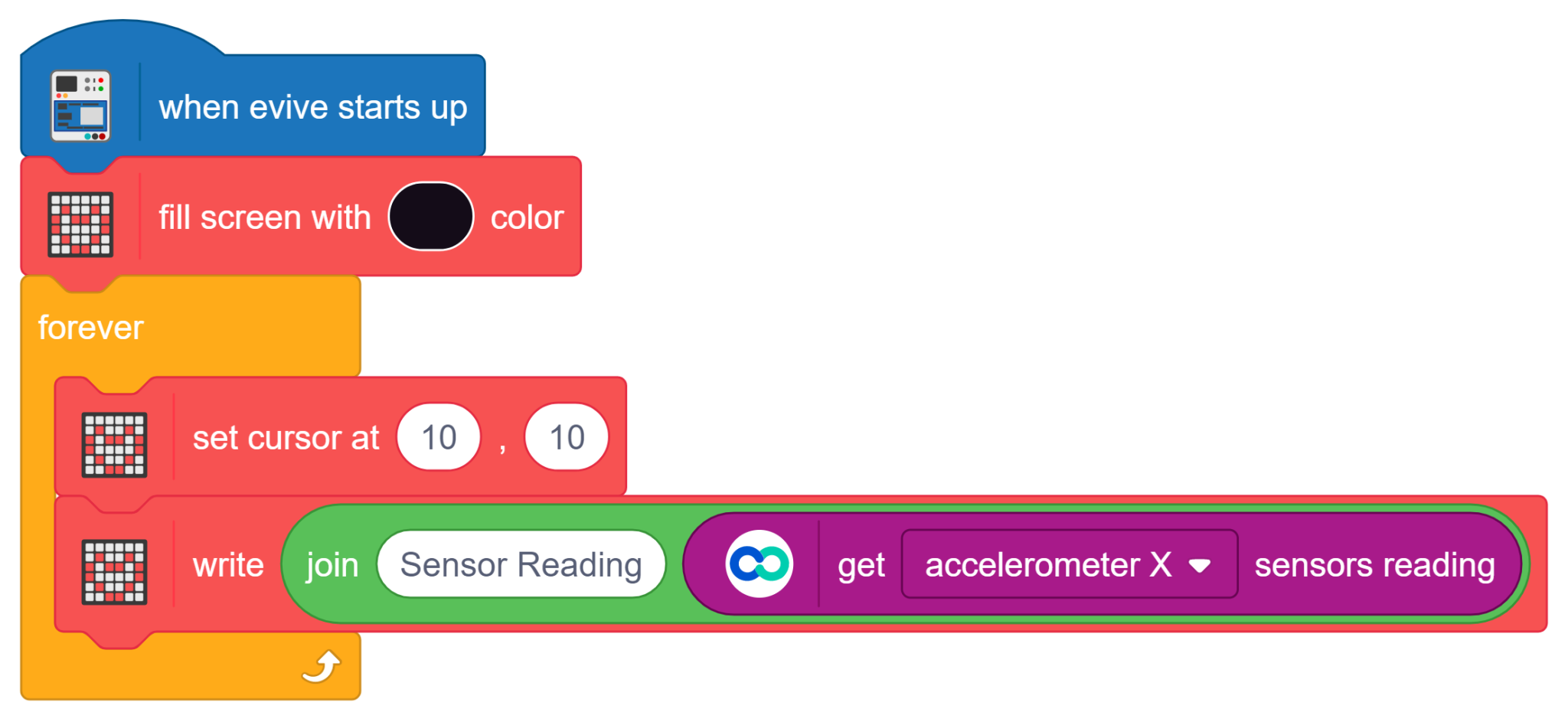
From the Display Modules palette, drag the write block.
Inside it, use a join block.
Enter the text:
Sensor Reading:
Then attach the get accelerometer X sensors reading block from the Dabble extension.
This continuously prints the smartphone’s X-axis acceleration value on the evive display.
Blocks Used
Output :
After uploading the program and connecting the smartphone:
- The evive display turns black.
- The cursor is positioned at coordinates (10,10).
- The text Sensor Reading: appears on the screen.
- The current Accelerometer X-axis value from the smartphone is displayed.
- As the smartphone is tilted left or right, the displayed value updates continuously in real time.
Conclusion
This project demonstrates how smartphone sensor data can be wirelessly transmitted to the evive board and displayed on its TFT screen using PictoBlox. Students learn the fundamentals of Bluetooth communication, accelerometer sensors, and real-time data visualization. The project serves as an excellent introduction to IoT, embedded systems, and smartphone-based interactive applications, providing a foundation for advanced projects involving motion-controlled robots, gesture-based interfaces, and smart monitoring systems.