



Introduction
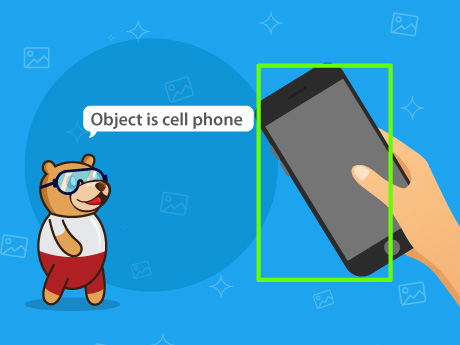
Have you ever wondered how smart cameras, self-driving cars, and security systems can recognize and count objects automatically? These intelligent systems use Artificial Intelligence (AI) and Computer Vision to identify objects in images and videos.
In this exciting AI project, you will use PictoBlox‘s Object Detection feature to detect and count objects visible through your webcam. The AI model analyzes the camera feed, determines how many objects are present, and identifies each object’s class (such as person, bottle, chair, laptop, etc.).This project introduces you to the fascinating fields of Artificial Intelligence, Computer Vision, Object Detection, and Automation.
Prerequisites
- Computer/Laptop
- Webcam (Built-in or External)
- PictoBlox Installed
Setting Up the AI Extension
- Open PictoBlox.
- Create a new project.
- Click on the Add Extension button.
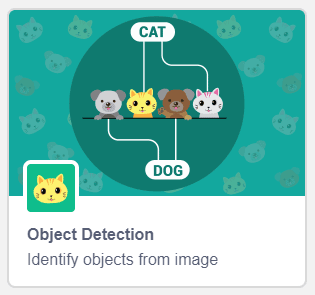
- Select the Object Detection Extension.
- Ensure your webcam is connected and working properly.
- Save your project before starting.
Now your AI Object Detection environment is ready.
Block-by-Block Guide
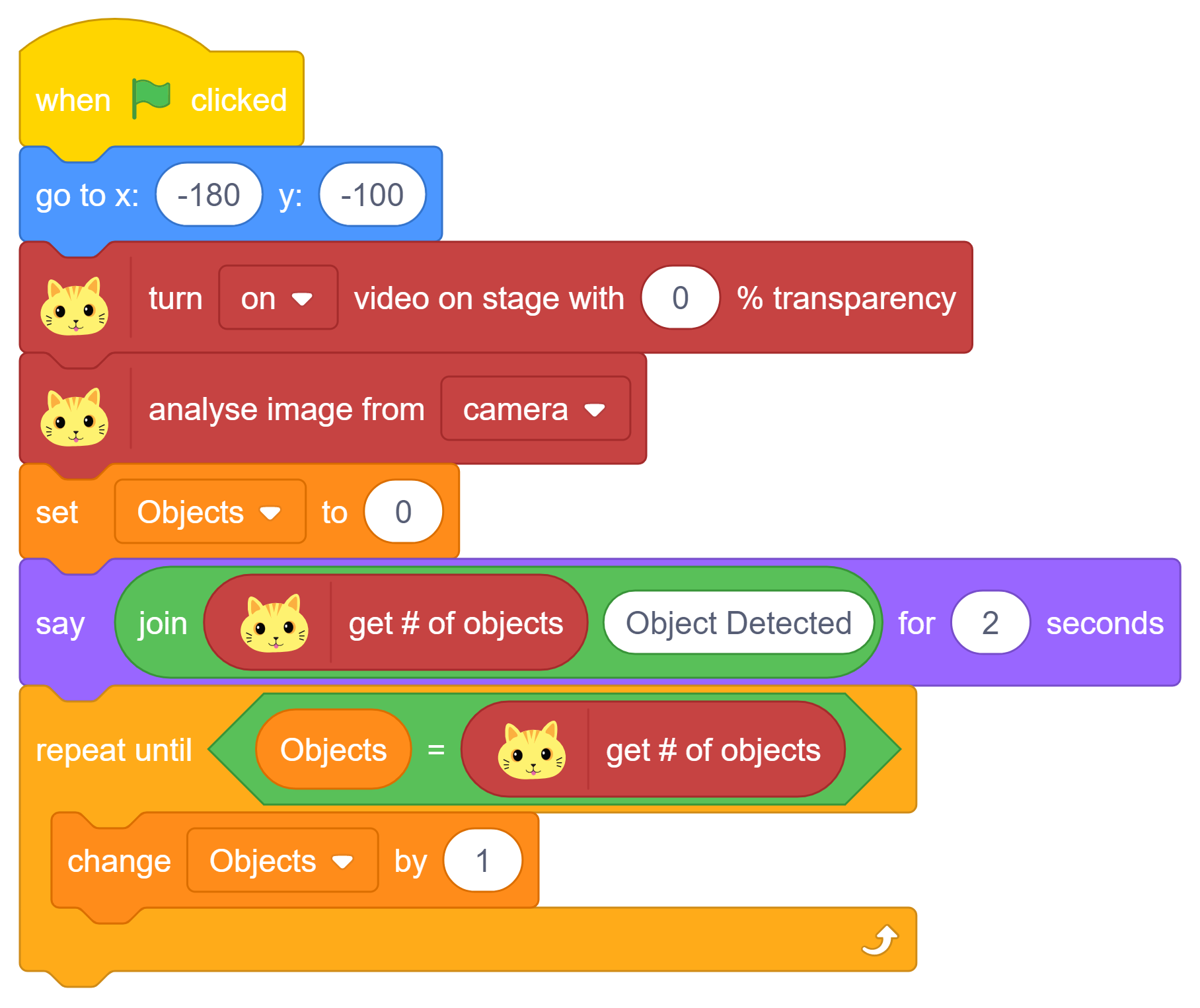
Initialize the Program and Start the Camera
When the Green Flag is clicked, the program starts running.
- Add the When Green Flag Clicked block.
- Add the Go To x: -180 y: -100 block to position the sprite on the stage.
- Add the Turn On Video On Stage with 0% Transparency block.
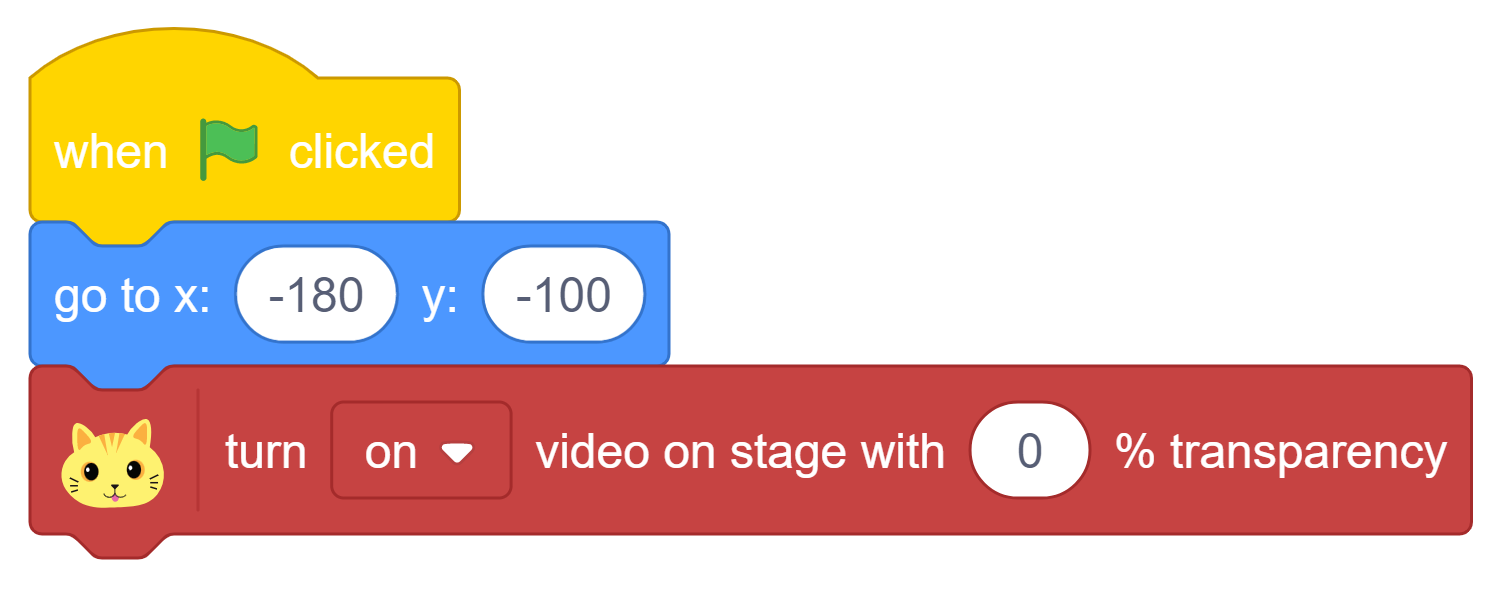
This activates the webcam and displays the live camera feed clearly on the stage for object detection.
Analyze the Camera Feed and Count Objects
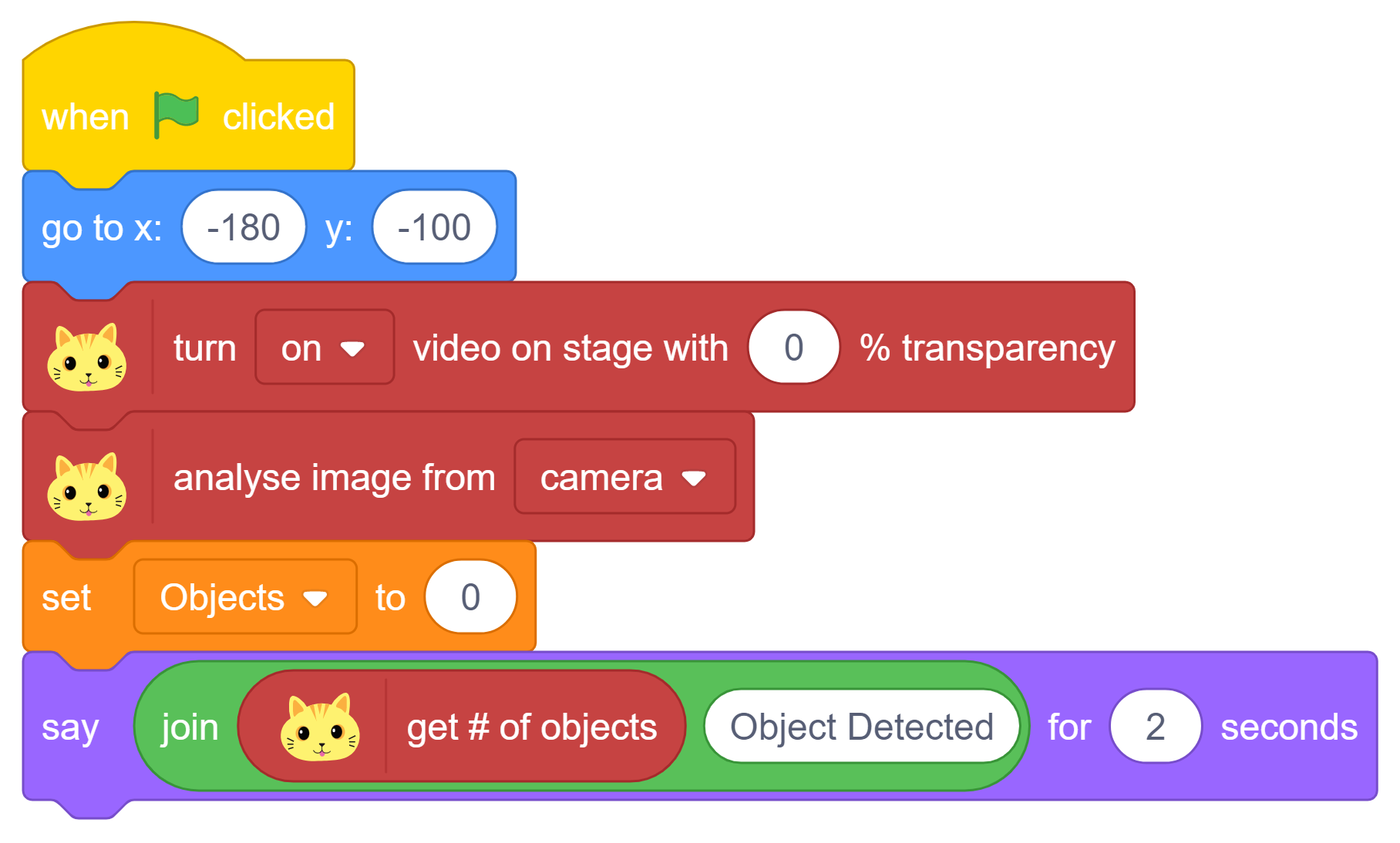
The AI model scans the camera image and detects all visible objects.
- Add the Analyse Image From Camera block.
- Create a variable named Objects.
- Add the Set Objects to 0 block to initialize the counter.
- Add a Say block with the Get # of Objects reporter block and join it with the text “Object Detected”
Process Each Detected Object
The program now identifies every detected object one by one.
- Add a Repeat Until block.
- Set the condition as:
Objects = Get # of Objects
- Inside the loop, add the Change Objects by 1 block.
This loop continues until all detected objects have been processed.
Display the Name of Each Object
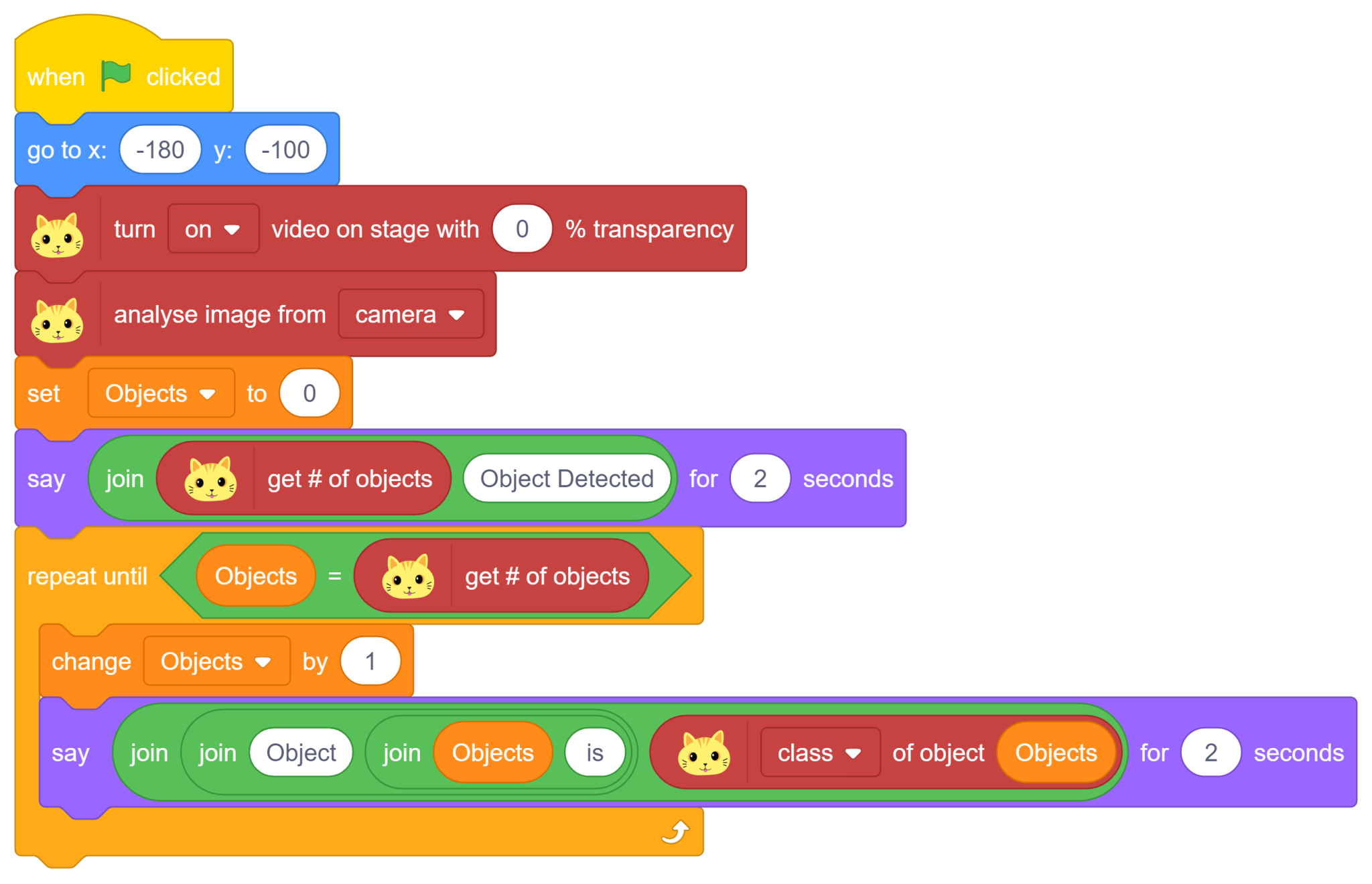
Inside the Repeat Until loop:
- Add a Say block.
- Join the text:
“Object” + Objects + “is” + Class of Object (Objects)
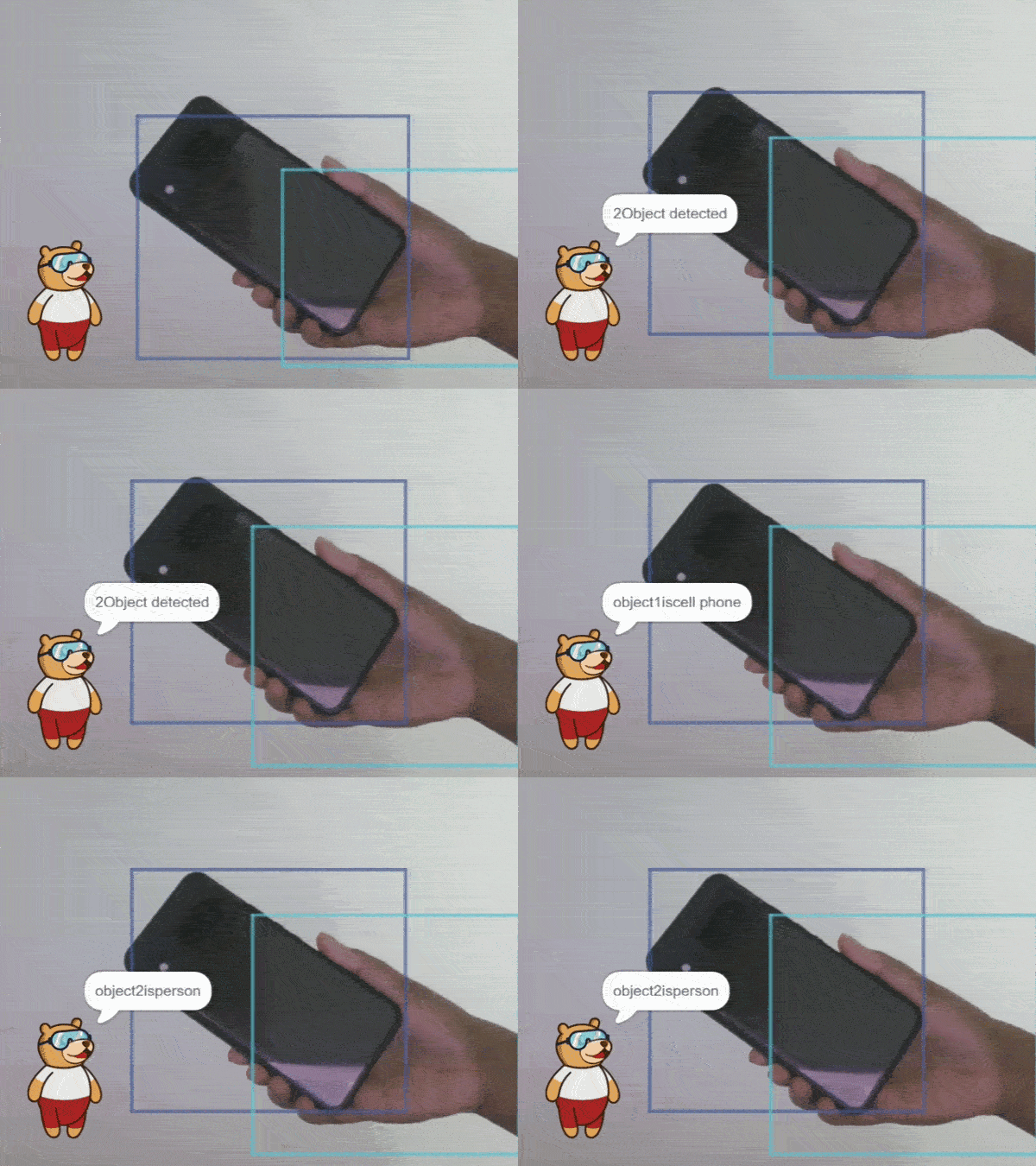
The AI system announces the class(name) of every detected object, allowing users to see both the number of objects detected and what each object is.
Output
Conclusion
Congratulations! You have successfully built an AI Object Finder using PictoBlox and Artificial Intelligence.
In this project, you:
- Activated and displayed a live webcam feed
- Used AI-based object detection to analyze images
- Counted the total number of detected objects
- Identified each object individually
- Displayed object names using variables and loops
- Learned the basics of Computer Vision and AI-powered recognition
These concepts are widely used in smart surveillance systems, autonomous vehicles, inventory management, smart retail stores, robotics, and industrial automation. By completing this project, you have taken an important step into the world of Artificial Intelligence and Computer Vision, where machines can see, understand, and interact with the world around them.