



Introduction
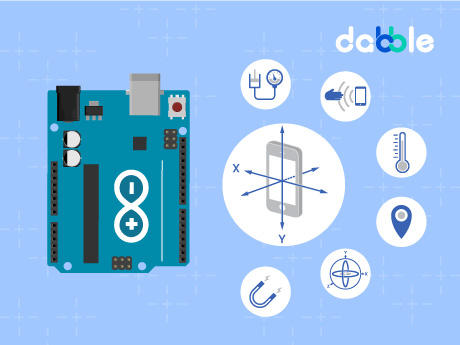
Modern smartphones are equipped with sensors such as accelerometers, gyroscopes, and orientation sensors. The Dabble Sensors Module allows these very sensors to transmit their Data in a wireless environment through PictoBlox. In this activity, we will perform phone’s tilt (orientation) and find its data on the Serial Monitor in Dabble while being connected to Arduino.
To work in PictoBlox, you’ll first need to download it from HERE.
Ready? Set. Go!
Components Required
- Arduino Uno R3 Board
- HC-05/HM-10 Bluetooth Module
- Laptop or Computer
- PictoBlox installed on the system
- Smartphone
How to Connect with Arduino Uno
- Connect the Uno to your computer and open PictoBlox.
- In PictoBlox, go to the toolbar and click on the Board menu. Select Arduino Uno.
- Next, click on the Connect button and select the port to which the Arduino Uno is connected e.g., COMXX or ttyXX. Once you select the port, the icon beside the Connect tab will become connected.
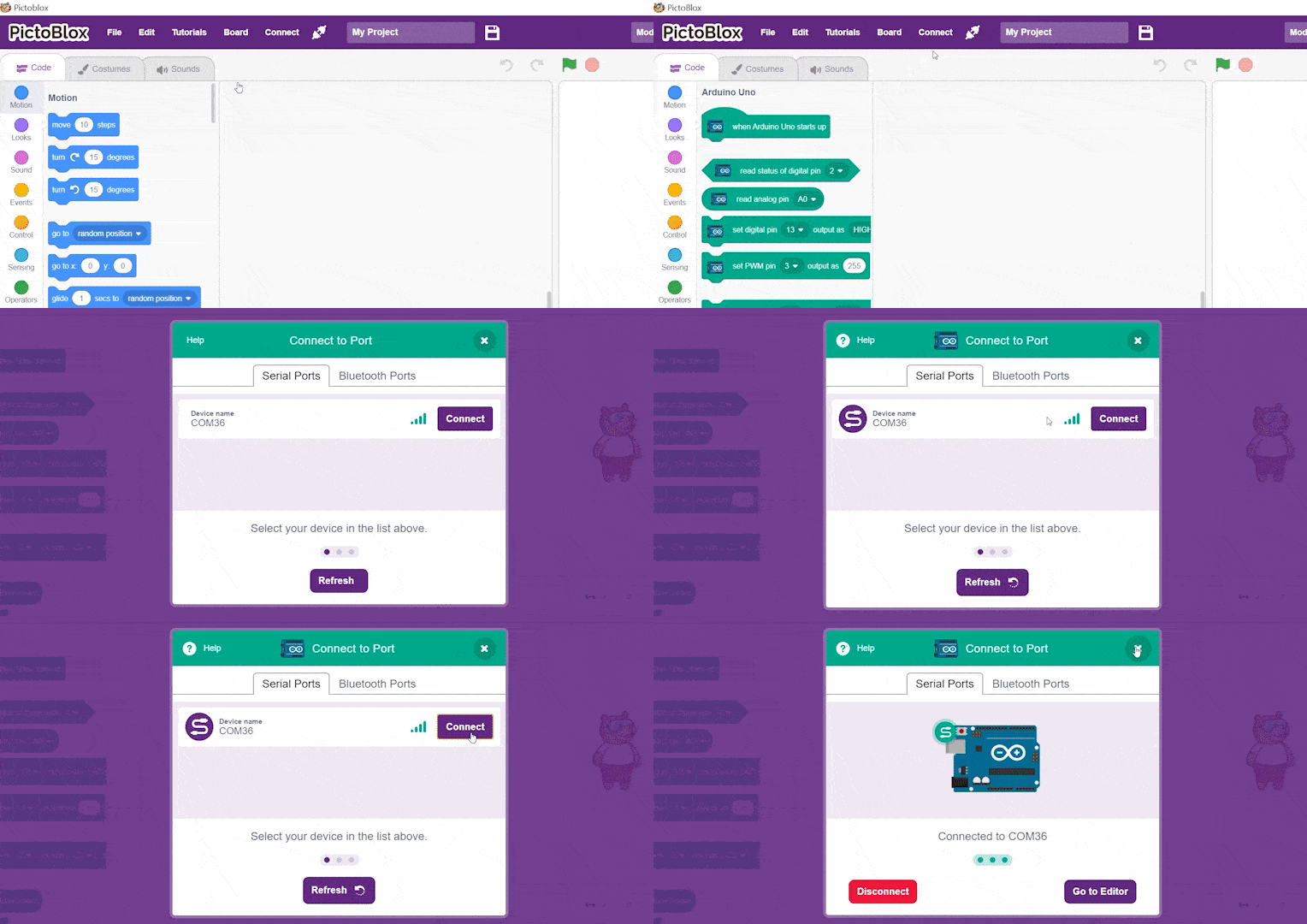
- In the top right corner, there is a toggle button named Mode. This button is used to switch between the two working modes of PictoBlox, namely the stage mode and the upload mode.
- Switch to Upload mode by toggling this button. You’ll observe some changes in the UI.
Circuit Connections
Step-by-Step Block Coding Guide
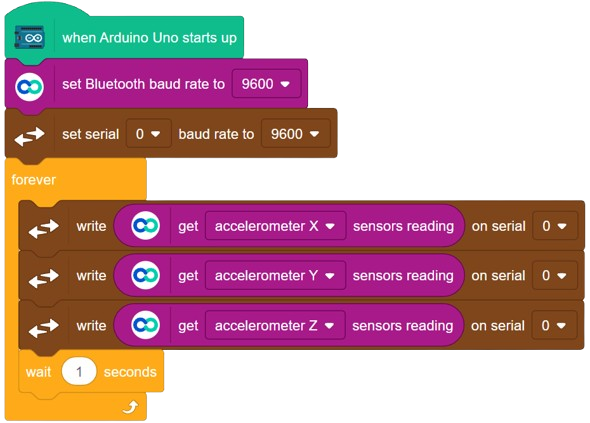
- Go to the Arduino Uno palette and drag the ‘when Arduino Uno starts up’ block into the scripting area.
- From the Dabble palette, add the ‘set Bluetooth baud rate to ()’ block. Set its value to 9600.
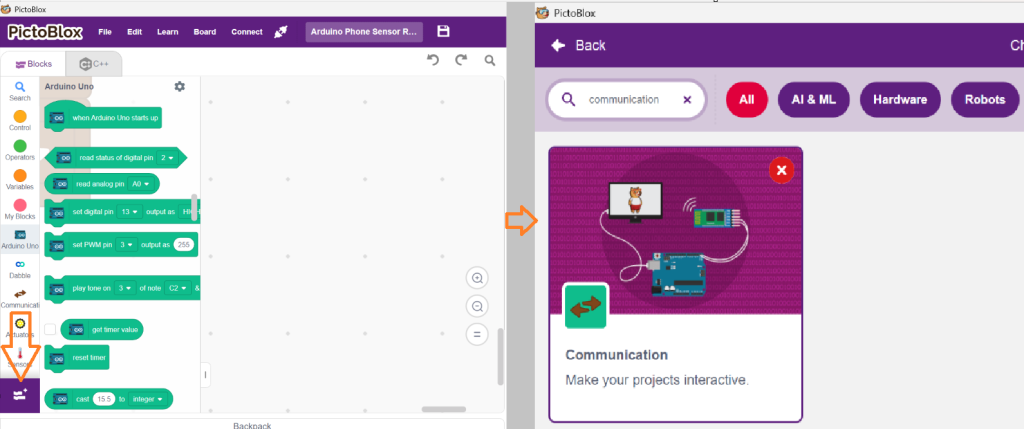
- Add the Communication extension in PictoBlox by clicking on the ‘Add extension’ button in the bottom left corner.
- From the Control palette, add the ‘forever’ block.
- From the Communication palette, add the ‘write () on serial ()‘ block. From the Dabble palette, add the ‘get () sensors reading‘ inside write (). Use ‘accelerometer X’ for the sensor reading and set the serial pin to ‘0‘.
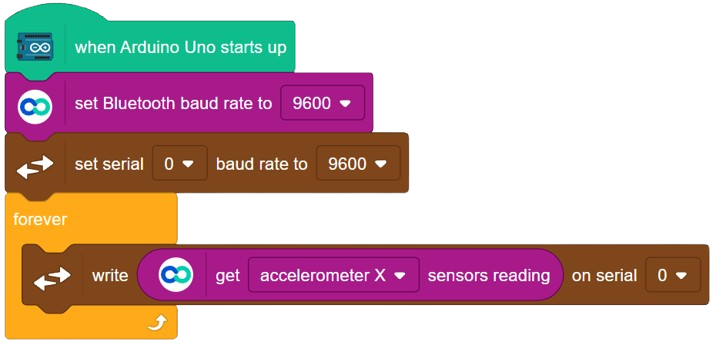
- Repeat Step 5 and add two more ‘write () on serial ()’ block with ‘accelerometer Y’ & ‘accelerometer Z’ for the Dabble sensors.
- Finally, add the ‘wait () seconds’ block from the Control palette.
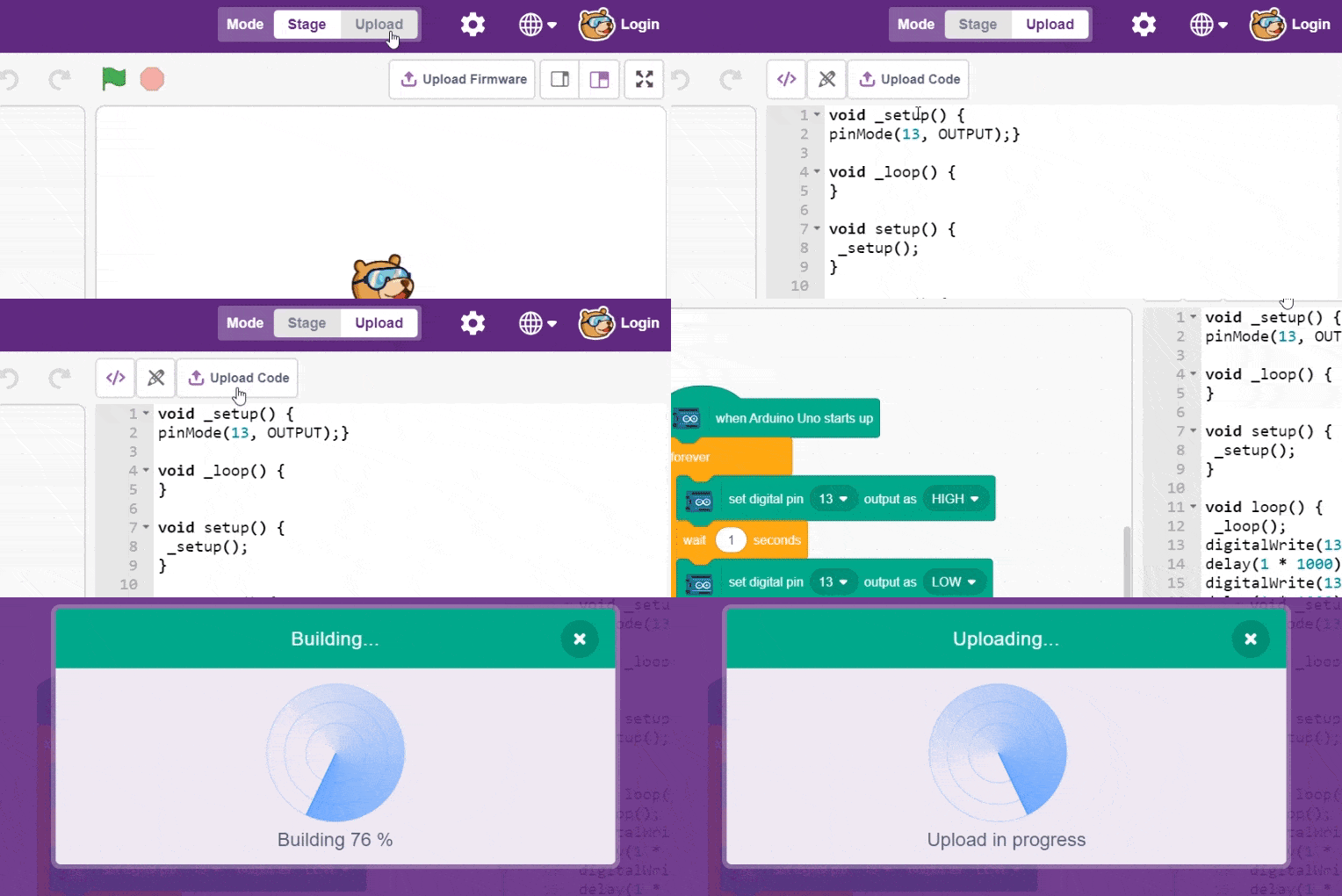
- To upload the code, click on the Upload Code button.
Pairing Dabble with Uno
- Install Dabble from Play Store and open it on your Smartphone.
- Next, click on the connect-disconnect icon.
- A dialogue box will appear on the screen asking for permission to turn on Bluetooth. Click on ‘Allow’.
- Once you do so, a list of nearby devices will appear. Select your device’s name.

- In case you don’t see it on the list, go to the Bluetooth settings of your smartphone and search for it there.
- If your smartphone asks for a password to pair it with the device, enter the default password. For HC-05 and HC-06, it is 0000 or 1234. For HM-10, it is 000000 or 123456.
- A notification will appear in the drop-down menu of the phone once the connection is made.
- Now, open the Phone Sensors module. Find the accelerometer sensor and enable it.
- Once enabled, it will sense the acceleration acting on your smartphone in all three directions (X-axis, Y-axis, and Z-axis) in m/s².
- In PictoBlox, underneath the Upload Code section, find the Serial Monitor option. Click on it and update its baud rate to 9600.
- Once updated, you will find the accelerometer readings on the serial monitor.
Output
Conclusion
The Arduino Input Module enables PictoBlox projects to interact with real-world hardware. By reading button and sensor inputs, users can create engaging and responsive applications. This project demonstrates the fundamentals of hardware-software communication using Arduino and PictoBlox. These concepts can be extended to sensors, switches, and other interactive electronic devices for more advanced projects.