



Introduction
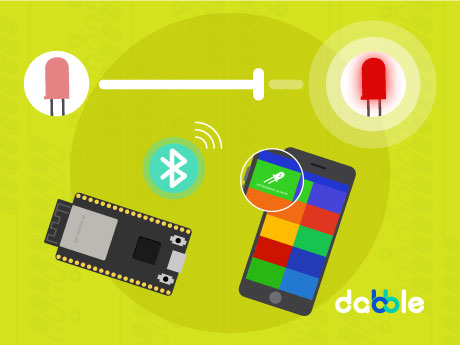
The ESP32 LED Wireless Control project is a simple and interactive IoT-based project that demonstrates how wireless communication can be used to control electronic devices. In this project, the ESP32 microcontroller is programmed using PictoBlox block coding to create a Bluetooth-enabled LED control system. The ESP32 acts as a wireless device that can communicate with a smartphone or other Bluetooth-supported devices.
When the ESP32 starts, it sets a custom Bluetooth name and continuously enables LED control functionality. Users can connect to the ESP32 wirelessly and control the LED in real time without using physical switches. This project helps beginners understand the basics of ESP32 programming, Bluetooth communication, wireless automation, and smart control systems. It also introduces students to IoT concepts in an easy and practical way using graphical programming.
Prerequisites
- ESP32
- Dabble App (Installed on your mobile/tablet)
- PictoBlox Software (Desktop )
Connecting Your ESP32 to Pictoblox Blocks
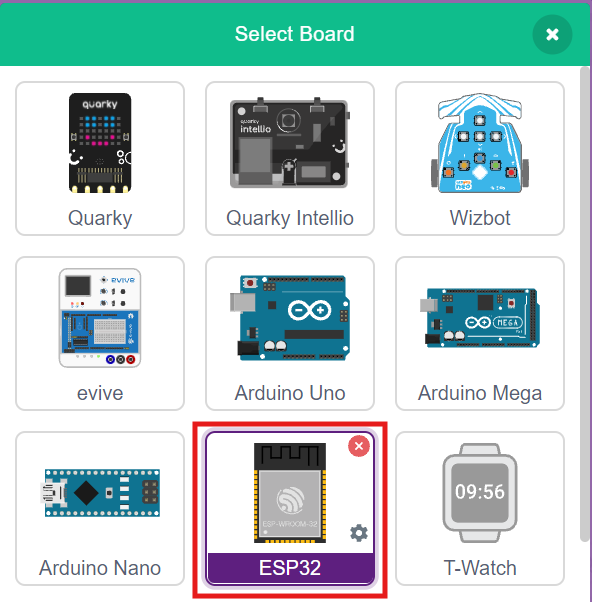
- Click on the Board tab on the top navigation bar and select ESP32.
- Now, click on connect.
- Select your ESP32 from the Serial port list and click on Connect.
- ESP32 plays a confirmation sound on connecting.
Add the Communication Extension
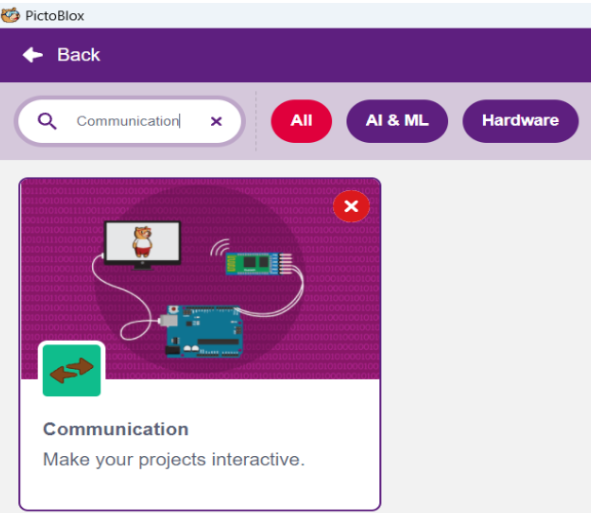
Click on the Extensions button and add the Communication extension. This communication extension in PictoBlox is used to enable wireless and wired communication between devices, computers, and microcontrollers. This extension allows users to connect hardware such as ESP32, Arduino, Quarky, and other supported boards to exchange data and control devices in real time. It plays an important role in IoT and smart automation projects.
Using the Communication Extension, students can create projects that involve Bluetooth communication, Wi-Fi communication, serial communication, and cloud-based data transfer. The extension provides easy-to-use blocks that help beginners understand communication concepts without writing complex code.
Change Upload Mode
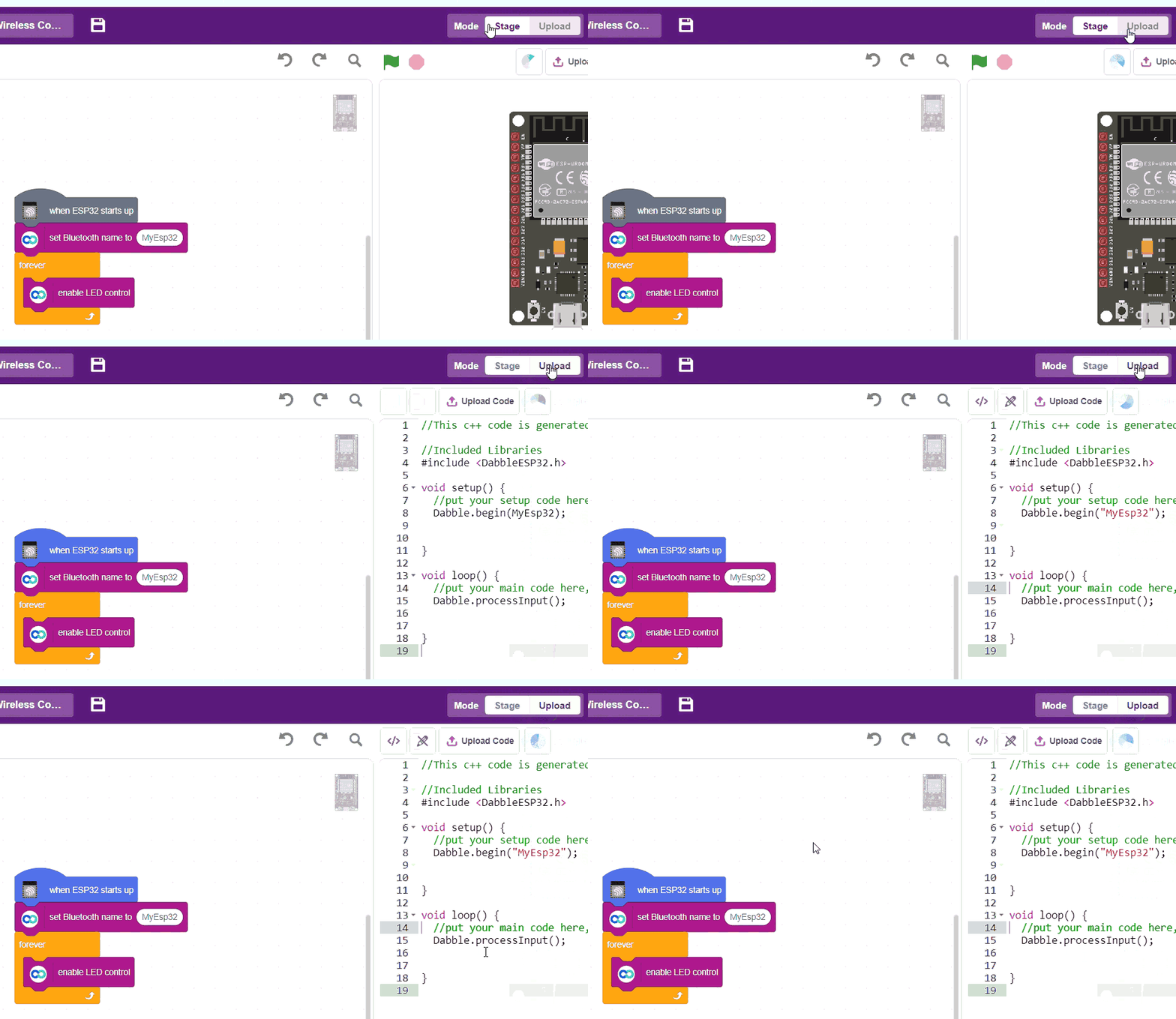
To run this project correctly, change the mode from Stage Mode to Upload Mode in PictoBlox. Upload Mode is used to upload the block code directly into the ESP32 board. After changing the mode, connect the ESP32 using a USB cable and upload the program. Once uploaded, the ESP32 will start working and enable wireless LED control through Bluetooth.
Block-by-Block Guide
Upload the code
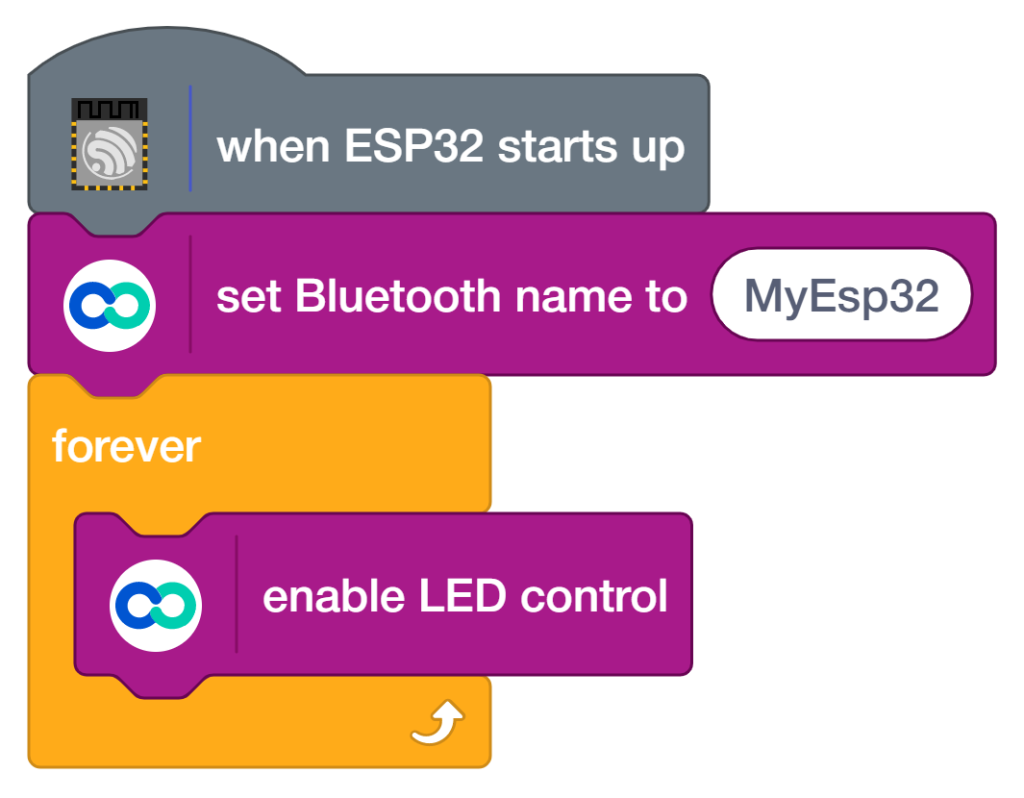
- Add ‘When ESP32 starts up’ the program starts automatically when the ESP32 board is powered ON.
- Drag ‘set Bluetooth name to MyEsp32′ This block sets the Bluetooth device name as “MyEsp32” so the mobile phone can identify and connect to the ESP32.
- From the control palette ‘forever’ the blocks inside this loop run continuously without stopping.
- Enable LED control, this block receives commands from the Dabble app and enables wireless LED control through Bluetooth communication.
Connect with Dabble App
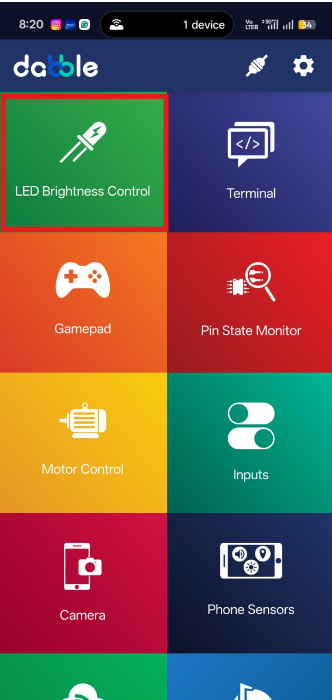
- Dabble app: Install from Play Store. Click the LED Brightness Control tab to connect.
Click the connect icon to connect the ESP32 with the Dabble app.
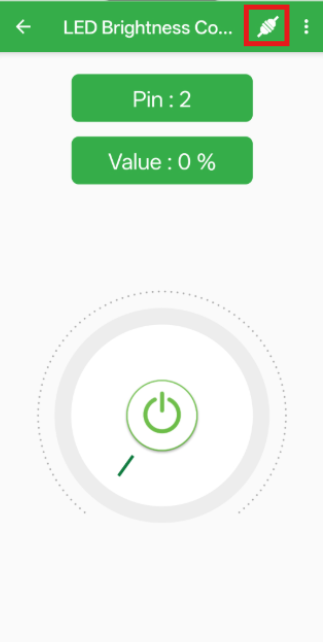
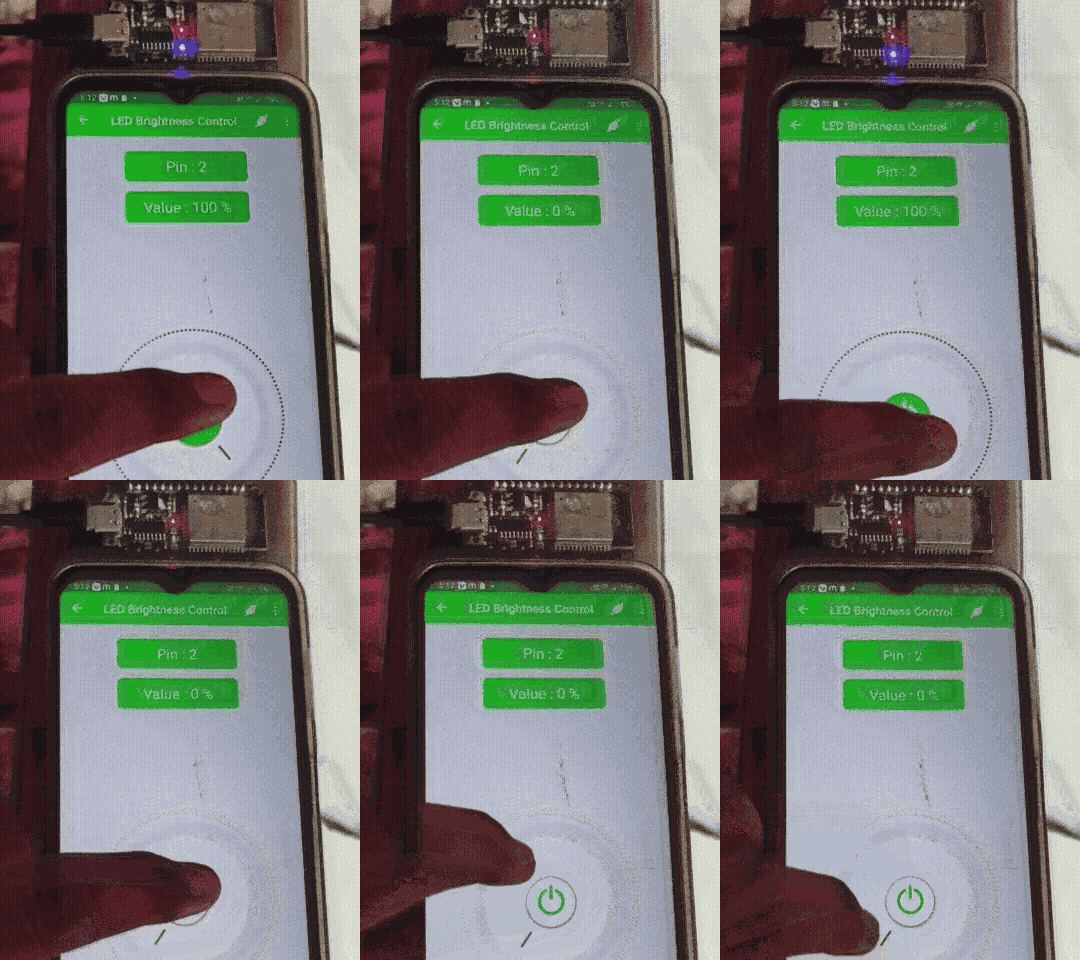
Using the Dabble app, users can easily adjust and control the LED light wirelessly through Bluetooth communication. The app allows users to send commands from a mobile phone to the ESP32 board, making it possible to turn the light ON, turn it OFF, and control the lighting system in real time. This makes the project simple, interactive, and useful for learning wireless automation concepts.
Output
Conclusion
In this project, we used PictoBlox block coding to create a wireless LED control system using the ESP32 board and the Dabble app. The blocks used in this project include when the ESP32 starts up, set the Bluetooth name forever, and enable LED control. These blocks help establish Bluetooth communication and continuously control the LED wirelessly through a mobile phone.
This project helps beginners understand the basics of IoT, Bluetooth communication, and smart automation in a simple and interactive way. It also demonstrates how block coding can be used to control real-world electronic devices without writing complex programming code.