


Introduction
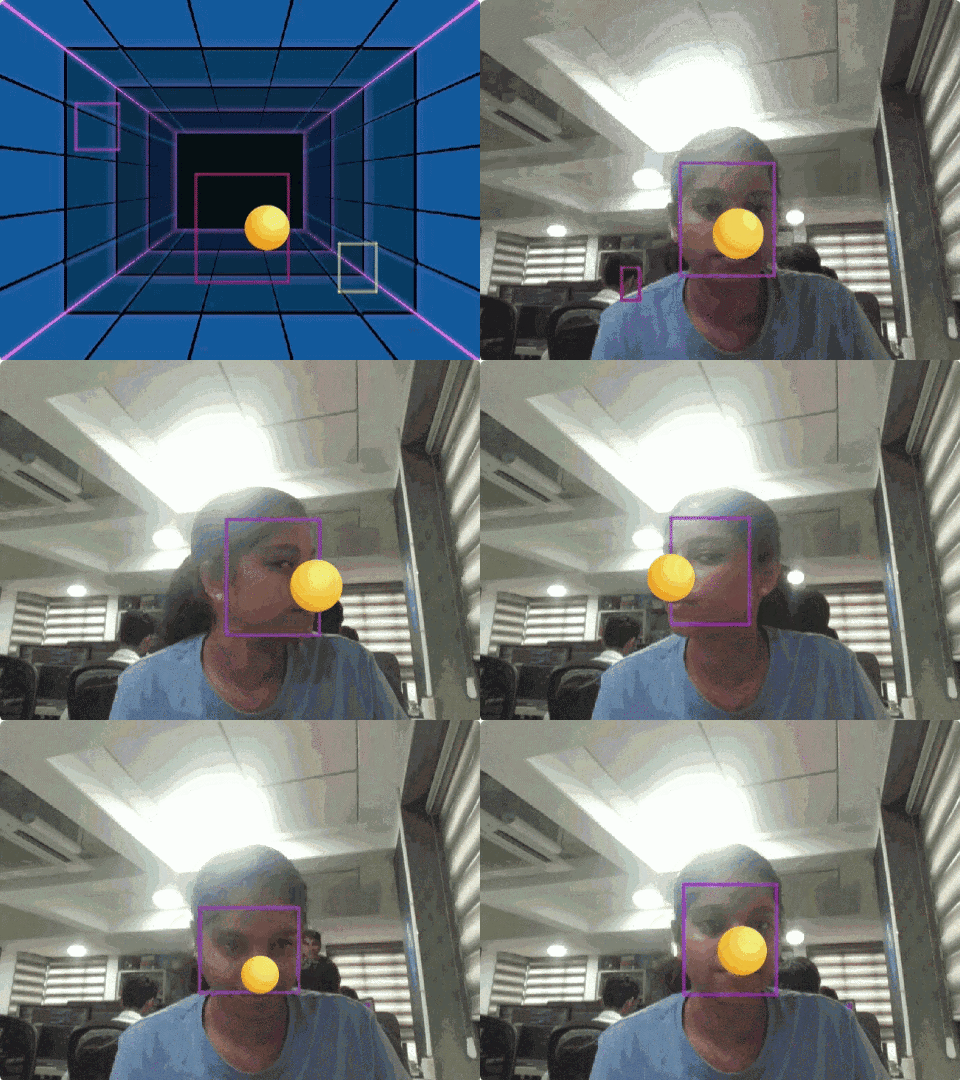
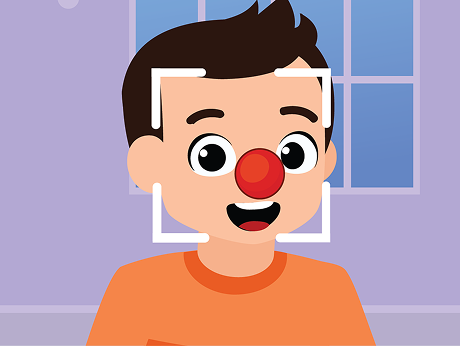
We are going to build AI-powered nose tracking in PictoBlox! The aim of the project is to use a ball to track your nose! We are going to use the Face Detection extension to make this work. By tracking your movements in real-time, the ball will follow you wherever your nose goes. You’ll need to move your face anywhere; the ball will track your nose.
Let’s make Nose Tracking using a ball in Junior Blocks.
- Add the Ball sprite in the sprite library. Click the ‘choose a sprite‘ > use the search to find the ball > select the ball.
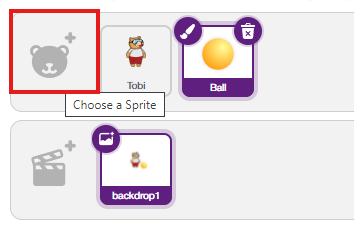
- Click the delete icon on top of the Tobi sprite. In the code, we are not going to use Tobi in this example.
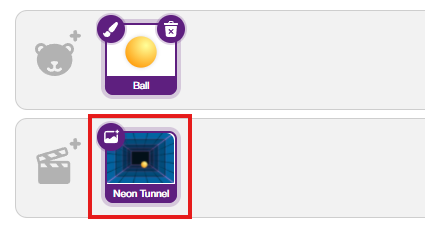
- Now it’s time to add the backdrop for this example. Click the backdrop icon below the sprite option (bottom right corner) > Search Neon Tunnel > Select the backdrop.
 First, let’s set up:
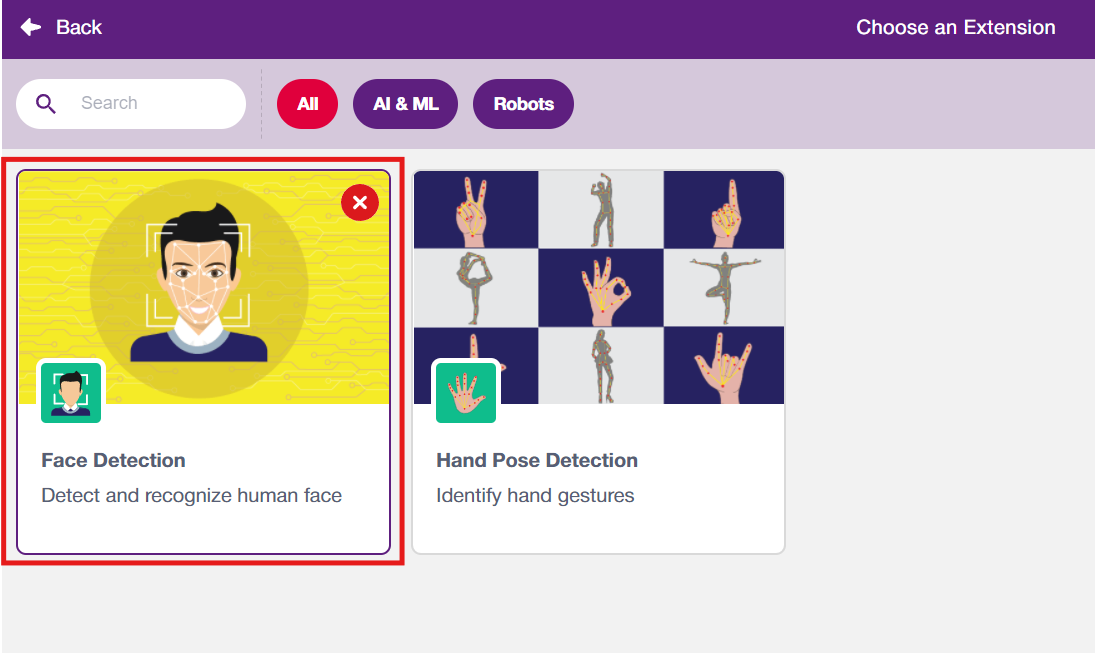
 - Click ‘Add Extension‘ and pick Face Detection.

Building the Nose Tracking Code
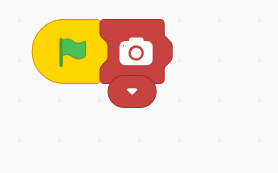
- Go to Events and drag the “Green Flag” block into your coding area.
- Add the camera switch block from the “face detection extension”. It enables or opens the PictoBlox camera in the stage.
- From Controls, drag in a “Repeat Forever” block.
- Once the camera opens, the face needs analysis to identify the nose. If you are adding only an analysis block, it will show the rectangle box in your face. Let’s see to it, to how to make it possible.
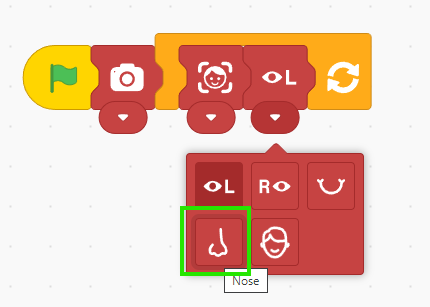
- Inside the Repeat Forever blocks, add the “Analysis Image” block from the Face Detection extension.
- For more specificity to your nose, add the “Move with Face” block and select the Nose icon to change.
- Now let’s click the flag icon to track your nose.
Output