

The ML with Teachable Machine Extension allows users to bring custom-trained Machine Learning models into their PictoBlox projects. By leveraging Google’s Teachable Machine platform, users can easily gather image samples, define custom classes, and train an image classification model.
Once trained, the model can be imported directly into PictoBlox using a shareable cloud link to recognize objects, gestures, or scenes using the computer’s webcam.
The following is the process to train a custom model and add it to your PictoBlox Project:
Step 1: Open PictoBlox and select the Block Coding environment.
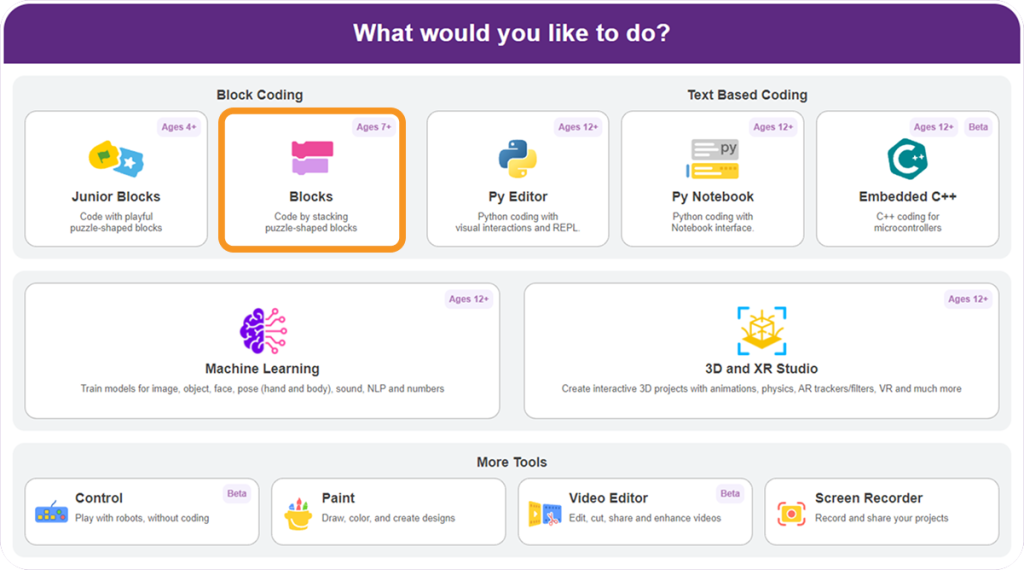
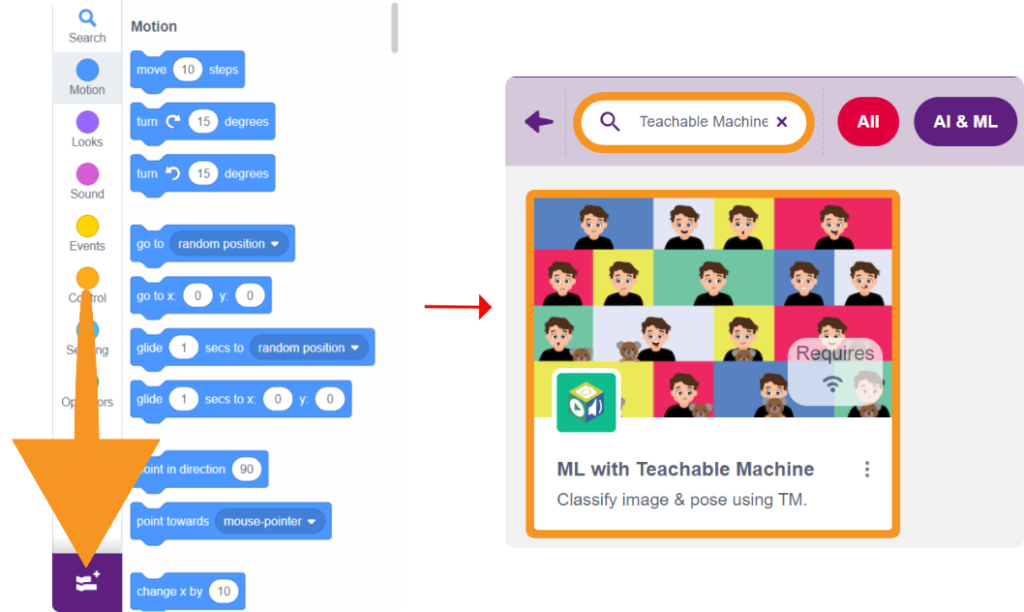
Step 2: Click on Add Extension from the Blocks Palette.
Step 3: Search for Teachable Machine and select the extension.
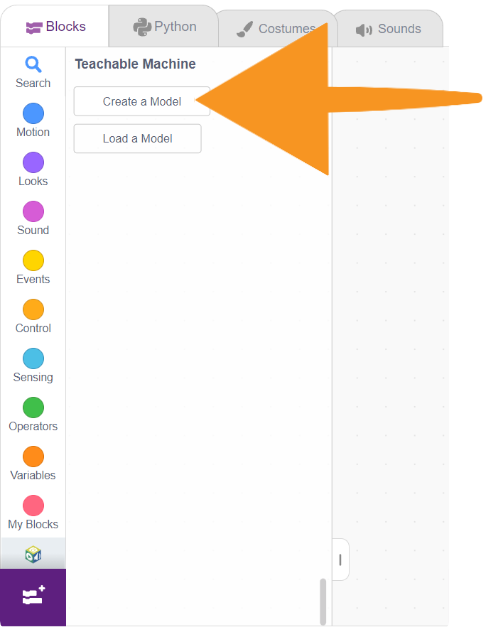
Step 4: In the Teachable Machine block palette, click the Create a Model button. This will redirect you to the Teachable Machine website.
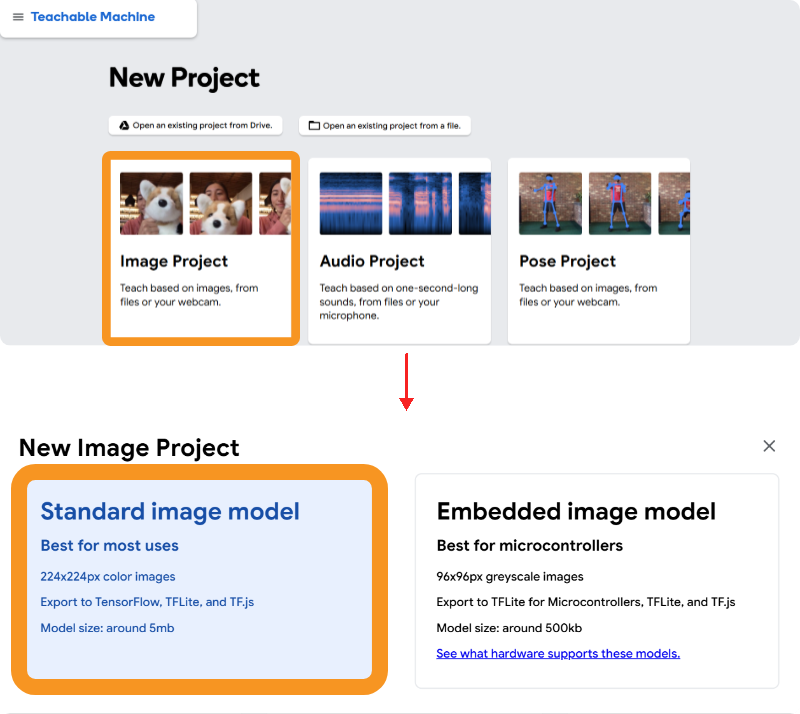
Step 5: Select Image Project and then choose Standard image model.
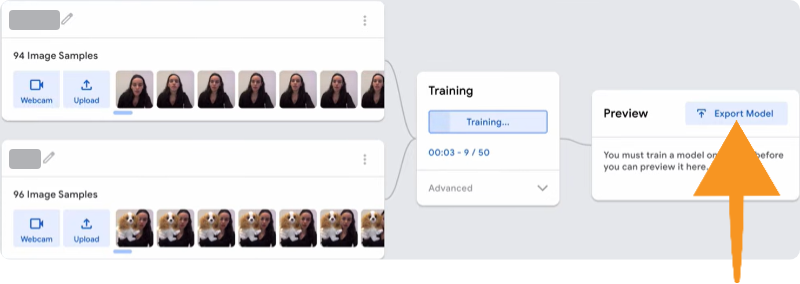
Step 6: Create your classes (e.g., “Class 1”, “Class 2”). Click on Webcam or Upload to add image samples for each class.
Step 7: Once you have added enough data for both classes, click on the Train Model button.
Step 8: Click Export Model in the Preview panel.
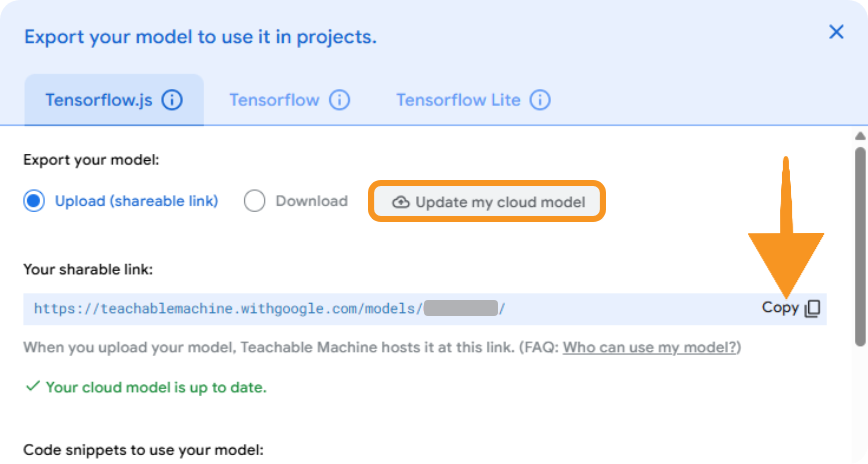
Step 9: Then choose Update my cloud model. Once the upload is complete, copy the sharable link from the pop-up window.
Step 10: Return to PictoBlox and click the Load a Model button. Paste the copied link into the prompt and click Load.
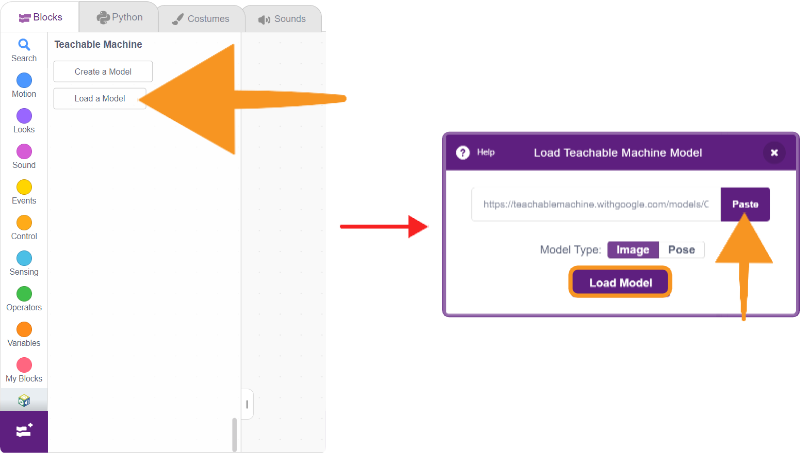
Your model will successfully load into PictoBlox.
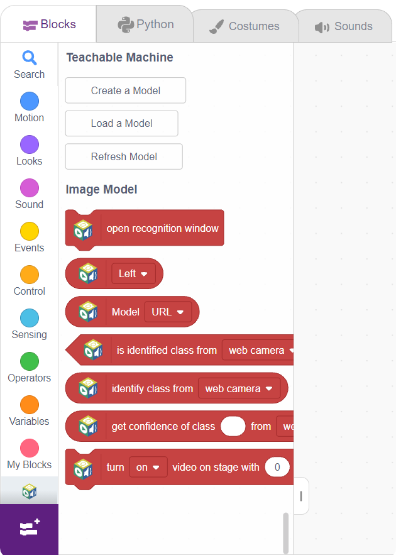
Teachable Machine Setup Buttons
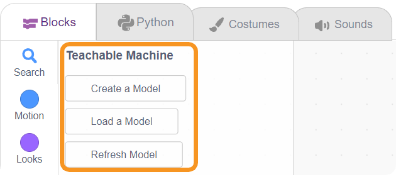
Create a Model: Clicking this button opens the Teachable Machine website in your browser, allowing you to start training a new image classification model.
Load a Model: Prompts you to paste the shareable link from Teachable Machine to import your trained model into the project.
Refresh Model: Reloads the currently linked model. Use this if you have made updates to your model on the Teachable Machine website and updated the cloud link.