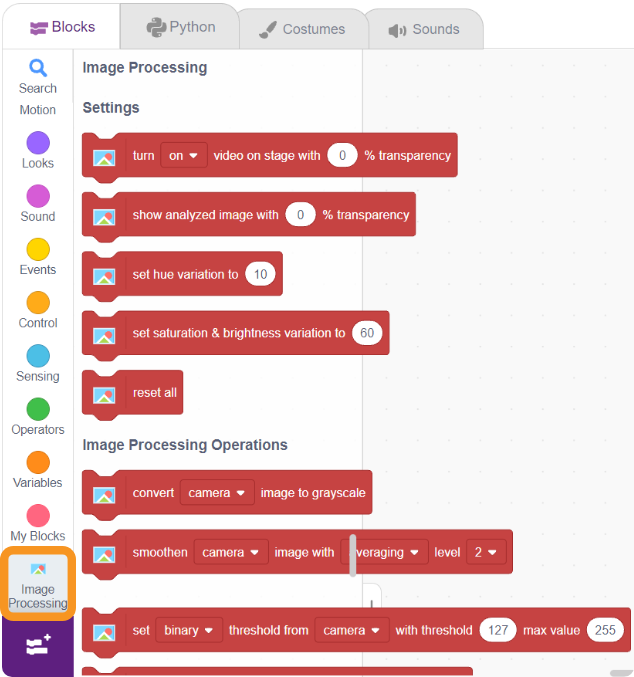



The Image Processing Extension, categorized under AI & ML, is available in Block Coding and supports Stage Mode, enabling users to process and enhance raw images using various sophisticated techniques without requiring a Wi-Fi connection for core tasks.
Its capabilities span basic settings (camera-feed control), image operations (grayscale conversion, color channel separation, ROI selection), and advanced functions like smoothing and blurring (Averaging, Gaussian, Median, Bilateral). The extension also features detection tools for thresholding, edge detection, morphological operations (Erosion/Dilation), and dedicated blocks for analyzing shapes and objects, including contours, circles, and polygons.
Step 1: Download or update PictoBlox
Install the latest available version of PictoBlox before using the extension.
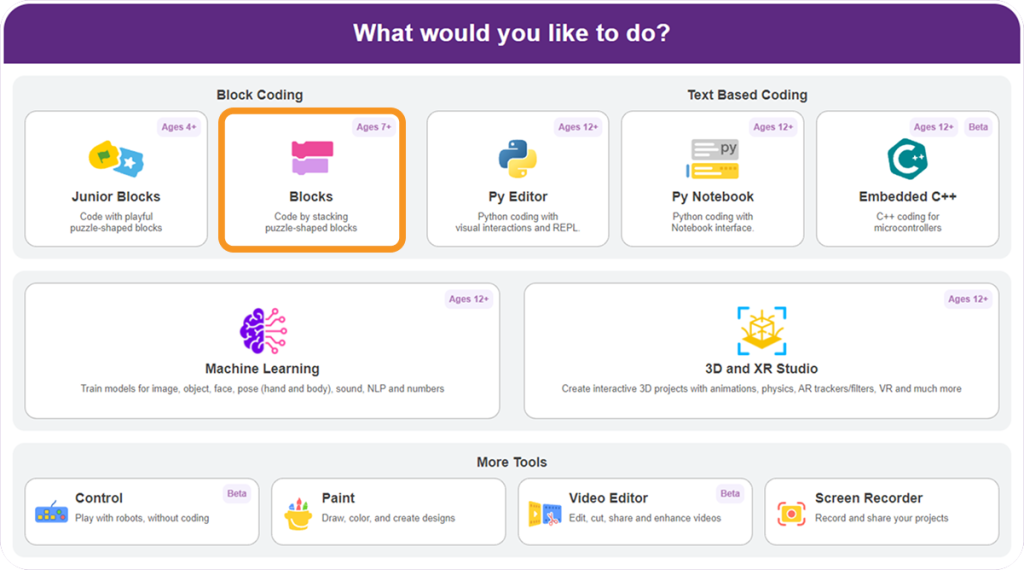
Step 1: Open PictoBlox and select the Block Coding environment.
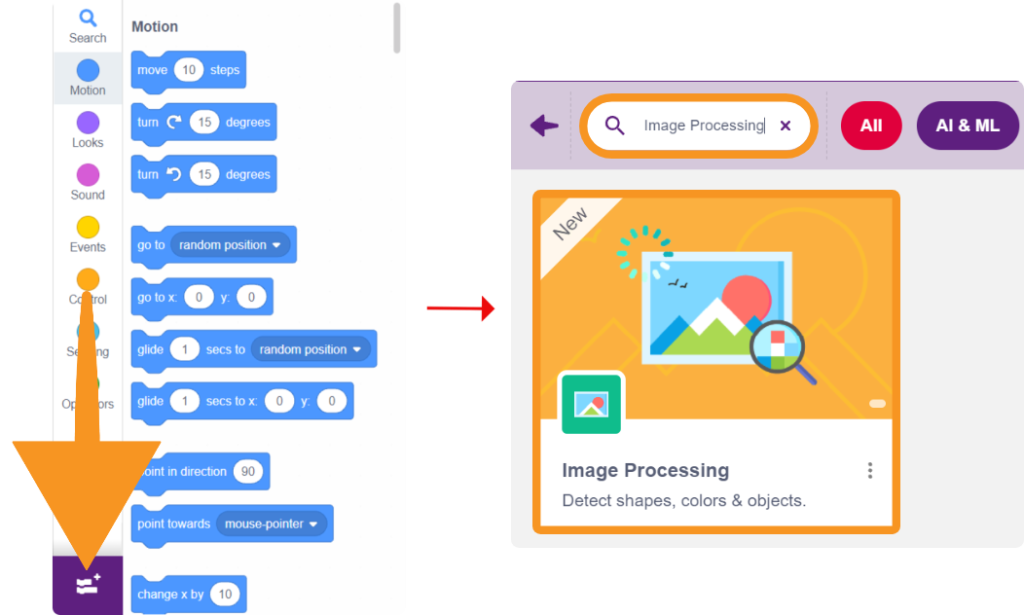
Step 3: Click on the Add Extension button from the bottom left corner of the Blocks Palette.
Step 4: Search for and select the Image Processing extension.
Step 5: The image processing models will be downloaded, which may take a few seconds to load.
Step 6: Once downloaded, you will get a message saying “Model loaded successfully”. The image processing blocks will now be available in the Blocks Palette.