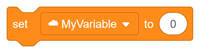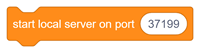



The Cloud Variable Extension helps you share data between different users in the same PictoBlox project. It lets you store values like scores, usernames, or game data in the cloud and update them in real time. When one user changes a value, everyone connected can see the update instantly.
You can easily connect your project to a server, create cloud variables, set or delete values, and check who is connected using simple blocks. Special event blocks let projects react when a user connects, disconnects, or receives new data.
This extension can be used for building multiplayer games, team projects, live quizzes, and collaborative experiments.
A cloud variable is a special kind of variable that stores information online in the PictoBlox “cloud”. These variables are updated on the server side in real time, with little to no delay in project events.
Step 1: Download or update PictoBlox
Install the latest available version of PictoBlox before using the extension.
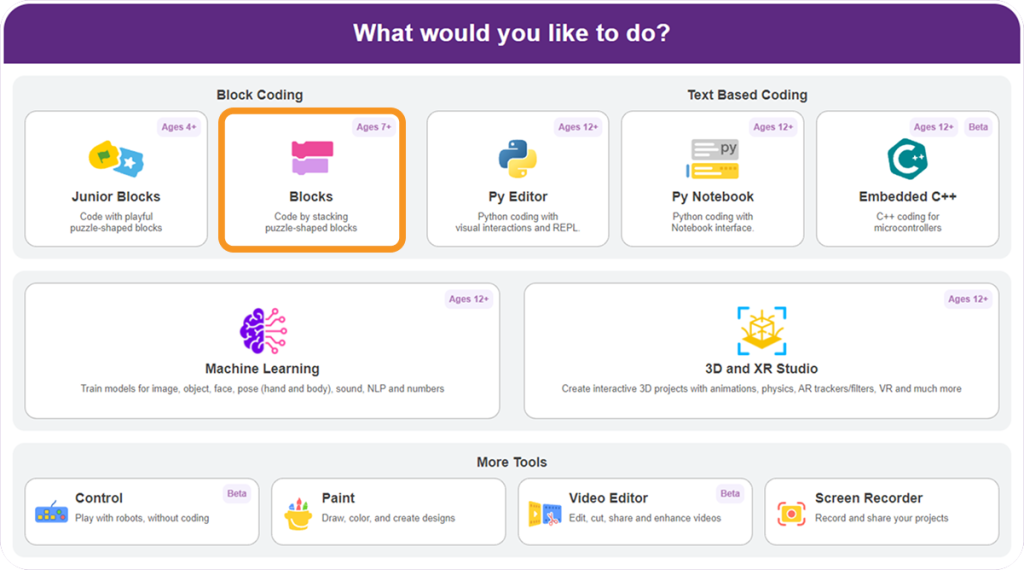
Step 1: Open PictoBlox and select the Block Coding environment.
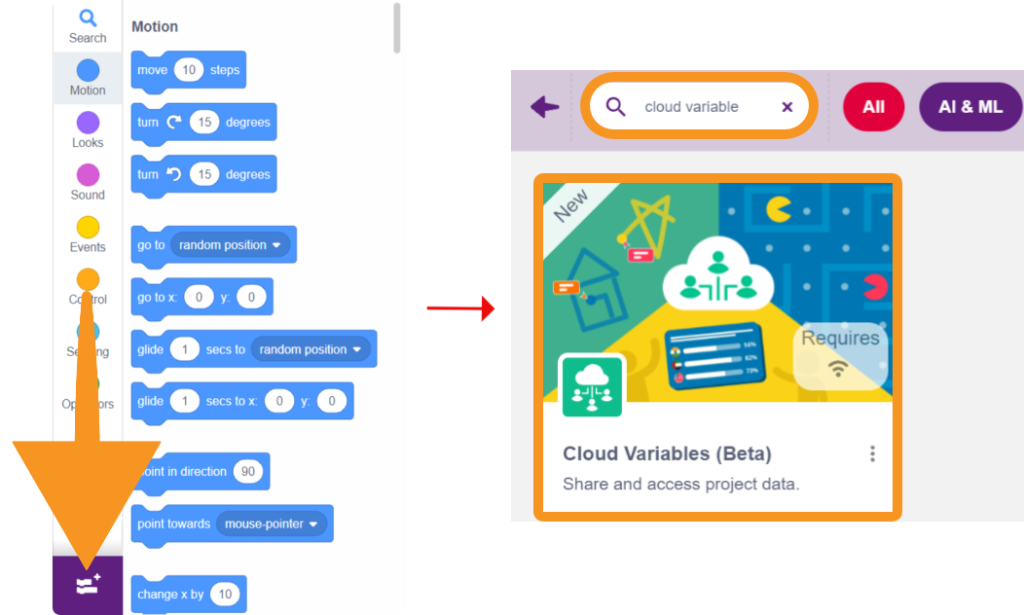
Step 3: Click the Add Extension button from the bottom left corner of the Blocks Palette.
Step 4: Search for and select the Cloud Variable extension.
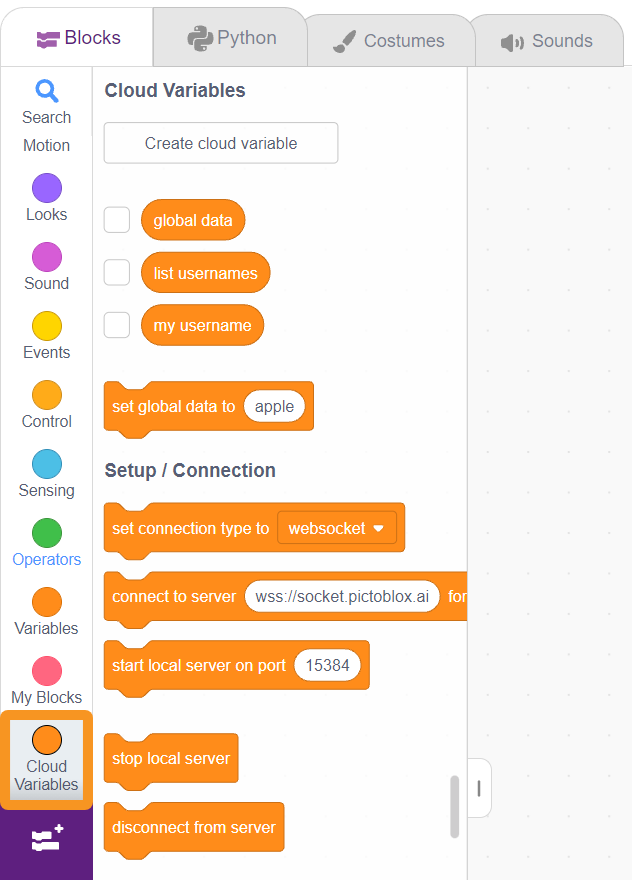
Step 5: The Cloud Variable blocks can now all be accessed under the Cloud Variable category in the Blocks Palette.
1. Creating a Cloud Variable:
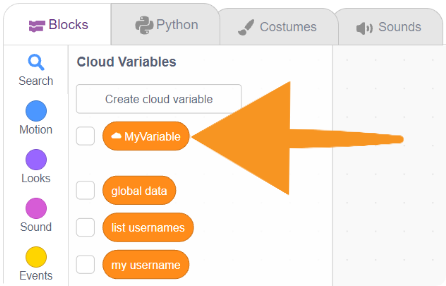
Step 1: Click on the ‘Create cloud variable’ button to create a cloud variable.
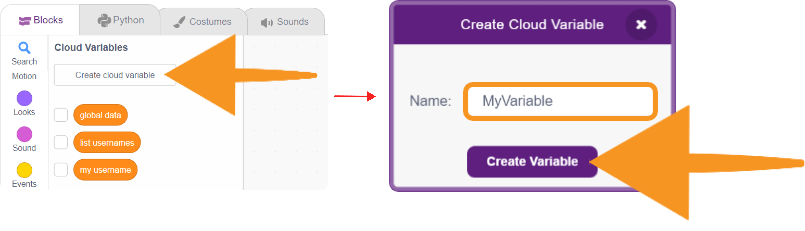 Step 2: The added cloud variable will be visible in the list of cloud variables.
2. Creating a JSON List:
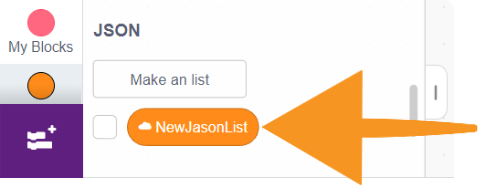
Step 1: Click on the ‘Make a list’ button.
Step 2: Name the JSON list and then click on the ‘Create’ button.
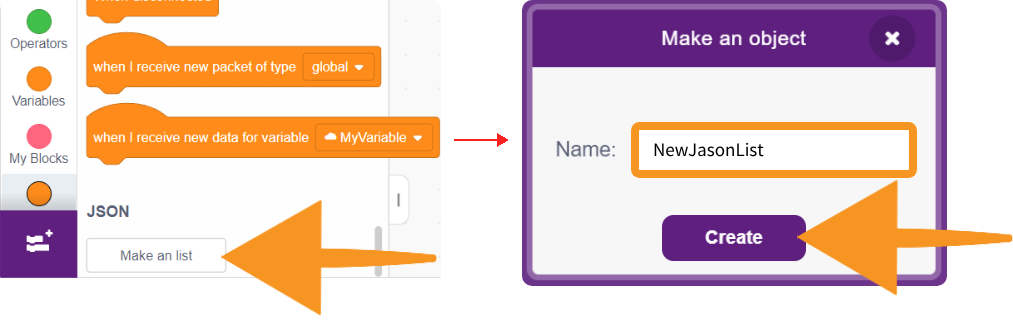
Step 3: Check out the newly created list in the JSON block section.