



Introduction
The Quarky Moves in a Circle project is a simple and engaging robotics project that demonstrates how different motor speeds can affect the movement of a robot. In this project, the Quarky robot is programmed using Python in PictoBlox to move in a circular path by running its left and right motors at different speeds. The left motor rotates at a lower speed while the right motor rotates at a higher speed, causing the robot to continuously turn and form a circle.
When the program starts, both motors move forward, but because the speeds are unequal, Quarky does not travel in a straight line. Instead, it follows a curved trajectory that eventually creates a circular motion. This project helps beginners understand the concepts of motor control, differential drive systems, speed variation, and robot navigation. It also introduces students to Python programming and demonstrates how software can be used to control the movement and behaviour of robots in real-world applications.
Prerequisites
- Quarky Robot
- Laptop or Computer
- PictoBlox should be installed on the system
- A stable Bluetooth or USB connection between PictoBlox and Quarky
- Basic knowledge of Python programming
Step-by-Step Python Coding Guide
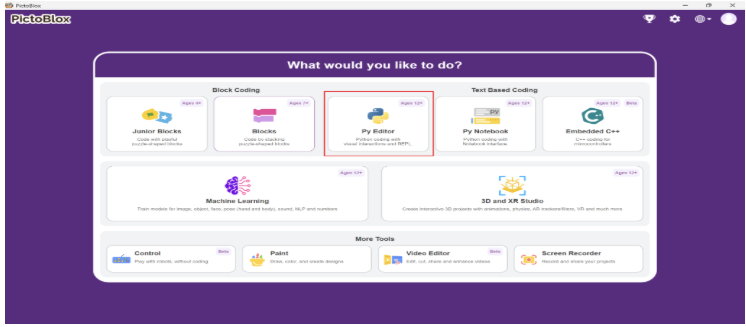
- Open PictoBlox and click on “Py Editor”.
- Click on the Board tab on the top navigation bar and select Quarky.
- Now, click on connect and choose Bluetooth.
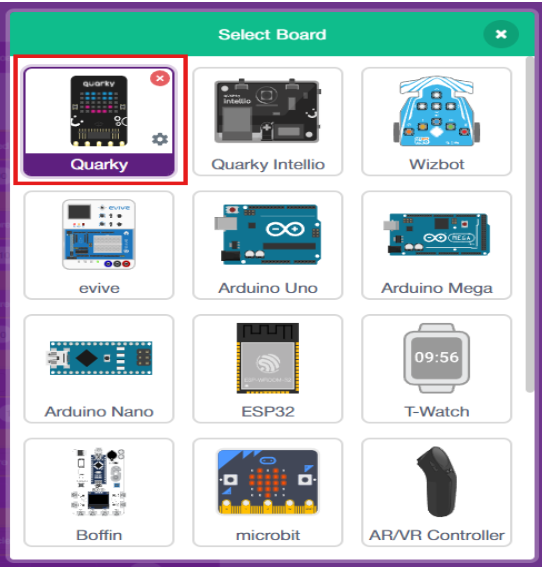
- Your Quarky has a unique code mentioned on it. Select your Quarky from the list and click on Connect.
- Quarky plays a confirmation sound on connecting.
- Voila! Your Quarky is now connected to PictoBlox!
Initialising Interactive Python Script
# Create a sprite named 'Tobi'
sprite = Sprite('Tobi')

# Create an object for Quarky robot
quarky = Quarky()

# Run the left motor in FORWARD direction at speed 20
quarky.runmotor("L", "FORWARD", 20)

# Run the right motor in FORWARD direction at speed 100
quarky.runmotor("R", "FORWARD", 100)
This script is designed to set up the visual environment and hardware configuration for an interactive project. Here is the step-by-step logic:
- Create Sprite(‘Quarky’) – This line creates the Quarky sprite in PictoBlox, allowing the program to interact with and control the Quarky robot.
- quarky = Quarky() – This line creates a Quarky object and establishes communication between the Python program and the Quarky robot.
- from quarky import * – This statement imports all the required Quarky functions and commands, making it easy to control the robot’s motors, sensors, and other features.
- runmotor(“L”, “FORWARD”, 20) – This command runs the left motor in the forward direction at 20% speed. Since the speed is low, the left wheel rotates slowly.
- runmotor(“R”, “FORWARD”, 100) – This command runs the right motor in the forward direction at 100% speed. The right wheel rotates much faster than the left wheel.
Conclusion
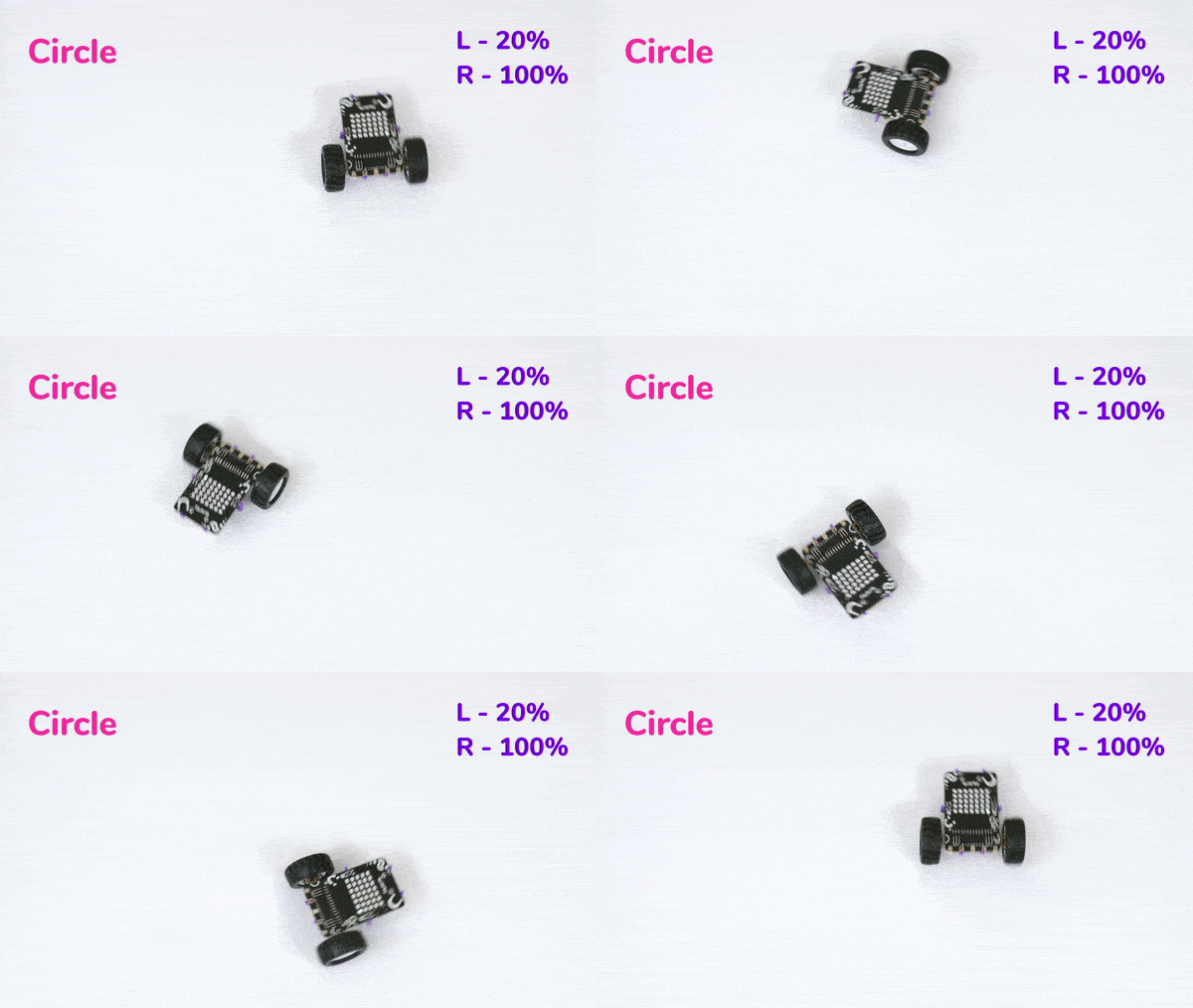
In this project, we used Python programming in PictoBlox to create a Quarky Moves in a Circle system. The commands used in this project include creating a Quarky object, importing Quarky functions, and controlling the left and right motors with different speed values. These commands help Quarky move forward while maintaining different motor speeds, causing it to follow a circular path. Through this project, students learn the concepts of motor control, speed variation, differential drive movement, and robot navigation. It also provides hands-on experience in understanding how programming can influence the movement and behaviour of robots in real-world applications.