



Introduction
Have you ever wanted to control a robot using your keyboard — just like robots used in smart factories, automated vehicles, and robotics research labs? In this exciting robotics and coding project, we will program the Quarky robot to move in different directions using the arrow keys on a computer keyboard with the help of PictoBlox and Python programming. By pressing the Up, Down, Left, and Right arrow keys, the robot will move accordingly while also displaying directional patterns on Quarky’s LED matrix.
This project is a great way to explore the fundamentals of robotics, event-driven programming, and real-time hardware control. Using simple Python commands in PictoBlox, learners will understand how software interacts with robotic hardware to perform actions instantly. No advanced programming knowledge is needed, making this an ideal beginner-friendly STEM activity for students interested in coding, automation, and AI-powered robotics.
Prerequisites
- Quarky Robot
- Laptop or Computer
- PictoBlox Software should be installed on the system
- A stable Bluetooth or USB connection between PictoBlox and Quarky
- Basic knowledge of Python programming
Step-by-Step Python Coding Guide
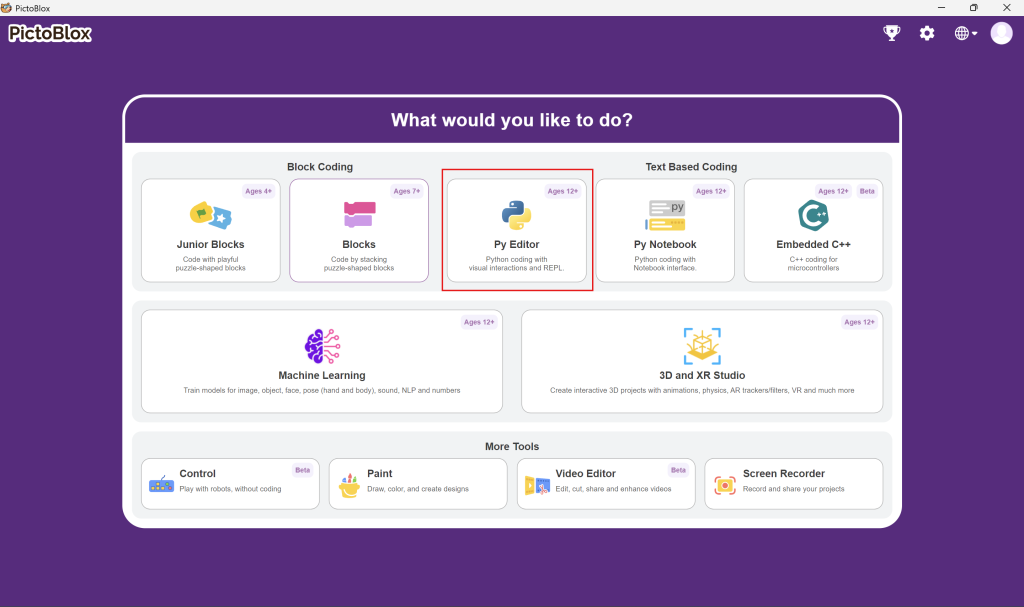
- Open PictoBlox and click on “Py Editor”.
- Click on the Board tab on the top navigation bar and select Quarky.
- Now, click on connect and choose Bluetooth
- Your Quarky has a unique code mentioned on it. Select your Quarky from the list and click on Connect.
- Quarky plays a confirmation sound on connecting.
- Voila! Your Quarky is now connected to PictoBlox!
Initialising Interactive Python Script
sprite = Sprite('Arrow1')
quarky=Quarky()
import time
sprite.gotoxy(0, 0)
sprite.setsize(200)
quarky.setorientation("HORIZONTAL")
This script is designed to set up the visual environment and hardware configuration for an interactive project. Here is the step-by-step logic:
This creates an object for the “Arrow1” sprite, allowing you to control its movement and appearance through code.
sprite = Sprite('Arrow1')This initialises the connection to the Quarky robot, which is the hardware component used for AI and robotics projects.
quarky = Quarky():This loads the standard Python time library, which is usually used later in the script to create delays or timing loops.
import timeThis moves the Arrow sprite to the exact centre of the stage (the origin point of the coordinate system).
sprite.gotoxy(0, 0)This doubles the default size of the sprite, making it much more visible on the screen.
sprite.setsize(200)This tells the Quarky hardware that it is lying flat (landscape), ensuring that its display and internal sensors (like the accelerometer) respond correctly to movement.
quarky.setorientation("HORIZONTAL")Move Forward (Up Arrow)
while True:
#When "up arrow" key is pressed, we move quarky forward
if sprite.iskeypressed("up arrow"):
sprite.switchcostume("arrow1-d")
quarky.runrobot("FORWARD", 100)
quarky.drawpattern("jjjbjjjjjbbbjjjbjbjbjjjjbjjjjjjbjjj")- while True: This creates an infinite loop, ensuring the robot constantly checks for your input from the gamepad without stopping.
- if sprite.iskeypressed(“up arrow”): → Checks whether the Up Arrow key is currently being pressed on the keyboard.
- sprite.switchcostume(“arrow1-d”) → Changes the sprite’s appearance to the costume named “arrow1-d”.
- quarky.runrobot(“FORWARD”, 100) → Commands the Quarky robot to move forward at speed 100.
- quarky.drawpattern(“jjjbjjjjjbbbjjjbjbjbjjjjbjjjjjjbjjj”) → Makes Quarky execute a predefined LED/motion pattern based on the given encoded string
Move Backward (Down Arrow)
while True:
#When "down arrow" key is pressed, we move Quarky forward
if sprite.iskeypressed("down arrow"):
sprite.switchcostume("arrow1-c")
quarky.runrobot("BACKWARD", 100)
quarky.drawpattern("jjjbjjjjjjbjjjjbjbjbjjjbbbjjjjjbjjj")- if sprite.iskeypressed(“down arrow”): → Checks whether the Down Arrow key is currently being pressed on the keyboard.
- sprite.switchcostume(“arrow1-c”) → Changes the sprite’s appearance to the costume named “arrow1-d”.
- quarky.runrobot(“BACKWARD”, 100) → Commands the Quarky robot to move backward at speed 100.
- quarky.drawpattern(“jjjbjjjjjjbjjjjbjbjbjjjbbbjjjjjbjjj”) → Makes Quarky execute a predefined LED/motion pattern based on the given encoded string
Move LEFT (LEFT Arrow)
while True:
#When "left arrow" key is pressed, we move quarky forward
if sprite.iskeypressed("left arrow"):
sprite.switchcostume("arrow1-b")
quarky.runrobot("LEFT", 100)
quarky.drawpattern("jjjbjjjjjjbjjjjbjbjbjjjbbbjjjjjbjjj")- if sprite.iskeypressed(“left arrow”): → Checks whether the Left Arrow key is currently being pressed on the keyboard.
- sprite.switchcostume(“arrow1-b”) → Changes the sprite’s appearance to the costume named “arrow1-a”.
- quarky.runrobot(“LEFT”, 100) → Commands the Quarky robot to move left at speed 100.
- quarky.drawpattern(“jjbjjjjjbjjjjjbbbbbbbjbjjjjjjjbjjjjj”) → Makes Quarky execute a predefined LED/motion pattern based on the given encoded string
Move Right (Right Arrow)
while True:
#When "right arrow" key is pressed, we move quarky forward
if sprite.iskeypressed("right arrow"):
sprite.switchcostume("arrow1-a")
quarky.runrobot("Right", 100)
quarky.drawpattern("jjjjbjjjjjjjbjbbbbbbbjjjjjbjjjjjbjj")- if sprite.iskeypressed(“right arrow”): → Checks whether the Left Arrow key is currently being pressed on the keyboard.
- sprite.switchcostume(“arrow1-a”) → Changes the sprite’s appearance to the costume named “arrow1-a”.
- quarky.runrobot(“LEFT”, 100) → Commands the Quarky robot to move left at speed 100.
- quarky.drawpattern(“jjjjbjjjjjjjbjbbbbbbbjjjjjbjjjjjbjj”) → Makes Quarky execute a predefined LED/motion pattern based on the given encoded string
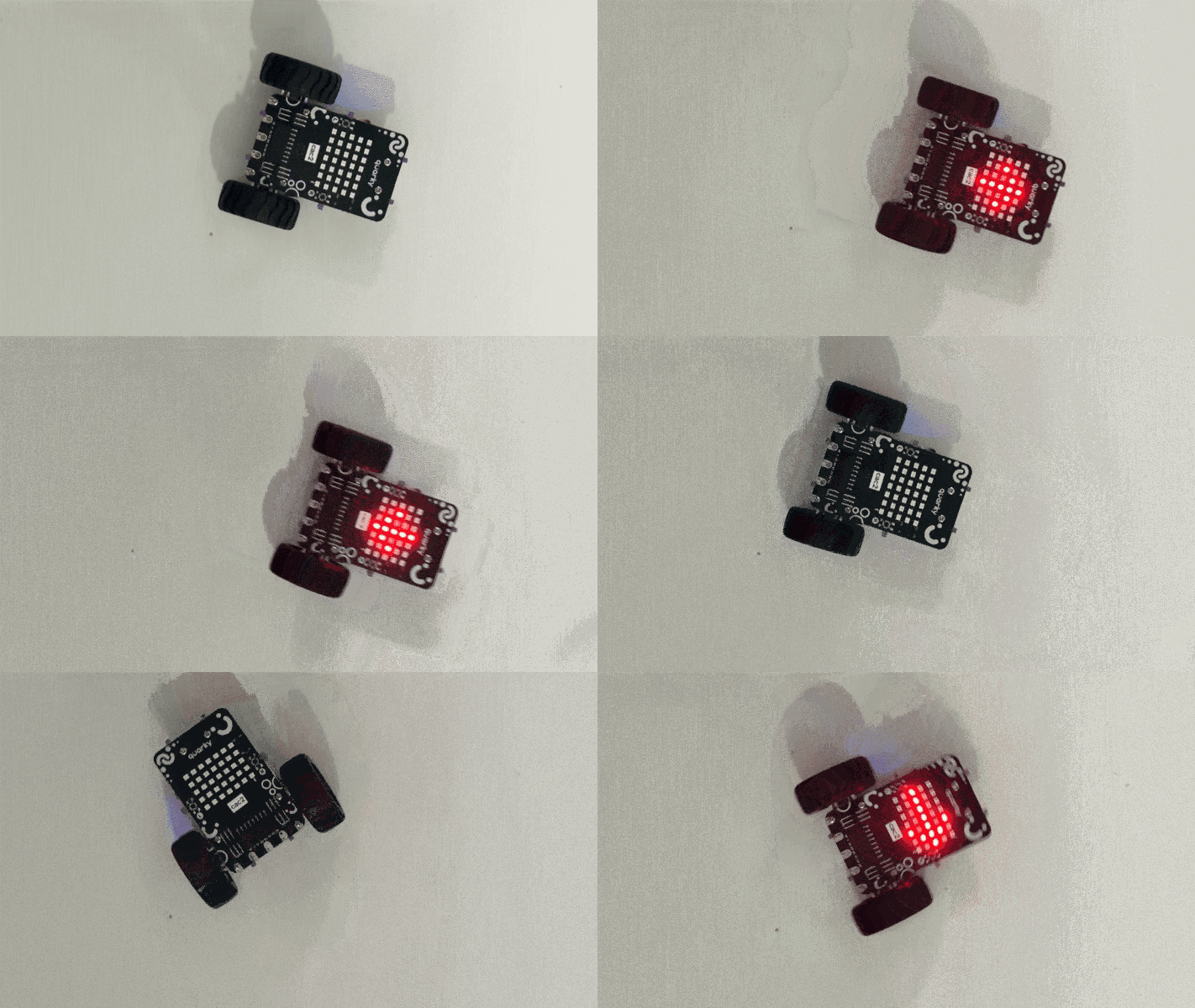
Output
Conclusion
This project demonstrates how keyboard inputs can be used to control the Quarky robot interactively. The robot responds to the Up Arrow key by changing the sprite costume, moving forward, and displaying a custom pattern. It helps learners understand event handling, conditional statements, and robot control using Python. Through this activity, students gain hands-on experience in programming and robotics integration.