



Introduction
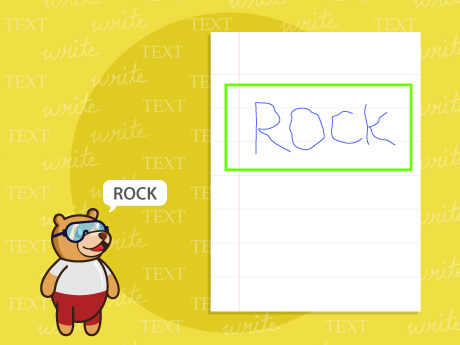
AI Text Detection is a technology that helps computers identify and read text from images or camera input using Optical Character Recognition (OCR). In this PictoBlox project, the AI Text Detection feature is used to recognise printed or handwritten text from an image and convert it into digital text. This allows users to create smart applications such as document readers, automatic text extraction systems, and educational AI projects. PictoBlox makes this process simple by providing easy-to-use AI blocks that work with images, URLs, or live camera input. Through this project, we can understand how artificial intelligence can help machines interpret and process real-world visual information.
Setting Up the Stage / Sprite
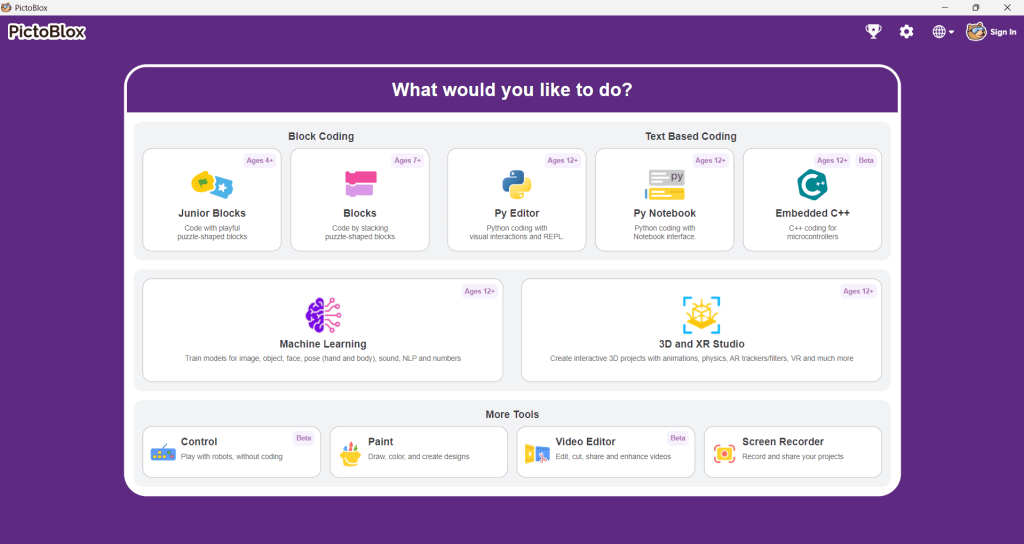
Step 1: Open PictoBlox
Launch PictoBlox on your computer and create a new project. PictoBlox provides a block-based programming environment that helps in building AI and coding projects easily.
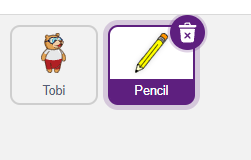
Step 2: Add the Pencil Sprite
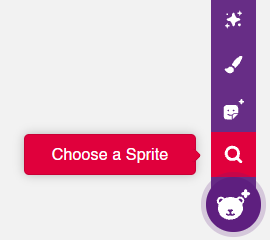
By default, you will have the Tobi (bear) sprite. Click on the “Choose a Sprite” button and add the Pencil sprite.
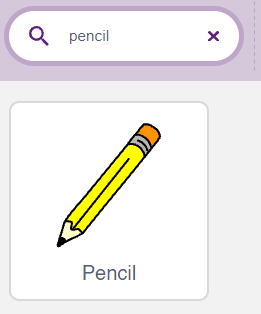
This will act as your interactive drawing tool.
Step 3: Adding Necessary Extensions
- Click on the Add Extension button (located at the bottom-left corner of the screen).
- Add the Pen extension: This grants the Pencil sprite the ability to draw markings on the stage.
- Click the Add Extension button again and select the Artificial Intelligence extension:
This specialised extension contains the blocks required for detecting and extracting handwritten text, distinguishing it from standard printed text OCR.
Step 4: Programming the Pencil
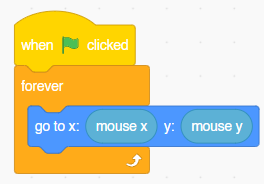
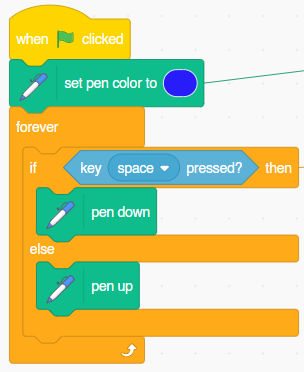
First, we need to create a script that allows the user to draw freely on the stage using the Pencil sprite and the mouse.
- Movement Tracking: Ensure the pencil continuously follows the user’s mouse pointer across the stage.
- Drawing Logic: Set a specific pen color (e.g., blue). Use a conditional statement linked to the Space key to control when the pen touches the paper (pen down to draw) and when it lifts (pen up to stop drawing).
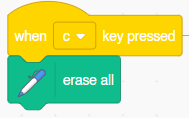
- Clear Canvas: Program the ‘C’ key to quickly erase all markings from the stage.
Step 4: Programming the AI Handwritten Text Recognition
Next, program the AI to read the specific text you have just drawn on the stage. We will trigger the AI scan by pressing the ‘a’ key on the keyboard.
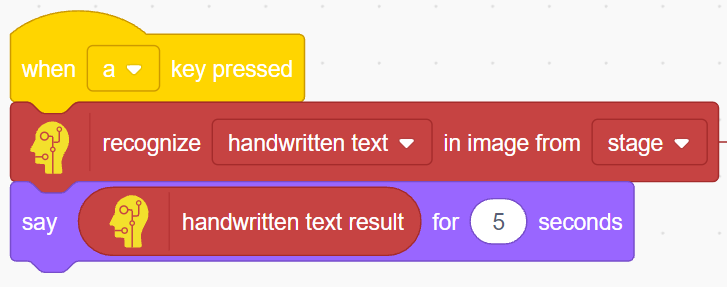
What this does: The system captures the current visual state of the stage and sends it to the AI model specifically trained for handwriting. It then outputs the recognised string via a speech bubble for 5 seconds.
Output
- Click the Green Flag button to initialise the project and tracking scripts.

- Move your mouse around the stage; the Pencil should track your pointer exactly.
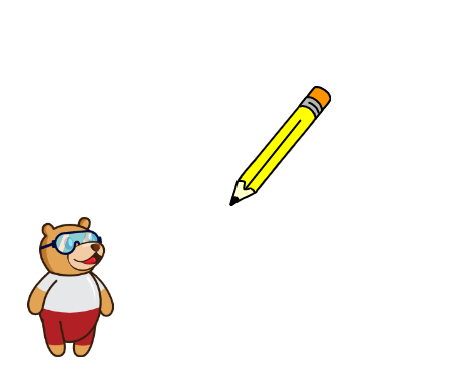
- Press and hold the Space key while dragging your mouse to write a word (e.g., “Hello”). Release the Space key to stop drawing.
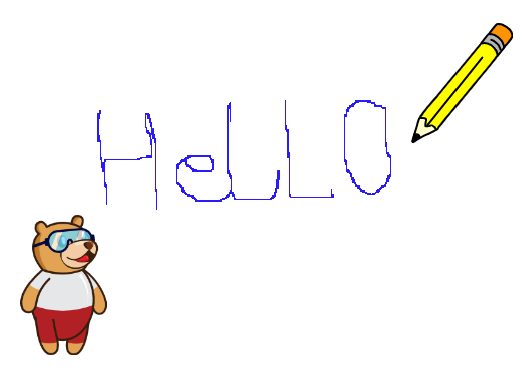
- Press the ‘a’ key to trigger the Artificial Intelligence text recognition block.
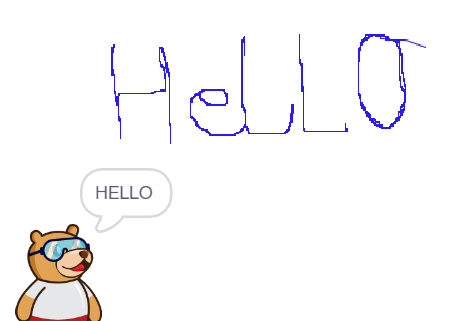
- Observe the Output: The sprite will process the image and display the detected handwritten text in a speech bubble on the screen.
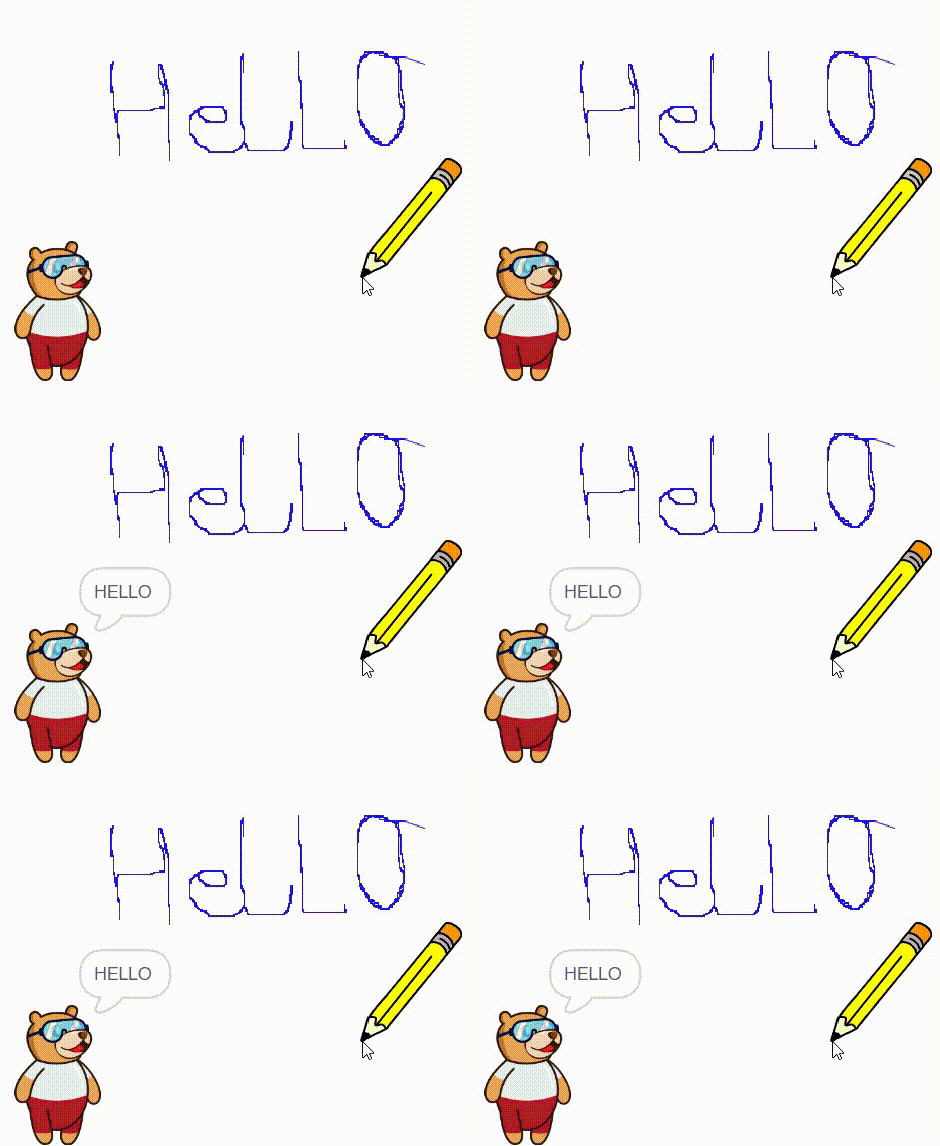
- Press the ‘c’ key to clear the stage and experiment with different handwriting styles to test the AI’s accuracy!