


Introduction
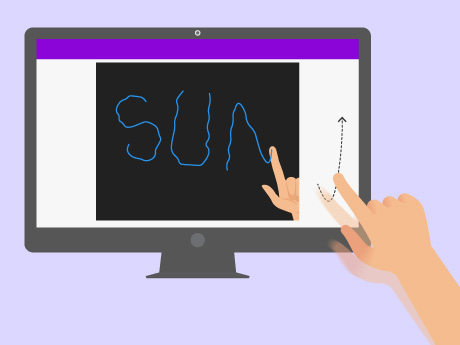
In today’s world of interactive technology, creating engaging and intuitive experiences has become easier than ever. This project demonstrates how we can transform simple hand movements into digital art using PictoBlox and its powerful Human Pose Detection feature.
By leveraging computer vision, we can track the movement of our fingers in real time and use them as a virtual drawing tool—turning the air around us into a canvas. Without the need for physical contact or traditional input devices, this project offers a fun, innovative way to explore creativity and technology together.
Prerequisites
To make the project all you need is
- A laptop or a computer with a camera,
- The latest version of PictoBlox downloaded
- Good Internet connection.
Setting up the Project
Let’s begin by adding the human body detection and pen extension.
- Open PictoBlox.
- Click on the Add extension buttons.
- Choose the Human Pose Detection extension and wait for a little while till the models get loaded.
You may see that human body detection and pen blocks are added into the block palettes.
Setting Up the Stage
Now, let’s add a new Pencil sprite to draw.
- Click on the ‘choose a sprite’ button and select a pencil sprite from the library.
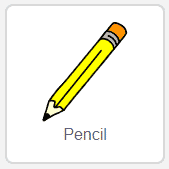
- Right-click on Tobi and choose delete from the dropdown to delete Tobi’s sprite.

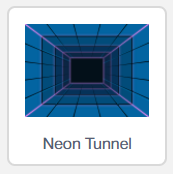
- Add a backdrop using Choose a backdrop > Search & Select Neon Tunnel backdrop.
Making the Pencil follow the Finger
Let’s begin to write the script.
- Select the Pencil sprite.
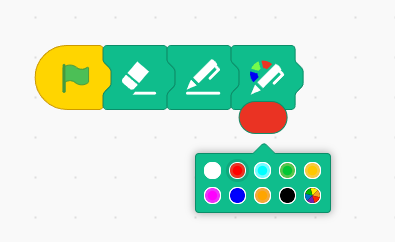
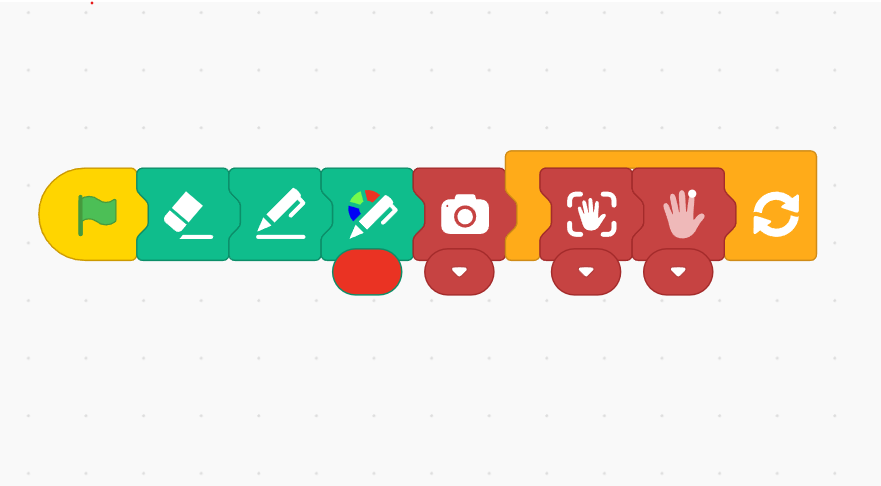
- Go to the Events palette and drag the ‘Green Flag’ block drop into your coding area.
- Add the ‘Pen Clear’ block from the Pen palette.
- Drag and drop the ‘Pen down’ block fromPen palette.
- Now set the pen colour; for that, drag and drop the ‘Pen Color’ block into the scripting area. Change the color to red.
- As we will be drawing in air and the drawings will be traced on the screen, we need to add the ‘Camera Switch’ block from the Human Pose Detection Extension.
- Add the ‘Repeat forever‘ block from the Control palette to run the script continuously.
- Now as we need the details of the hand in real-time, inside the repeat block, add the ‘Analyse hand’ block from the Human Pose Detection extension.
- Add ‘Move with hand’ block from the Human Pose Detection extension. Click the dropdown to change to the index finger. With this, the script to trace our finger is completed.
Output
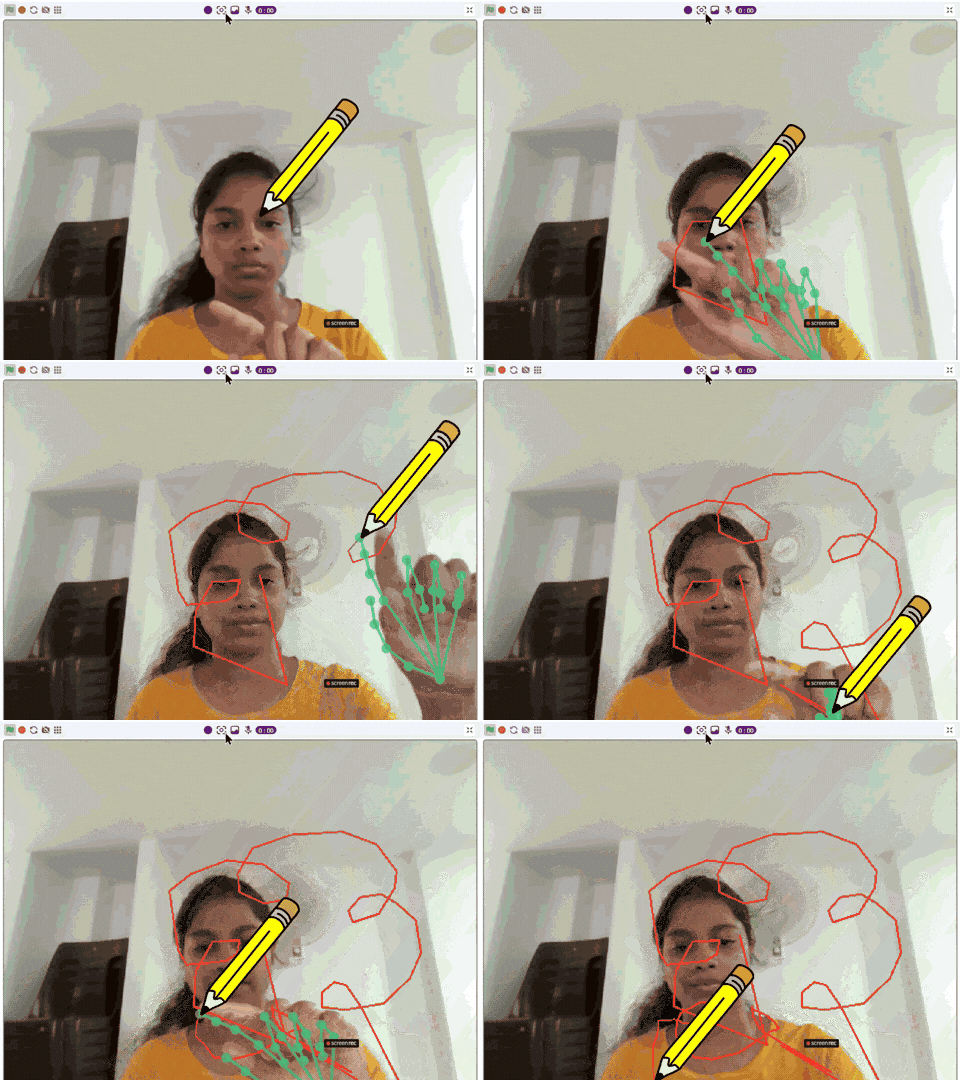
Click the Green Flag from the bottom right corner to run a code block.
Conclusion
Now you’re all set to make your surroundings your canvas with PictoBlox’s Human Pose Detection Extension.
Have fun!