
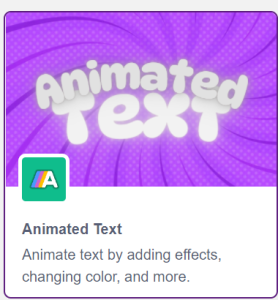
- In the Blocks environment, select add extension and select Animated Text Extension.
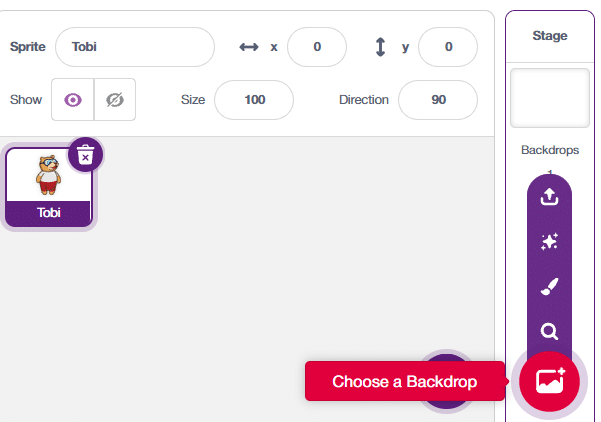
- First, we’ll incorporate backdrops. These are essentially our background images. You will find the option in the bottom right corner of the screen. We have four options for selecting a backdrop: uploading one from the system, opting for a surprise backdrop, creating a new one using the paint feature, or choosing an existing backdrop from the library.
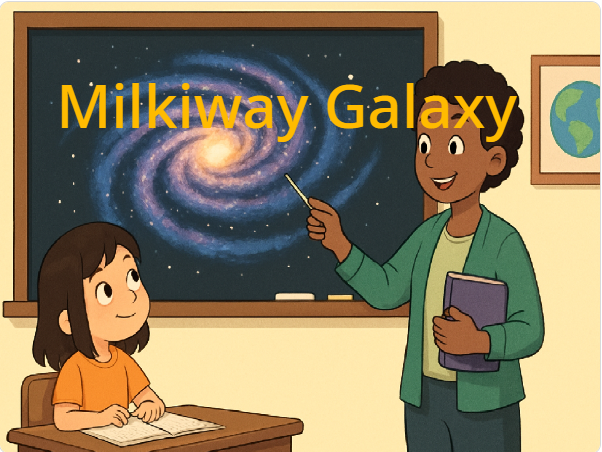
Here, we will choose the student and teacher image as our background. - We can also add costumes of the same backdrop, using the costumes tab while backdrop is selected.
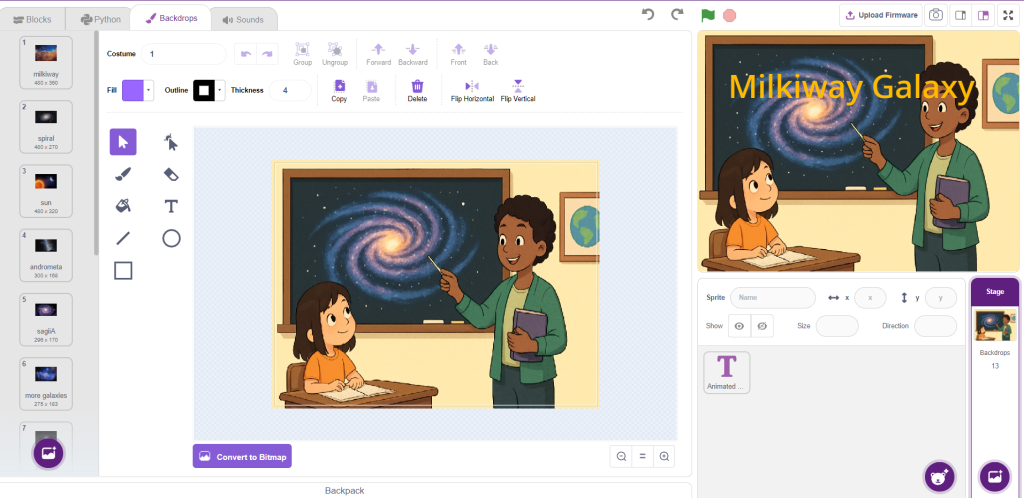
- After adding all the Backdrops, we will add a Animated Text Sprite.
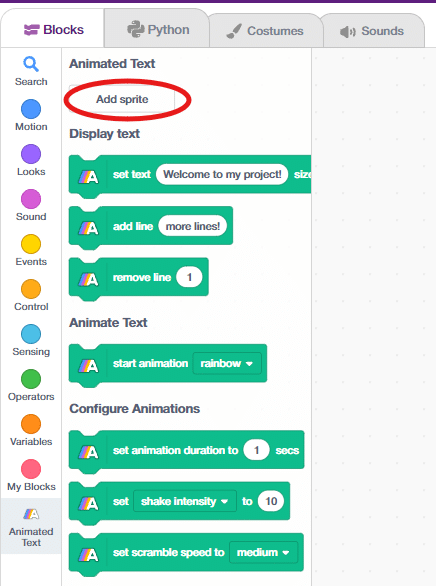
- After adding all the Backdrops and Sprites, it’s time to write the script using Blocks and Extension.
-
Script
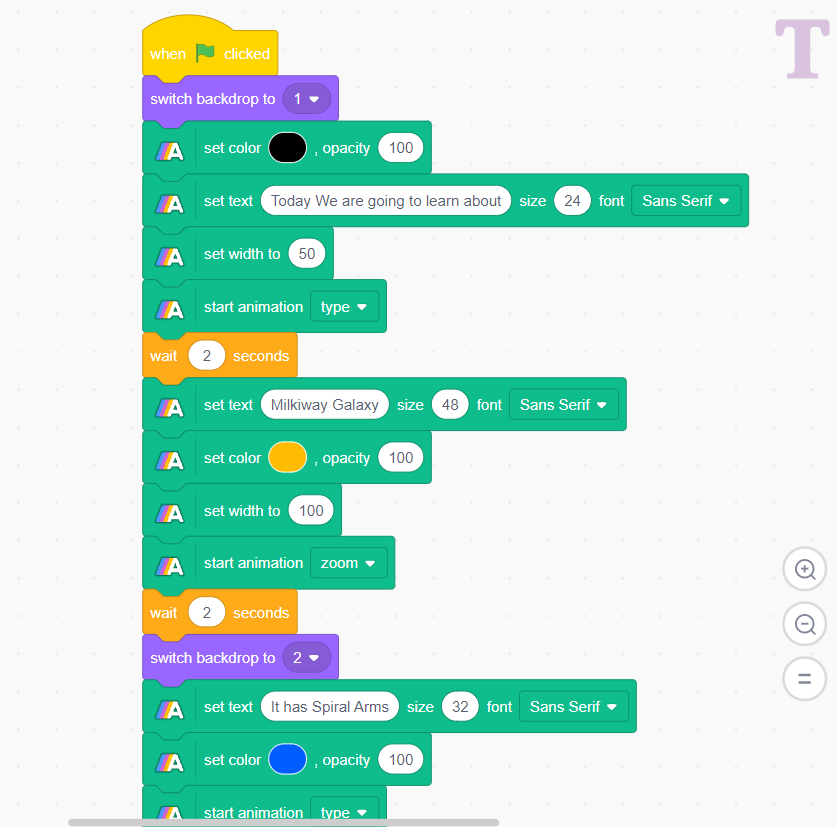
Select the Animated Text Sprite and then you can complete the script by customizing it in a way as shown above. You can also add custom code to your Backdrop.
-
Output