



Introduction
Face detection is a popular application of Artificial Intelligence (AI) and Computer Vision that enables computers to identify and locate human faces in images and videos. In this project, TOBI in PictoBlox uses the webcam to detect faces in real time and count the number of people visible in front of the camera. The detected face count is displayed instantly, making the system interactive and easy to use.
This project helps learners understand how AI can process visual information and recognize human faces automatically. Face counting technology is widely used in attendance systems, security monitoring, crowd analysis, and smart surveillance applications.
Setting Up the Stage / Sprite
- Open PictoBlox and create a new project.
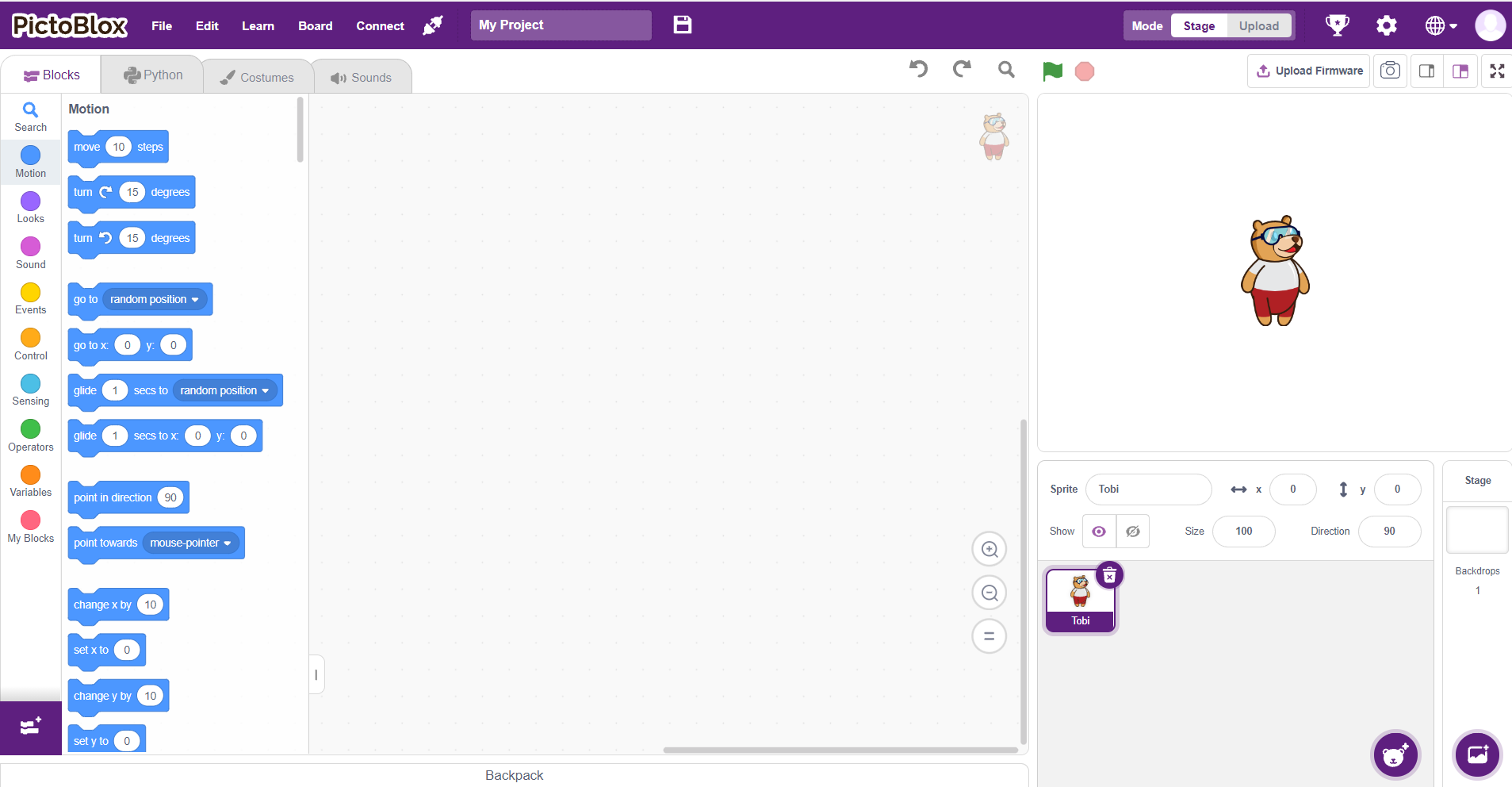
- Select a suitable backdrop for the stage.
- Add the Face Detection Extension.

- Add the TOBI Face Detection extension.
- Turn on the webcam.
- Position the camera to capture faces clearly.
- Save the project before proceeding to the next step.
Step-by-Step Block Coding Guide
- Drag the When Green Flag Clicked block from the Events category.

- Add the Turn On Video block to start the webcam.
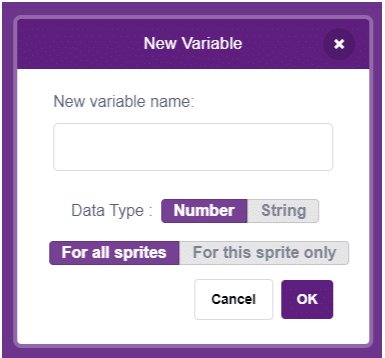
- Create a variable named Face Count.
- Add a Forever block to continuously detect faces.

- Inside the Forever loop, use the Detect Faces block from TOBI.
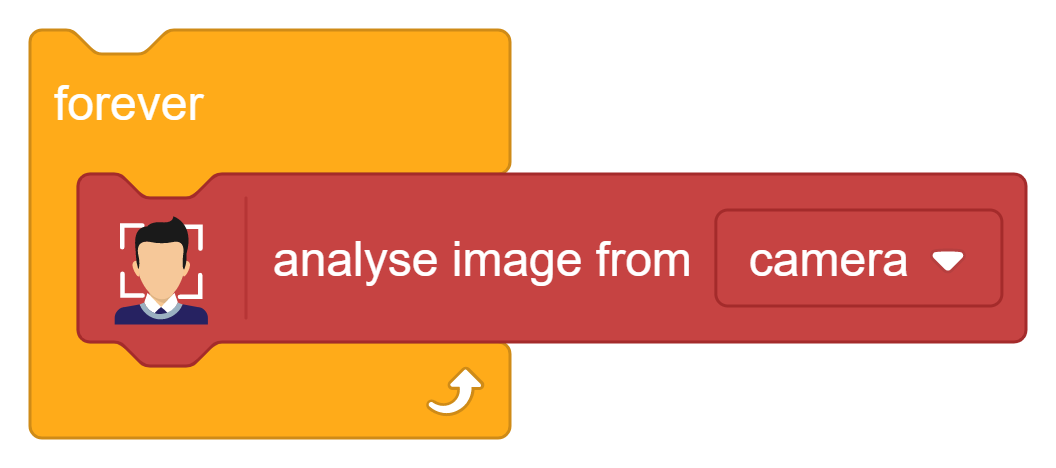
- Add the block that returns the Number of Faces Detected.

- Set the Face Count variable to the detected face count.

- Test the project by showing one or more faces in front of the camera.

- Observe how the face count updates in real time.

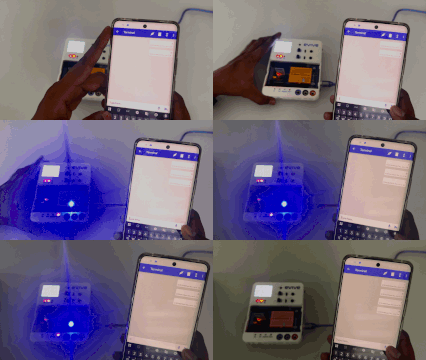
Output
Conclusion
We successfully learned how to interface a motor with Evive and control its movement using simple programming. This activity helped us understand the basics of motor operation, speed and direction control, and the role of motor drivers in embedded systems. By completing this project, students gain practical experience in robotics and automation concepts, building a strong foundation for creating more advanced projects involving motors and intelligent systems.