


Introduction
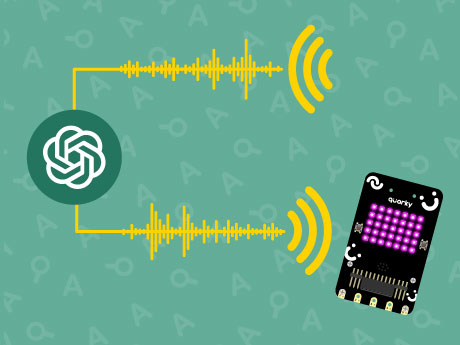
Imagine creating your own intelligent robot assistant capable of communicating just like the virtual assistants used in smart homes, customer service systems, and modern AI robots. In this exciting AI and robotics project, we will program Quarky to process voice commands, communicate with ChatGPT, and respond intelligently in real time using PictoBlox Py Editor.
Using Speech Recognition, ChatGPT, and Text-to-Speech extension, we will create a smart conversational robot capable of understanding spoken language and generating meaningful responses. Quarky will also display different emotions and animations while responding, making the interaction feel more natural and interactive. This project introduces you to the world of Artificial Intelligence, voice processing, human-machine interaction, and conversational robotics.
Setting Up the System
Step 1 : Requirements
- Quarky
- Laptop/Computer
- PictoBlox installed on the system
- Internet Connection
- Microphone enabled on the computer
- A stable Bluetooth or USB connection between PictoBlox and Quarky

Connecting Quarky to PictoBlox Py Editor
Step 2
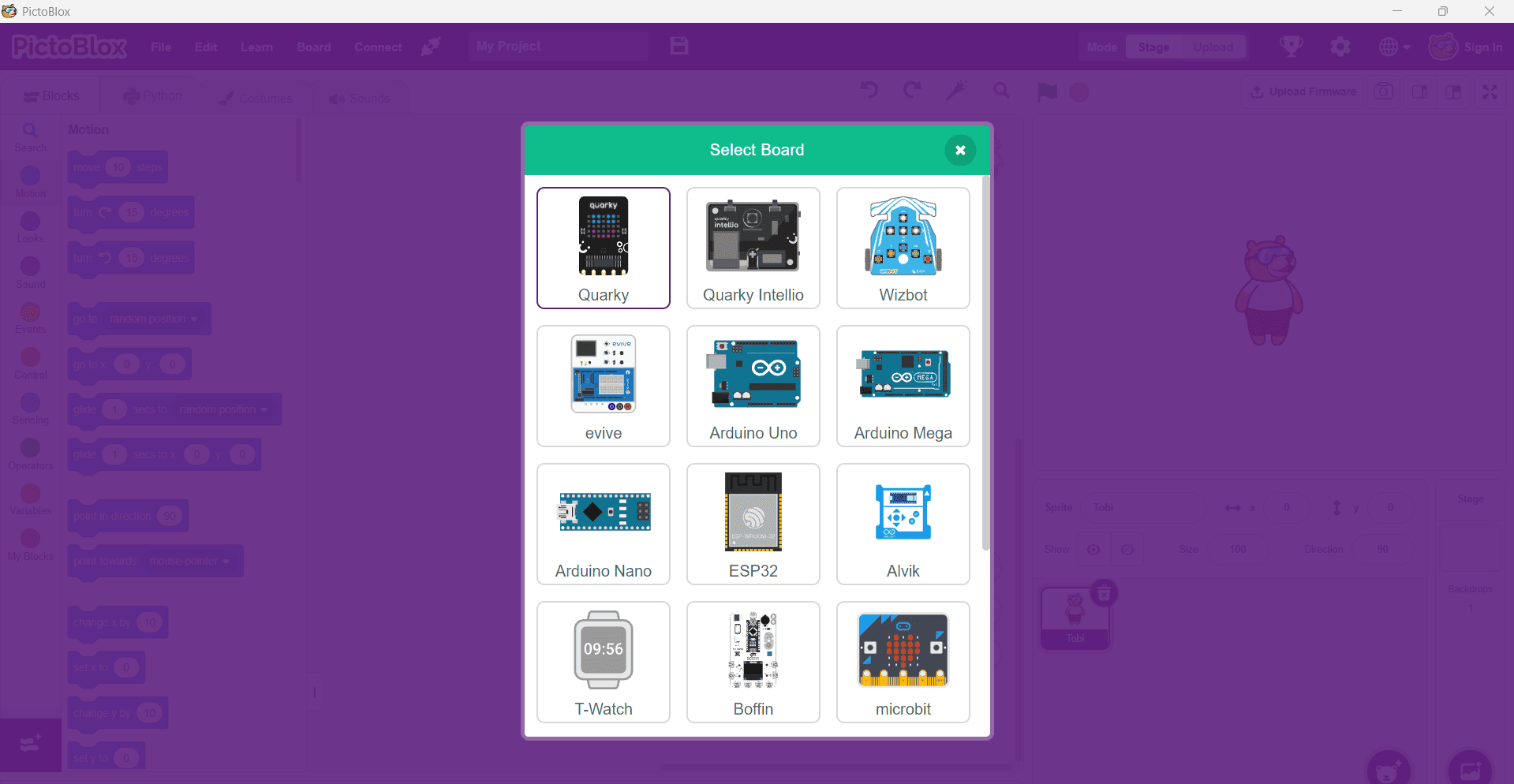
- Click on the Board tab on the top navigation bar and select Quarky.
- Click on Connect and choose Bluetooth.
- Select your Quarky device from the available list and click on Connect.
- Open Python Mode in PictoBlox to begin coding.
Quarky plays a confirmation sound after successful connection. Your AI assistant robot is now ready!
- Quarky plays a confirmation sound on connecting. Voila! Your Quarky is now connected to PictoBlox!
Code Explanation
Step 3: Import Required Libraries
The program begins by importing the required AI libraries for speech recognition, AI response generation, and voice output.
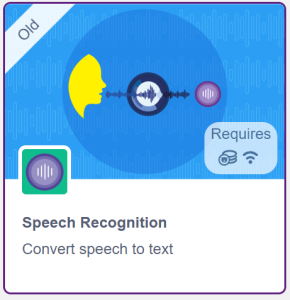
- Import the Speech Recognition library to detect and process voice input from the user.
- Import the ChatGPT library to generate intelligent responses.
- Import the Text-to-Speech library to convert AI responses into spoken audio output.
Step 4: Initialize AI Assistant Components
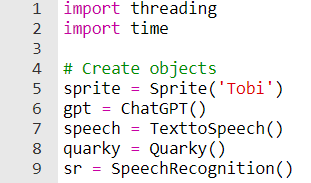
The program creates objects required for speech recognition, AI communication, robot control, and speech output.
- Use sprite Tobi.
- Initialize the ChatGPT, Text-to-Speech, Speech Recognition, and Quarky objects.
- These components work together to build a complete AI voice assistant system.
Step 5: Create Listening Animation
- Add a custom function named surprise_listen().
- Add a for loop inside the function.
- Place the quarky.showanimation(ANIMATION=”surprise”) command inside the loop.
- This animation visually indicates that Quarky is actively listening for voice input.
- Add the surprise_listen() function call before starting speech recognition.
Step 6: Create Response Animation
- Add a custom function named happy_answer().
- Add a for loop inside the function.
- Place the quarky.showanimation(ANIMATION=”happy”) command inside the loop.
- This animation is displayed whenever Quarky responds to the user.
- This creates an interactive and expressive robot behavior.
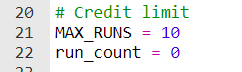
 Step 7: Set AI Credit Limit
- Create a variable named MAX_RUNS and set its value to 10.
- Create another variable named run_count and initialize it to 0.
- Use MAX_RUNS to define the maximum number of ChatGPT responses allowed.
- Use run_count to keep track of the number of AI responses generated.
- This acts as a simple AI usage management system and helps prevent excessive API usage.
 Step 8: Check Credit Availability
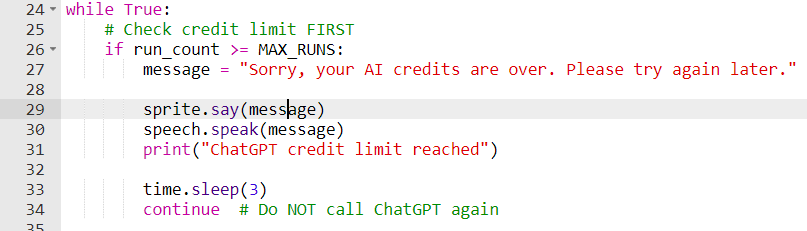
- Before calling ChatGPT, add an if condition to check whether run_count is greater than or equal to MAX_RUNS.
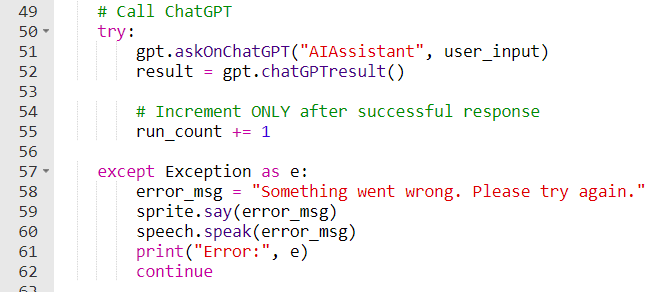
- If the limit has been reached, display an alert message such as “AI usage limit reached!” on the screen.
- Use the text-to-speech block to announce that the AI credit limit has been exhausted.
- Change the sprite message or appearance to notify the user visually.
- Add the continue statement to skip the remaining code and prevent further ChatGPT requests.
- This ensures controlled API usage and avoids exceeding the allowed number of AI responses.
 Step 9: Start Listening for Voice Commands
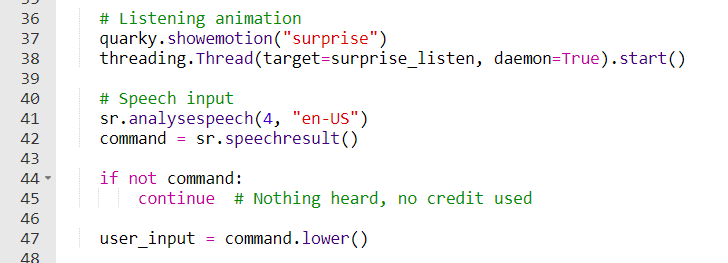
- Display the surprise emotion on Quarky to indicate that it is ready to listen.
- Start the surprise_listen() animation function using threading so the animation runs continuously in the background.
- Use the speech recognition block to listen and analyze the user’s speech for 4 seconds.
- Store the recognized speech in the command variable.
- This allows Quarky to capture and process voice input while displaying an interactive listening animation.