
Quarky I2C Communication

Quarky I2C Communication
Extension Description
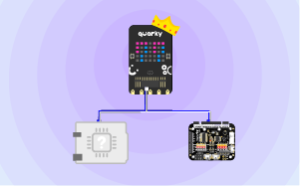
The Quarky I2C Communication Extension lets Quarky act as an I2C Master and communicate with Intellio, sensors, expansion boards, and other I2C-compatible devices using the SDA and SCL lines.

Introduction

The Quarky I2C Communication Extension allows Quarky to exchange information with other I2C-compatible devices using only two signal lines.

I2C stands for Inter-Integrated Circuit. It is commonly used in robots, embedded systems, automation projects, and IoT devices because several devices can communicate over the same SDA and SCL lines.

With Quarky working as the Master, it can communicate with devices such as:

  • Intellio operating as an I2C Slave
  • Sensors
  • Expansion boards
  • Other I2C-compatible modules

Each Slave device must have a unique address so that Quarky can communicate with the correct device.

What Is I2C Communication?

I2C uses two communication lines:

  • SDA – Serial Data: Carries addresses and data.
  • SCL – Serial Clock: Carries the clock signal generated by the Master.

All devices on the same I2C bus share these lines.

Master and Slave

The Master controls communication. It selects a Slave address and decides when to send or read data.

The Slave waits until the Master calls its address and then responds.

In this extension, Quarky operates as the Master.

I2C Device Addresses

Every Slave device requires a unique I2C address.

Addresses are commonly written in hexadecimal, for example:

  • 0x08
  • 0x29
  • 0x3C

Note: Two devices with the same address should not normally be connected to the same I2C bus because both may respond simultaneously.

Accessing the I2C Extension in PictoBlox

Step 1: Open PictoBlox and select the Block Coding environment.
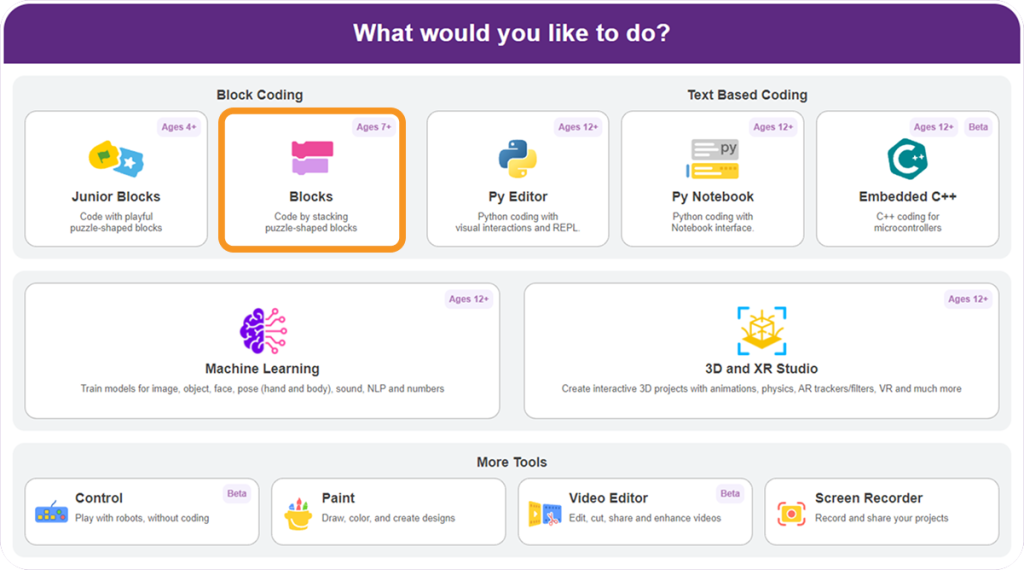
Select Block Coding in Pictoblox

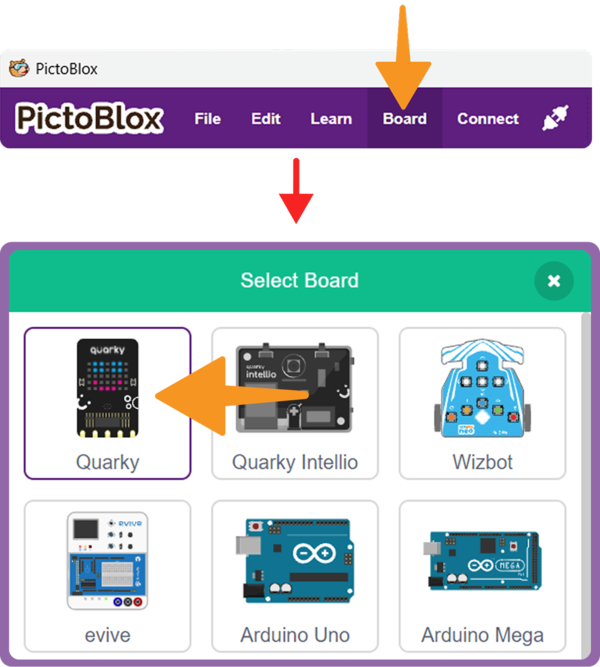
Step 2: Select Quarky as the board.Select the Quarky Board

Step 3: Click on the Add Extension button from the bottom left corner of the Blocks Palette.

Step 4:  Search for and select the Quarky I2 Communication.
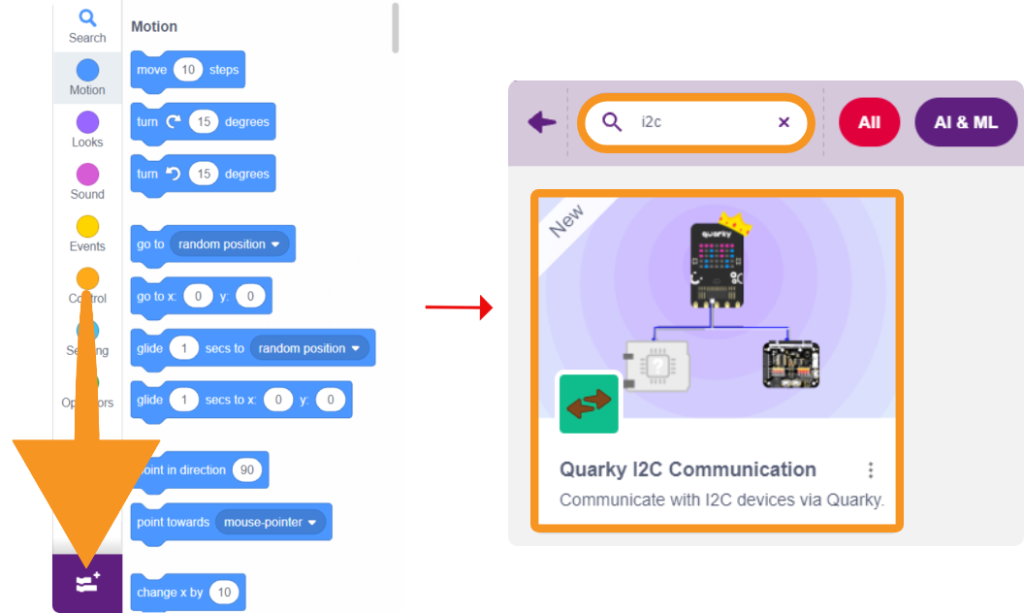
Search for and select the I2C extension

Step 4: Open the I2C category from the Blocks Palette.

The Quarky I2C extension displays the Master communication blocks.
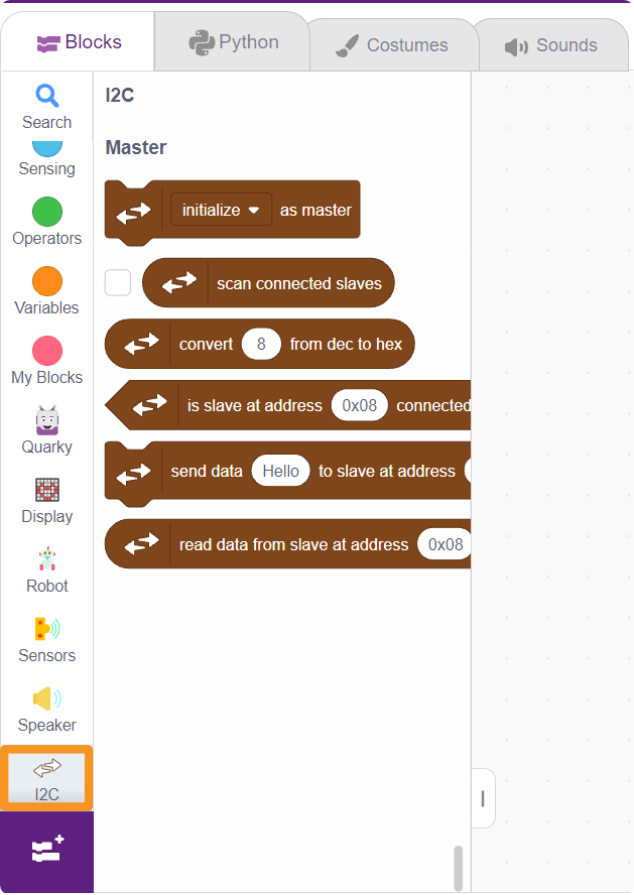
Quarky i2c extension block loaded

Connecting Quarky to an I2C Device

For Quarky:

Quarky Pin I2C Function
D1 SDA
D2 SCL

Quarky Master to Intellio Slave

Connect:

  • Quarky D1 → Intellio A1 for SDA
  • Quarky D2 → Intellio A2 for SCL
  • Quarky GND → Intellio GND
  • Connect VCC only when the supply requirements are compatible.

Important Connection Rules

  • All devices share SDA and SCL.
  • Always use a common GND.
  • Each Slave requires a unique address.
  • Avoid loose connections.
  • Confirm compatible logic voltages.
  • Disconnect power before changing wiring.
Read More

PictoBlox Blocks

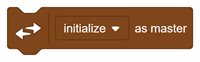
This block configures Quarky to operate as an I2C Master and communicate with connected Slave devices.
This block scans the I2C bus and detects connected Slave devices.
This block converts a decimal number into hexadecimal format. It is useful when an I2C device address or register is provided in hexadecimal notation.
This block checks whether an I2C Slave is available at the specified address. Use it before sending or reading data to confirm that the device is connected and responding.
This block sends a string or numeric value from Quarky to the specified I2C Slave. It can be used to send: Commands Settings Control values Other project data
This block reads data from the specified I2C Slave as a string or number. It can be used to receive: Sensor readings Device status Responses Other information sent by the Slave
All articles loaded
No more articles to load
Table of Contents