



Introduction
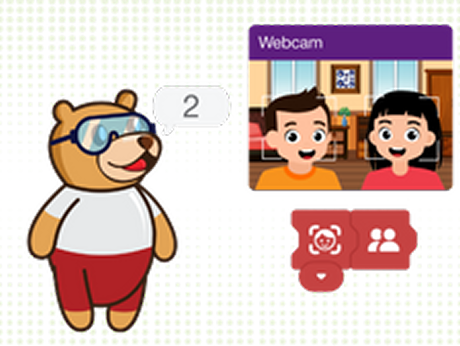
Counting Faces with Tobi is a beginner-friendly AI project where students learn how to detect and count faces using PictoBlox Junior Blocks.
In this project, Tobi uses the Face Detection extension to identify human faces visible through the camera. When one or more people appear in front of the camera, Tobi detects them and tells how many faces it can see.
This activity helps students understand how Artificial Intelligence and Computer Vision are used in real-world applications such as smart cameras, attendance systems, security systems, and interactive devices.
By completing this project, students will learn how to turn on the camera, analyze images continuously, detect faces, and display or announce the total number of detected faces.
Hardware and Software Requirements
Before starting the activity, make sure you have:
- Computer or laptop with camera
- PictoBlox software installed
- Junior Blocks mode selected
- Face Detection extension added
- Tobi sprite
- Neon Tunnel backdrop or any suitable backdrop
Note: Make sure camera permission is enabled for PictoBlox before running the project.
Setting Up the Stage
Before coding, set up the project environment by selecting Junior Blocks mode and adding a suitable backdrop. The backdrop makes the stage look more engaging while Tobi performs face detection.
Step 1: Open PictoBlox
- Open PictoBlox on your computer.
- Select Junior Blocks Mode from the available programming modes.
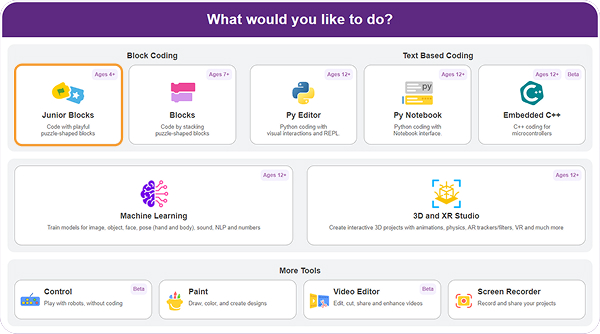
Once PictoBlox opens in Junior Blocks mode, you are ready to set up the stage.
Step 2: Add the Backdrop
Below the stage, go to the backdrop section.
Follow these steps:
- Click on the Choose a Backdrop icon.
- Search for a Neon Tunnel backdrop and select it.
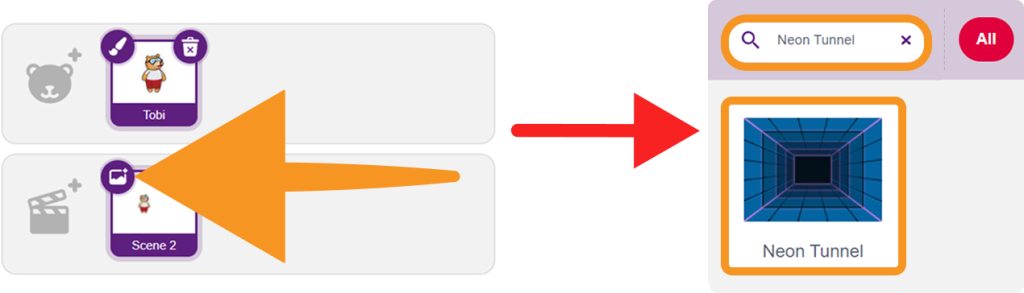
The selected backdrop will appear on the stage.
Your stage setup is now complete.
Step 3: Add the Face Detection Extension
To detect faces, you need to add the Face Detection extension.
Follow these steps:
- Click on the Add Extension button.
- Search for Face Detection.
- Select and add the Face Detection extension.
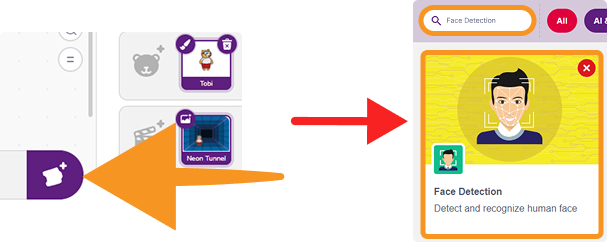
The required Face Detection blocks will now be available in the block palette.
Step-by-Step Block Coding Guide
Now, create the script for Tobi. This script will turn on the camera, continuously analyse the image, detect faces, and count the number of faces visible in the camera frame.
Step 1: Start the programme.
- Go to the Events category.
- Drag the ‘when green flag clicked’ block into the workspace.

This block starts the program when the green flag is clicked.
Step 2: Turn Camera On
- Go to the Face Detection extension category.
- Add the ‘turn camera on’ block below the green flag block.
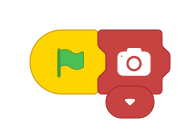
This activates the webcam for face detection.
Step 3: Add the Forever Block
- Go to the Control category.
- Drag the ‘Forever’ block and attach it below the camera block.

This keeps the face detection process running continuously.
Step 4: Analyze the Camera Image
- Inside the Forever block, add the ‘analyze Image’ block from the Face Detection extension.
This allows PictoBlox to process the live camera image.

Step 5: Detect and Count Faces
- Inside the Forever block, use the Face Detection block to identify faces visible in the camera frame.

Tobi will detect the faces and count how many are visible.
Output
Now you can click the green flag to see the output
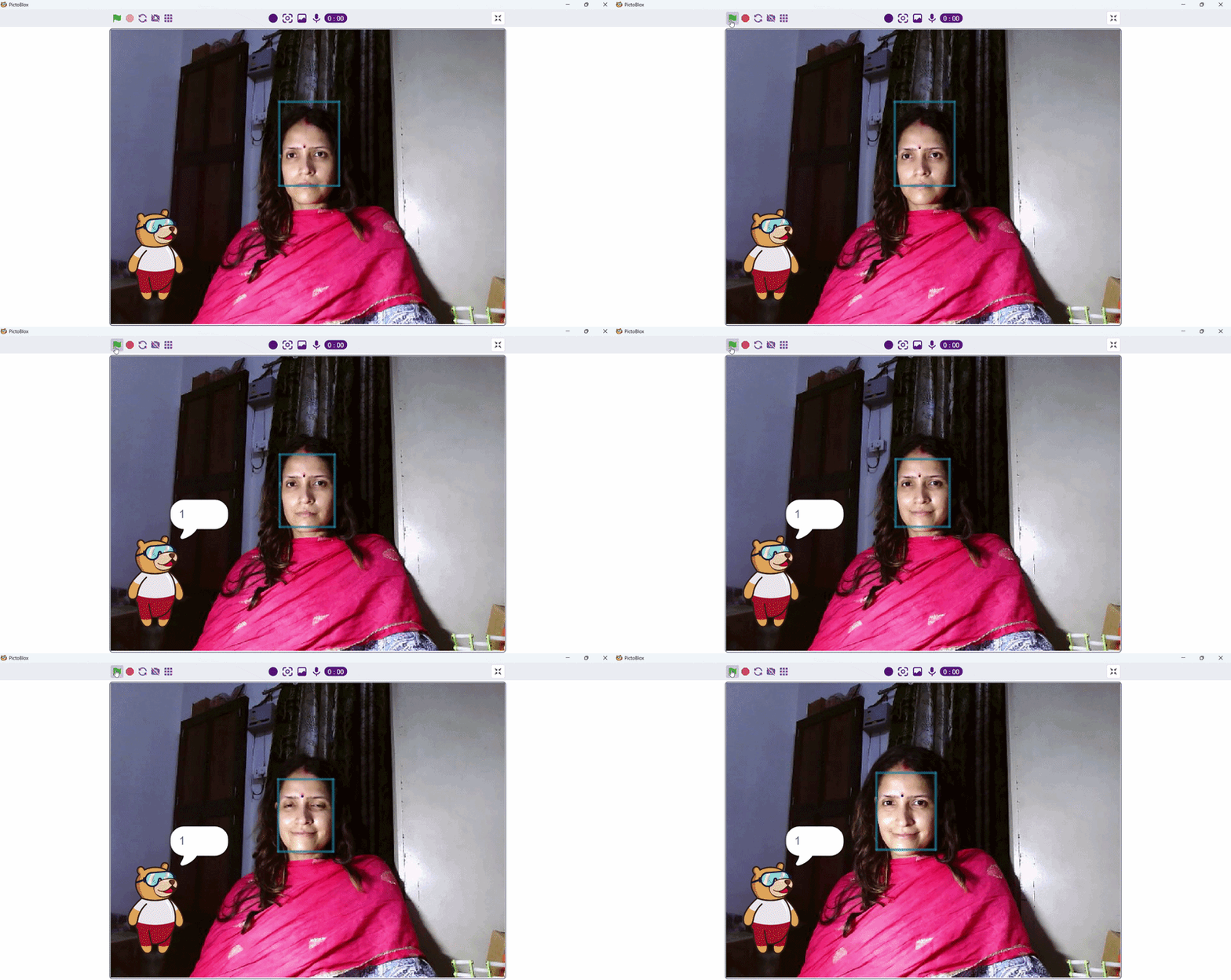
- The camera starts automatically.
- Faces appearing in front of the camera are detected.
- The total number of visible faces is counted.
- Tobi announces or displays the number of detected faces.
- The count updates in real time when people enter or leave the camera frame.
If the face count updates correctly, your Counting Faces with Tobi project is complete.
Conclusion
In this project, you created an AI-powered face-counting activity using Tobi and PictoBlox junior blocks.
You learnt how to turn on the camera, analyse live images, detect human faces, and count the number of faces visible in real time. This activity introduced important concepts such as artificial intelligence, computer vision, face detection, camera input, and continuous monitoring.
Counting Faces with Tobi is a simple and effective beginner project for understanding how smart devices use AI to recognise and respond to the world around them.