


The Video Player Extension helps users add video-based interaction to their PictoBlox projects. It allows users to play a video on the stage, control playback, jump to a specific time, change speed, resize the video, and create a playlist.
Users can use this extension to:
- Play uploaded videos on the PictoBlox stage.
- Use video URLs for online video playback.
- Control video timing, speed, and direction.
- Play only a selected part of a video.
- Create a playlist and switch between videos.
- Build interactive learning, storytelling, and presentation projects.
Accessing the Video Player Extension
Follow these steps to add the Video Player Extension to your PictoBlox project:
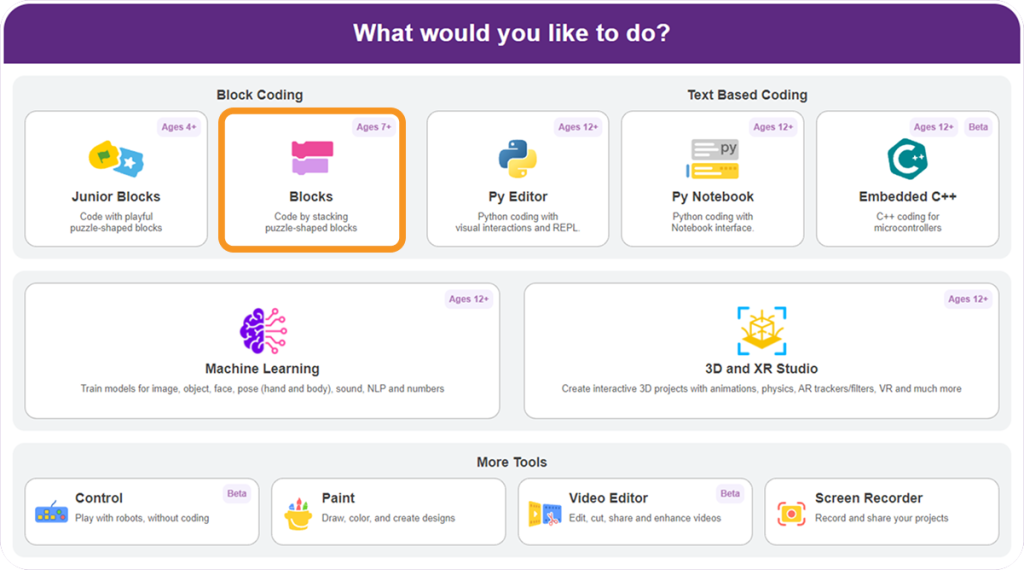
Step 1: Open PictoBlox and select the Block Coding environment.
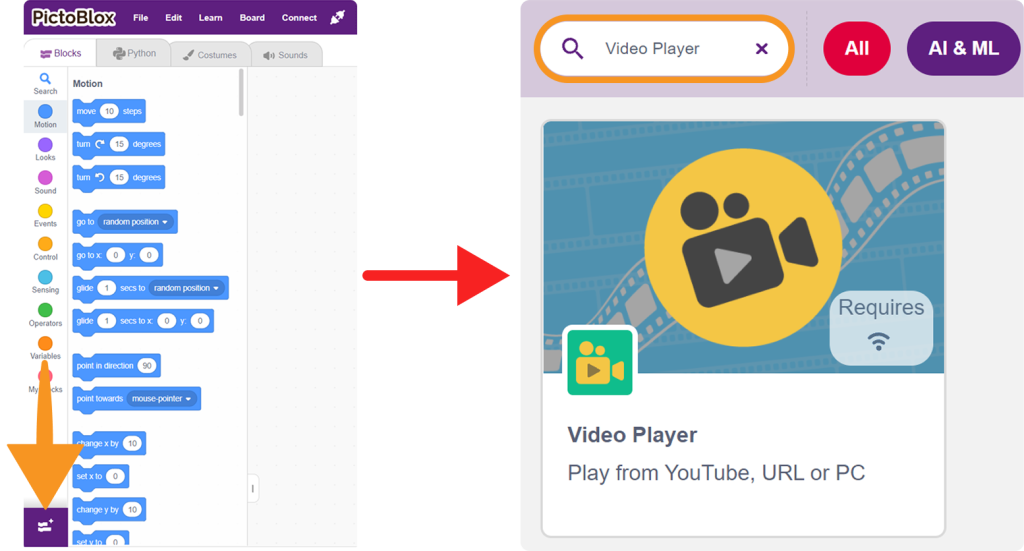
Step 2: Click on Add Extension from the Blocks Palette.
Step 3: Search for Video Player and select the extension.
Step 4: The Video Player blocks will appear in the Blocks Palette under the Video Player category.
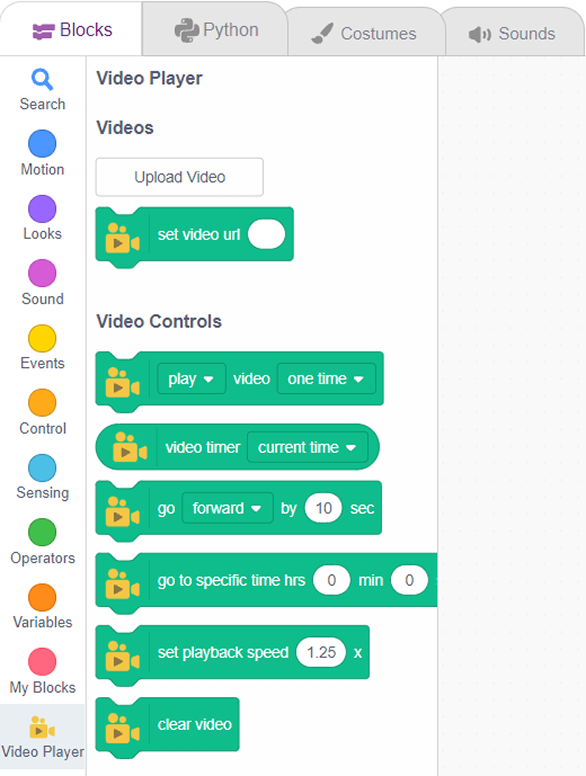
Video Player Blocks
1. Upload Video
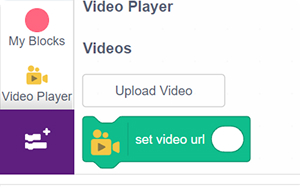
This option allows users to upload a video file from their computer into the PictoBlox project. Once uploaded, the video can be played, resized, controlled, and added to playlists using the Video Player blocks.
2. set video url [ ]
![set video url [ ]](https://ai.thestempedia.com/wp-content/uploads/2026/06/set-video-url-.png)
This block sets an online video URL as the source for the Video Player. It enables users to stream and play videos directly from the internet without uploading them into the project.
3. [play/pause/replay] video [one time / in loop]

This block controls the playback of the selected video on the PictoBlox stage. The dropdown menu provides multiple playback options:
- Play – Starts or resumes the video from its current position.
- Pause – Temporarily stops the video while retaining its current position.
- Replay – Restarts the video from the beginning and plays it again.
- One Time – Plays the video once and stops automatically when it reaches the end.
- In Loop – Continuously repeats the video until the playback is stopped or changed.
This block allows users to manage video playback dynamically and create interactive multimedia projects.
4. video timer [current time / remaining time / total time]
![video timer [current time]](https://ai.thestempedia.com/wp-content/uploads/2026/06/video-timer-current-time.png)
This reporter block displays the selected time value of the video. The dropdown menu allows users to choose:
- Current Time – Shows how much of the video has already played.
- Remaining Time – Shows how much time is left before the video ends.
- Total Time – Shows the full duration of the video.
This block is useful for tracking video progress, creating timed actions, or triggering events at specific moments during playback.
5. go [forward / backward] by [ ] sec

This block moves the video forward or backward by a specified number of seconds. It is useful for skipping sections, replaying important parts, or navigating through a video programmatically.
6. go to specific time hrs [ ] min [ ] sec [ ]
![go to specific time hrs [0] min [0] sec [0]](https://ai.thestempedia.com/wp-content/uploads/2026/06/go-to-specific-time-hrs-0-min-0-sec-0.png)
This block jumps the video directly to a specified hour, minute, and second. It allows users to start playback from a particular point without manually searching through the video.
7. set playback speed [ ] x
![set playback speed [1.25] x](https://ai.thestempedia.com/wp-content/uploads/2026/06/set-playback-speed-1.25-x.png)
This block changes the video’s playback speed. A value of 1x plays the video at normal speed; values greater than 1x make it play faster, and values less than 1x make it play slower. The playback speed should not exceed 2x.
8. clear video

This block removes the currently loaded video from the PictoBlox stage. It is useful for resetting the video player or preparing the stage to display another video.
9. set video width [ ] height [ ]
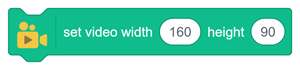
This block sets the width and height of the video manually. It allows users to adjust the video’s display size to fit different stage layouts and project requirements.
10. play video from [ ] sec to [ ] sec
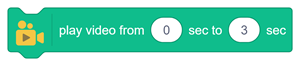
This block plays only a selected portion of a video between the specified start and end times. It is useful for highlighting important clips, repeating instructions, or creating interactive video experiences.
11. resize video [ ]
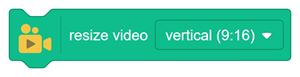
This block resizes the video to a selected aspect ratio or layout format. The dropdown menu allows users to choose:
- Vertical (9:16) – Displays the video in a vertical mobile-style format.
- Widescreen (16:9) – Displays the video in a standard wide video format.
- Square (1:1) – Displays the video in a square format.
- Fit to Stage (4:3) – Adjusts the video to fit the PictoBlox stage layout.
- Cinematic View (21:9) – Displays the video in a wide cinematic format.
This block helps users quickly adapt videos for different project layouts, screen styles, and presentation needs.
12. Add Video in Playlist
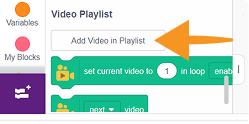
This option adds videos to a playlist that can be managed and played sequentially. It is useful for creating presentations, lessons, or media collections containing multiple videos.
13. set current video to [ ] in loop [ ]

This block selects a specific video from the playlist using its video number and controls whether the selected video should play in a loop. The dropdown menu allows users to choose:
- Enable – Repeats the selected video continuously.
- Disable – Plays the selected video without looping.
This block is useful for managing playlist playback, selecting a particular video, and deciding whether it should repeat or play only once.
14. [ ] video

This block switches the currently selected playlist video to the next or previous video. It enables smooth navigation through a playlist without manually selecting videos.
15. view your playlist

This option displays all videos currently added to the playlist. It allows users to review, organize, and manage their playlist contents.
16. remove video [1] from playlist

This block removes a selected video from the playlist. It helps users update playlist contents by deleting videos that are no longer needed.
17. clear playlist

This block removes all videos from the playlist at once. It is useful for resetting the playlist and preparing it for a new set of videos.
Example Project: Interactive Video Player Demo
Project Objective
In this example, users will play an online video on the PictoBlox stage using the Video Player Extension.
Note: A WiFi or internet connection is required to play a video using a URL.
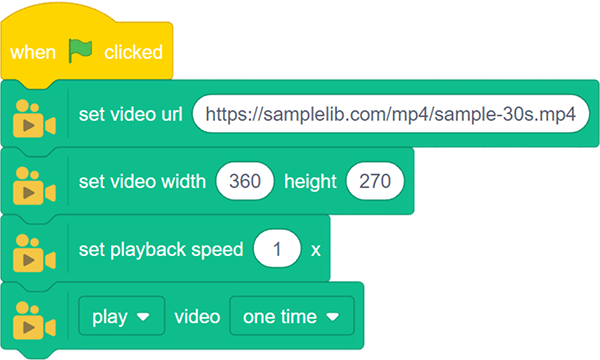
Step 1: Copy the video URL you want to play (Example: https://samplelib.com/mp4/sample-30s.mp4).
Step 2: Add the when green flag clicked block.
Step 3: Add the set video url [ ] block and paste the video link inside it.
Step 4: Add the set video width [480] height [270] block to adjust the video size.
Step 5: Add the play[one time] block to play the video.
Output
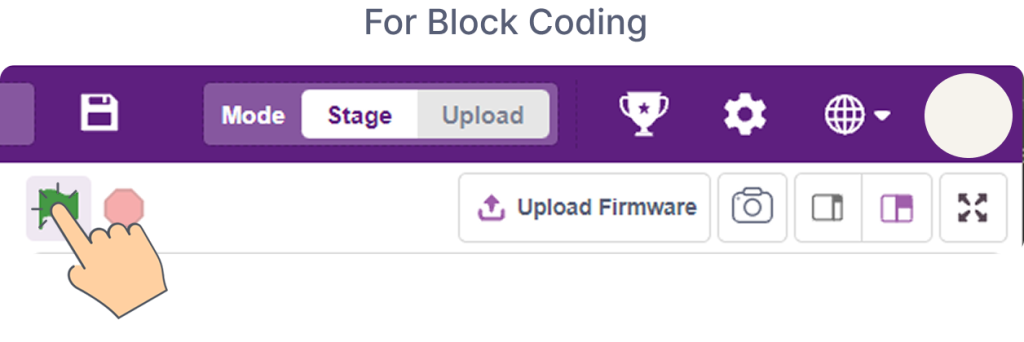
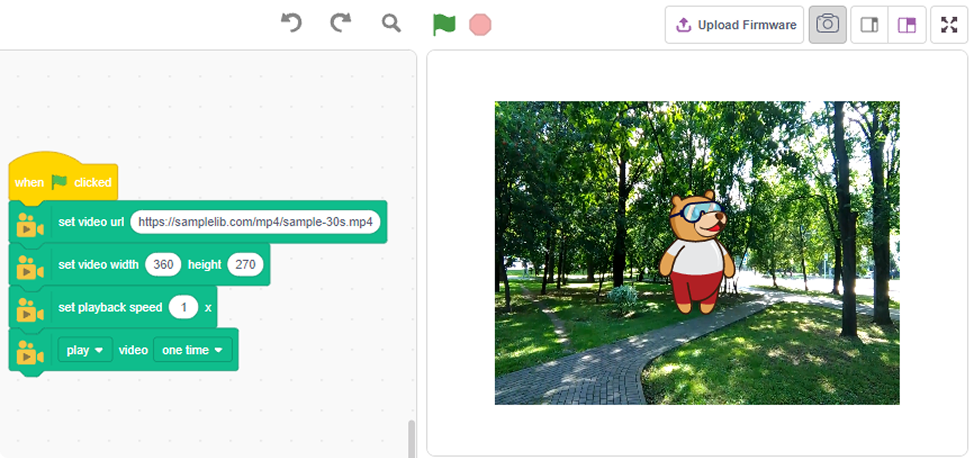
When the green flag is clicked, the video from the given URL loads and plays on the PictoBlox stage.
Conclusion
The Video Player Extension makes it easy to add videos to PictoBlox projects using block coding. Users can upload videos, control playback, resize videos, play selected clips, use online video URLs, and create playlists. It is useful for creating interactive lessons, video-based activities, storytelling projects, and classroom demonstrations.