

Introduction
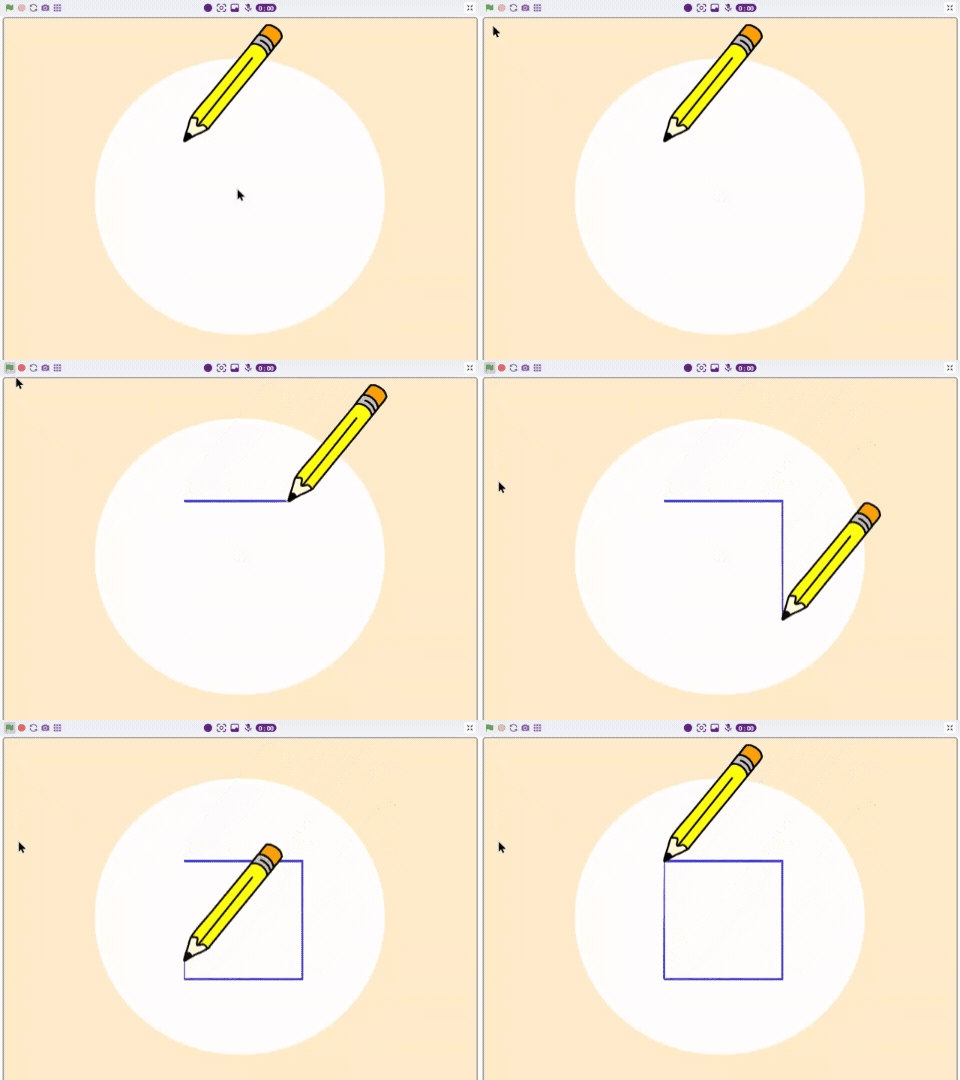
Have you ever wanted to draw just by moving your body? This project introduces you to the world of computer vision. We will be using “Junior Blocks” to create a script where a Pencil sprite reacts to the camera.
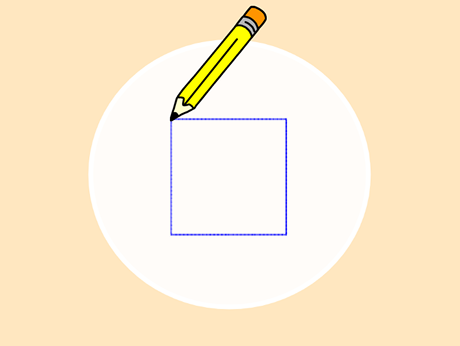
While the image suggests controlling a bird with your nose, we are going to take those same AI concepts—tracking a specific point on your face or hand—to command our Pencil sprite to move in a precise square pattern. It’s a perfect blend of geometry and artificial intelligence!
Prerequisites
To make the project all you need is
- A laptop or a computer with a camera,
- The latest version of PictoBlox downloaded
- Good Internet connection.
Setting Up the Stage
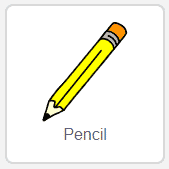
Now, let’s add a new Pencil sprite to draw.
- Click on the ‘choose a sprite’ button and select a pencil sprite from the library.
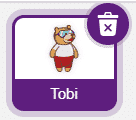
- Right-click on Tobi and choose delete from the dropdown to delete Tobi’s sprite.
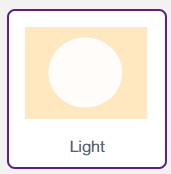
- Add a backdrop using Choose a backdrop > Search & Select Light backdrop.
Making the Pencil follow the Finger
Let’s begin to write the script.
- Select the Pencil sprite.
- Go to the Events palette and drag the Green Flag block drop into your coding area.
- Add the Pen Clear block from the Pen extension.
- Now set the pen colour; for that, drag and drop the pen colour block into the scripting area.
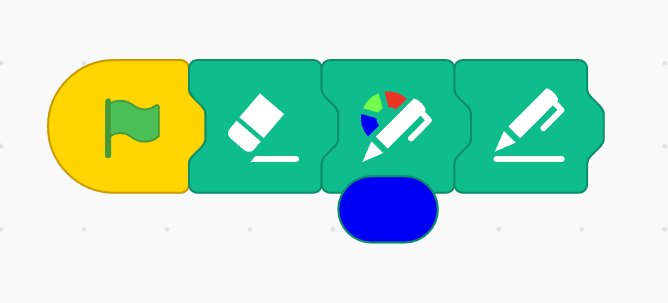
- Drag and drop the Pen down block from the pen extension.
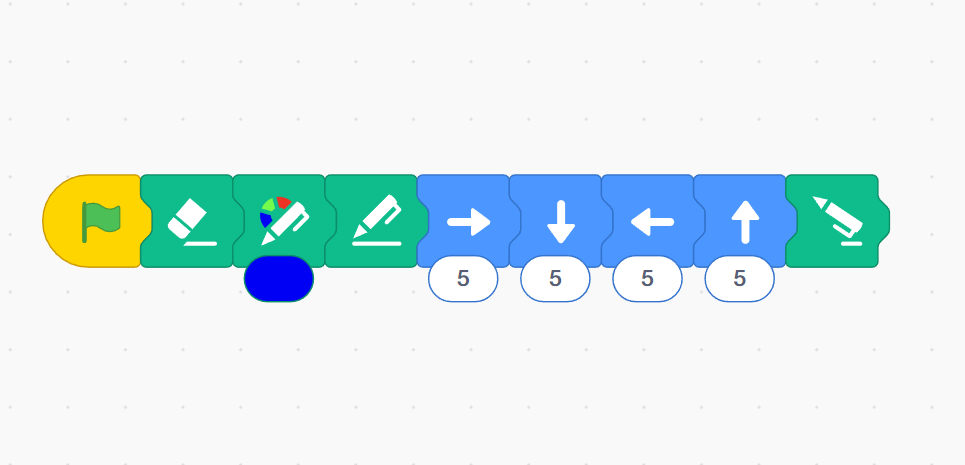
- Add the Forward Block from Motion Palette and change the count to 5.
- Add the Down Block from Motion Palette and change the count to 5.
- Add the Backward Block from Motion Palette and change the count to 5.
- Add the Up Block from Motion Palette and change the count to 5.
- Finally drag and drop the Pen Up block from the pen extension.
Output