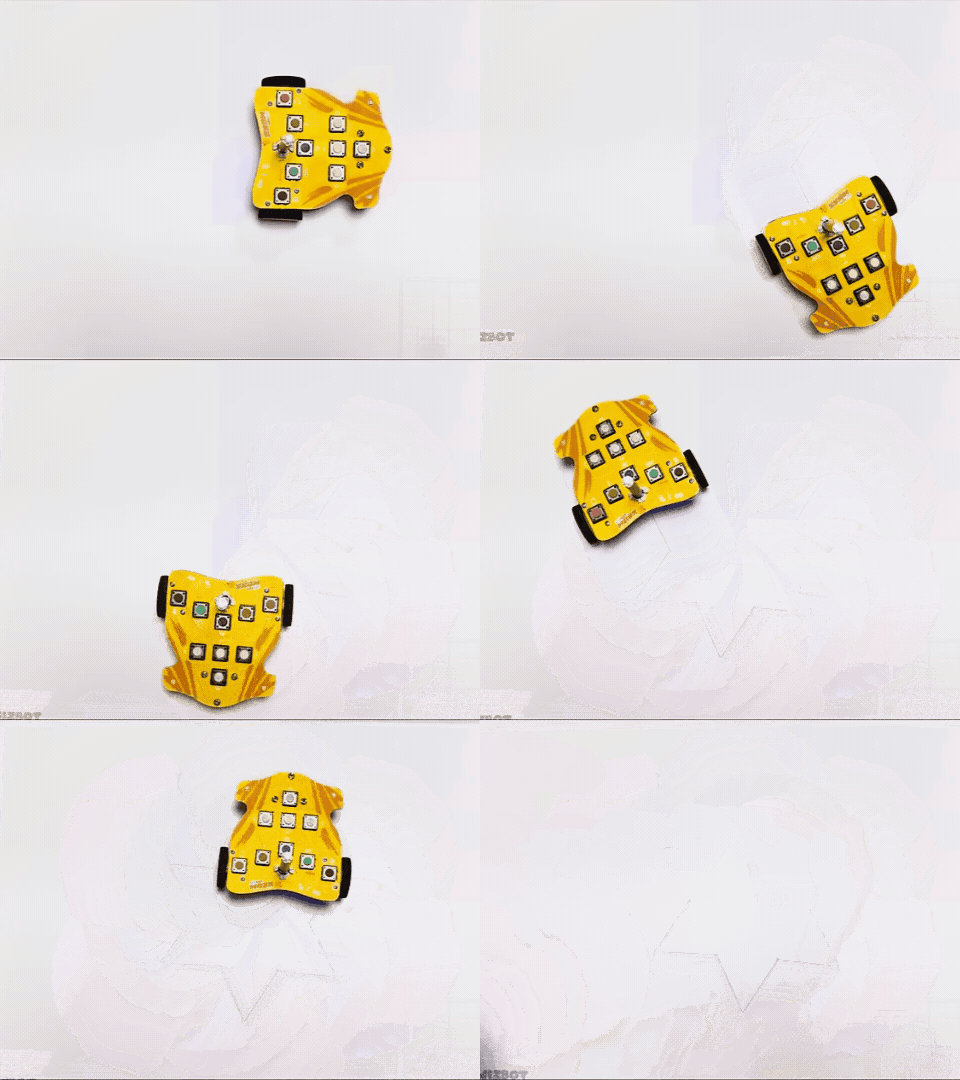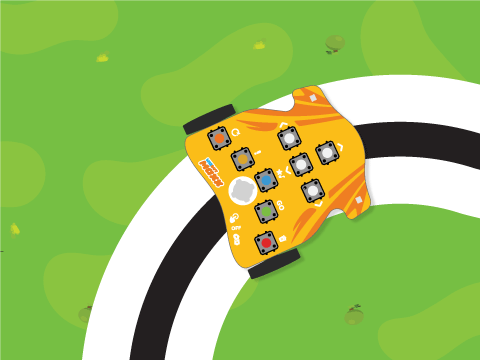



Introduction
The time has come to do something super exciting! We are going to turn our Wizbot Maxx into a robotic artist in PictoBlox! The project aims to program the Wizbot Maxx to move in a precise geometric pattern to draw a perfect six-pointed star on the floor.
We are going to use Wizbot’s motion blocks and the power of loops to repeat a sequence of moves and turns. By combining straight lines and specific angles, we’ll watch our Wizbot Maxx create a star.
Let’s begin!
Let’s Turn On Your Wizbot!
- Look at the power switch on your Wizbot. Slide the 3-way power switch towards Picto coding!
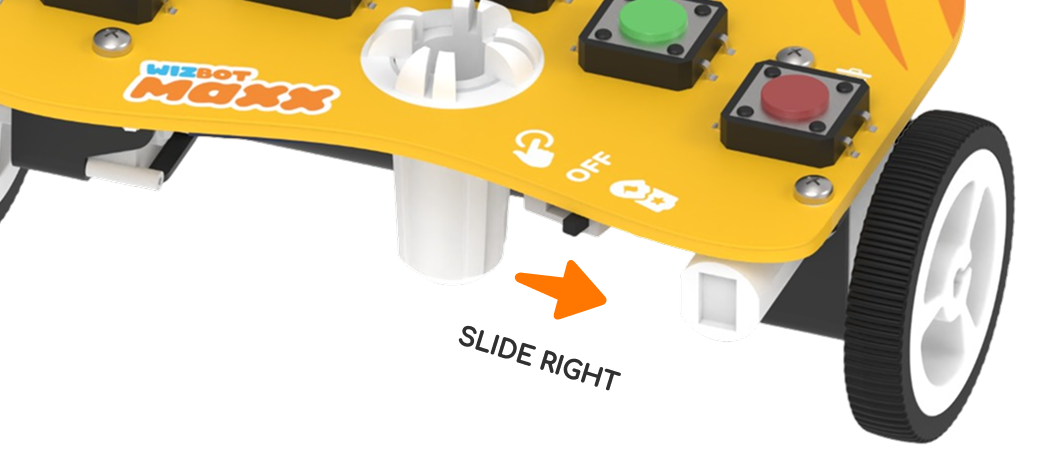
- See the blue light? Hear the troo-tooi sound? Your Wizbot is awake!
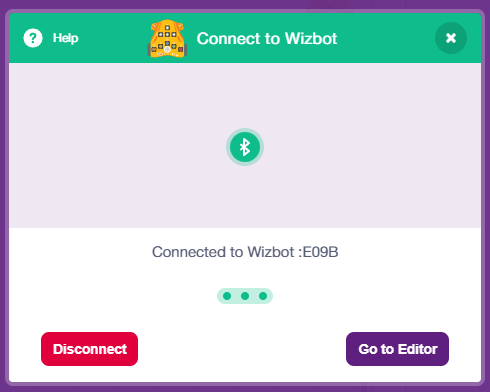
Connect Wizbot to Your Computer
- Click on Board at the top of your screen. Pick Wizbot Maxx!
- Click the Connect tab in the top menu, then choose Bluetooth
- Your Wizbot Maxx has a unique code on it. Find your Wizbot Maxx in the list and click Connect!
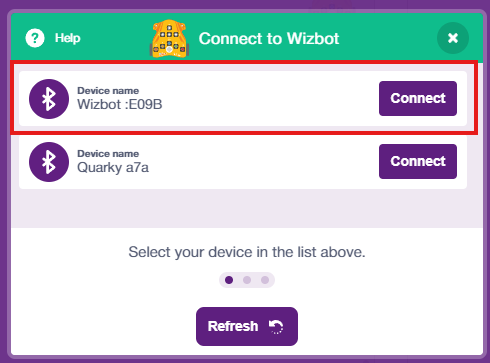
- Hear that sound? That means it worked; your Wizbot is connected!
- Voila! Your wizbot is now connected to PictoBlox!
Build Your Star Code
First, let’s set up:
- Click ‘Add Extension‘ and pick WizBot Advance Blocks.
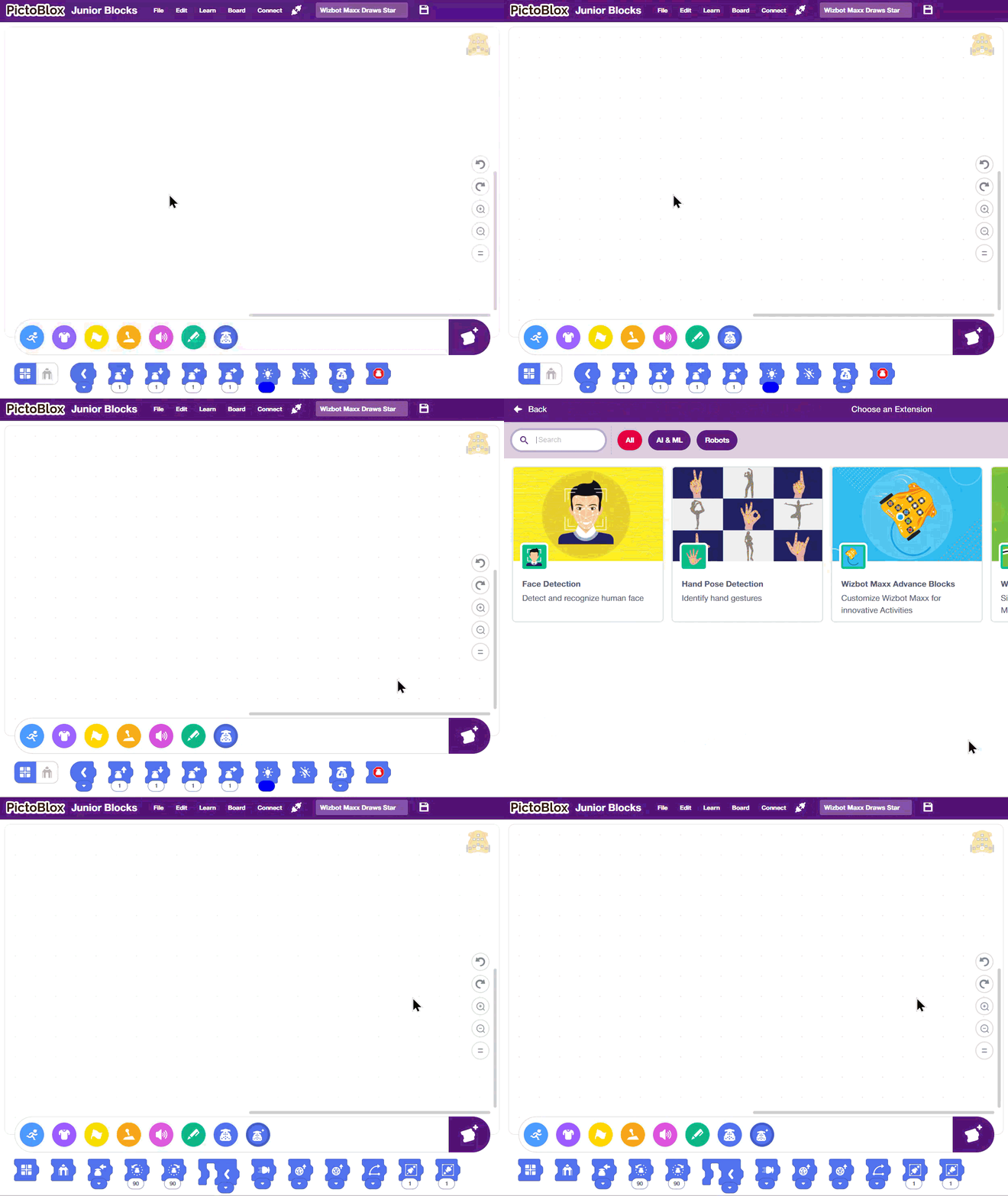
- Click the delete icon on top of the Tobi sprite. In this project, we are not going to use Tobi.
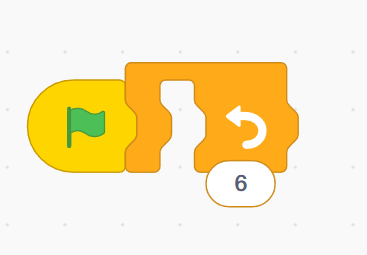
- Go to Events and drag the “Green Flag” block into your coding area.

- From Controls, drag in a “Repeat” block and change the number to 6.
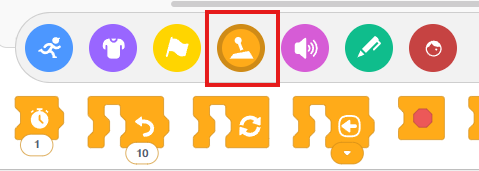
Now, build inside your repeat block:
- Add the “Forward” block from the Wizbot palette.
- Add the “Rotate Left” block from the Wizbot palette and set the direction to 60 degrees.
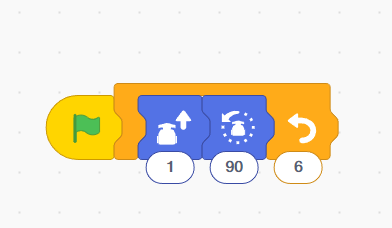
- Add the “Back” block from the WizBot palette and type ‘1’ in the box.
- Add “Rotate Right” and set the direction to 120 degrees.
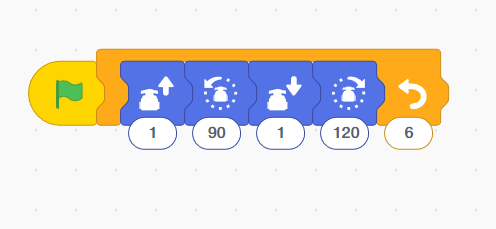
Now the block code is ready to run. Let’s play.
8. Place your Wizbot on the drawing sheet.
9. Click the green flag below the stage (bottom right corner) on your screen.

Output
- Insert the pen into your Wizbot Maxx. Place it in the drawing sheet.
- Now your turn! Can you draw your very own star and colour it in with your favourite colours? Make it super bright and beautiful!