



Introduction
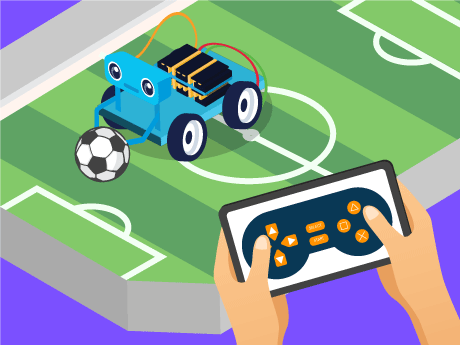
Have you ever wanted to build your own remote-controlled robot — just like the autonomous robots used in warehouses, disaster zones, and space exploration? In this exciting STEM and robotics project, we will program the Quarky robot to be fully controlled by a gamepad controller using PictoBlox’s Block Coding mode. No complex wiring, no advanced programming experience needed — just drag, drop, and drive!
Using the Quarky Expansion Board and PictoBlox’s Dabble extension, we will write a block-coded script that makes Quarky move forward, backward, left, and right; control individual motors; and stop safely — all from the buttons on a gamepad. This is your first step into the world of AI-powered robotics and human-machine interaction!
Prerequisites
Step 1
- Quarky robot
- Quarky Expansion Board
- Dabble app in your mobile
- A stable Bluetooth or USB connection between PictoBlox and Quarky
- Laptop
Step 2:
- Click the Add Extension button (the purple icon at the bottom left of the screen). Search for Dabble and Quarky expansion board and add it to your project.
- This project only runs in Upload mode only; make sure you are in Upload mode.
Step 3
- Click on the Board tab on the top navigation bar and select Quarky.
- Now, click on connect and choose Bluetooth.
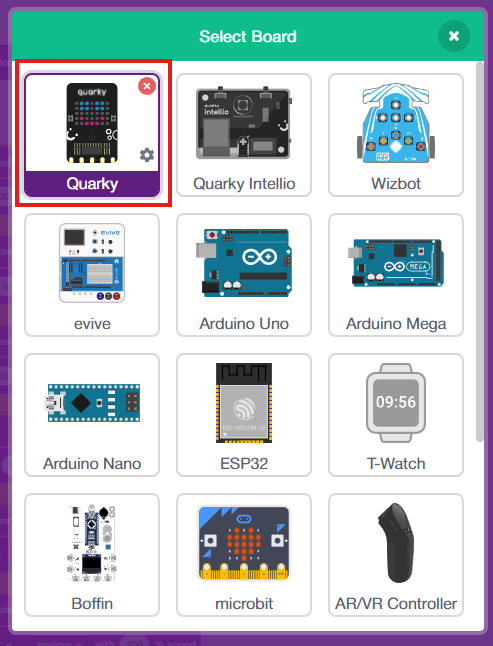
- Your Quarky has a unique code mentioned on it. Select your Quarky from the list and click on Connect.
- Quarky plays a confirmation sound on connecting.
- Voila! Your Quarky is now connected to PictoBlox!
Remove the Tobi sprite.
How It Works
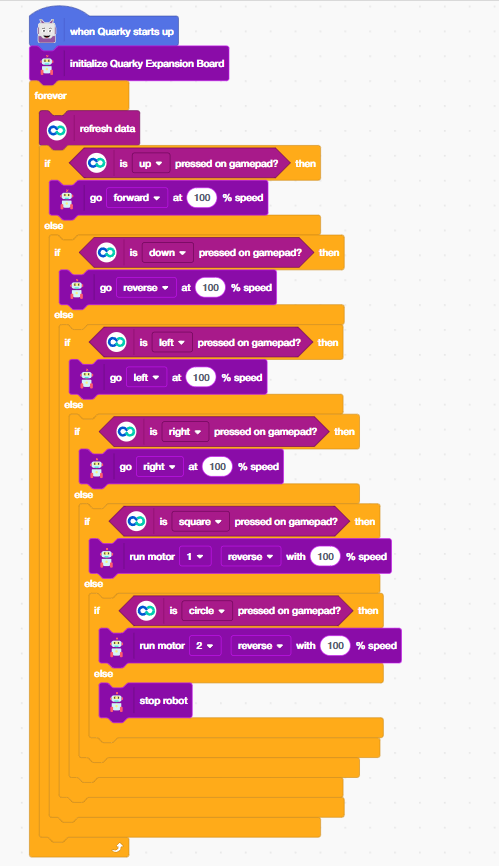
The script runs inside a forever loop that continuously checks which gamepad button is currently being pressed. Based on the button detected, a specific movement command is sent to the Quarky robot. This is called real-time polling — a technique used in robotics, game development, and AI systems to read and react to input states every few milliseconds.
Block-by-Block Guide
Initialization (When Quarky Starts Up)
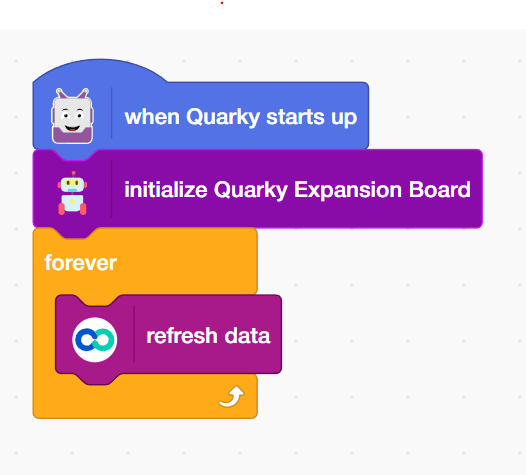
Add the ‘When Quarky starts up’ block from the Quarky palette. The script begins with the ‘When Quarky starts up’ block from the Quarky palette trigger block. This is the entry point of the entire programme. Everything that follows runs automatically when Quarky is switched on and the script is started in PictoBlox.
Add the ‘Initialise Quarky Expansion Board’ block, which sets up communication between PictoBlox and the physical Quarky Expansion Board, enabling motor control, sensor reading, and gamepad input.
Add the ‘Forever’ block from the Control Palette. It wraps the entire control logic in an infinite loop so that Quarky continuously checks for gamepad inputs and reacts without any delay or gap.
Add the ‘Refresh Data’ block from the Dabble extension. Updates all sensor and controller data at the start of each loop cycle, ensuring Quarky is always responding to the most current gamepad state.
Move Forward (Up Button)
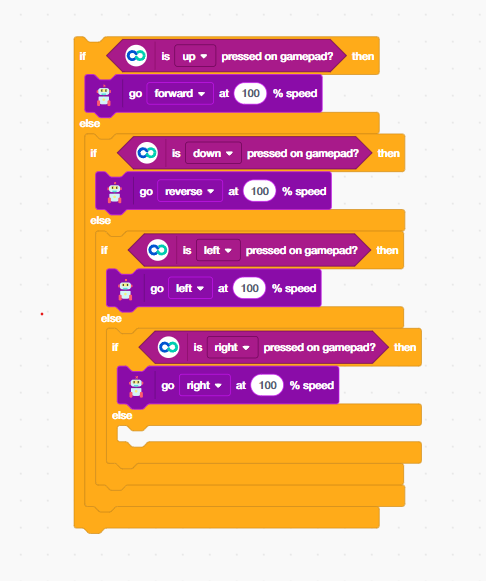
- The first conditional checks whether the Up button on the gamepad is pressed. If true, Quarky moves forward at full speed.
- Add an ‘if-else’ block from the control palette.
- Add the ‘is up pressed on gamepad?’ block from the Dabble extension inside the If block.
- Add the ‘go forward at 100% speed’ block from the Quarky Expansion Board Extension, drives both of Quarky’s motors in the forward direction at maximum power. You can reduce the percentage for slower, more precise movement.
Move Backward (Down Button)
- The second conditional checks whether the down button on the gamepad is pressed. If true, Quarky moves Backward at full speed.
- Add an ‘if-else’ block from the control palette inside the previous if-else block.
- Add the ‘is up pressed on gamepad?’ block from the Dabble extension inside the If block. Change the dropdown to down.
- When the backward button is pressed, Quarky reverses direction and moves backward. Add ‘go reverse at 100% speed’ block, reverses both motors simultaneously, moving Quarky away from an obstacle or back to a starting position.
Turn Left (Left Button)
- The third conditional checks whether the left button on the gamepad is pressed. If true, Quarky moves left at full speed.
- Add an ‘if-else’ block from the control palette inside the previous if-else block.
- Add the ‘is left pressed on gamepad?’ block from the Dabble extension inside the If block. Change the dropdown to Left.
- When the Down button is pressed, Quarky reverses direction and moves backward. Add the ’go left at 100% speed’ block, commands Quarky to execute a left turn. In differential drive robots like Quarky, turning is achieved by running one motor faster or in reverse relative to the other.
Turn Right (Right Button)
- The forth conditional checks whether the right button on the gamepad is pressed. If true, Quarky moves left at full speed.
- Add an ‘if-else’ block from the control palette inside the previous if-else block.
- Add the ‘is right pressed on gamepad?’ block from the Dabble extension inside the If block. Change the dropdown to Left.
- When the Down button is pressed, Quarky reverses direction and moves backward. Add the ’go right at 100% speed’ block, executes a right turn. Combined with the left turn command, this gives Quarky full rotational control — essential for navigating tight spaces and corridors.
Control Motor 1 Backward (Square Button)
- The next conditional checks whether the square button on the gamepad is pressed. If true, the Square button provides individual motor control — a more advanced movement option that allows fine-tuned directional adjustments beyond standard forward/backward/turn commands.
- Add an ‘if-else’ block from the control palette inside the previous if-else block.
- Add the ‘is up pressed on gamepad?’ block from the Dabble extension inside the If block. Change the dropdown to Square.
- Add the ’run motor 1 backward with 100% speed’ block; it directly controls Motor 1 on the Quarky Expansion Board independently. Individual motor control is used in advanced robotics for tank-style turning, articulated arm movement, and multi-axis control systems.
Control Motor 2 Backward (Circle Button)
- Similarly, the Circle button controls Motor 2 independently, enabling asymmetric movement for complex tasks.
- Add an ‘if-else’ block from the control palette inside the previous if-else block.
- Add the ‘is up pressed on gamepad?’ block from the Dabble extension inside the If block. Change the dropdown to Circle.
- Add the ’run motor 2 backward with 100% speed, controls the second motor independently. Running Motor 1 and Motor 2 at different speeds or in different directions is the key technique behind differential drive steering, the same method used in NASA Mars rovers and autonomous delivery robots.
Stop the Robot (No Button Pressed)
Add ‘stop robot’ block, sends a stop signal to all motors, bringing Quarky to a complete halt. In AI-controlled robots, having a reliable stop condition prevents runaway behaviour and is a core requirement of safe autonomous systems design.
Connect your Quarky with Dabble

Connect your Quarky to Dabble → Open Gamepad → Start controlling your Quarky Robo Soccer!
Output
Conclusion
Congratulations! You have successfully programmed the Quarky robot to respond to gamepad input using PictoBlox Block Coding. In this project, you:
- Initialized Quarky and its Expansion Board for hardware communication
- Built a real-time control loop using the Forever block
- Mapped 6 gamepad buttons to 6 distinct robot movement commands
- Implemented individual motor control for advanced directional movement
- Added a safe stop condition to ensure the robot halts when no input is detected
These skills — real-time input polling, conditional logic, motor control, and fail-safe design — are the exact same building blocks used by robotics engineers and AI developers around the world. You are not just playing with a robot; you are learning the language of machines!