



Introduction
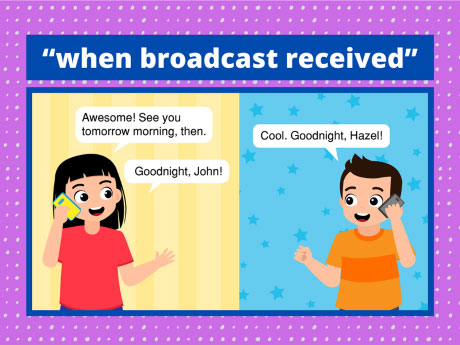
Have you ever wondered how apps and smart devices communicate with each other in real time? In the world of Artificial Intelligence and software engineering, event-driven programming is one of the most powerful patterns used — from chatbots responding to user messages, to IoT sensors triggering automated actions. In this project, we will explore the Broadcast and Receive feature in PictoBlox using Python Coding mode, powered by Python decorators — a concept used by professional developers every day.
Using PictoBlox’s sprite system and the @event.whenbroadcastreceived() decorator, we will make the Tobi sprite respond to specific broadcast messages — just like how an AI assistant listens and reacts to different voice commands. Let’s begin!
Key Concepts Before You Start
What is Broadcasting in PictoBlox?
Broadcasting is a communication mechanism in PictoBlox that allows one script (the broadcaster) to send a named message across the project, and another script (the listener) to detect and respond to that message. This is called event-driven programming — one of the most widely used design patterns in real-world software, AI systems, and IoT applications.
In Python Coding mode, PictoBlox extends this concept using Python decorators — a powerful feature that lets you attach special behavior to functions without changing the function itself.
What is a Python Decorator?
A decorator in Python is a special function that modifies or enhances the behavior of another function. You recognize a decorator by the @ symbol placed directly above a function definition. Decorators are used extensively in AI frameworks like TensorFlow, Flask, and FastAPI to register functions as handlers for specific events or routes.
This tells PictoBlox: whenever the broadcast message ‘John’ is received, automatically run the helloJohn() function. The decorator handles all the event-listening logic behind the scenes, keeping your code clean and modular.
Key Concepts Before You Start
What is Broadcasting in PictoBlox?
Broadcasting is a communication mechanism in PictoBlox that allows one script (the broadcaster) to send a named message across the project, and another script (the listener) to detect and respond to that message. This is called event-driven programming — one of the most widely used design patterns in real-world software, AI systems, and IoT applications.
In Python Coding mode, PictoBlox extends this concept using Python decorators — a powerful feature that lets you attach special behavior to functions without changing the function itself.
What is a Python Decorator?
A decorator in Python is a special function that modifies or enhances the behavior of another function. You recognize a decorator by the @ symbol placed directly above a function definition. Decorators are used extensively in AI frameworks like TensorFlow, Flask, and FastAPI to register functions as handlers for specific events or routes.
This tells PictoBlox: whenever the broadcast message ‘John’ is received, automatically run the helloJohn() function. The decorator handles all the event-listening logic behind the scenes, keeping your code clean and modular.
How the Broadcast Feature Works
This project uses two separate Python files — a listener script and a broadcaster script — that run together to demonstrate real-time event communication. Here is the step-by-step flow:
- Run the listener file first (Tobi.py) — this sets up the sprite and registers all the broadcast event handlers using decorators.
- Run the broadcaster file second (Stage.py) — this sends out the broadcast messages that Tobi.py is listening for.
- When a matching broadcast is received, the linked function runs automatically — making Tobi respond in real time.
This two-file architecture mirrors how real AI applications work: one service listens for incoming data (like a server), while another sends requests or commands (like a client). This is the foundation of APIs, chatbots, and IoT event systems.
Step-by-Step Guide
Step 1 – Set Up Your Sprite
At the top of the Tobi.py file, create a Sprite object for Tobi — the character that will respond to broadcast events. This connects your Python script to the Tobi sprite on the stage.

The Sprite() function links your code to a specific character on the PictoBlox stage. Once set up, Tobi can speak, move, and react to events based on the instructions in your script.
Step 2 – Import the Time Library
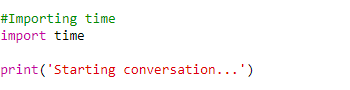
Import Python’s built-in time module to add controlled delays between actions. This makes Tobi’s responses feel more natural and realistic — similar to how AI chatbots add a typing delay before responding to simulate human-like interaction.
Step 3 – Register the Broadcast Event Listeners
Now we use the @event.whenbroadcastreceived() decorator to register two functions as event listeners. Each function responds to a different broadcast name — ‘John’ and ‘Hazel’ respectively.
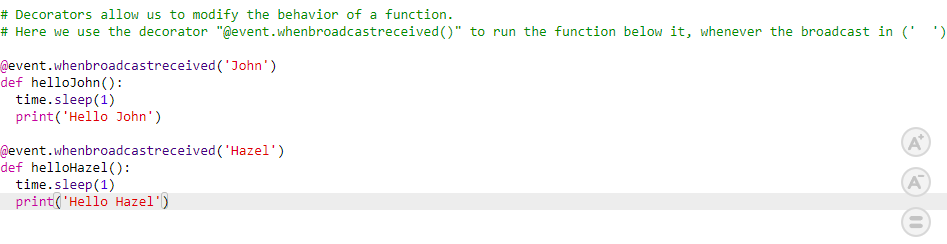
Here is what each part does:
@event.whenbroadcastreceived(‘John’) — Registers the function below as the handler for the ‘John’ broadcast message.
def helloJohn(): — Defines the function that runs when the ‘John’ broadcast is received.
time.sleep(1) — Adds a 1-second delay before Tobi responds, making the interaction feel natural.
print(‘Hello John’) — Outputs the greeting to the console (and optionally to the stage via the sprite).
Step 4 – Run the Files in the Correct Order
This is the most important step — always follow this sequence:
- First, run Tobi.py — this registers all the @event listeners and makes Tobi ready to receive broadcasts.
- Then, run Stage.py — this sends the broadcast messages (‘John’ or ‘Hazel’) that trigger Tobi’s responses.
Running the listener before the broadcaster ensures that the event handlers are active and ready before any messages arrive — just like starting a server before connecting a client.
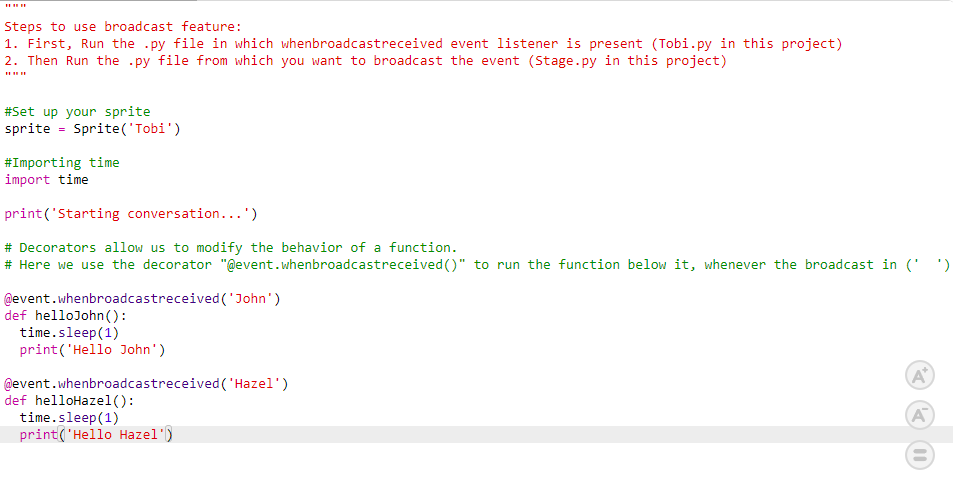
Complete Code Reference – Tobi.py
Here is the full listener script for reference:
Conclusion
Congratulations! In this project, you have explored one of the most powerful and widely used patterns in software development and AI engineering — event-driven programming. You have:
- Set up a Sprite object in PictoBlox Python Coding mode
- Used the @event.whenbroadcastreceived() decorator to register event listener functions
- Understood how Python decorators work and why they are used in AI frameworks
- Learned the correct execution order for listener and broadcaster scripts
- Connected this STEM project to real-world AI applications including chatbots, IoT, and APIs
The broadcast and decorator pattern you have learned here is the same concept used by professional AI developers to build scalable, responsive, and intelligent systems. Keep experimenting, extend the project with new broadcast names, and explore how Tobi can speak, move, and animate in response to different events!