

Activity Overview
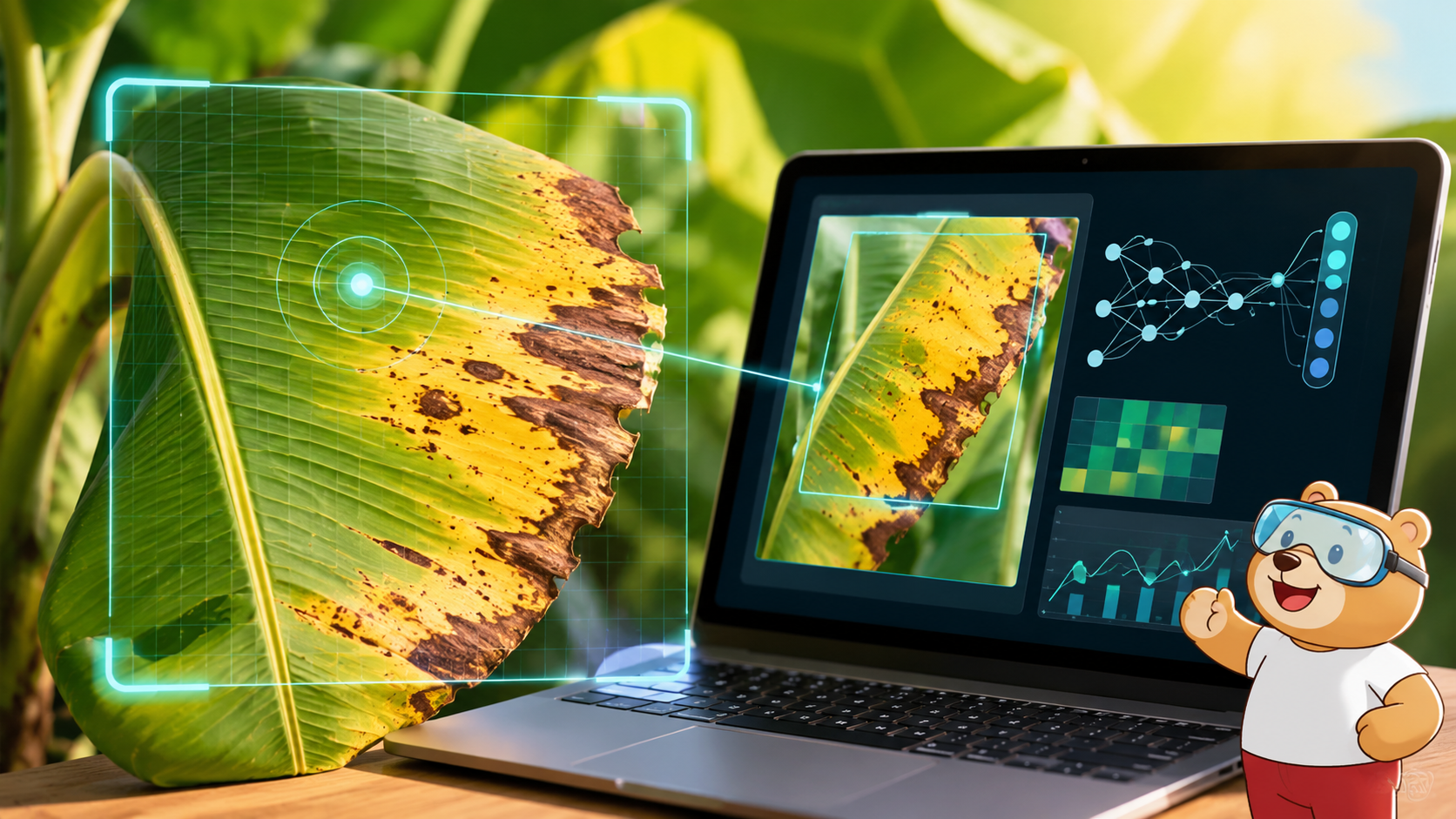
Have you ever wondered how farmers can identify plant diseases before they spread and damage an entire crop?
In this self-paced activity, you will explore Image Classification, a type of Artificial Intelligence that helps computers recognize and classify images based on patterns they have learned.
You will build an AI-powered application that can identify whether a banana leaf is healthy or affected by disease. You will train the AI model using banana leaf images, test it with new images, and check whether the model can make correct predictions.
As you test your model, you will also learn why AI predictions are not always perfect and why human observation is still important when using AI in agriculture.
What You’ll Learn
By completing this activity, you will learn:
- How AI classifies images
- How image classification helps identify plant diseases
- How to train an Image Classifier model in PictoBlox
- How to test an AI model using new images
- Why AI predictions are not always correct
- Why testing AI with different images improves reliability
- How AI can support farmers in plant disease detection
What You’ll Create
You will create an AI-powered banana leaf disease detection system that predicts whether a banana leaf is healthy or diseased using image classification.
What You’ll Need
To complete this activity, you will need:
- A laptop or desktop computer
- Latest version of PictoBlox installed
- Good internet connection
- Banana leaf image dataset
- Training images of healthy banana leaves
- Training images of diseased banana leaves
- Testing images to check the model
Note: The dataset for training and testing will be provided in the Opening Image Classifier Workflow section.
Setting Up the Project
Engage: Think First
Imagine you are a farmer managing hundreds of banana plants. Checking every leaf by hand can take a long time.
Before using AI, think about how plant diseases are usually identified.
Think About It
Write down your prediction:
- How do farmers identify diseased plants quickly?
- Could AI help detect plant diseases?
- What visual signs might show that a banana leaf is diseased?
- Can AI always identify plant diseases correctly?
Explore AI
Look at a few banana leaf images before training the AI model.
Some leaves may look healthy, while others may show signs of disease.
Before using AI, try answering:
- Which leaves look healthy?
- Which leaves look diseased?
- What visual clues helped you decide?
- Do you think AI will make the same prediction?
Do not worry if your answers are different from the AI model later. You will compare your observation with the AI prediction after training the model.
Explain: Learn the AI Concept
How Does Image Classification Work?
Image Classification is a type of Artificial Intelligence that learns from many example images and then predicts which category a new image belongs to.
In this activity, the AI model will learn from banana leaf images.
Instead of understanding plants like humans do, the AI looks for visual patterns such as:
- Colour
- Spots
- Texture
- Shape
- Damaged areas
- Healthy or unhealthy leaf patterns
After training, the model uses these patterns to classify new banana leaf images as healthy or diseased.
Did You Know?
Image Classification is used in many real-world applications, such as:
- Plant disease detection
- Medical image analysis
- Wildlife monitoring
- Waste sorting and recycling
- Quality inspection in factories
- Object recognition in smart devices
Build Your Project
In this part, you will create and train an Image Classifier model using the PictoBlox Machine Learning Environment.
Step 1: Open the Image Classifier Workflow
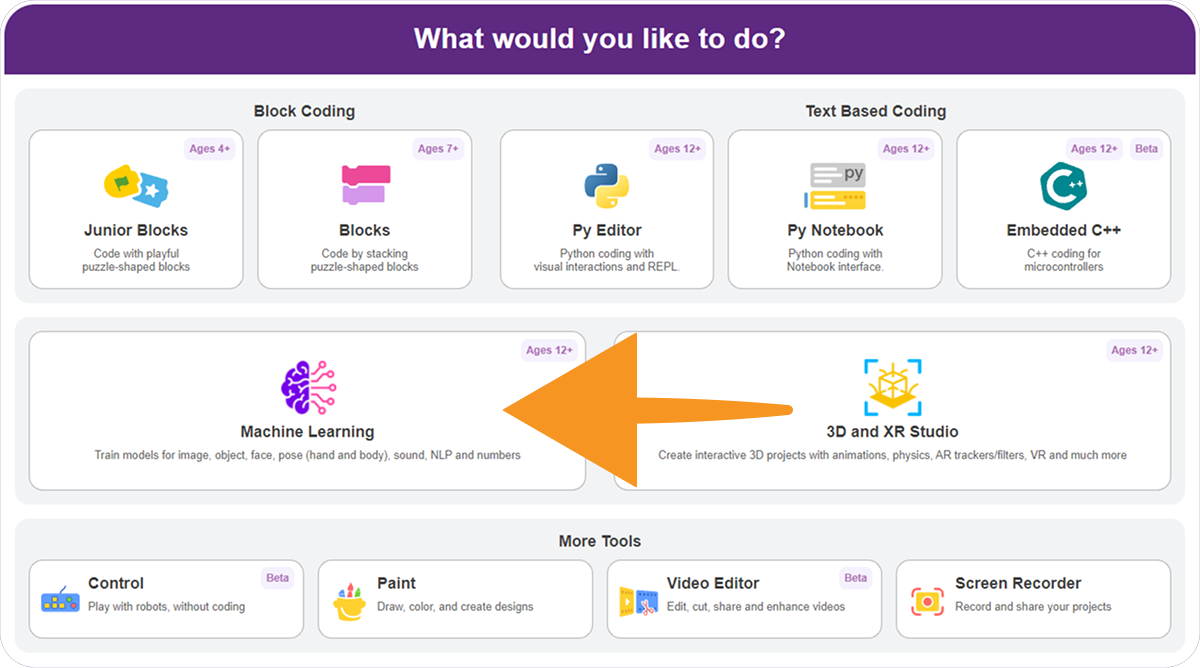
Open PictoBlox and go to the Machine Learning Environment.
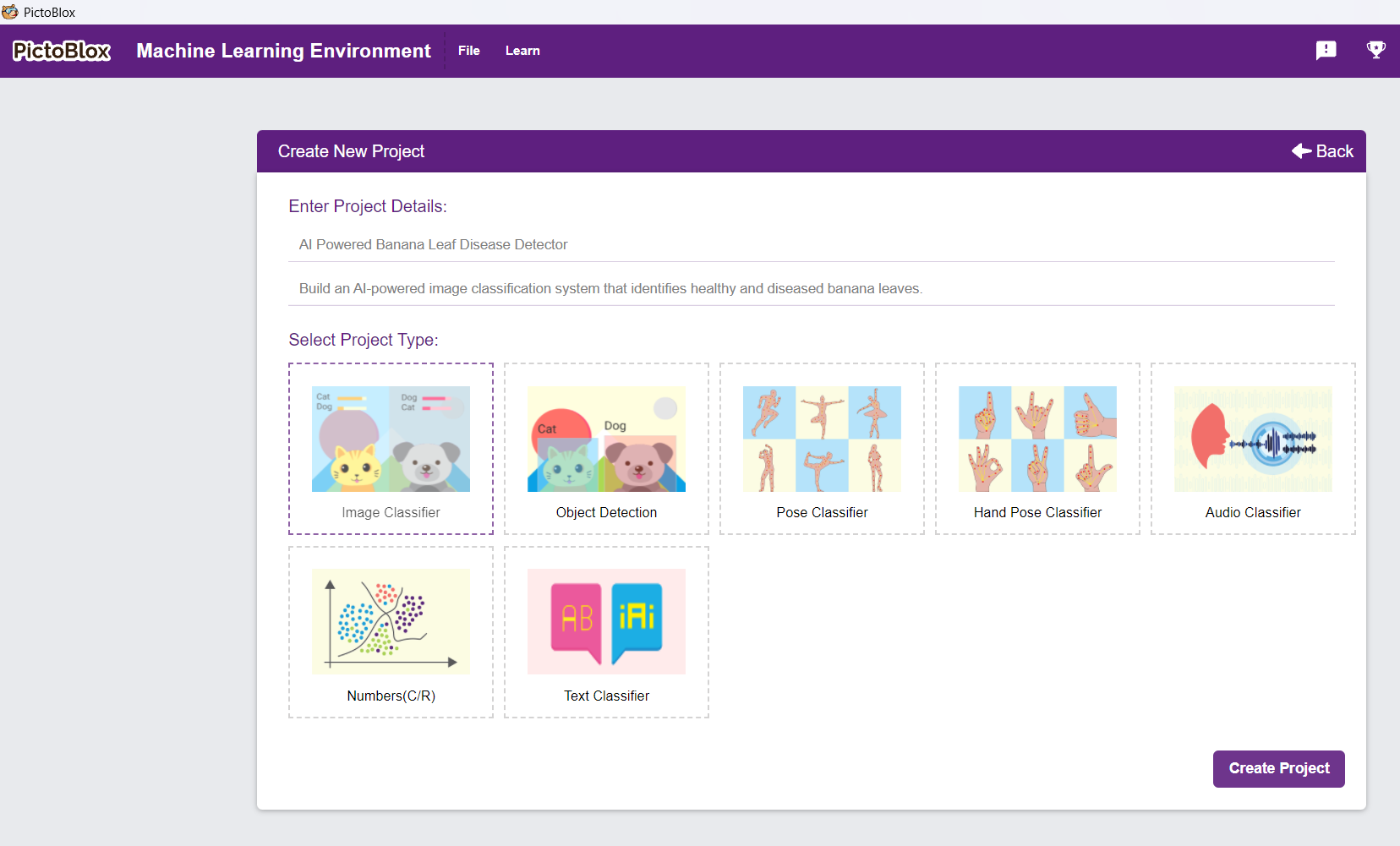
Click on Create New Project. A new window will open. Enter a project name such as: Banana Leaf Disease Detection
Select Image Classifier as the project type. Click on Create Project.
You will now see the Image Classifier workflow with two default classes. Your environment is ready for adding image data.
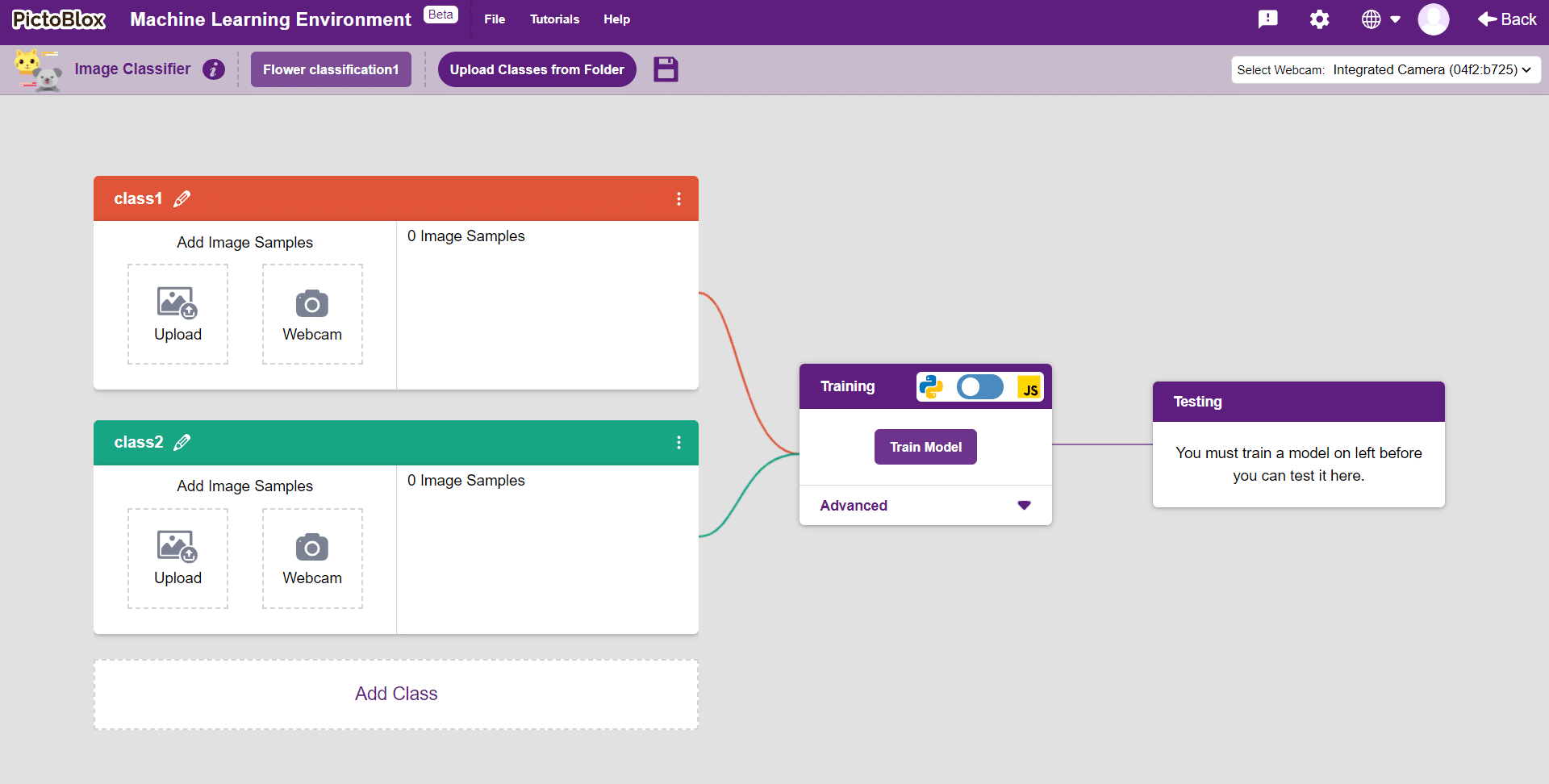
About Classes in Image Classifier
For this project, create three classes:
- Healthy Banana Leaf
- Segatoka
- Xamthomonas
Each class needs two things:
- Class Name: The name of the category
- Image Data: The images used to train the model
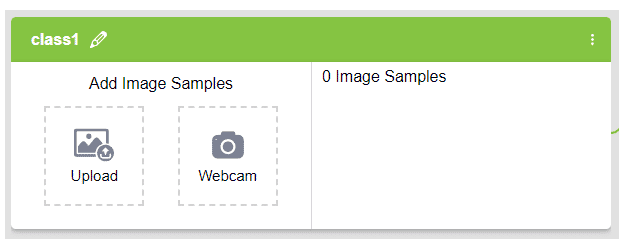
You can add image data by uploading files from your computer or using the webcam.

Step 2: Add Dataset Images
Now, add the provided dataset images to the correct classes.
- Class 1: Healthy Banana Leaf
- Rename the first class as: Healthy Banana Leaf
- Upload images of healthy banana leaves into this class.
- Class 2: Segatoka
- Rename the second class as: Segatoka
- Upload images of diseased banana leaves into this class.
- Class 3: Xamthomonas
- Rename the second class as: Xamthomonas
- Upload images of diseased banana leaves into the respective class.
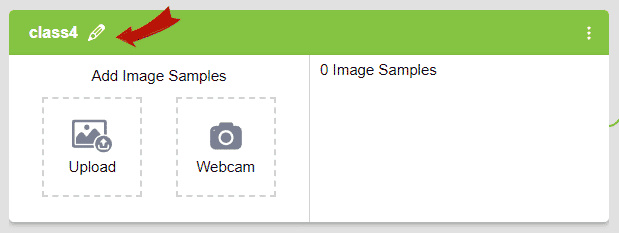 Make sure each image is added to the correct class. The model learns from the examples you provide, so incorrect data can reduce accuracy.
Step 3: Check Your Dataset
Before training, check the dataset carefully.
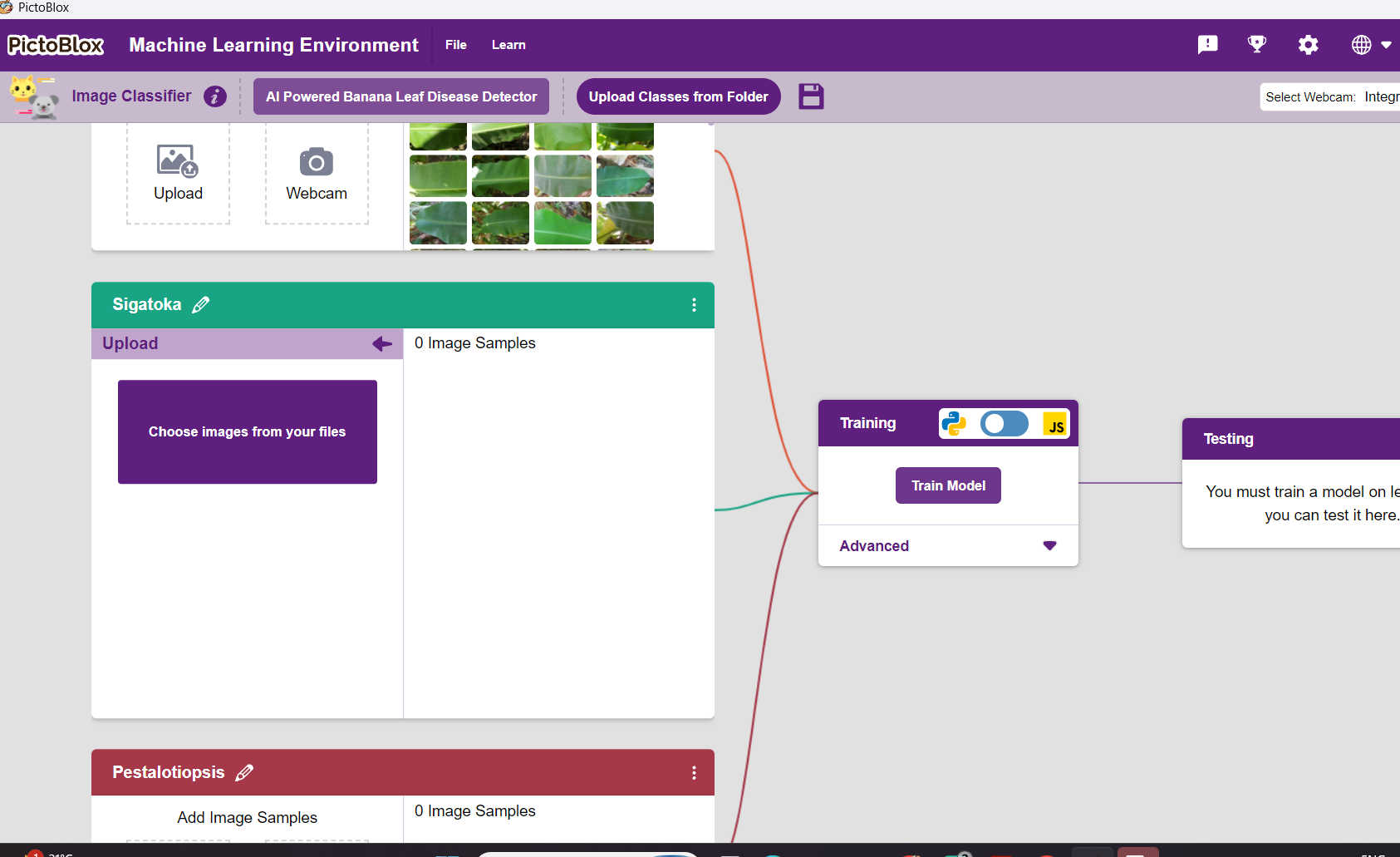
Make sure:
- Healthy leaves are added only to the Healthy Banana Leaf class
- Diseased leaves are added only to the Diseased Banana Leaf class
- Images are clear
- Images show the leaf properly
- Both classes have enough image examples
- The dataset includes different lighting, angles, and leaf conditions
A balanced and clear dataset helps the AI model learn better.
Training the Model
After adding the dataset, you can train the model. Click on the Train Model button.
During training, the model studies the banana leaf images and learns visual patterns from each class.
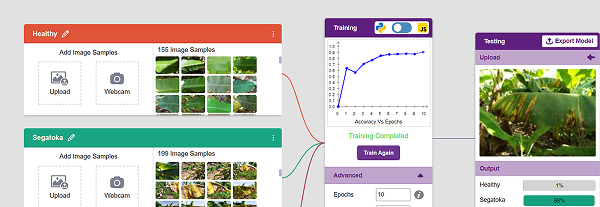
As the model trains, you may see an accuracy graph. The graph shows how well the model is learning over time.
A higher accuracy usually means the model is learning better, but testing with new images is still important.

Note: These hyperparameters can affect the accuracy of your model to a great extent. Experiment with them to find what works best for your data.

Advanced Training Settings
You can also open the Advanced tab to view training settings such as epochs and other model parameters.
For beginner learners, the default settings can be used.
If you want to improve model performance, you can experiment with:
- More training images
- Clearer images
- Balanced data in both classes
- Higher number of epochs
- Better-quality testing images
Train Report
After training, you can check the Train Report.
The Train Report may show:
- Overall training accuracy
- Class-wise accuracy
- Confusion matrix
- Model performance for each class
This helps you understand whether the model is performing well or confusing one class with another.
Testing the Model
After training, test the model using images that were not used for training. Please download the testing dataset from here: Test Dataset.
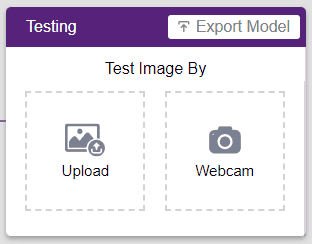
Go to the Testing panel. Upload or select a banana leaf image.
The model will show the prediction result and probability for each class.
For example, the model may predict:
- Healthy Banana Leaf
- Diseased Banana Leaf
It may also show a confidence score or probability for the prediction.
Export the Model to Block Coding
After testing the model, export it to the Block Coding environment.
Click on the Export Model button. PictoBlox will load the trained model into the Block Coding environment.
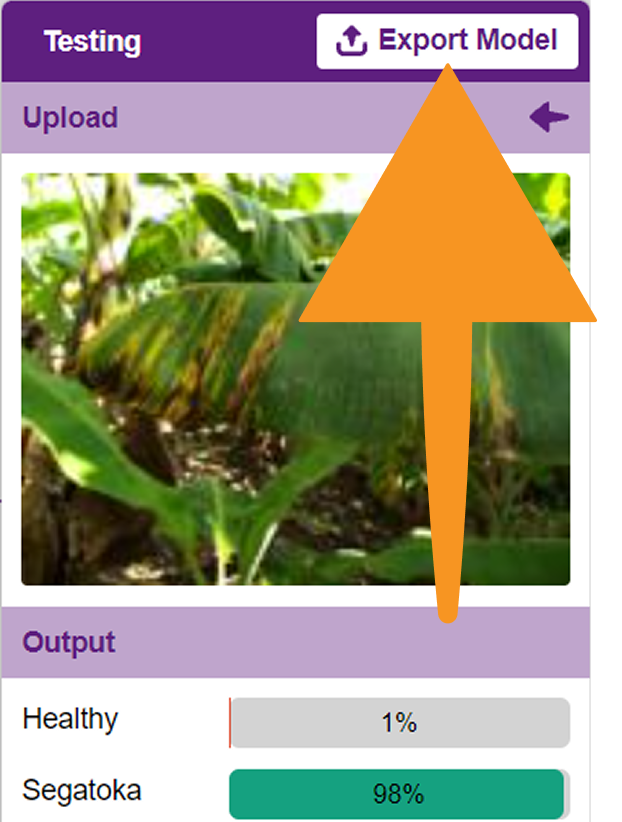
Now, you can use the trained model blocks to classify banana leaf images inside a PictoBlox project.
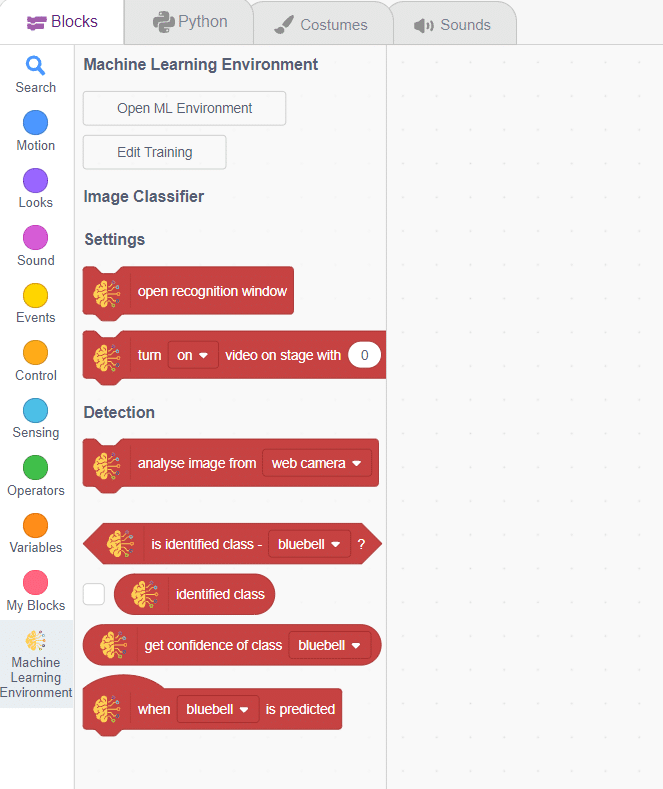
Alert: The Machine Learning Environment for model creation is available in the desktop version of PictoBlox for Windows, macOS, and Linux, as well as on the web version. It is not available in the Android and iOS versions.
Coding the Banana Leaf Disease Detection Project
The idea is simple: You will add testing images as backdrops and make the model classify each backdrop image.
- Go to the Backdrops section. Add testing images of banana leaves. Delete the default backdrop if it is not needed.
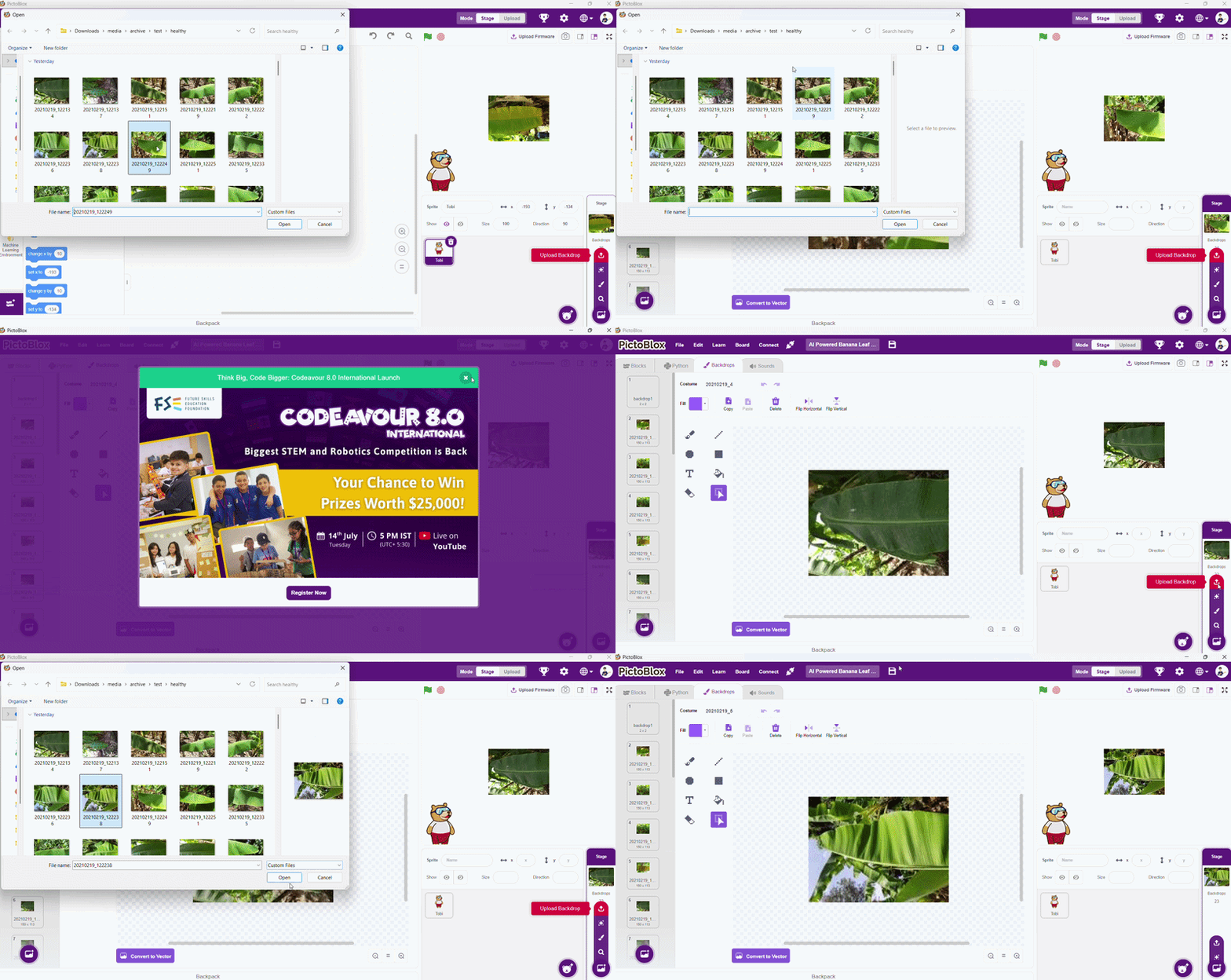
- Go back to the Coding tab. Select the Tobi sprite.
- Add the when green flag clicked block from the Events palette.
- Add the switch backdrop to () block from the Looks palette.
- Add a forever block from the Control palette.
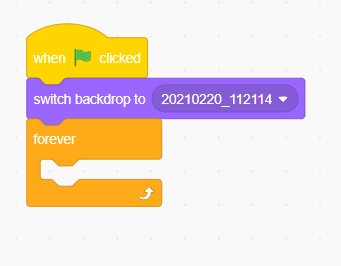 This will keep testing the images continuously.
Inside the forever loop, add the analyze image from () block from the Machine Learning palette. - Add the say () for () seconds block from the Looks palette.
- Inside the say block, add the join () () block from the Operators palette.
In the first part of the join block, write, This is:
Prediction: In the second part, add the identified class block from the Machine Learning palette.
Add the next backdrop block from the Looks palette.
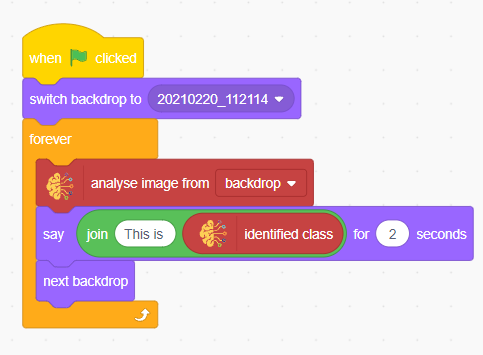
This will change the image and allow the model to classify the next banana leaf image.
Output
After running the project:
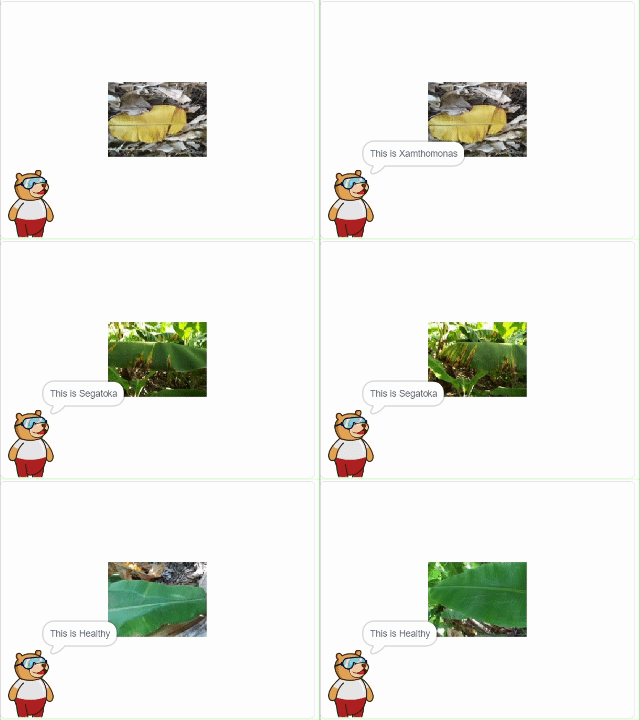
- Banana leaf images appear one by one on the stage.
- The AI model analyzes each image.
- Tobi displays whether the leaf is healthy or diseased.
- The prediction changes based on the image.
- You can compare the AI prediction with your own observation.
AI in Agriculture
Artificial Intelligence is helping farmers in many ways.
AI can be used to:
- Detect crop diseases earlier
- Monitor plant health
- Improve crop production
- Reduce unnecessary use of pesticides
- Support sustainable farming practices
- Save time in large farms
Think of another way AI could help farmers.
Evaluate
Reflect on your learning.
- How did the AI identify whether a leaf was healthy or diseased?
- Which images did the AI classify correctly?
- Which images were difficult for the AI?
- Why is it important to test AI with many different images?
- Why should humans still check AI predictions?
- If you improved this AI model, what changes would you make?
Keep Exploring AI
Challenge yourself by extending your project.
Can you create an AI model that detects:
- Tomato leaf diseases
- Potato leaf diseases
- Rice crop diseases
- Healthy and damaged fruits
- Different flower species
- Different types of flowers
Explore more AI-powered projects in PictoBlox and discover how AI can solve real-world problems.