

Activity Overview
Have you ever wondered how games can respond to your body movements without using a keyboard, mouse, or controller?
In this self-paced activity, you will explore Human Body Detection, a type of Computer Vision that helps AI systems detect different body parts such as the nose, eyes, shoulders, hands, and more.
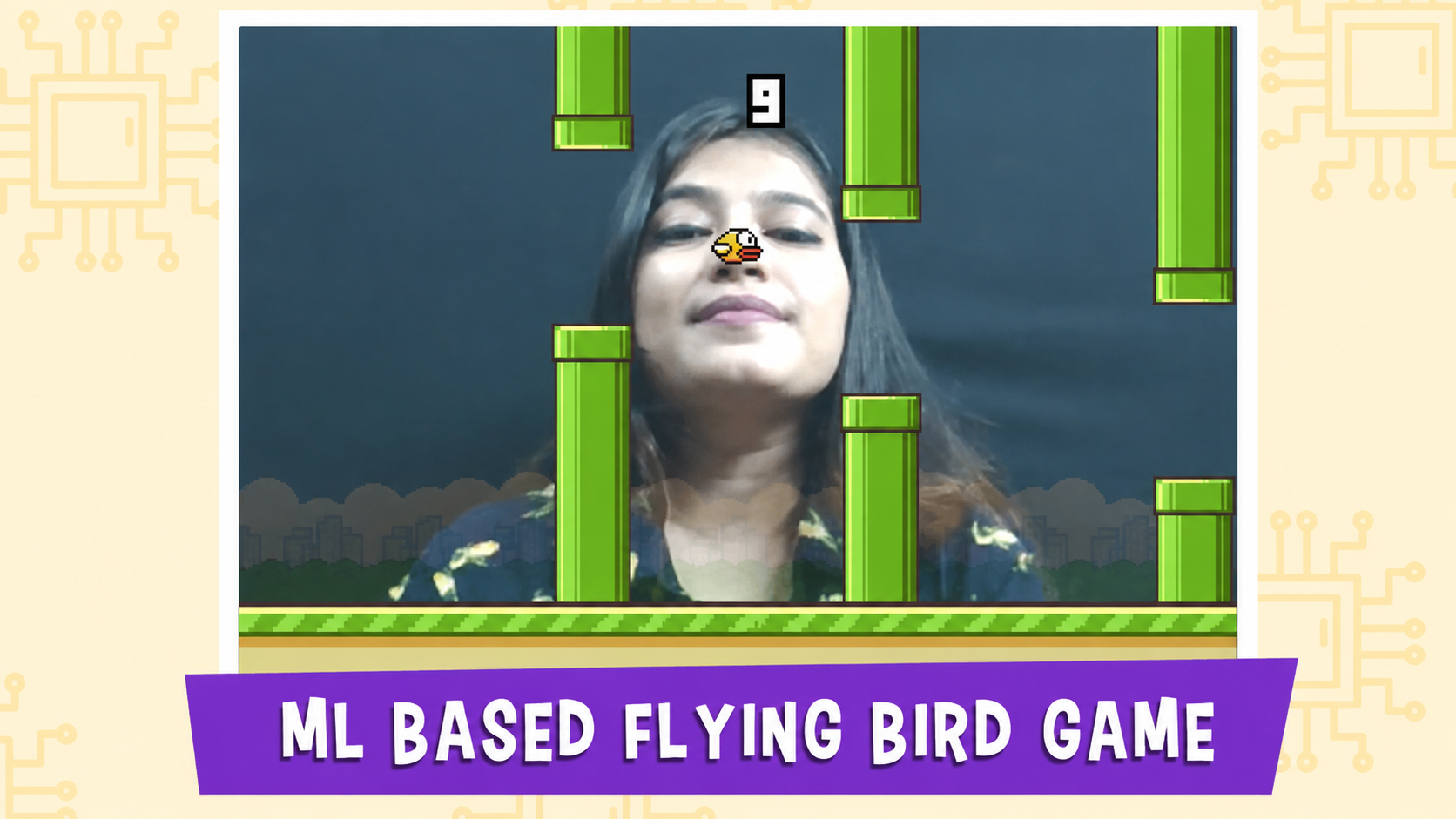
You will use AI-powered body tracking to control a Flying Bird Game using only the movement of your nose. As you move your nose up and down, the bird will move with you and try to pass through the pipe obstacles.
You will also test how well body detection works in different situations, such as bright light, dim light, fast movement, or when another person enters the camera view. This will help you understand the strengths and limitations of AI-based body tracking.
What You’ll Learn
By completing this activity, you will learn:
- How AI detects different parts of the human body
- How body tracking can be used to control games
- Why AI sometimes struggles to detect body movements accurately
- How to control a game character using your nose
- How to use the Human Body Detection extension in PictoBlox
- How to build an AI-powered Flying Bird Game
What You’ll Create
You will create a gesture-controlled Flying Bird Game where you guide the bird through obstacles using the movement of your nose.
What You’ll Need
To complete this activity, you will need:
- A laptop or computer with a camera
- Latest version of PictoBlox installed
- Good internet connection
- PictoBlox account login
- Human Body Detection extension
- Flying Bird Game starter project file
You can download PictoBlox from here: Note: The Human Body Detection extension requires an internet connection and a PictoBlox login to load the AI models properly.
Setting Up the Project
Think First: Engage
Before you start building, think about games that use body movements instead of controllers.
Have you ever played games that use:
- Hand gestures?
- Body movements?
- Facial expressions?
- Motion sensors?
Think About It
Before moving ahead, write down your prediction:
- How do you think AI knows where your nose is?
- Can AI always detect body movements correctly?
- What might happen if you move too fast?
Explore AI
Before building your project, make a few predictions.
What do you think will happen if:
- You move farther away from the camera?
- You stand sideways?
- Another person enters the camera view?
- The room becomes darker?
- You move your head very quickly?
Do not worry if your predictions are incorrect. You will test them later after building the project.
Explain: Learn the AI Concept
How Does Human Body Detection Work?
Human Body Detection is a type of Computer Vision that allows AI to identify important body parts from a live camera feed.
It can detect body points such as:
- Nose
- Eyes
- Shoulders
- Elbows
- Hands
- Knees
- Feet
The AI does not need to know who you are. It only estimates where different body parts are located on the screen.
In this activity, you will use the nose position to control the bird. When your nose moves up, the bird moves up. When your nose moves down, the bird moves down.
Where Is Human Body Detection Used?
Human Body Detection is used in many real-world applications, such as:
- Motion-controlled games
- Fitness and exercise apps
- Dance games
- Virtual reality experiences
- Sports training systems
- Interactive classroom activities
Build Your Project
Add Human Body Detection Extension
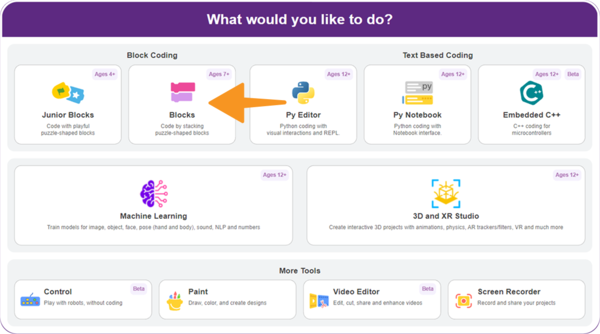
- Open PictoBlox on your computer and select Block Coding.
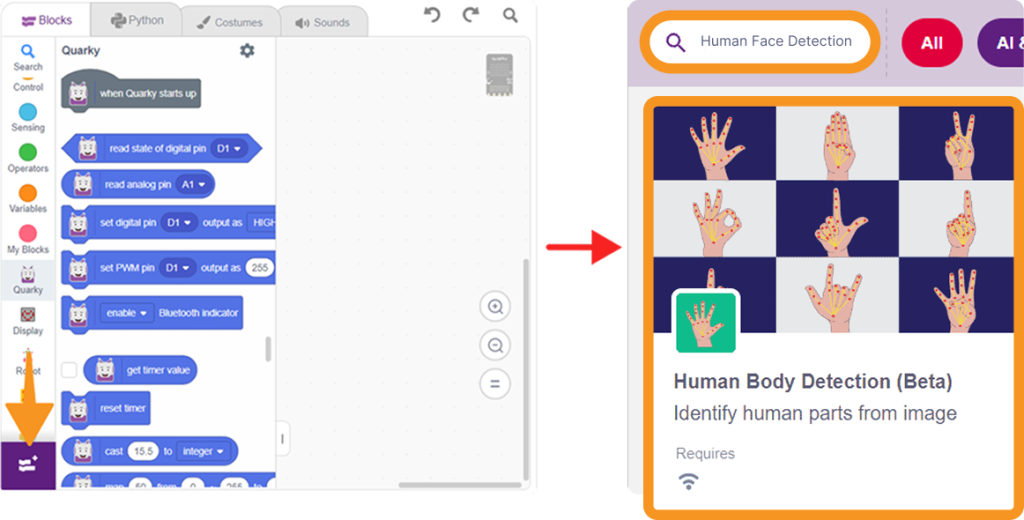
- Click on the Add Extension button. Choose the Human Body Detection extension. Wait for a short time until the AI models are loaded successfully.
Setting Up the Stage for the Flying Bird Game
In this activity, the main focus is to write the script that controls the bird using your nose.
The stage, sprites, pipe hurdles, score display, and game-over screen are already prepared in the starter project.
Open the Starter Project
- Download the ML-based Flying Bird Game file → Open PictoBlox. → Go to File. → Choose Open.
- Open the downloaded Flying Bird Game project file.
After opening the project, you will see multiple sprites and scripts already added.
Understanding the Game Sprites
Before writing the main script, let’s understand the role of each sprite.
Logo Sprite
The logo sprite appears when the game starts. When the Green Flag is clicked, the game shows the starting screen and sets the score to 0.

Bird Sprite
The bird sprite is the main character of the game. You will write the main script for this sprite so that it can move, animate, and follow your nose position.

Floor Sprites
The floor sprites create a moving ground effect. Their scripts make the floor move continuously during the game.
Start Button Sprite
The Start Button sprite begins the game. When it is clicked, the pipe hurdles start moving and the bird becomes active.
Pipe Hurdle Sprites
The pipe sprites act as obstacles. They are hidden at the start and begin moving when the game starts. Their y-position changes randomly to make the game more challenging.

Score Sprites
The score sprites display the player’s score. When the bird crosses a pipe hurdle successfully, the score increases by changing to the next costume.

Game Over Sprite
The Game Over sprite appears when the bird touches a pipe or pipe border.

Title Sprite
The title sprite is optional. It helps make the game stage look more complete and attractive.

Writing the Script for the Flying Bird Sprite
Now, select the Bird sprite and create the main scripts.
1. Making the Bird Move
First, set up the bird when the game begins.
- Drag the when I receive () block from the Events palette.

- Choose begin game from the drop-down.
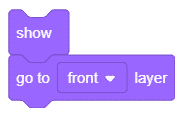
- Add the point in direction () block from the Motion palette.
- Add the show block from the Looks palette.
- Add the go to () layer block from the Looks palette and choose front.
- Add the go to x: () y: () block from the Motion palette.
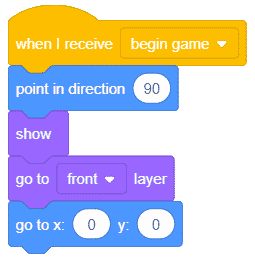
- Set the position to x: 0 and y: 0.
This places the bird at the starting position when the game begins.
To make the bird look like it is flying:
- Add a forever block from the Control palette.
- Inside it, add the next costume block from the Looks palette.
- Add the wait () seconds block from the Control palette. Set the wait time to 0.05 seconds.
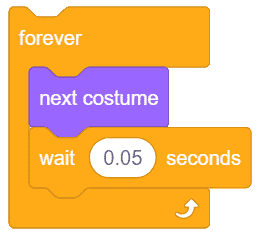
- The final script will look like this:
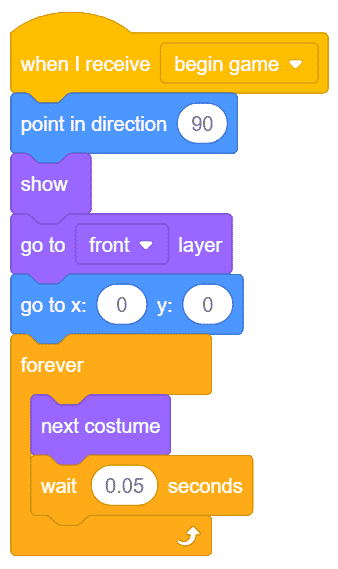
2. Controlling the Bird Using Your Nose
Now, create another script in the Bird sprite to control it using your nose.
- Drag the when I receive () block from the Events palette.
- Choose game from the drop-down.

- From the Human Body Detection palette, add the turn on video on stage with ()% transparency block. Set the transparency to 25%.

- Add a forever block from the Control palette.
- Inside it, add the analyse image for human pose from () block.
- Choose camera from the drop-down.

- Add the set y to () block from the Motion palette.
- Inside it, place the y position of () of person () block from the Human Body Detection palette.
- Choose nose from the first drop-down and 1 from the second drop-down.

- The complete script will look like this:
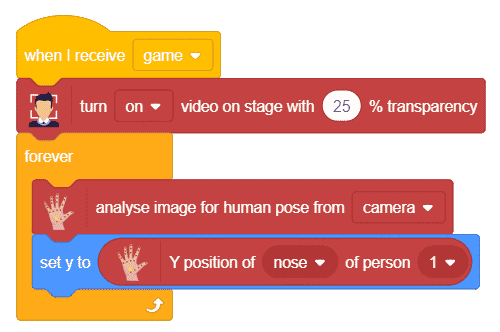
Now, the bird will move up and down based on the y-position of your nose.
3. Script When the Bird Touches the Pipes
Now, create a script to stop the game when the bird touches a pipe.
- Duplicate the when I receive game block.
- Remove the blocks below it.
- Add a forever block from the Control palette.
- Inside it, add an if then block.
- From the Sensing palette, add the touching color ()? block inside the condition.
- Use the color picker to select the pipe border colour.
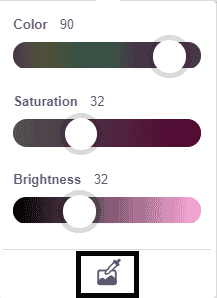
- Inside the if block, add the stop all block from the Control palette.
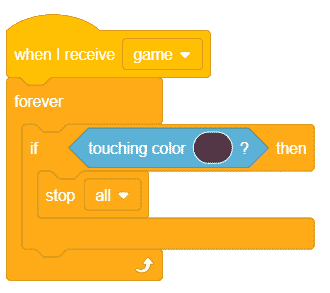
If the bird touches the pipe border, all scripts will stop and the game will end.
With this, our script is complete. Click on the green flag and start playing.
AI Investigation
Now test how well AI tracks your body in different situations.
Try the game in these conditions:
- Bright lighting
- Dim lighting
- Standing farther away
- Moving your head quickly
- Standing sideways
- Another person entering the camera view
Observe how the bird responds in each case.
Think About It
Answer these questions after testing:
- Which situation made body detection easier?
- Which situation confused the AI?
- Why do you think that happened?
- Did the bird always follow your nose correctly?
- What can you do to improve the detection?
AI in Everyday Life
Human Body Detection helps power many technologies you may already use.
Examples include:
- Motion-controlled games
- Virtual fitness coaches
- Interactive museum exhibits
- Sports training systems
- Gesture-controlled presentations
Can you think of another way body detection could help people?
Evaluate
Reflect on what you learned.
- How did the AI know where your nose was?
- When did body detection work best?
- When did it struggle?
- Why is it important to test AI systems under different conditions?
- If you could improve this AI, what would you change?
Keep Exploring AI
Challenge yourself by extending your project.
Can you:
- Control the bird using your hand instead of your nose?
- Increase the game’s difficulty?
- Add sound effects?
- Create a completely new gesture-controlled game?
- Design your own character instead of the bird?
Explore more AI-powered projects in PictoBlox.
Conclusion
In this activity, you created a Flying Bird Game using PictoBlox and the Human Body Detection extension.
You learned how to control the bird using your nose, how AI detects body parts from a camera feed, and how body tracking can be used to create an interactive game. You also explored how lighting, distance, movement speed, and camera view can affect AI detection.
By the end of the project, your Flying Bird Game was complete and ready to play. Try to beat your own score and share your project video with the PictoBlox community.