
Introduction
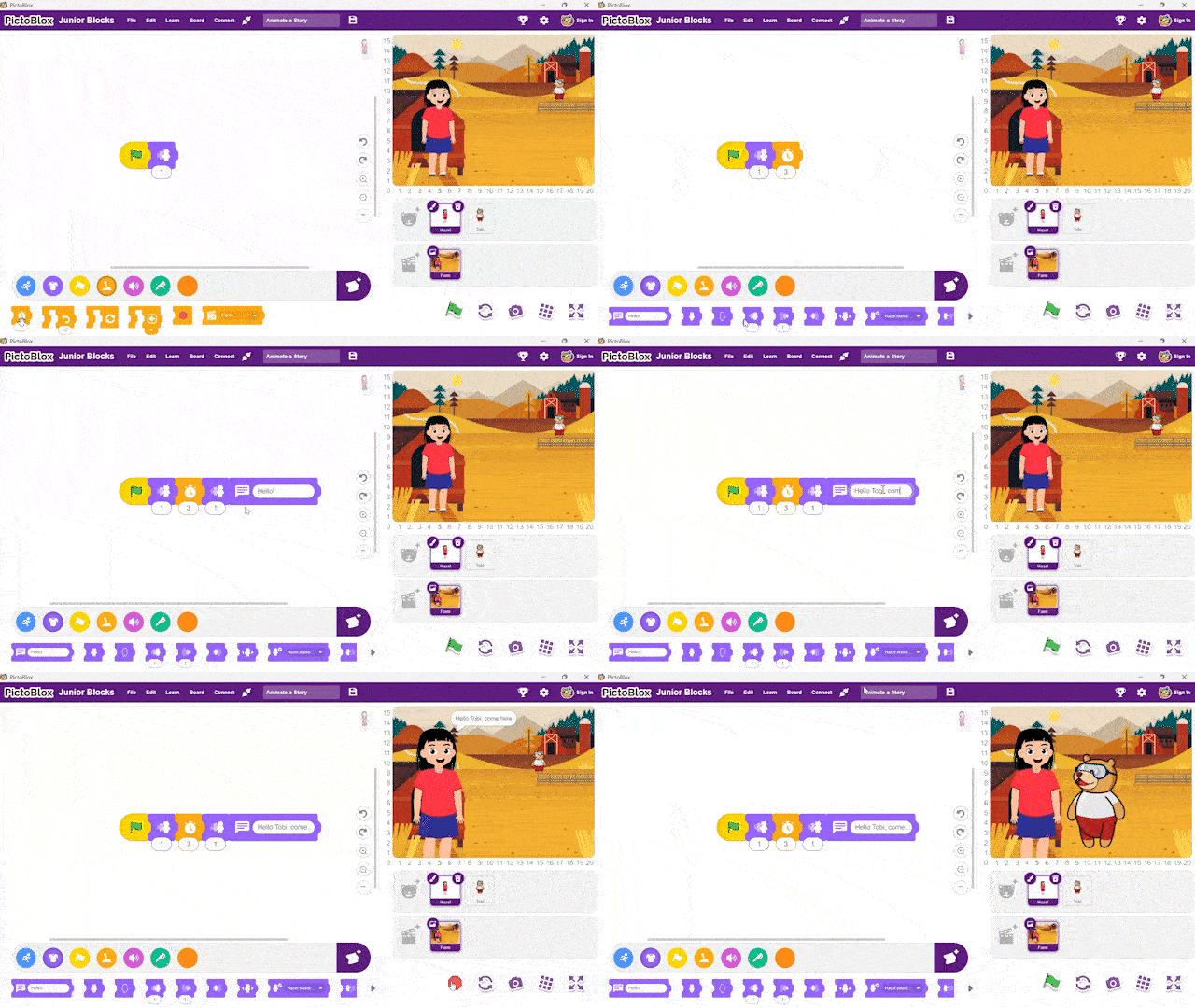
Junior Blocks is designed especially for young children aged 5+ who are just beginning their coding journey. At this age, children learn best through visuals, play, and hands-on activities, not by typing or reading complex text. Instead of writing code, children use large, colorful blocks that they can drag and join together like puzzle pieces to control a character’s actions.
Junior Blocks helps children develop step-by-step thinking, basic logic, and problem-solving skills in a fun and pressure-free way. The blocks are simple, easy to recognize, and age-appropriate, making it perfect for early learners to explore coding while playing and creating interactive stories and games.
Explore the Surroundings
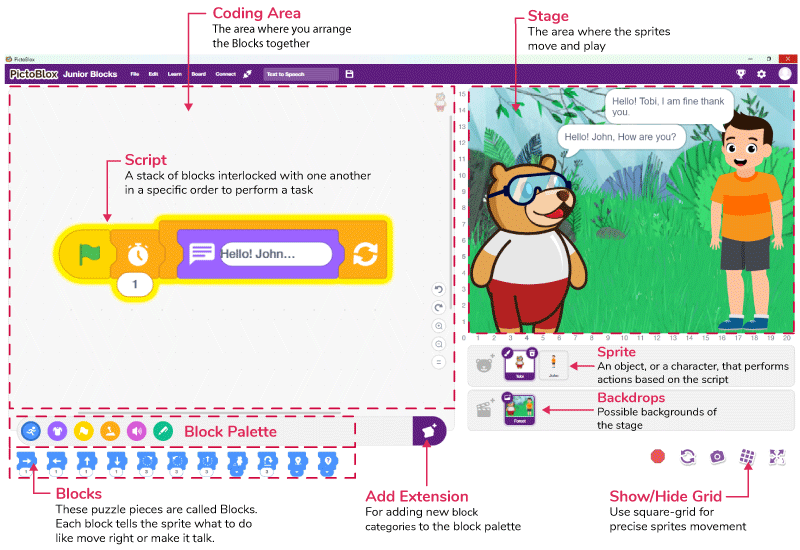
Junior Blocks has the following basic elements:
- Sprites
- Backdrops
- Stage
- Scripts
- Blocks
- Block Palette
Sprites
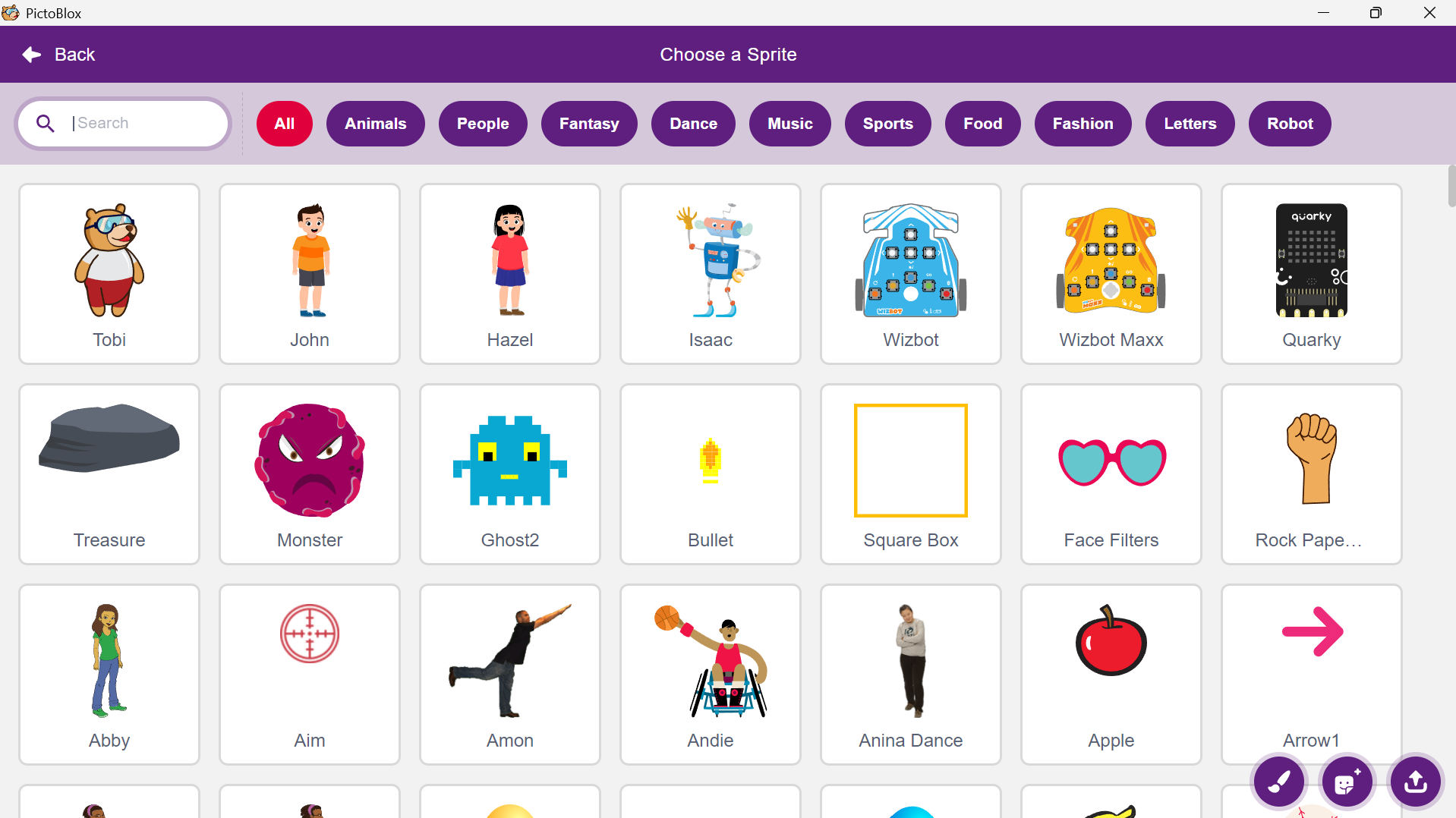
A sprite is an object, or a character, which performs different actions in the projects. It understands and obeys the instructions given to it. The bear you see in the image is a sprite. His name is Tobi. He will be your coding buddy in PictoBlox!
A sprite has costumes, which are one of the many appearances of the sprite. Some sprites have multiple costumes, and you’ll use blocks to perform actions.
Backdrops
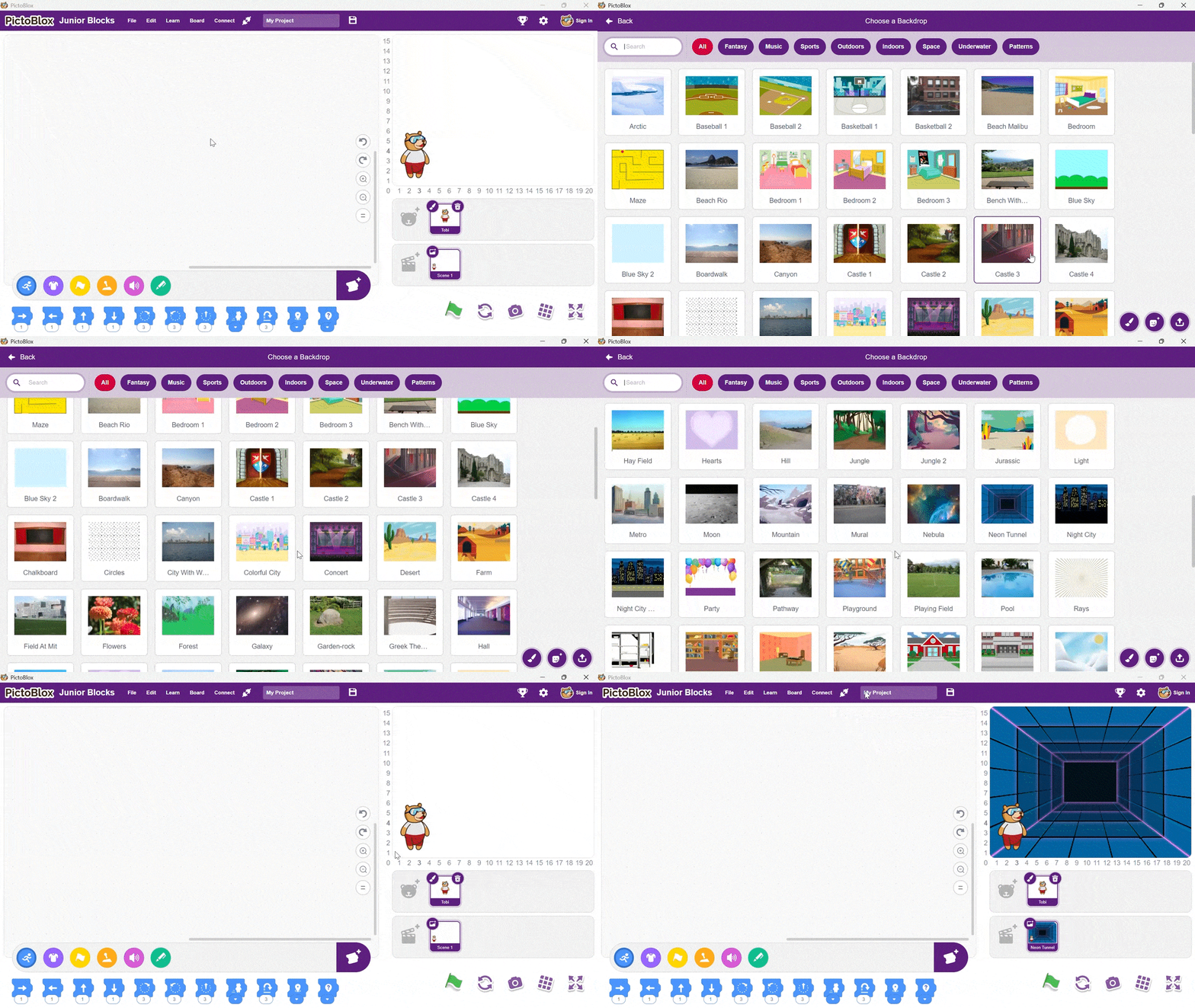
Backdrops are the stage backgrounds that set the scene for your project. You can pick them from the library, draw your own, or upload photos. They make your animations look professional and your games feel alive.
Stage
The stage is the area where the sprite performs actions according to your program. The stage has its own scripts and sounds. You can design the stage using images, these images are called backdrops. You can choose a backdrop from PictoBlox’s inbuilt library, paint one yourself, upload an image from your computer or even click a picture.
Script
A script is a block program created by joining blocks. It is a set of ‘blocks’ that are arranged side by side with one another in a specific order to perform a task or a series of tasks. You can write multiple scripts all of which can then run simultaneously. You can write the scripts only in the scripting area which is in the center of the screen.
Blocks
A block is like a jigsaw puzzle piece that is used to write programs by simply dragging and dropping them below one another in the scripting area. Using blocks to write codes eliminates the errors that might occur while writing codes in traditional programming languages.
Block Palette
The block palette is below the Scripting Area. It consists of different palettes such as Motion, Sound, and Control. Each palette has different blocks that perform functions specified by the palette name. E.g., the blocks in the Motion palette will control the motion of the sprite and the blocks in the Control palette will control the working of the script depending on specific conditions.
- Events – Starts the program
- Motion – Moves the sprite
- Looks – Changes the sprite’s appearance
- Sound – Plays sounds and voices
- Control – Repeats actions and add delays
- Pen – Draw lines and shapes on the stage using the sprite
Users can access additional blocks, such as Human Body and Face Detection, through the ‘Add Extension’ button
- Face Detection – Detects a face using the camera and make the sprite react
- Human Body – Detects body movements and gestures
Quarky and Wizbot blocks can be accessed by selecting the board form Board Selection Window
- Quarky – Controls lights, sensors, and actions of the Quarky board
- Wizbot – Controls the movements and actions of the Wizbot robot
Activity: Finger Counting with AI
Let’s use AI to count how many fingers you’re holding up. With the magic of hand detection, the AI will analyze your hand and tell you the exact number of fingers you’re showing. Get ready for some finger-counting fun!
Setting the Stage
- Open the PictoBlox application on your device.
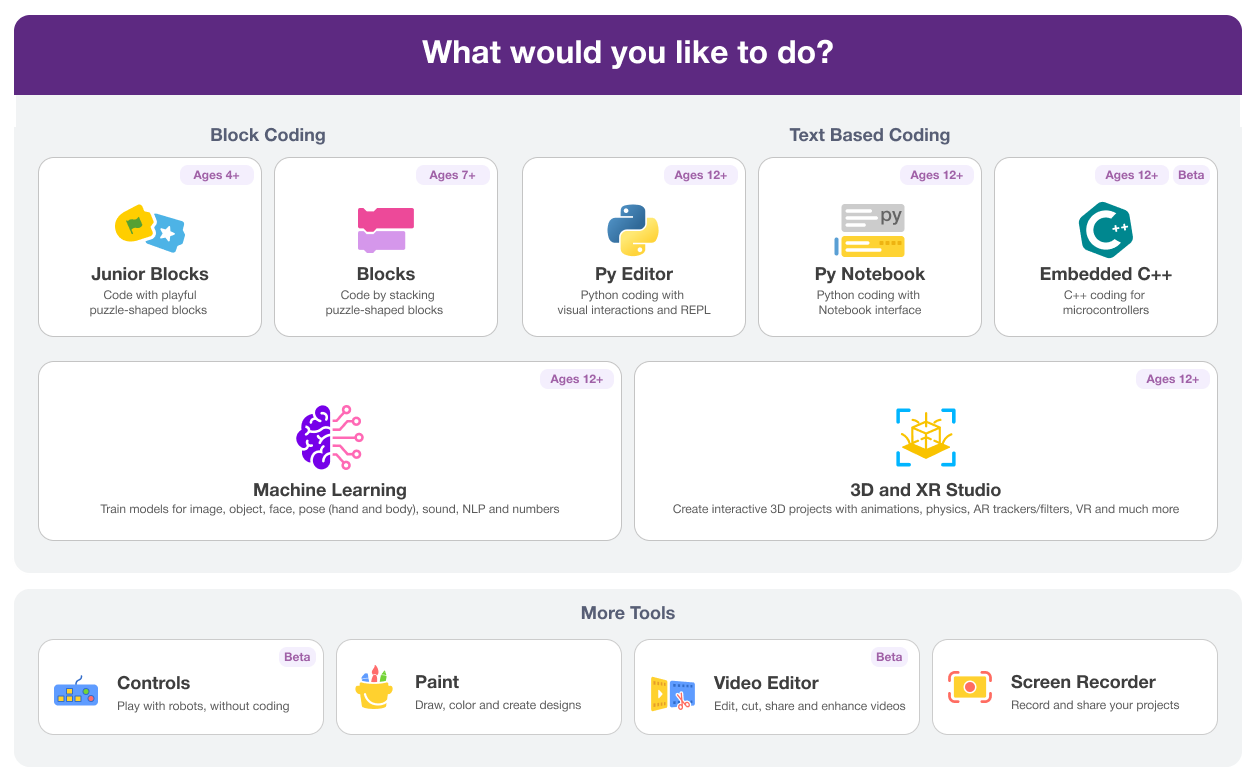
- Select the Junior Blocks from the Block Coding section.
- You can keep the Tobi sprite or select any other sprites of your choice.
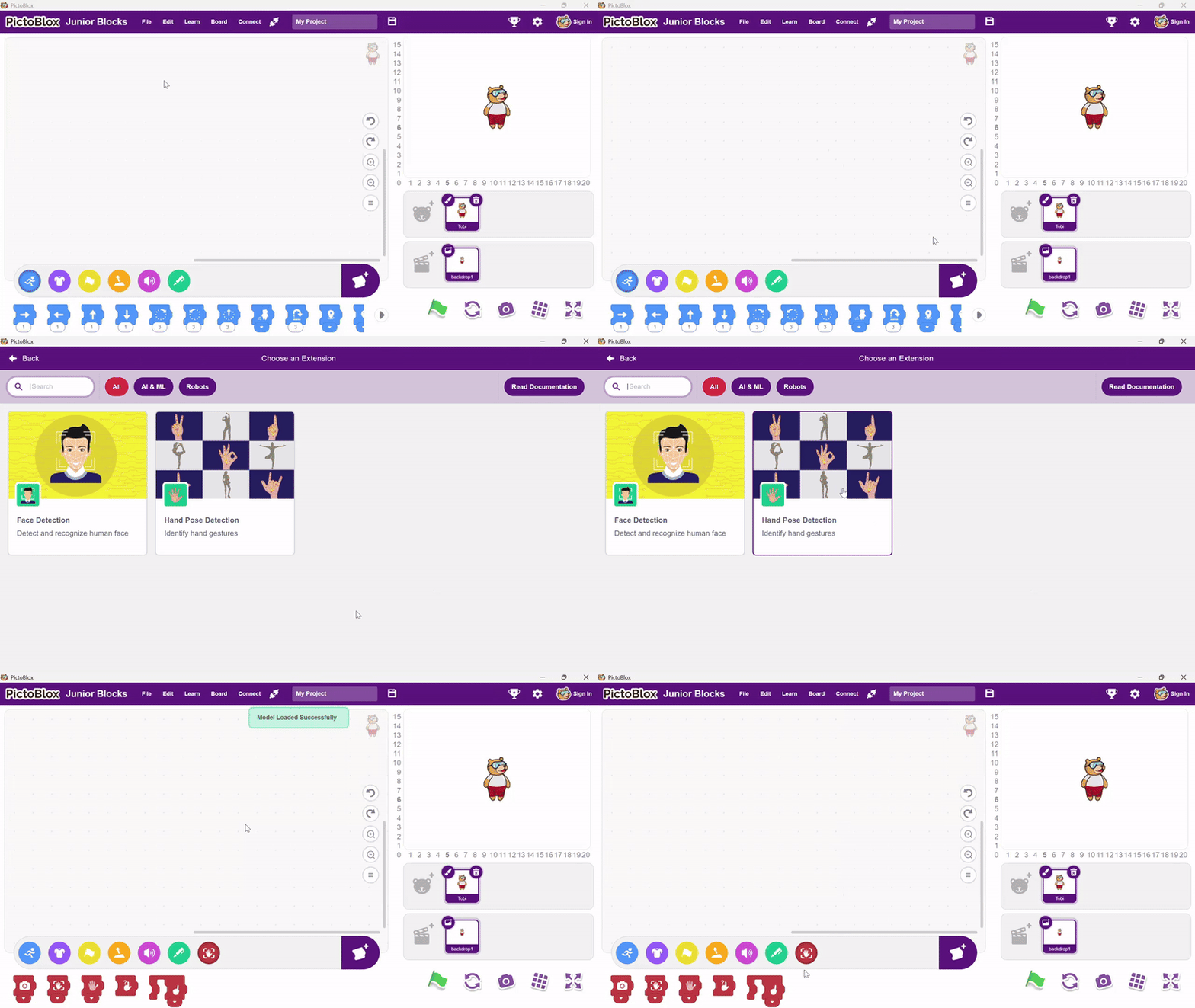
- Let’s quickly add Hand Pose Detection extension.
- Click on the Add Extension icon in the palette section.
- Select the Hand Pose Detection extension. Now you will be able to see the available blocks for Hand Pose Detection extension in the Blocks palette.
Let’s Code
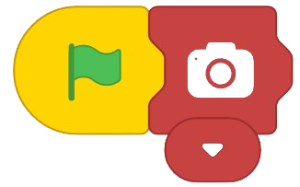
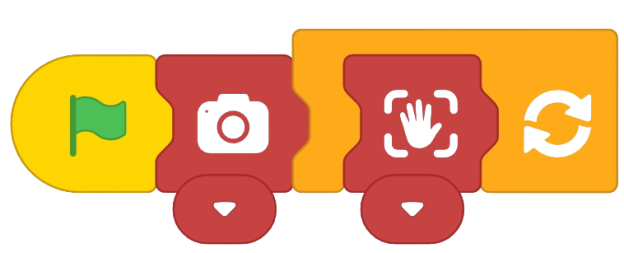
- We will start by using the Start block from the Events palette.
- Now, add a Camera Switch block from the Human Body Detection extension to turn on the camera on stage. Say cheese!
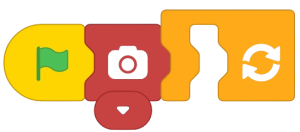
- Next, use a Repeat forever block from the Control palette to keep tracking your hand continuously. Let’s make sure we don’t miss a move!
- Let’s add the Analyze hand block from the Human Body Detection extension to spot your hand on stage.
- Finally, use the Guess finger sign block from the Human Body Detection extension to find how many fingers you’re showing.
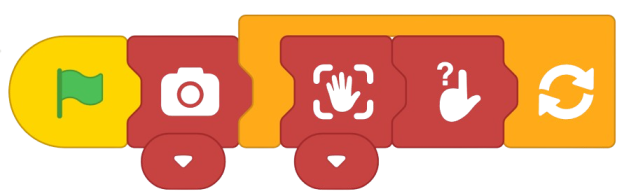
- Let’s see how many fingers you can count with a little AI’s help by clicking on the Go icon!
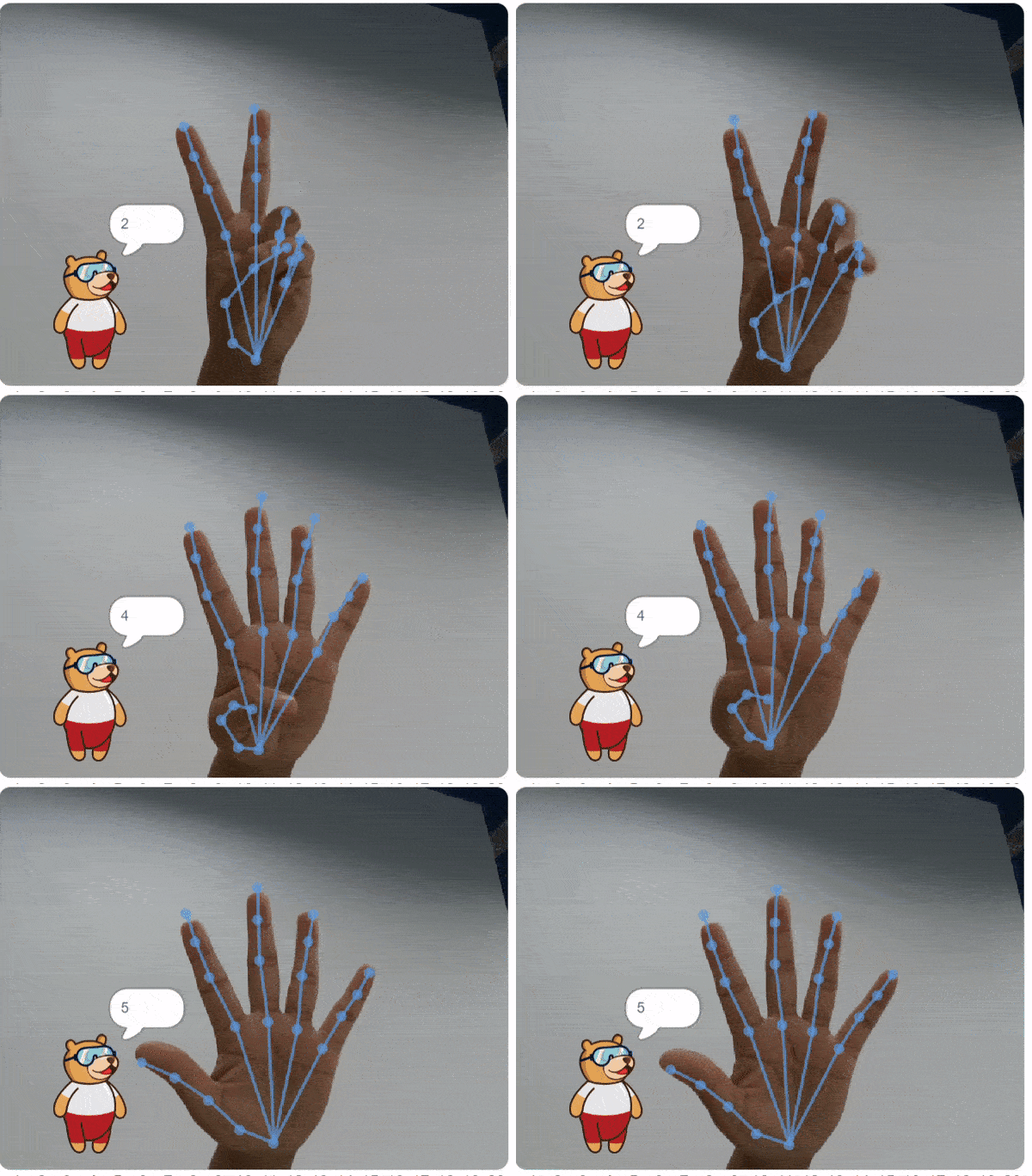
Along with the count try showing different gestures like Up, Down, Ok, L, and other gestures that we have seen under the explanation of Human Body Detection extension.
Conclusion
In conclusion, Junior Blocks is a easy to use tool for introducing children to programming. With its user–friendly interface and drag–and–drop functionality, it eliminates the need to learn complex syntax and rules, allowing kids to focus on problem–solving and developing important skills. With PictoBlox, children can create a variety of projects by writing scripts, controlling sprites, and interacting with hardware. Click here to explore more videos of Junior Blocks.