
How to check the firmware version on Quarky Intellio?
Follow these steps to check the current firmware version:
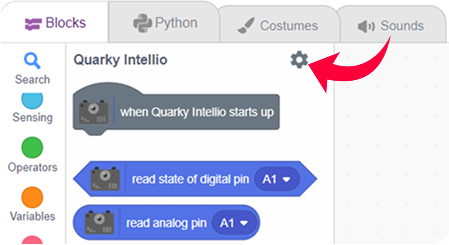
Step 1: Connect Quarky Intellio to your computer using any one of the available connection methods. (Refer to Quarky Intellio Wi-Fi Connection Guide) Step 2: Go to the Quarky Intellio Blocks section and click on the Settings button.
Step 3: A pop-up will open with the heading – Quarky Intellio Settings and Troubleshooting.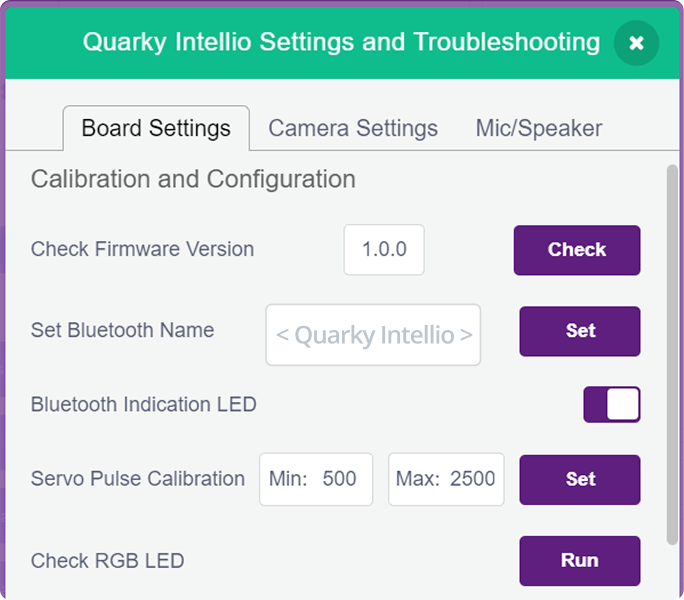
Step 4: In the Board Settings window, click on the Check button.
Step 5: The current firmware version will be displayed.


How to update firmware on Quarky Intellio?
Follow the steps below to upload the latest firmware:
Step 1: Connect Quarky Intellio to your computer using any one of the available connection methods. (Refer to Quarky Intellio Wi-Fi Connection Guide)
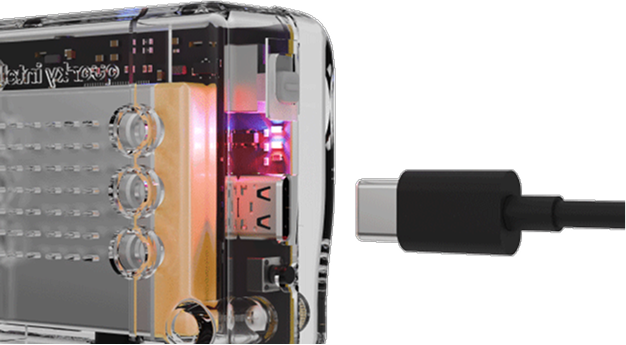
- Connect Quarky Intellio to your computer using a USB cable.
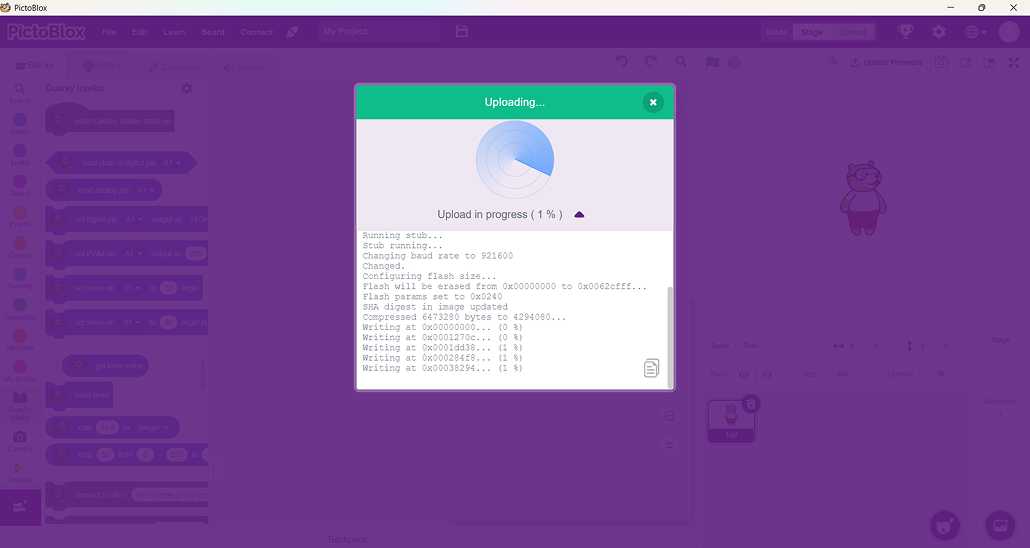
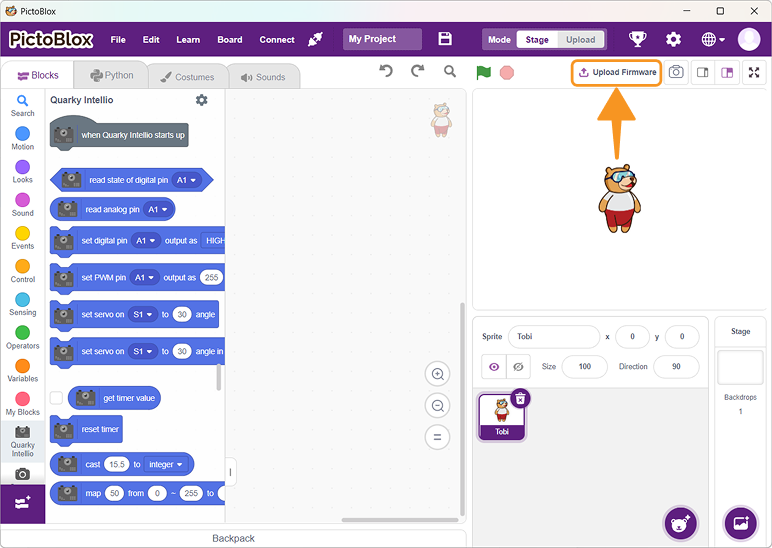
- In the upper right corner of the PictoBlox window, you will see the Upload Firmware button. Click, and a status window will open.
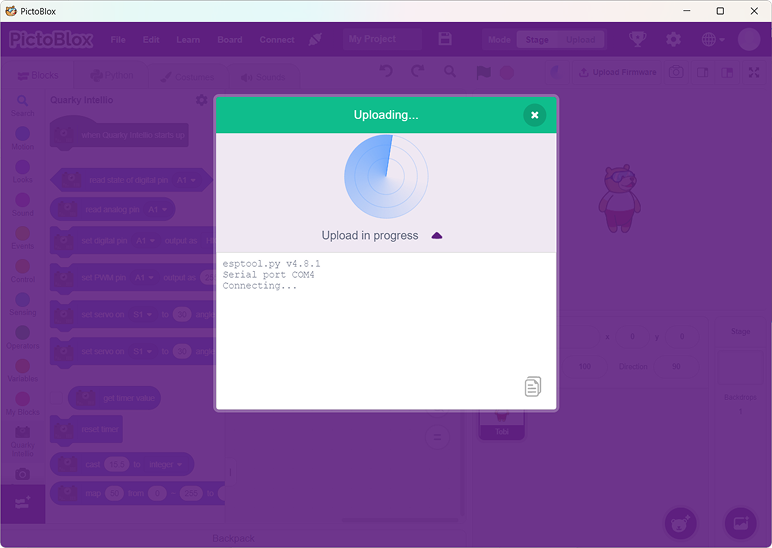
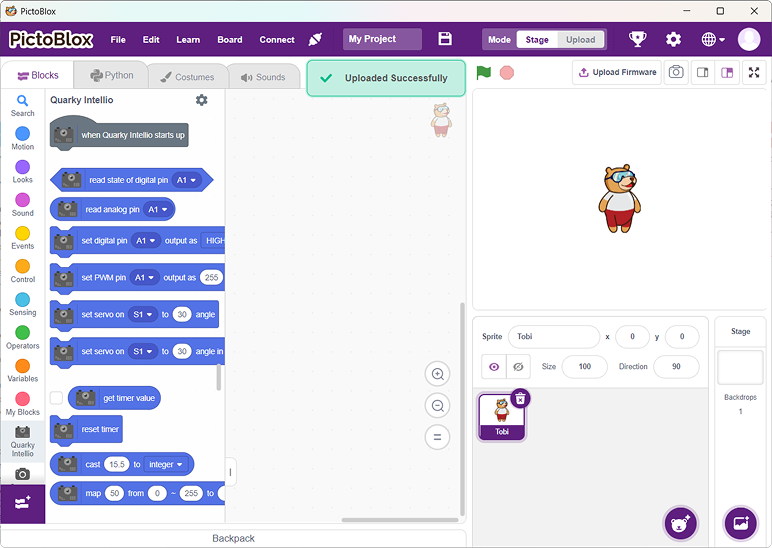
- Wait for the confirmation message on the screen.
2. Quarky Intellio Blocks section
- Connect Quarky Intellio to your computer using a USB cable.
- Go to the Quarky Intellio Blocks section and click on the Settings button.
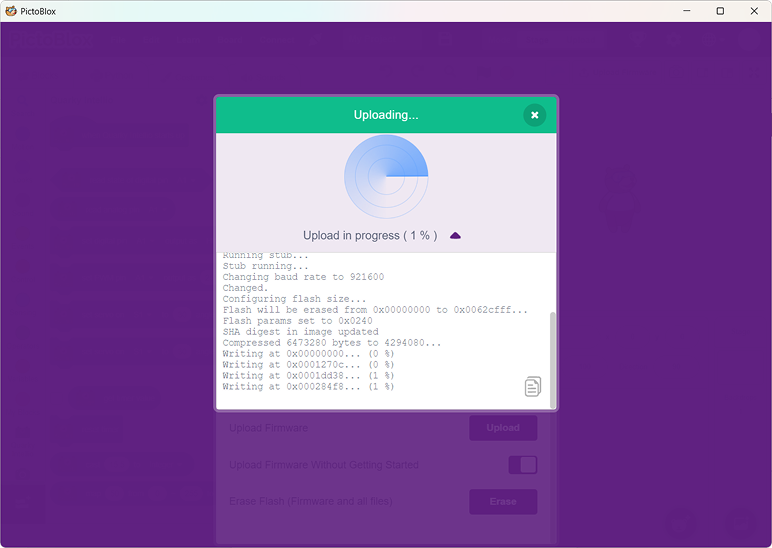
- Go to the Hardware and Firmware Options section, then click the Upload button to upload the latest firmware.
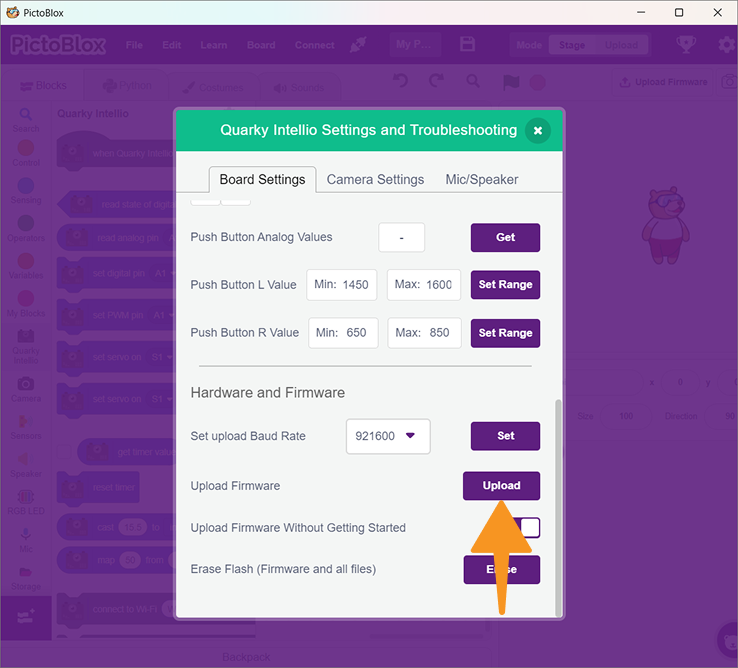
- Wait for the confirmation message on the screen.
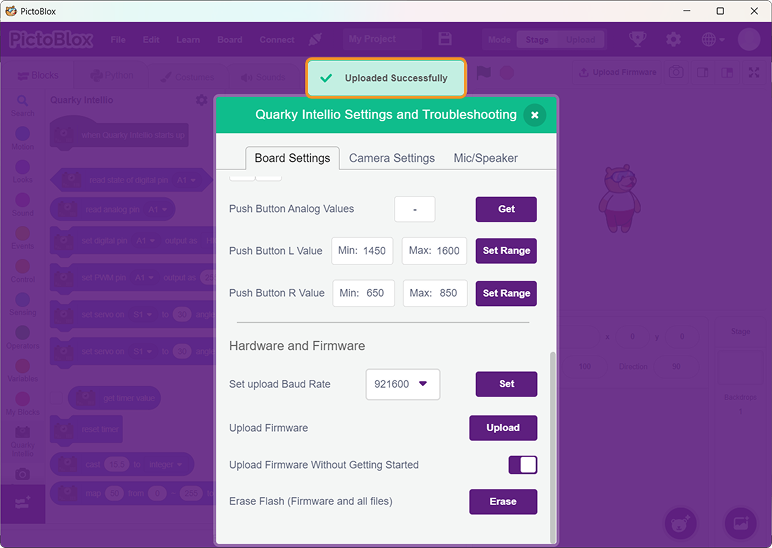
What is the difference between the old and new firmware?
The updated firmware ensures better compatibility with the latest features and extensions available in PictoBlox. It also fixes bugs and improves the overall performance and stability of the device.
What if Quarky Intellio is not working after a firmware update?
If your device is not working properly after updating the firmware, follow these steps:
- Erase Flash (Firmware and all files): Option for erasing firmware and files on Intellio. Follow the steps below to upload the latest firmware.
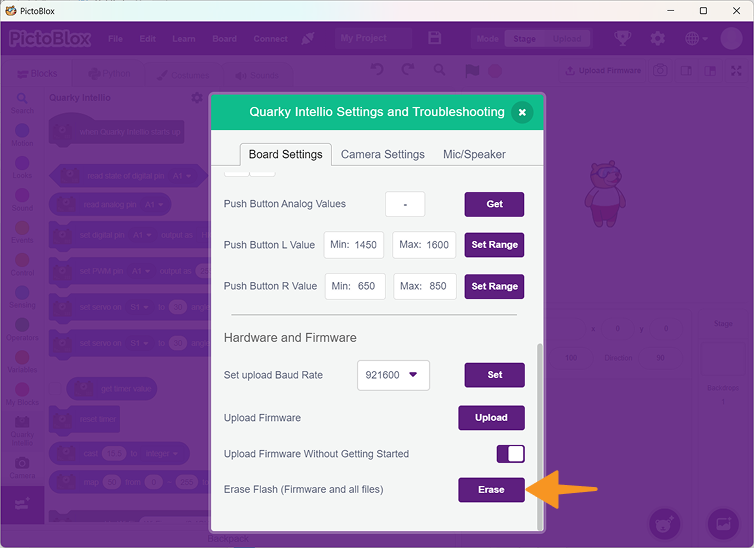
- After erasing, go to the Hardware and Firmware Options section, then click the Upload button to upload the latest firmware.
- Wait for the confirmation message on the screen.
- This resets the device and resolves most firmware-related issues.