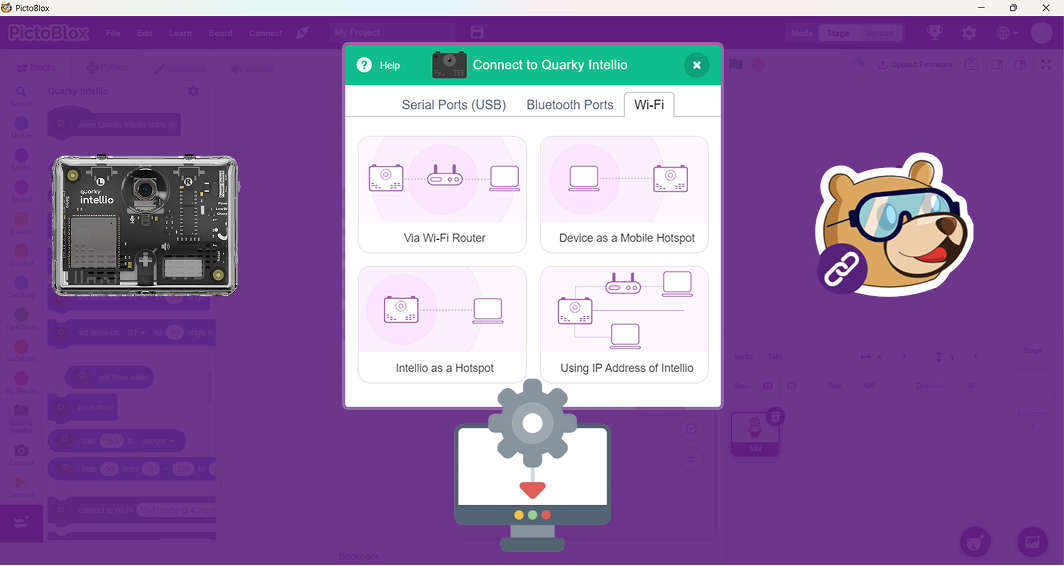
Is your Quarky Intellio not connecting?
Before trying any connection method, please make sure the basic setup is correct.
1. Have you installed PictoBlox correctly?
Step 1: Download and install PictoBlox (If it is not already installed on your device).
Step 2: PictoBlox version 9.1.0 or later is required for Quarky Intellio support.
Step 3: Click Download PictoBlox to visit the download page, select your operating system (Windows, macOS, or Linux), and follow the on-screen instructions to install the latest version.


2. Have you uploaded the latest firmware?
Using the latest firmware is important for Quarky Intellio to work properly.
Step 1: Connect Quarky Intellio to your computer using any one of the available connection methods.
Step 2: Go to the Quarky Intellio Blocks section and click on the Settings button.
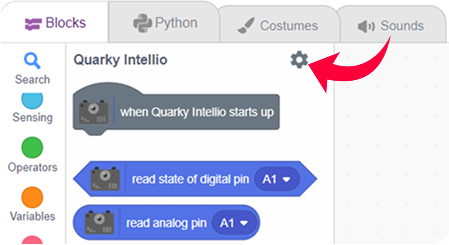
Step 3: Click on Check to view the current firmware version.
 Note: Ensure firmware is updated regularly.
3. Are you using the latest version of PictoBlox?
Sometimes, connection issues happen because an older version of PictoBlox is being used.
Step 1: Go to Settings.
Step 2: Click on Check for Updates.
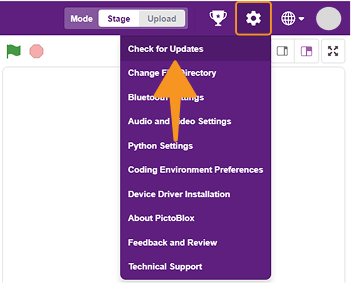
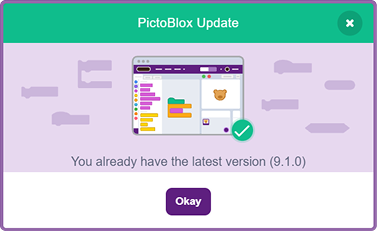
Step 3: Make sure you are using PictoBlox 9.1.0 or the latest version.
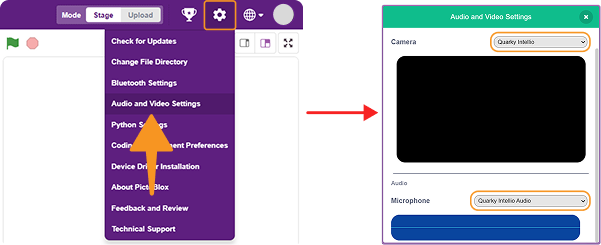
4. Have you selected the correct Camera and Audio device?
Step 1: Go to Settings and open Audio & Video Settings.
Step 2: Select Camera → Quarky Intellio.
Step 3: Select Audio Microphone → Quarky Intellio Audio.
Via Wi-Fi Router Connection Method Troubleshooting
1. Are you using the correct Wi-Fi network?
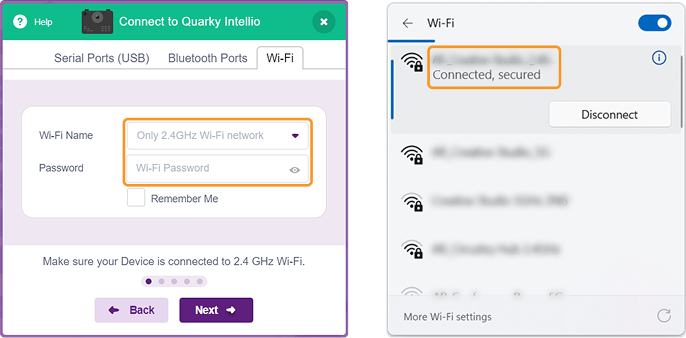
Step 1: Quarky Intellio supports only 2.4 GHz Wi-Fi.
Step 2: Connect your computer or laptop to a 2.4 GHz Wi-Fi network.
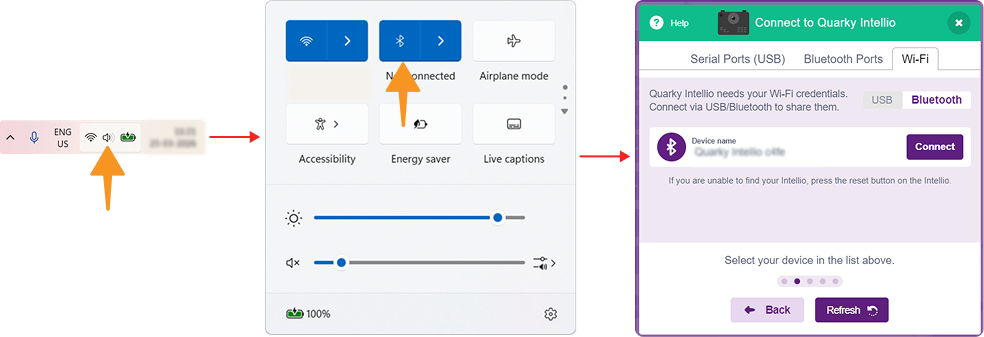
Step 3: Check with the following steps
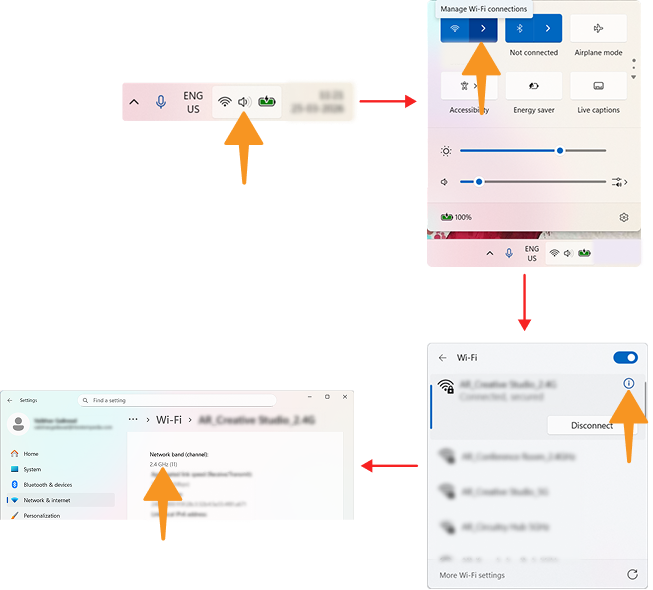 Note: Quarky Intellio will not work on 5 GHz networks.
2. Have you entered the correct Wi-Fi details?
Make sure the network details entered are correct.
Step 1: Check that the Wi-Fi name is correct.
Step 2: Check that the password is correct.
Step 3: Make sure your device and Quarky Intellio are connected to the same network.
3. Is your device not showing in the “Looking for devices” screen?
If your device is not visible, try the following steps.
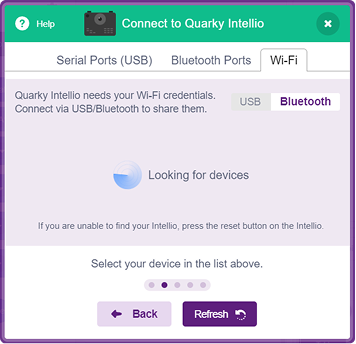
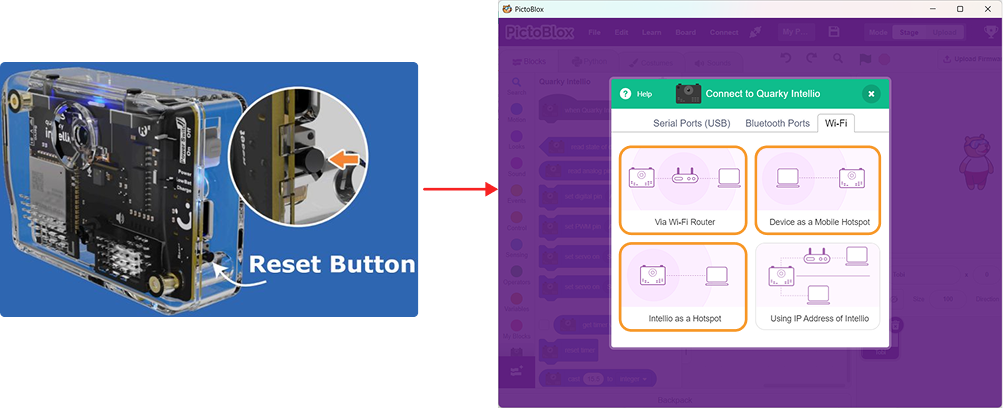
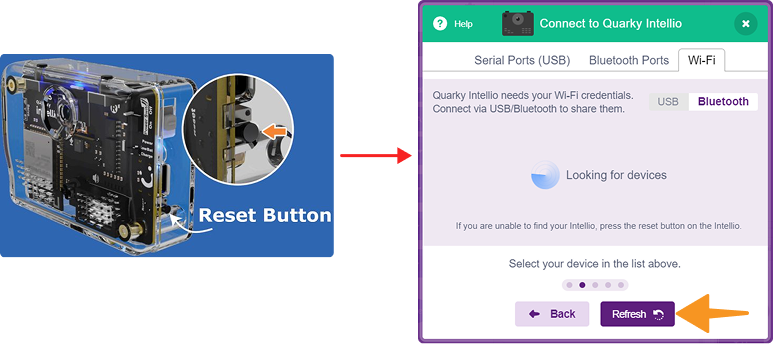
Step 1: Press the Reset button on Intellio and wait until the blue LED turns ON.
Step 2: Click on Refresh.
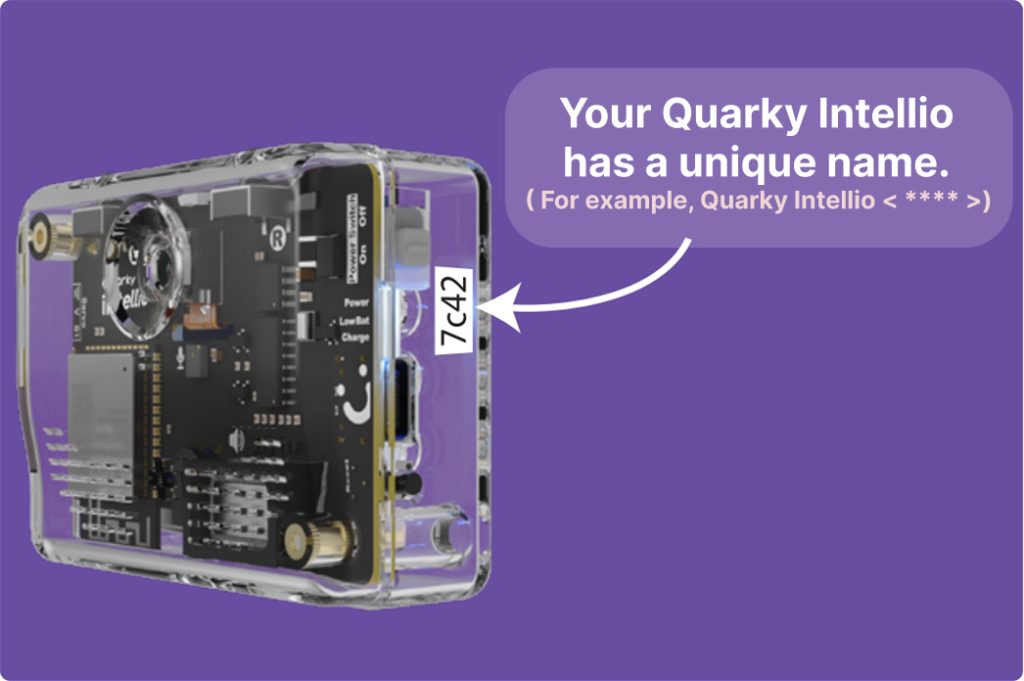
Step 3: You can find your Quarky Intellio Name printed on the right side of the device, as shown below.
Step 4: Ensure Bluetooth is enabled on your device and check the device list again.
4. Are you getting the “Device Connection failed” Screen?
This usually happens when the network settings are incorrect.
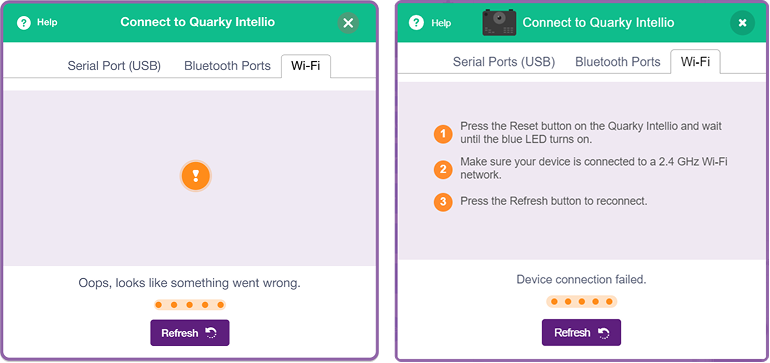
Step 1: Check whether the Wi-Fi is 2.4 GHz.
Step 2: Re-enter the Wi-Fi name and password carefully.
Step 3: Press the Reset button on Intellio and wait until the blue LED turns ON.
Step 4: Click Refresh again and try reconnecting.
5. Is the connection stuck?
If the connection process stops in between, try reconnecting. Reset the Quarky Intellio and restart the connection process.
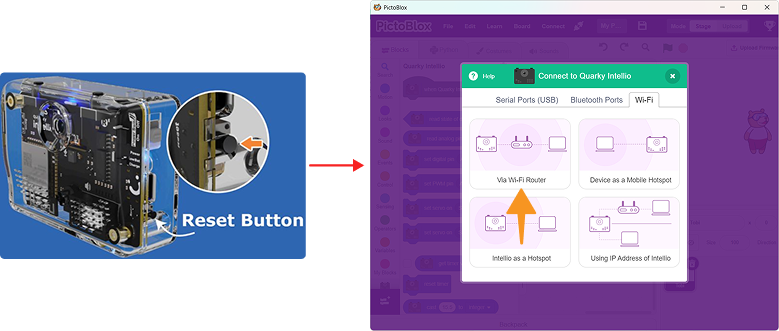
Device as a Mobile Hotspot Connection Method Troubleshooting
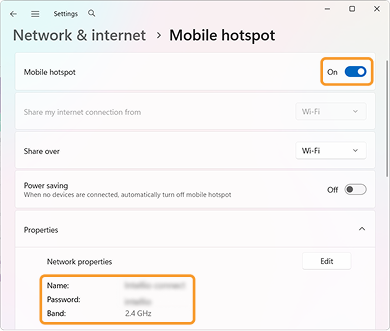
1. Have you set the hotspot to 2.4 GHz?
Quarky Intellio works only with 2.4 GHz networks.
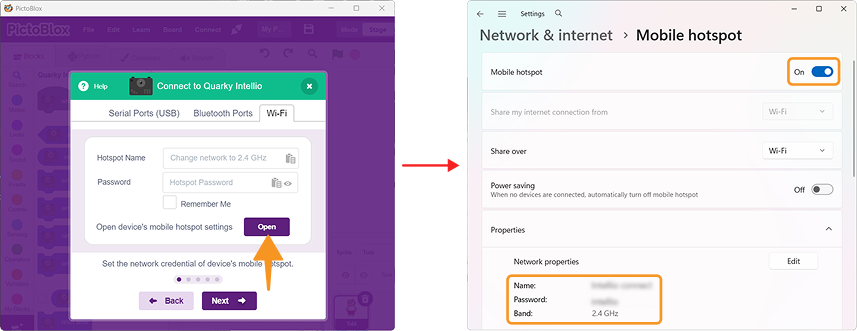
Step 1: Turn on Mobile Hotspot on your device.
Step 2: Set the hotspot network band to 2.4 GHz.
Note: macOS users can set up Internet Sharing manually for 2.4 GHz.
2. Is your device not showing in the “Looking for devices” screen?
If your device is not visible, try the following steps.
Step 1: Press the Reset button on Intellio and wait until the blue LED turns ON.
Step 2: Click on Refresh.
Step 3: You can find your Quarky Intellio Name printed on the right side of the device, as shown below.
Step 4: Ensure Bluetooth is enabled on your device and check the device list again.
3. Is your hotspot turned ON?
The hotspot must remain active during the connection process.
Step 1: Make sure your device has an active internet connection and the Mobile Hotspot is turned ON.
Step 2: Keep the hotspot active while connecting to Intellio.
4. Are you getting the “Device Connection failed” Screen?
If Intellio is not connecting, verify the details carefully.
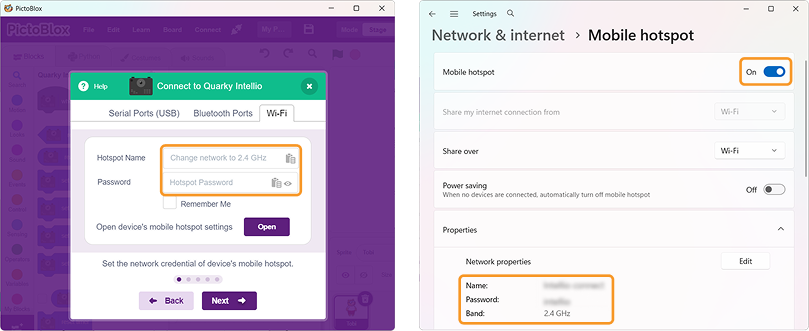
Step 1: Check that the hotspot name and password match those of the created device’s mobile hotspot.
Step 2: Ensure the hotspot is running on 2.4 GHz.
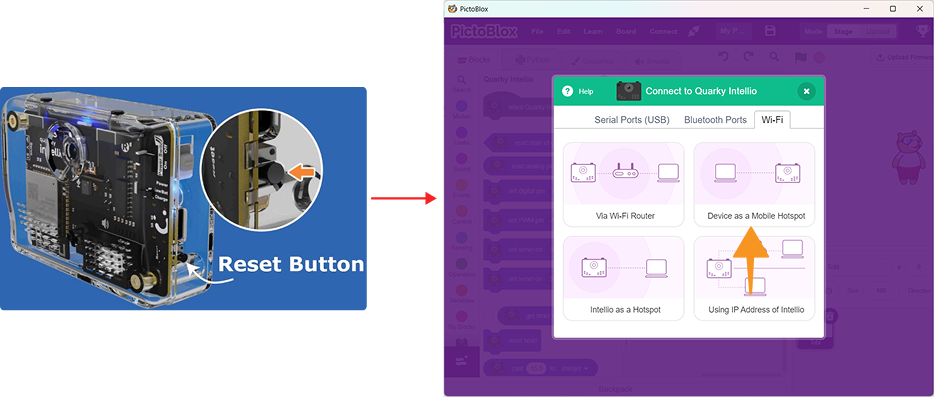
Step 3: Press the Reset button on Intellio and wait until the blue LED turns ON.
Step 4: Click Refresh again and try reconnecting.
5. Is the connection getting stuck?
If the connection process stops in between, try reconnecting. Reset the Quarky Intellio and restart the connection process.
Note: The Internet is available in this method only if your hotspot device has an active internet connection.
Intellio as a Hotspot Connection Method Troubleshooting
1. Have you created the Intellio hotspot correctly?
In this method, Intellio creates its own hotspot.
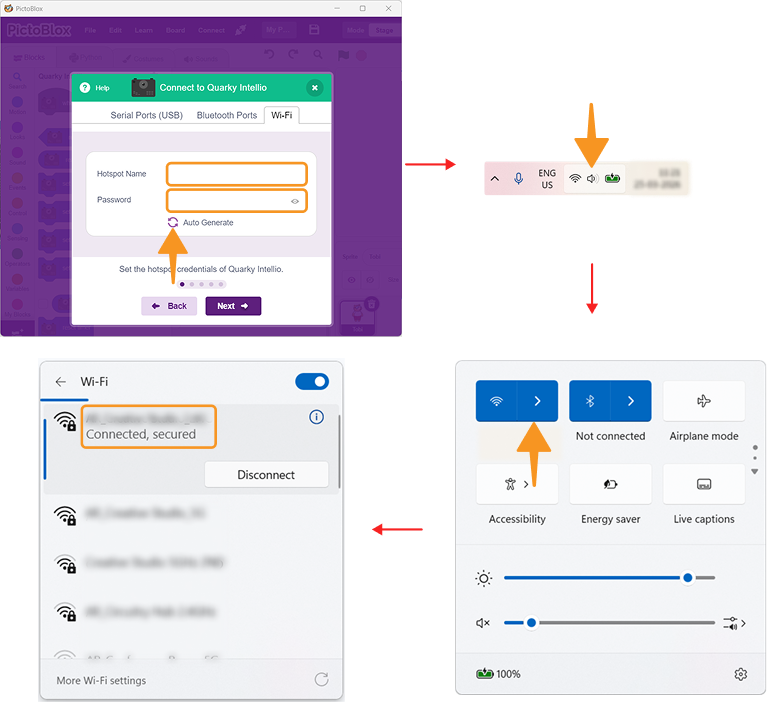
Step 1: Generate or create the hotspot name and password in PictoBlox.
Step 2: Open the Wi-Fi settings on your device.
Step 3: Connect your device to the hotspot created by Intellio.
2. Is the hotspot not visible in the Wi-Fi list?
Sometimes the hotspot takes a few seconds to appear.
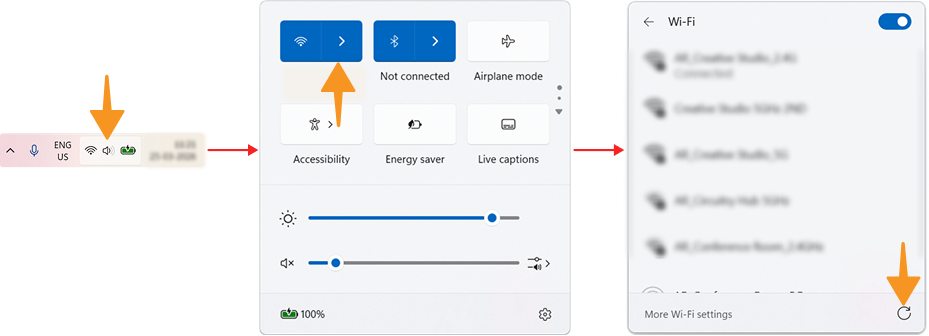
Step 1: Open the Wi-Fi list on your device.
Step 2: Refresh or rescan the Wi-Fi networks.
Step 3: Wait for a few seconds. Check again for the Intellio hotspot.
3. Is your device not showing in the “Looking for devices” screen?
If your device is not visible, try the following steps.
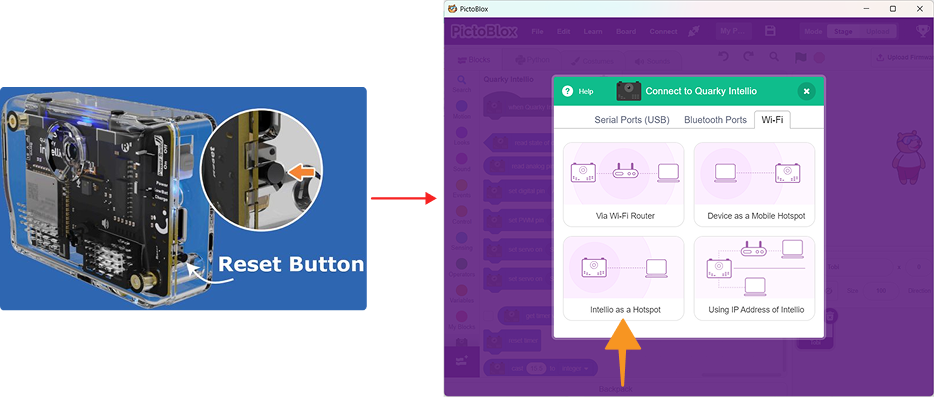
Step 1: Press the Reset button on Intellio and wait until the blue LED turns ON.
Step 2: Click on Refresh.
Step 3: You can find your Quarky Intellio Name printed on the right side of the device, as shown below.
Step 4: Ensure Bluetooth is enabled on your device and check the device list again.
4. Are you getting the “Device Connection failed” Screen?
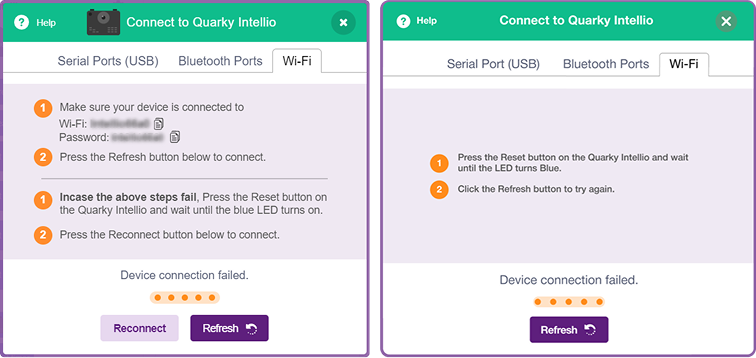
This may happen due to a wrong hotspot password or a wrong network.
Step 1: Check the hotspot Name and password carefully. Connect your device to the hotspot created by Intellio.
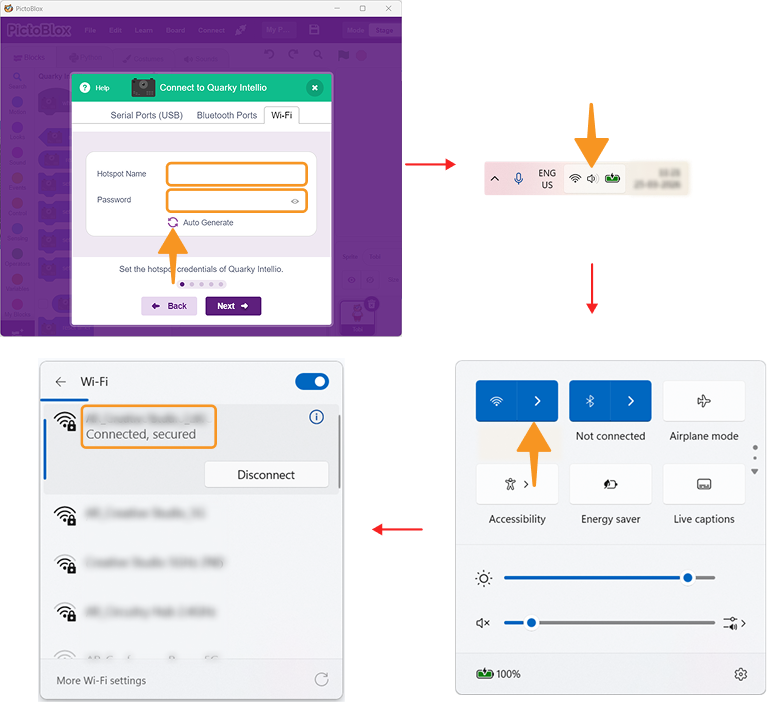
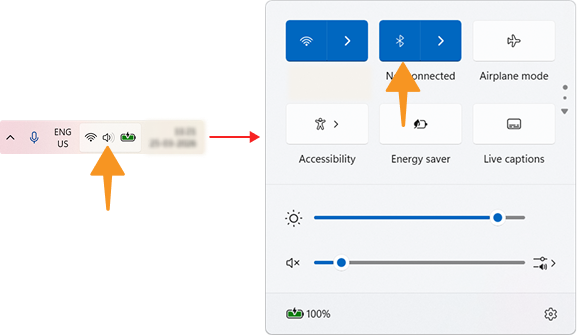
Step 2: Ensure Bluetooth is enabled on your device.
Step 3: Retry the connection by pressing the Reconnect button to reconnect and the Refresh button to try again.
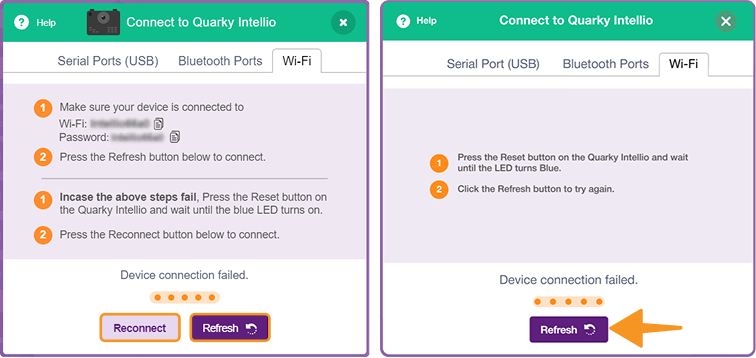
Step 4: Press the Reset button on Intellio and wait until the blue LED turns ON.
Step 5: Click on Refresh.
Step 6: You can find your Quarky Intellio Name printed on the right side of the device, as shown below.
Step 7: Ensure Bluetooth is enabled on your device and check the device list again.
5. Is the connection stuck?
If the connection process stops in between, try reconnecting. Reset the Quarky Intellio and restart the connection process.
Using IP Address of Intellio Connection Method Troubleshooting
1. Is the IP address not fetching or showing an error after entering the correct IP address?
If the IP address is not fetching or showing an error, follow these steps:
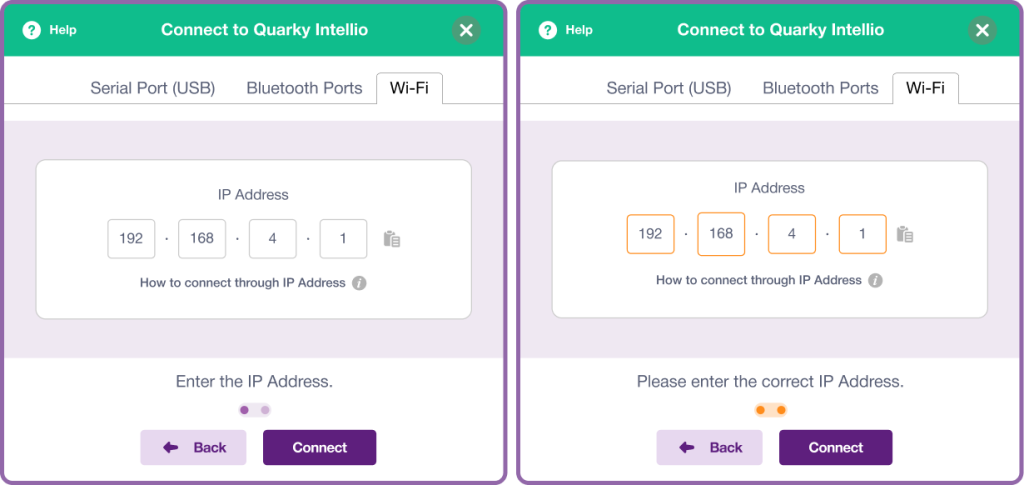
Step 1: Make sure you have previously connected Quarky Intellio using any one of the other three connection methods (Via Wi-Fi Router, Device as a Mobile Hotspot, or Intellio as a Hotspot).
Step 2: Ensure your device is connected to the same network used in the previous connection.
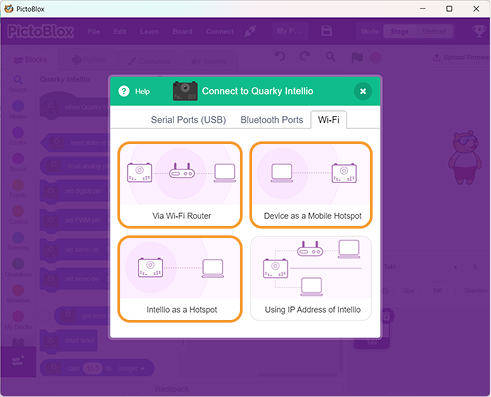
Note: This method works only if Quarky Intellio was connected earlier using one of the other connection methods.
2. How to reconnect using device buttons?
You can reconnect Intellio to the previous network using the device buttons.
Step 1: If used a Via Wi-Fi Router Connection method / Device as a Mobile Hotspot Connection method previously, press the L button (long press).
Step 2: If you were using Intellio as a Hotspot Connection method, press the R button (long press).
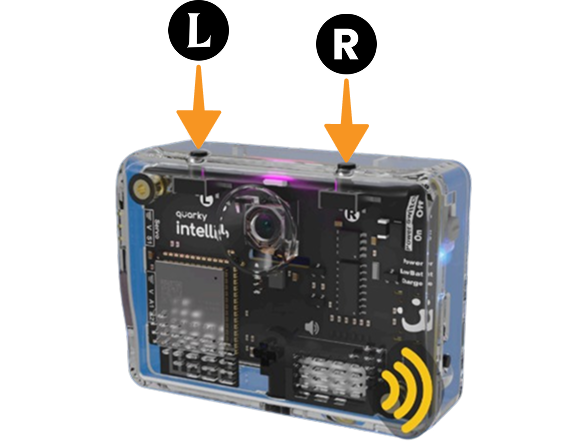
Step 3: Wait for Intellio to reconnect. Once the yellow LED becomes steady (stops blinking), it indicates that the device has successfully connected to the previously connected network.
3. Are you getting the “Device Connection failed” Screen?
If you see the “Device Connection Failed” message, follow the steps below based on your connection method:
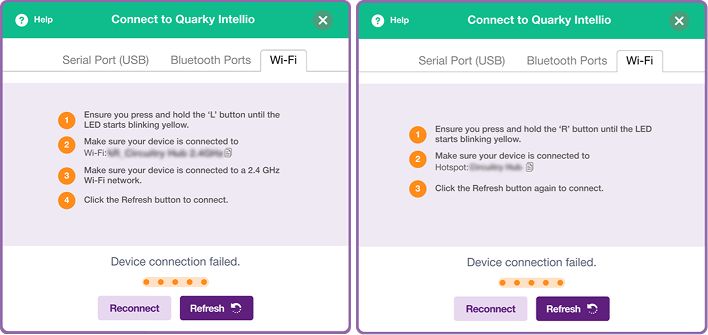
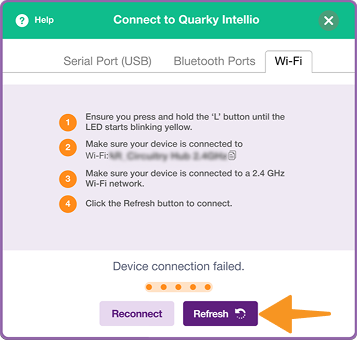
For Via Wi-Fi Router Connection method / Device as a Mobile Hotspot Connection method
Step 1: Press and hold the ‘L’ button on Quarky Intellio until the LED starts blinking yellow.
Step 2: Make sure your device is connected to the correct Wi-Fi network (2.4 GHz only).
Step 3: Click the Refresh button to reconnect.
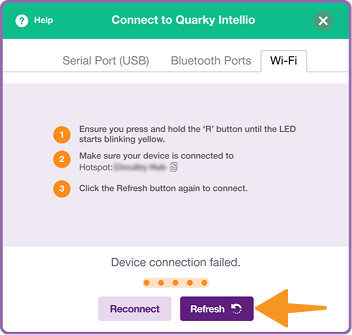
For Intellio as a Hotspot Connection method
Step 1: Press and hold the ‘R’ button on Quarky Intellio until the LED starts blinking yellow.
Step 2: Connect your device to the Intellio hotspot.
Step 3: Click the Refresh button again to connect.
4. Is the connection getting stuck?
If the connection process stops in between, try reconnecting. Reset the Quarky Intellio and restart the connection process.