
Introduction
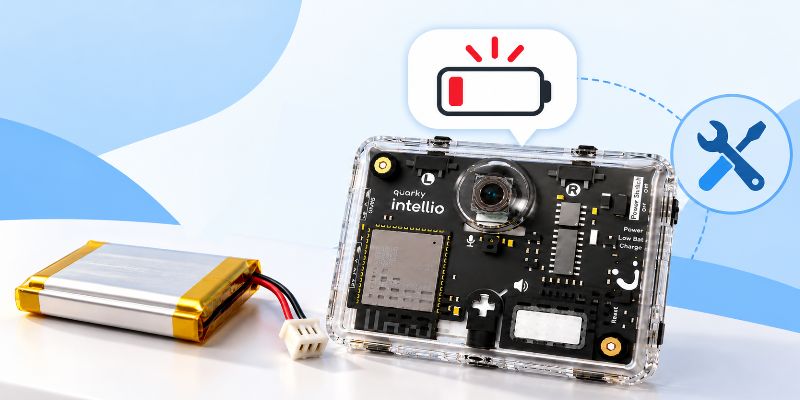
A low battery can affect Quarky Intellio’s performance, causing connection failures, camera issues, and unexpected behaviour while running programs in PictoBlox.
Follow this guide to identify common low-battery symptoms and restore normal operation.
Quarky Intellio Low Battery – Common Problems
Problem: My Quarky Intellio keeps disconnecting, behaves unexpectedly, or does not respond properly in PictoBlox.
Common Symptoms
When Quarky Intellio’s battery is low, you may experience the following issues:
- Clicking Noise and Blinking LED: Intellio makes an unusual clicking noise, and its LED starts blinking.
- Unexpected Disconnection: Intellio disconnects from PictoBlox while its motors continue running.
- Laggy Camera Feed: The camera feed becomes slow or laggy, with black lines appearing on the screen.
- Blurred Camera Feed: The camera output appears blurry or hazy.
- Frequent Disconnections: Intellio repeatedly disconnects while executing or interacting with blocks in PictoBlox.
- Low-Battery Indicator: The low-battery indicator on the back of Intellio lights up.
- Stop Button Not Responding: The program appears to keep running even after clicking Stop in PictoBlox because Intellio has disconnected and is no longer receiving commands.
Why Does This Happen?
Quarky Intellio uses a 3.7 V battery. When the battery voltage drops below 3.4 V, the low-battery indicator on the back of Intellio turns on.
Insufficient battery power can affect the device’s connectivity, camera performance, motor operation, and response to PictoBlox commands.
How to Fix It
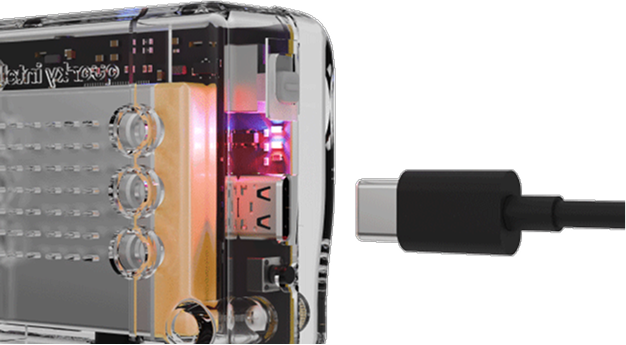
- Connect Quarky Intellio to a suitable power source using a USB cable.
- Allow the battery to charge sufficiently before using Intellio again.
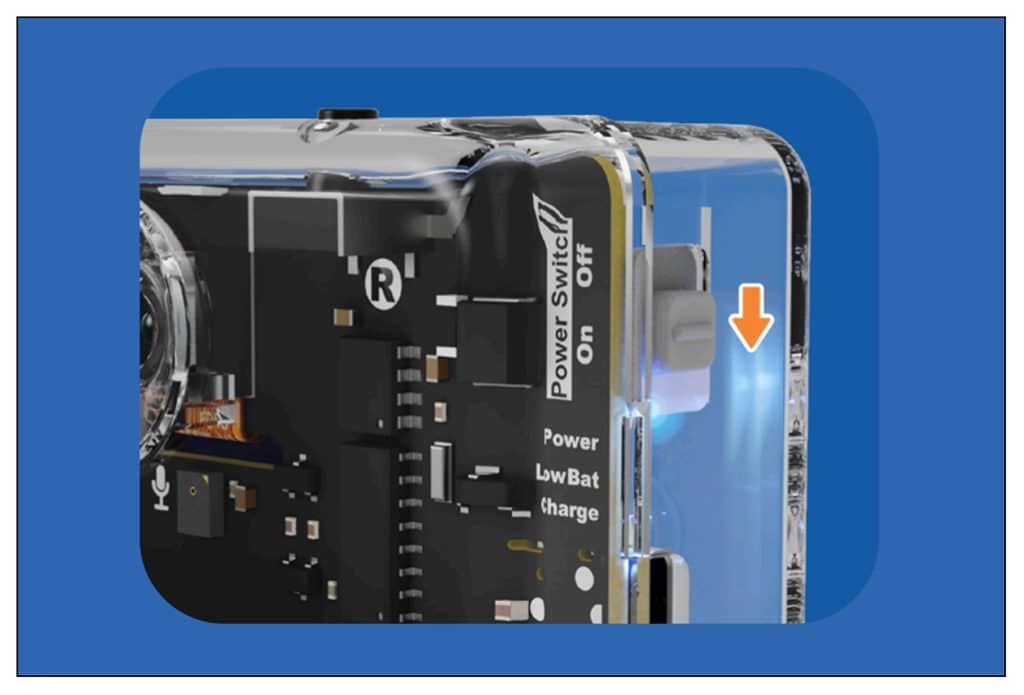
- Turn on Intellio and reconnect it to PictoBlox.
- Please refer to the Quarky Intellio Connection Guide.
- Run your project again and check whether the issues have been resolved. Alternatively, you can operate Intellio while it is connected to a suitable USB power source.
Note: If the motors continue running after Intellio disconnects, safely stop the device before reconnecting or troubleshooting.
Need Assistance?
If you encounter any difficulties while troubleshooting or have any questions regarding Quarky Intellio, feel free to reach out to us!